

This tutorial guides you through configuring analytics issues settings in Muuktest.
Go to portal.muuktest.com:5000
1. Introduction
You will learn how to manage issue categories and save your settings effectively.
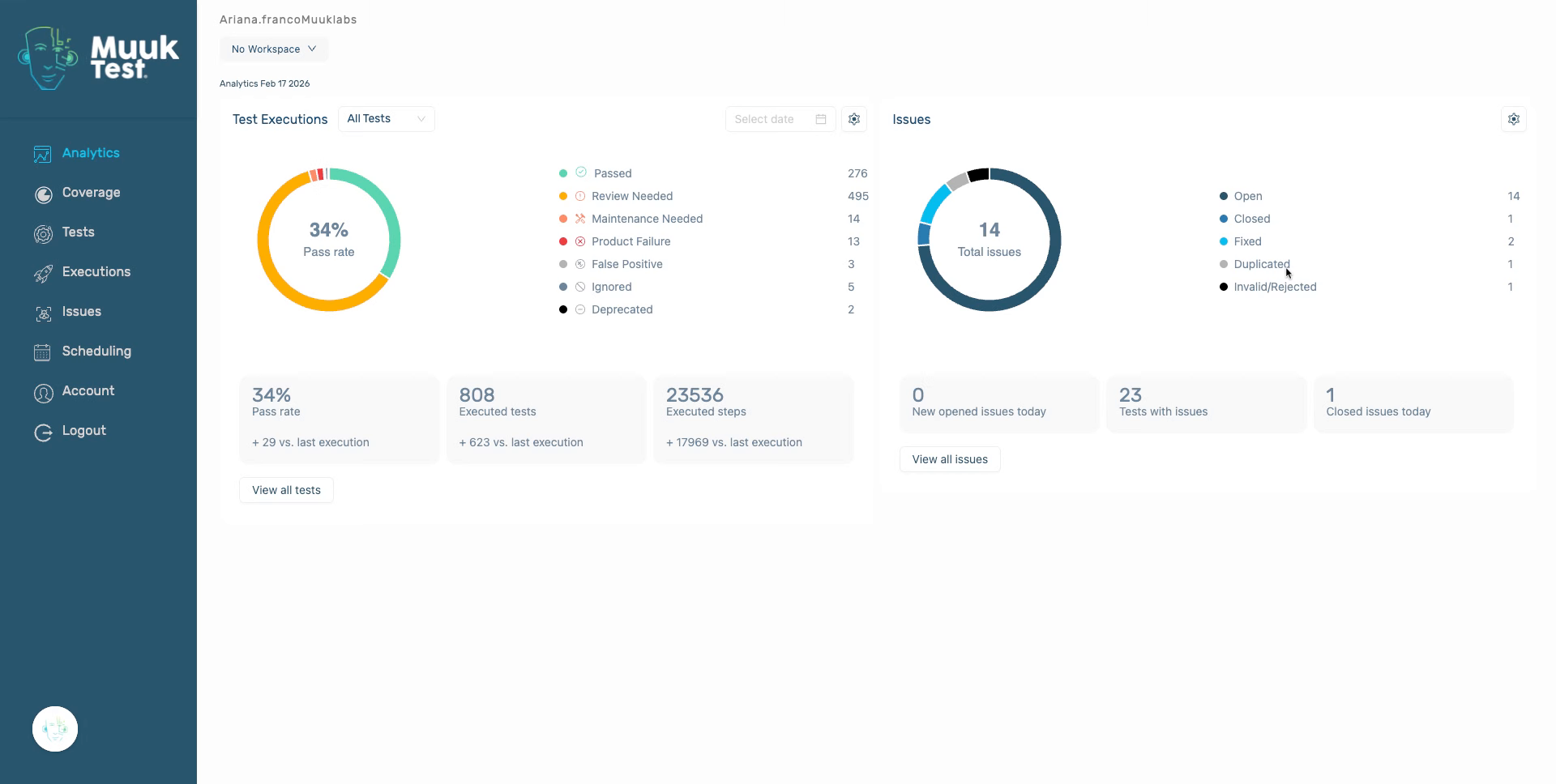
2. Open Analytics Issues Settings
Click the designated area to access the analytics issues settings within Muuktest.
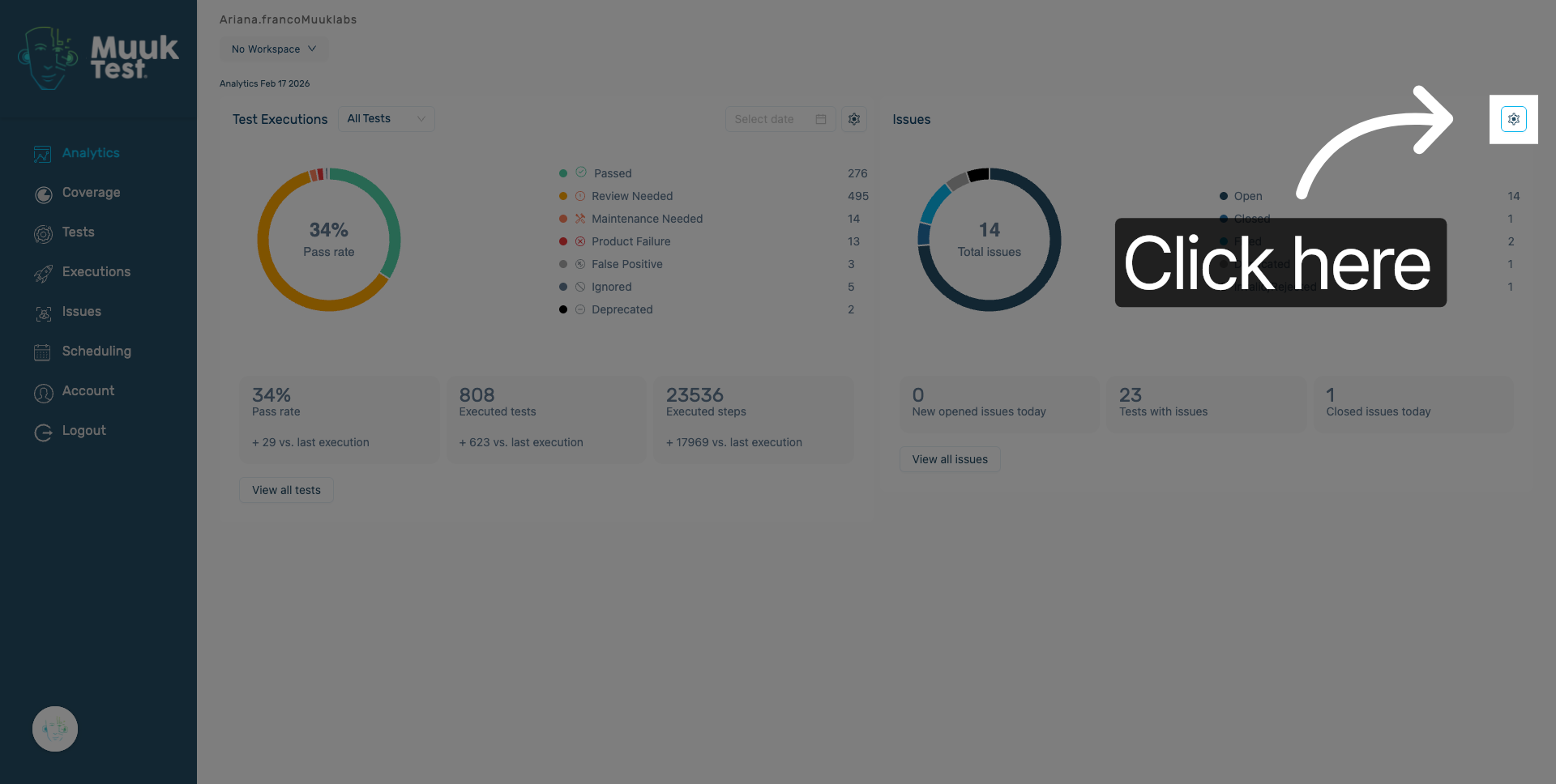
3. Select Duplicated Issues Category
Select the duplicated issues category to review or modify its settings.
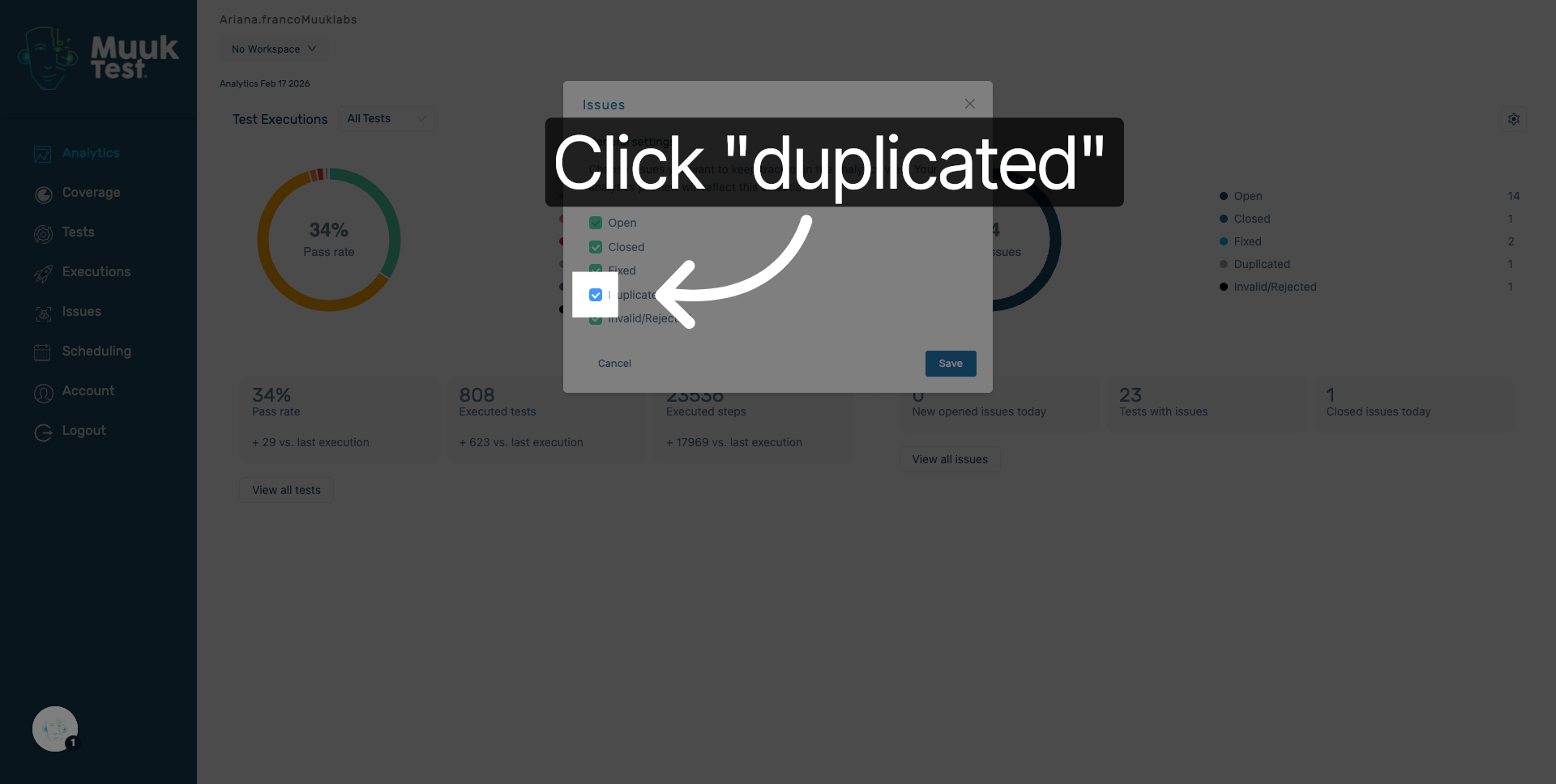
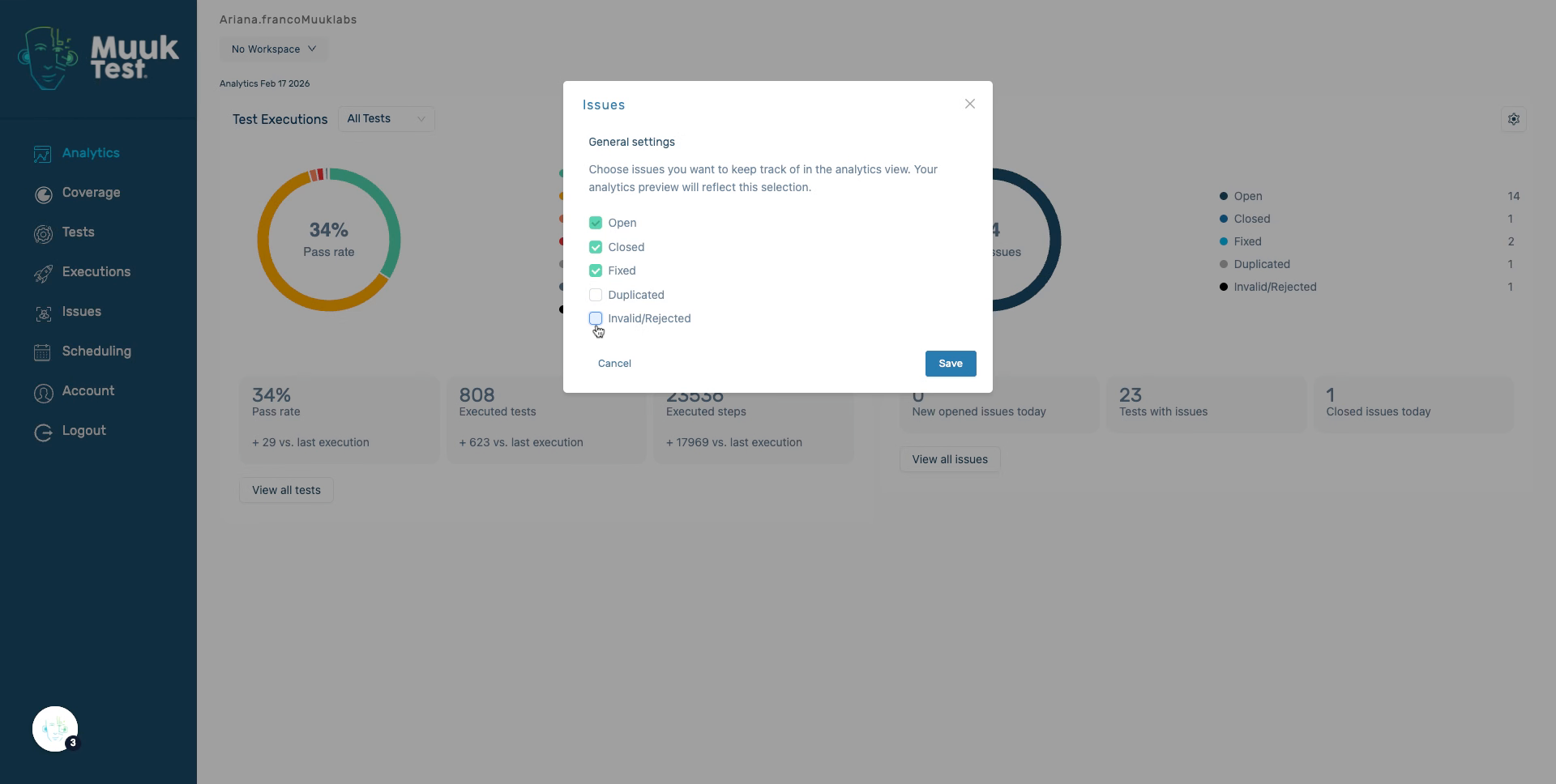
4. Choose Invalid/Rejected Category
Click the invalid or rejected issues category to proceed with adjustments.
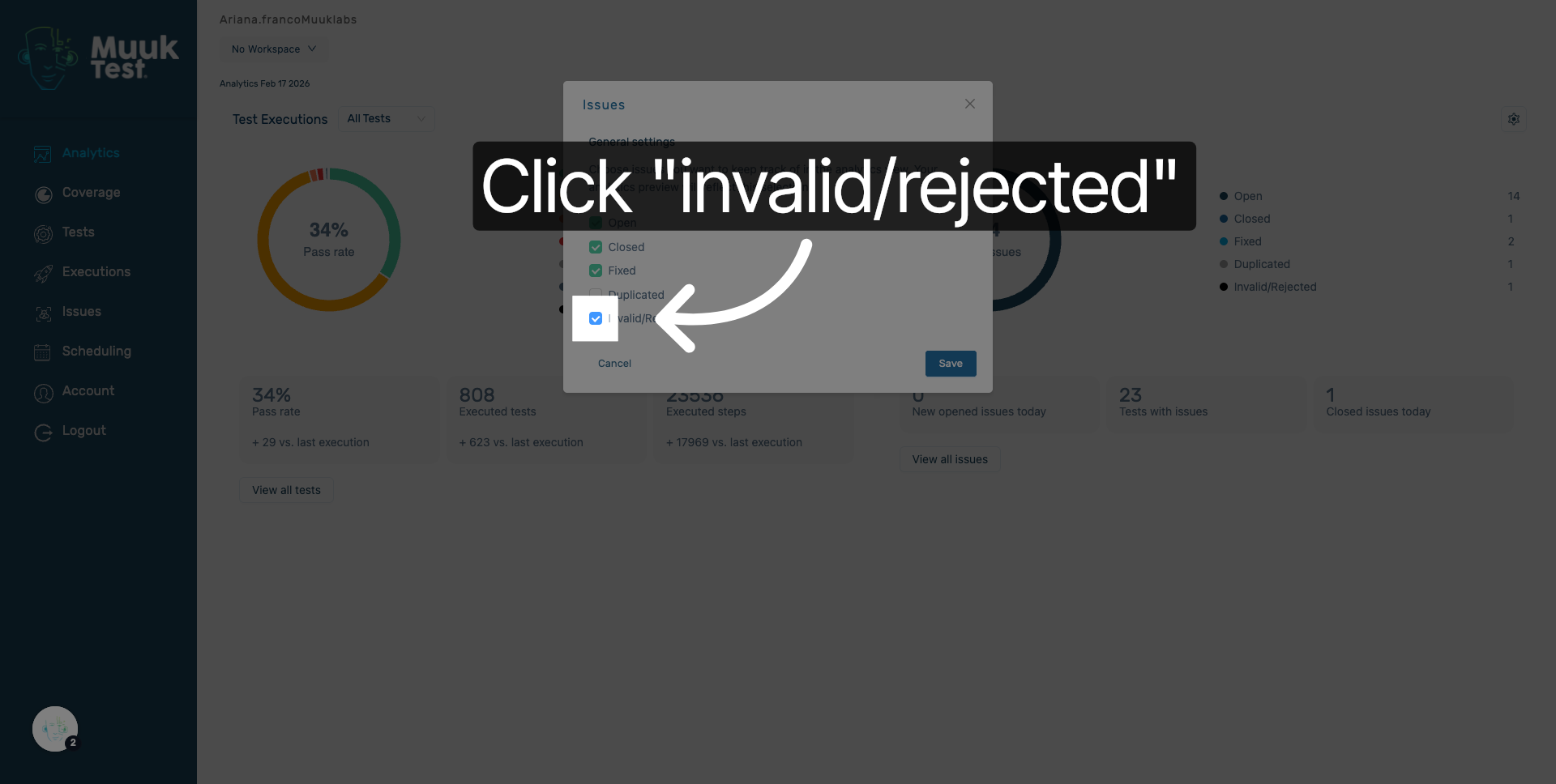
5. Enter Invalid/Rejected Details
Enter the necessary information related to invalid or rejected issues to update the settings.
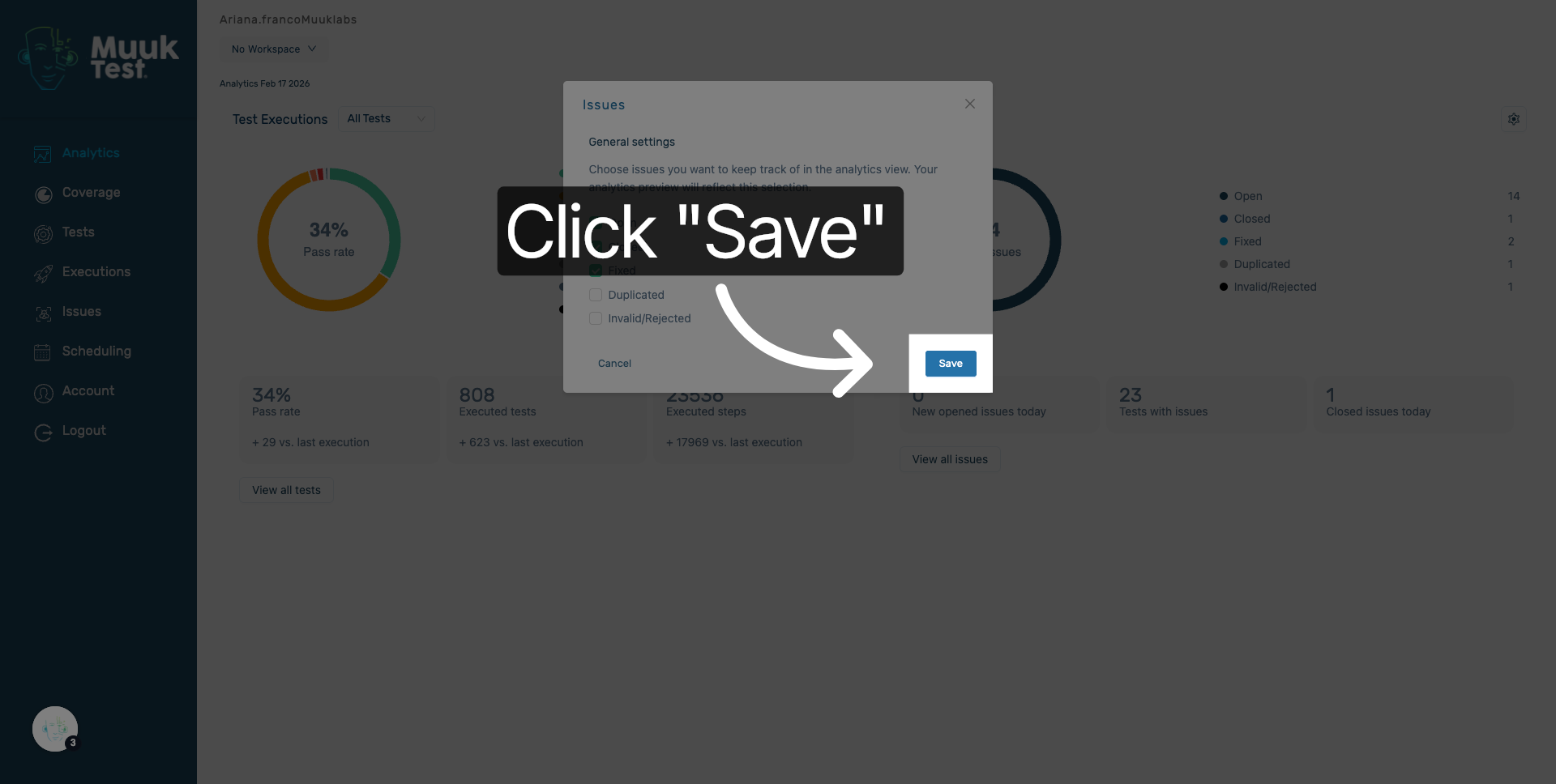
6. Save Analytics Settings
Click the Save button to apply and store your changes to the analytics issues settings.
7. Review Issue Summary
Click the total issues summary to view detailed counts of open, closed, fixed, duplicated, and invalid or rejected issues.
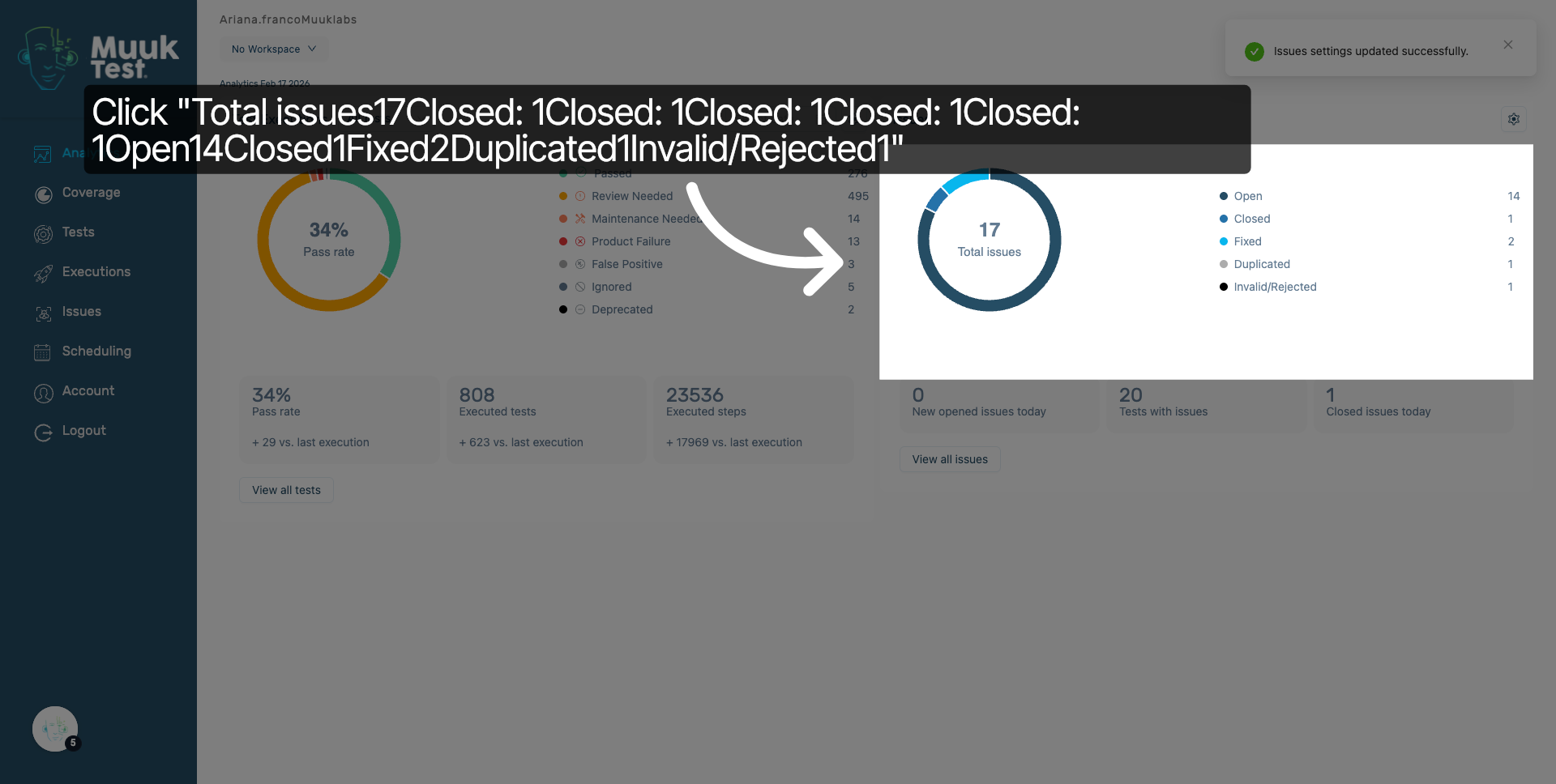
You have successfully configured the analytics issues settings by selecting and updating issue categories and saving your changes. Review the issue summary to verify your settings and monitor issue statuses effectively.
Comments
0 comments
Please sign in to leave a comment.