

This tutorial provides step-by-step instructions for configuring the pass rate in MuukTest.
Go to portal.muuktest.com:5000
1. Introduction
You will learn how to effectively update status fields and manage test results.
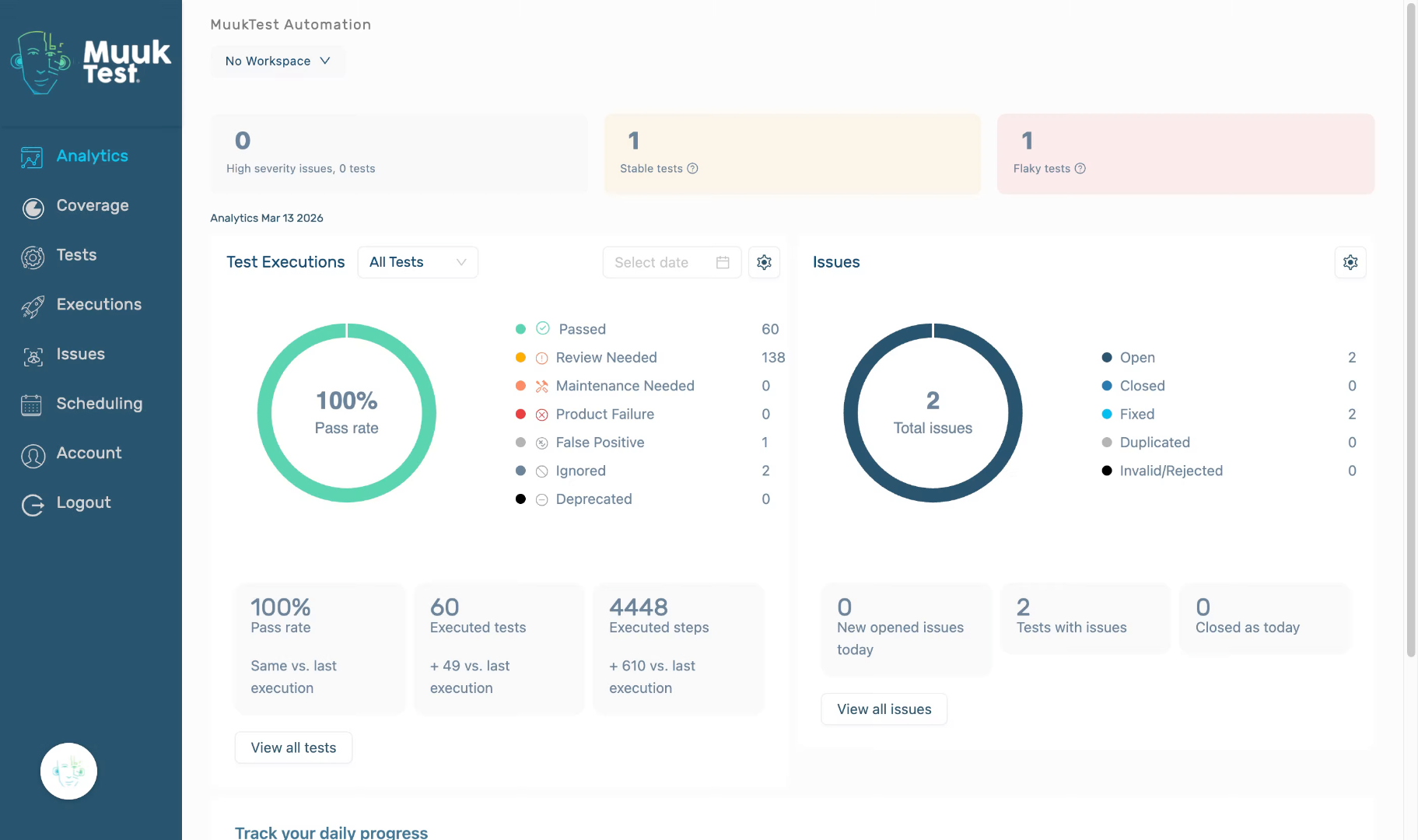
2. Access Settings Section
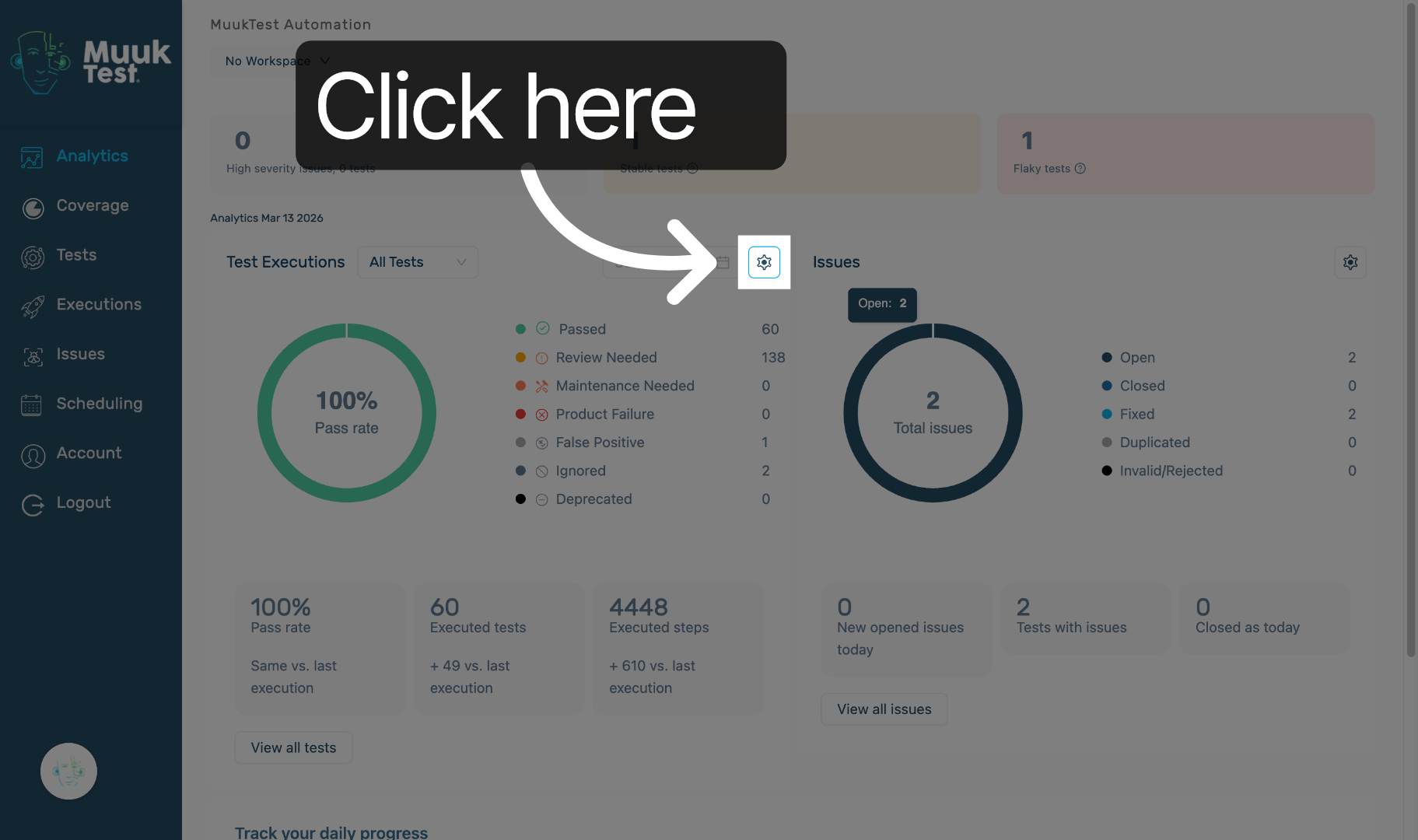
Click here to access the settings section in MuukTest.
3. User Status
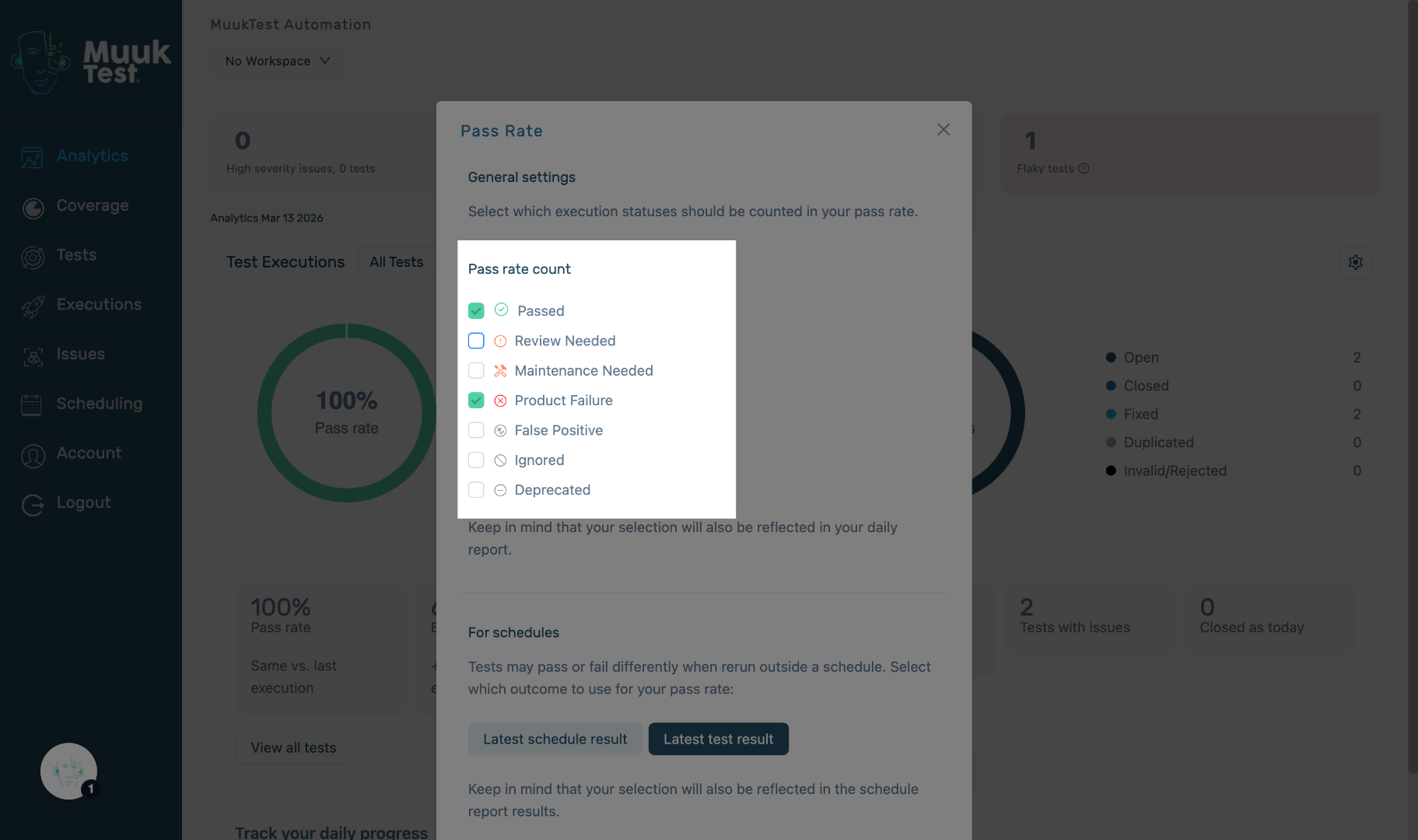
You will find a list of statuses to consider for calculating the pass rate. The formula is straightforward: divide the number of passed tests by the selected statuses. For example: Passed / (Maintenance Needed + Product Failure)
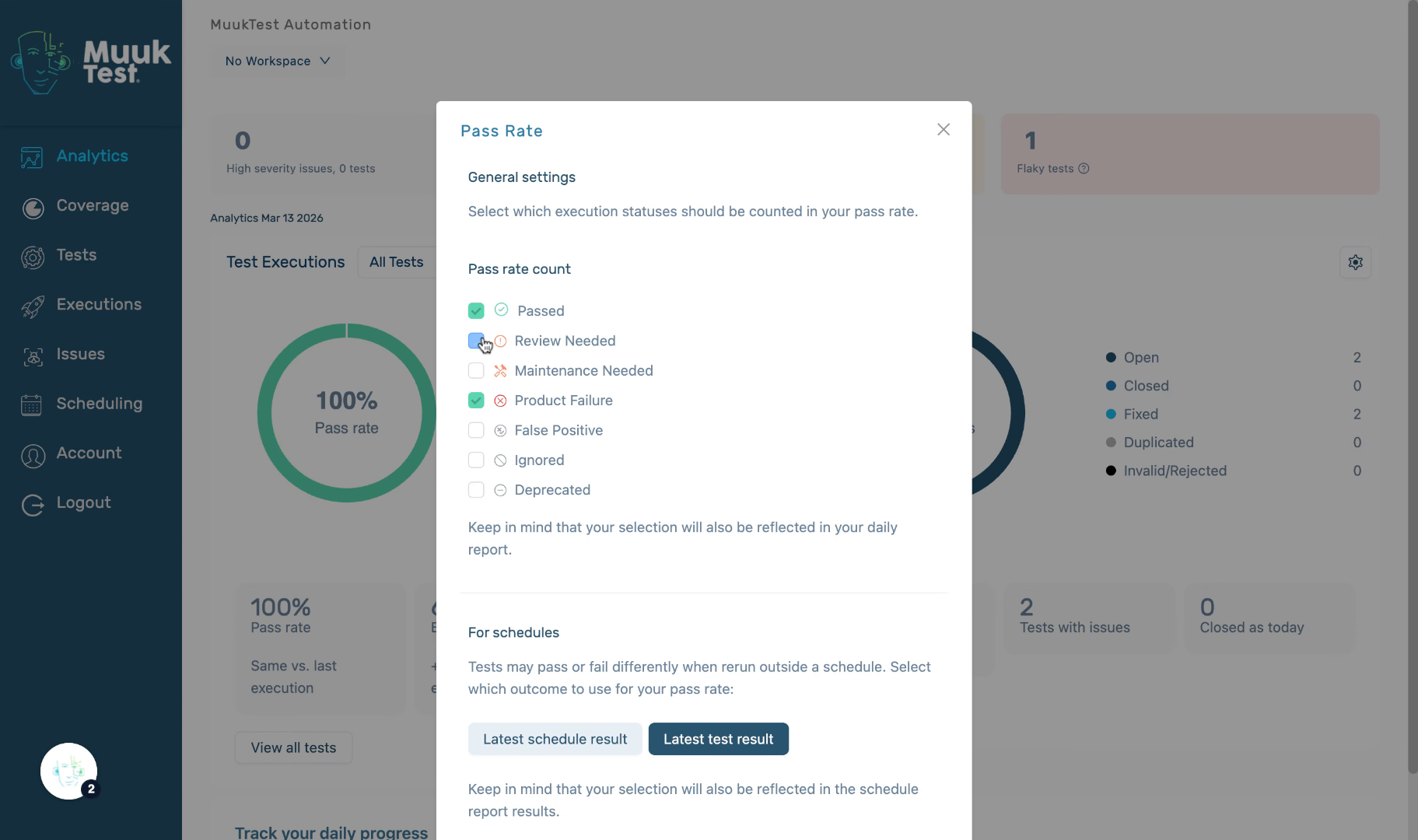
4. Select Statuses
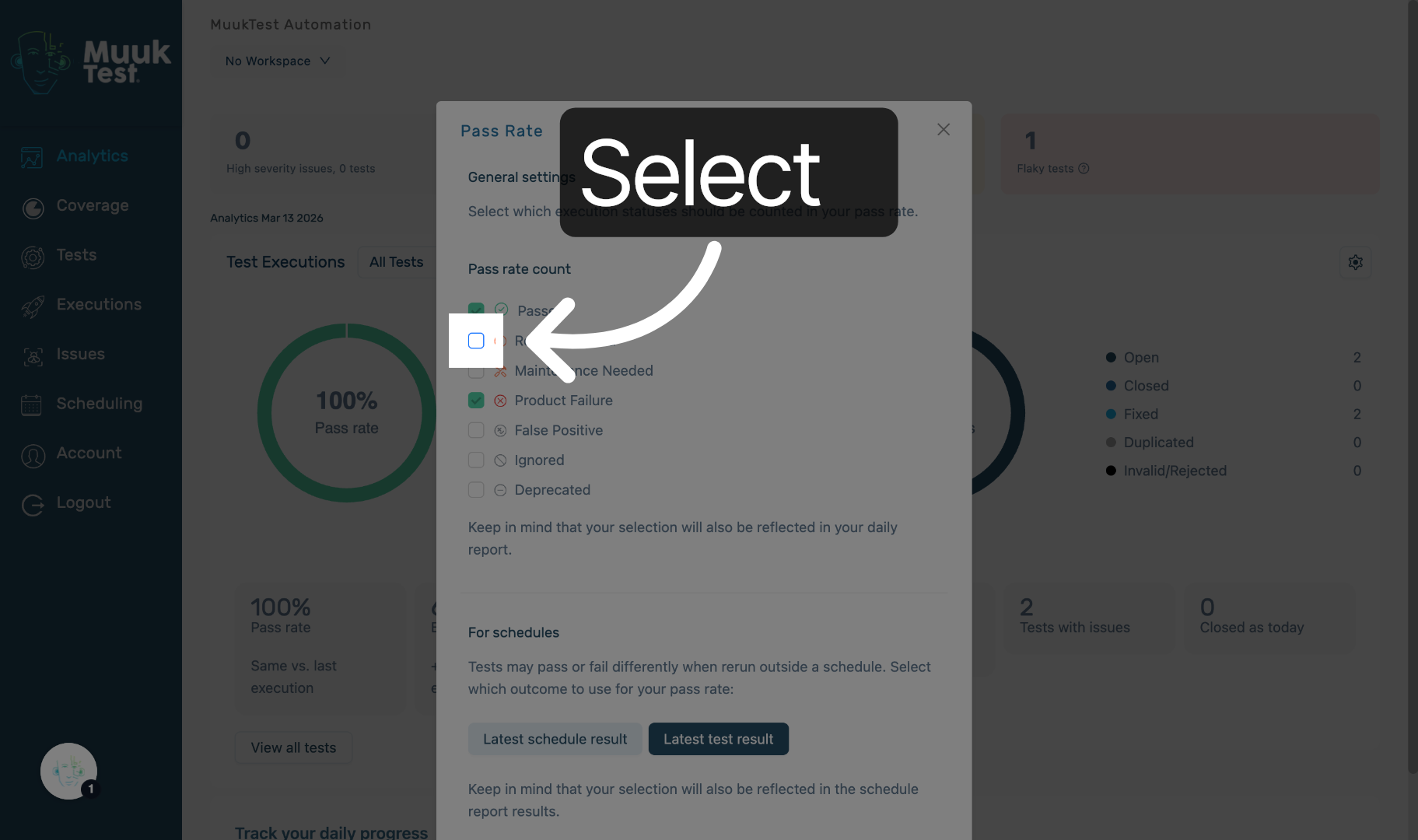
You can select or deselect the statuses to be included in the pass rate by choosing them. For example, click "Review needed" to apply this status to the pass rate.
5. Select Status
You can check any status you desire in the pass rate.
6. Type of results
At the bottom, you will find the type of results to show.
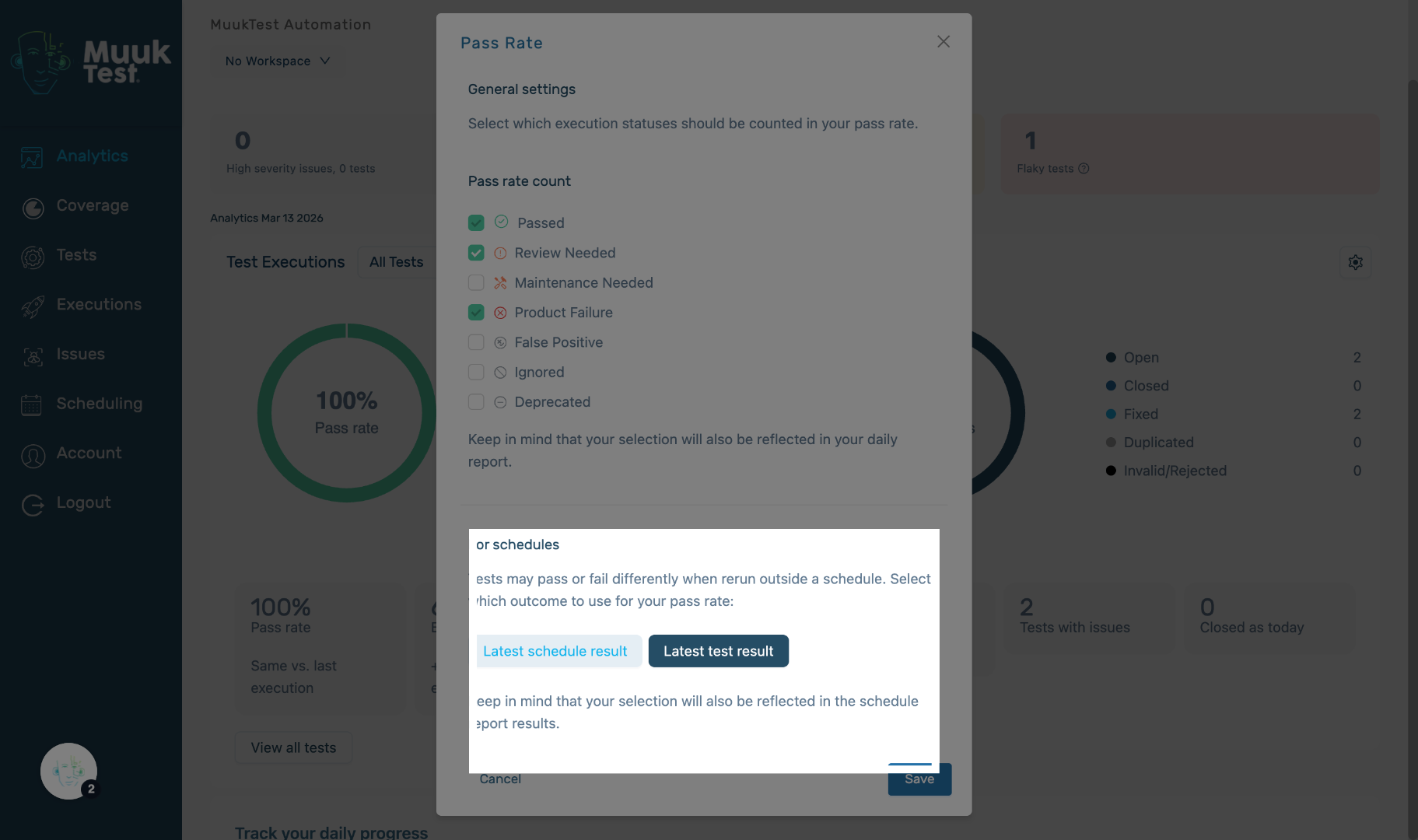
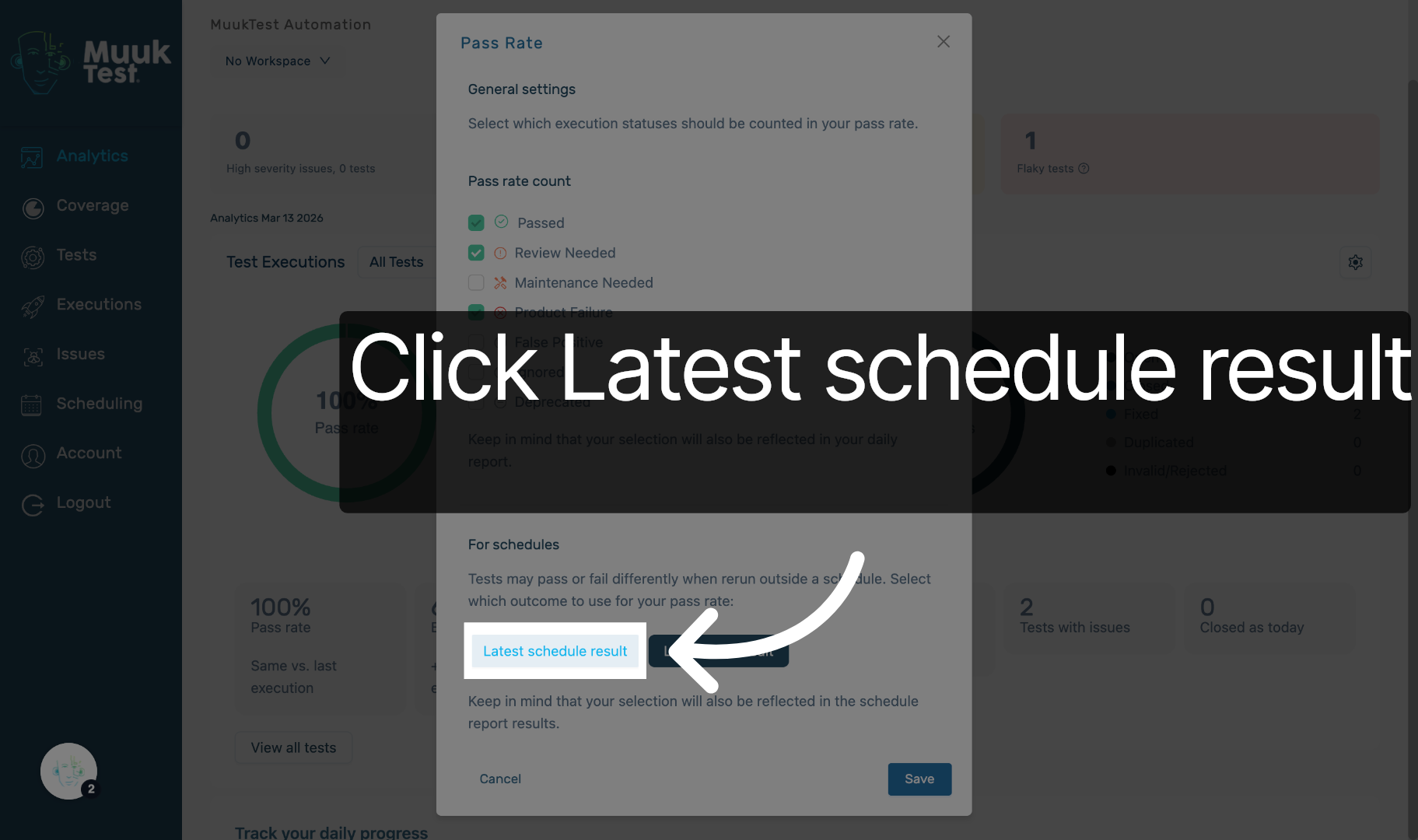
7. Click Latest schedule results
Click "Latest test result" to use the latest test outcome details.
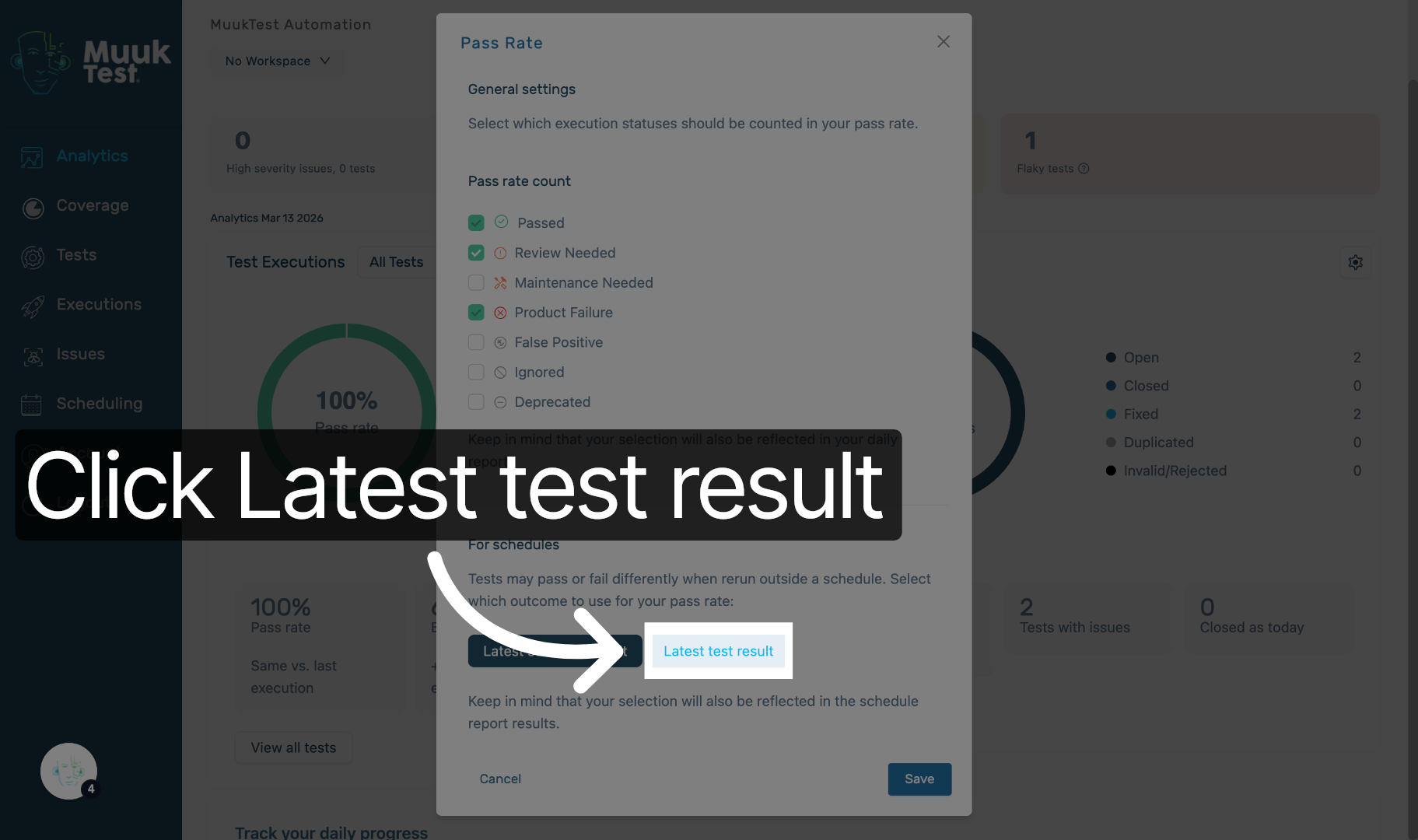
8. Click Latest Test Result
Click "Latest test result" to use the most recent test outcome details.
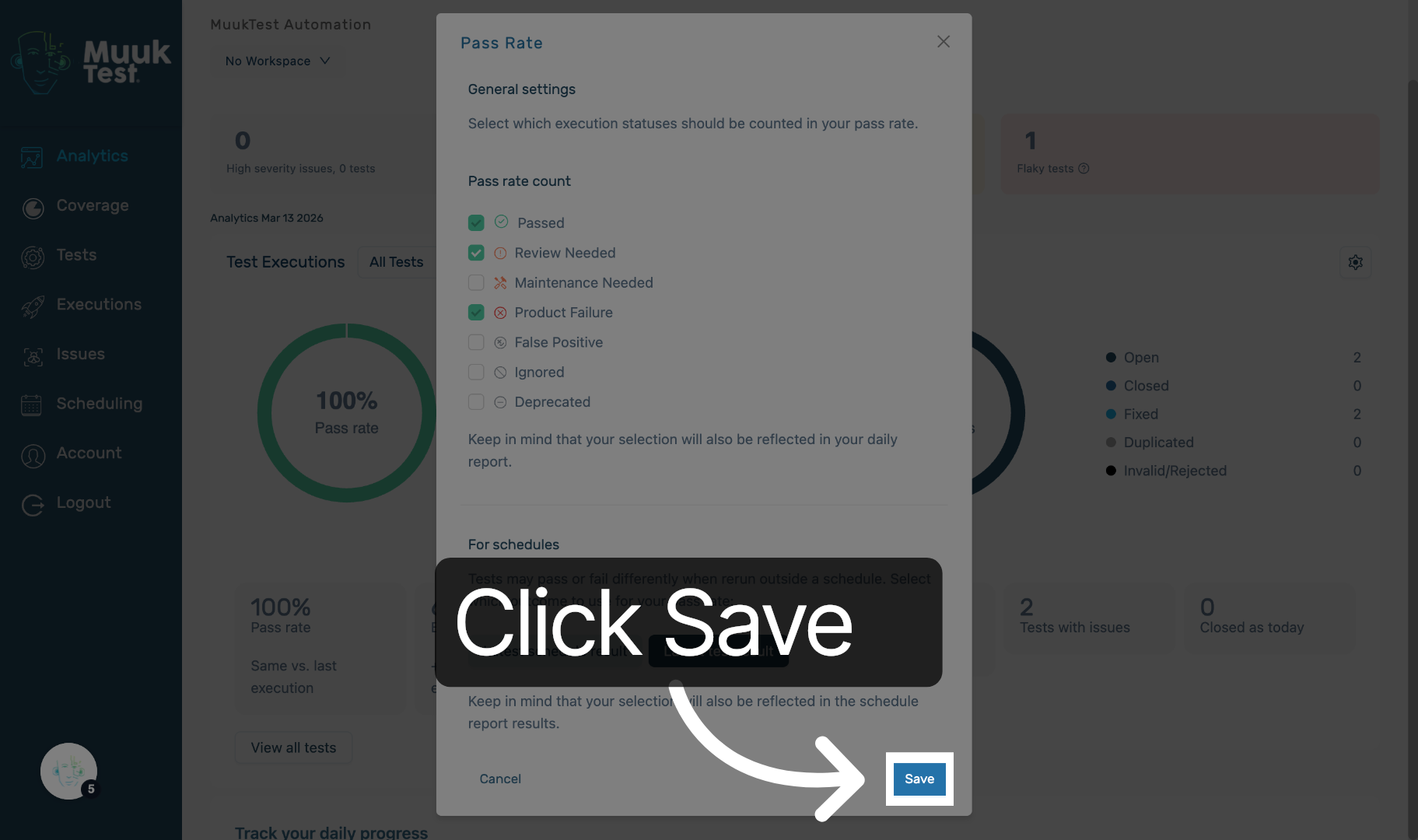
9. Save Current Changes
Click "Save" to store the changes made to the pass rate and test results.
10. Navigate to Test Executions
You will see the pass rate change according to the selected status.
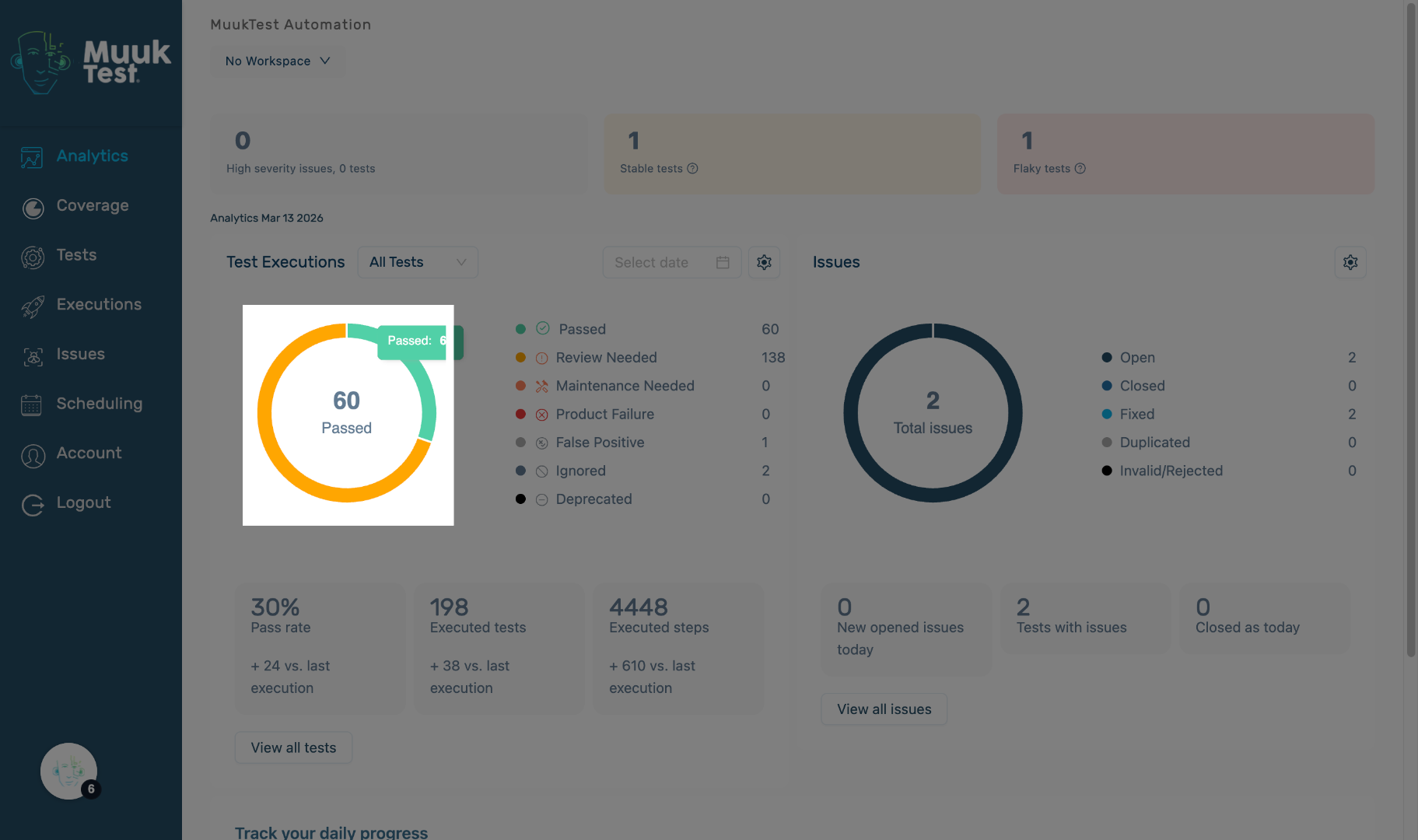
You have successfully configured the pass rate and saved the latest schedule and test results in MuukTest. You can now proceed with further data management as needed.
Comments
0 comments
Please sign in to leave a comment.