

This tutorial guides you through configuring pass rate filters in the MuukTest dashboard.
Go to portal.muuktest.com:5000
1. Introduction
You will learn how to select specific dates and filter results to analyze test performance effectively.
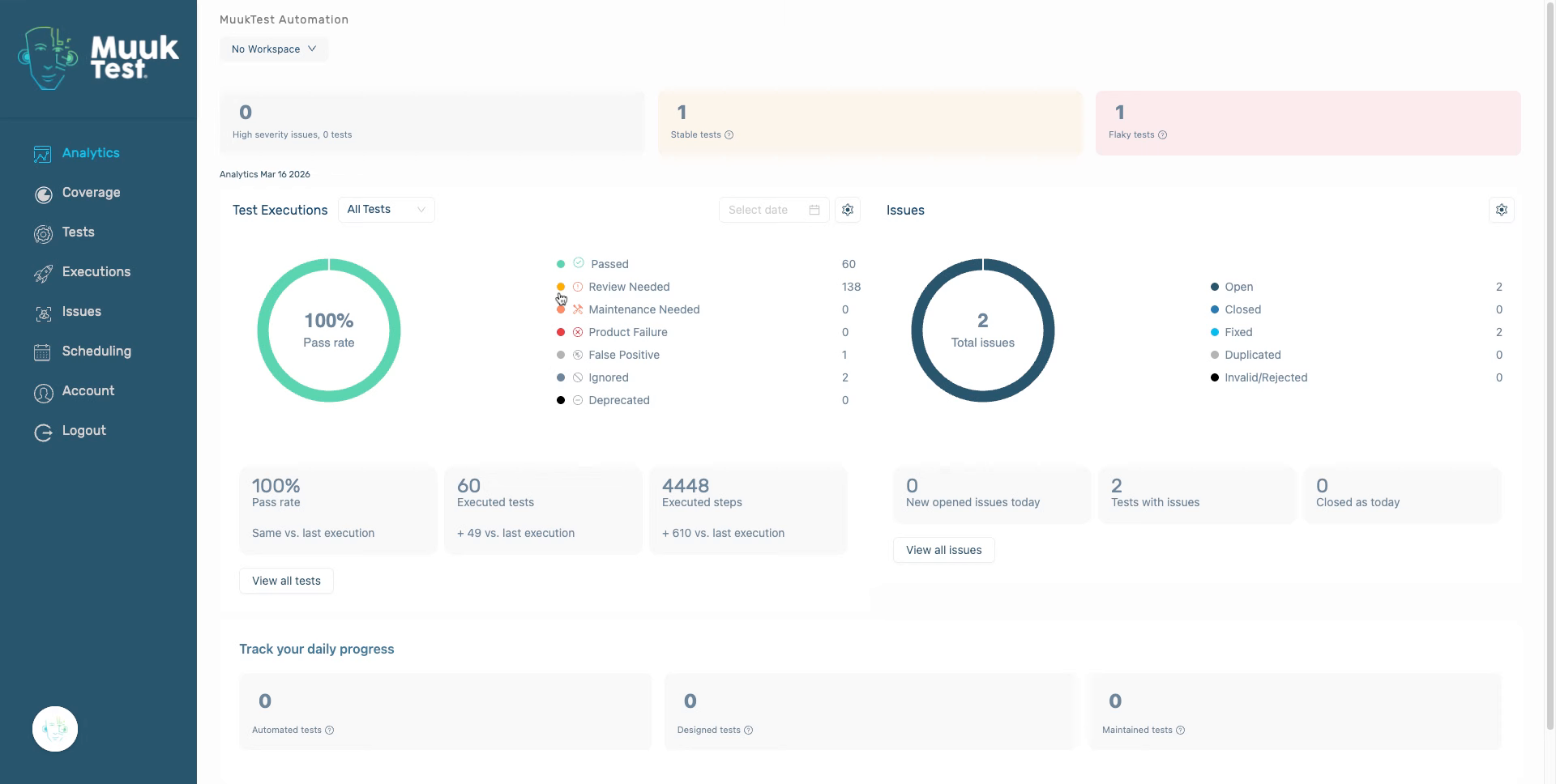
2. Access Pass Rate Filter
Navigate to "Test Executions" to view the pass rate filter options in the MuukTest dashboard.
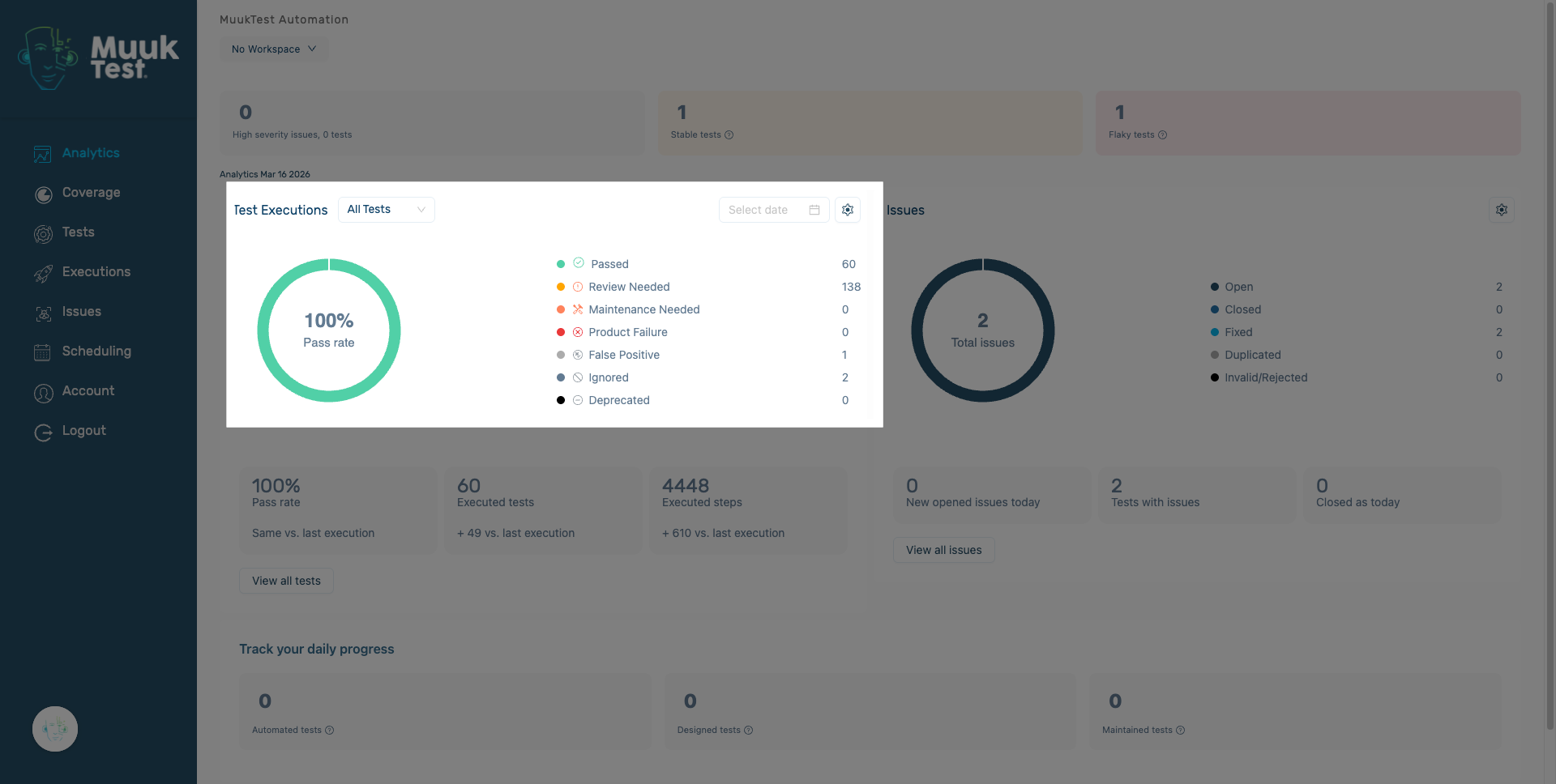
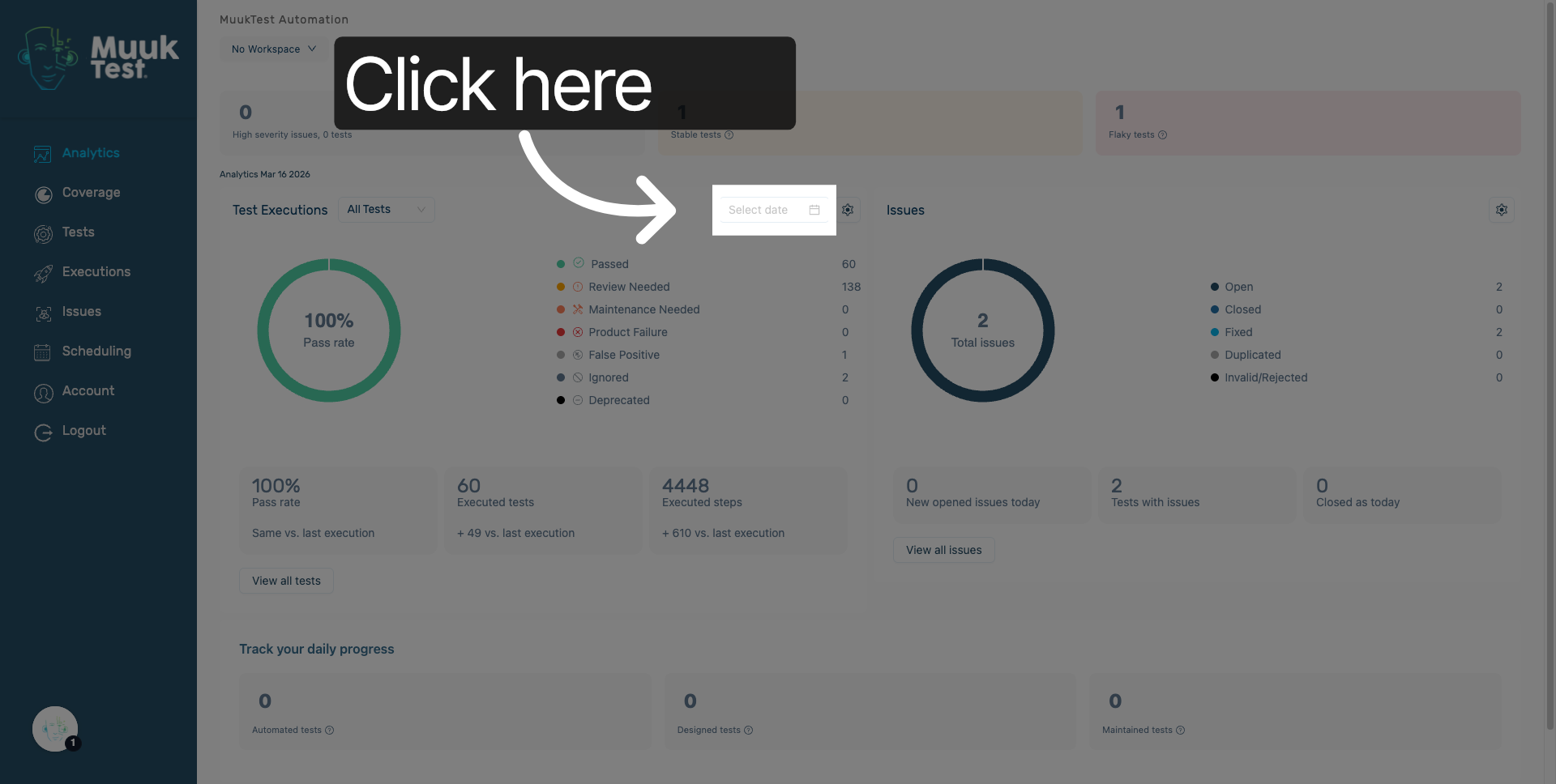
3. Open Date Selection Menu
Click here to open the date selection menu for filtering test results by date.
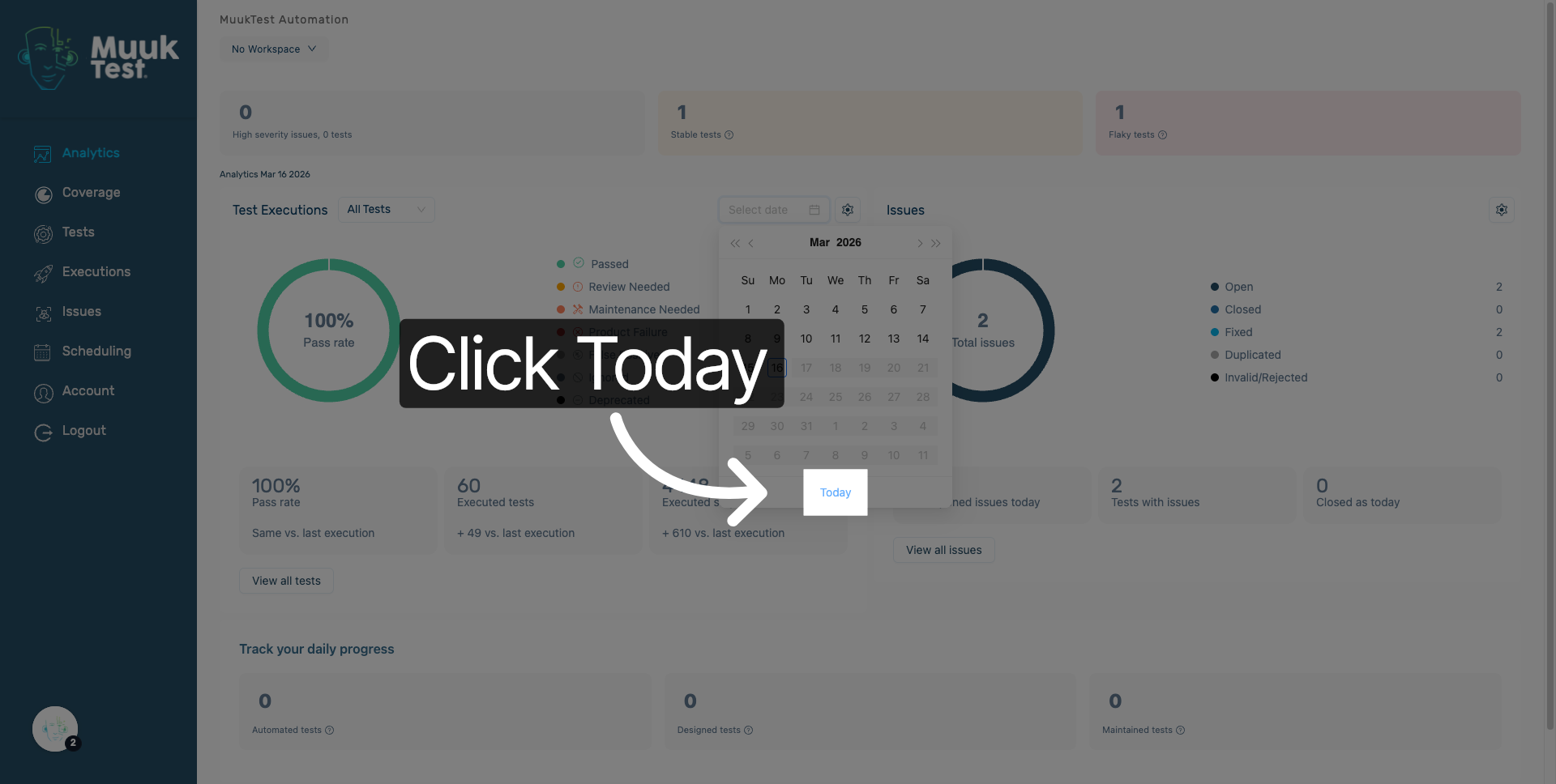
4. Select Today Filter
Click "Today" to filter the test results to only show data from the current day.
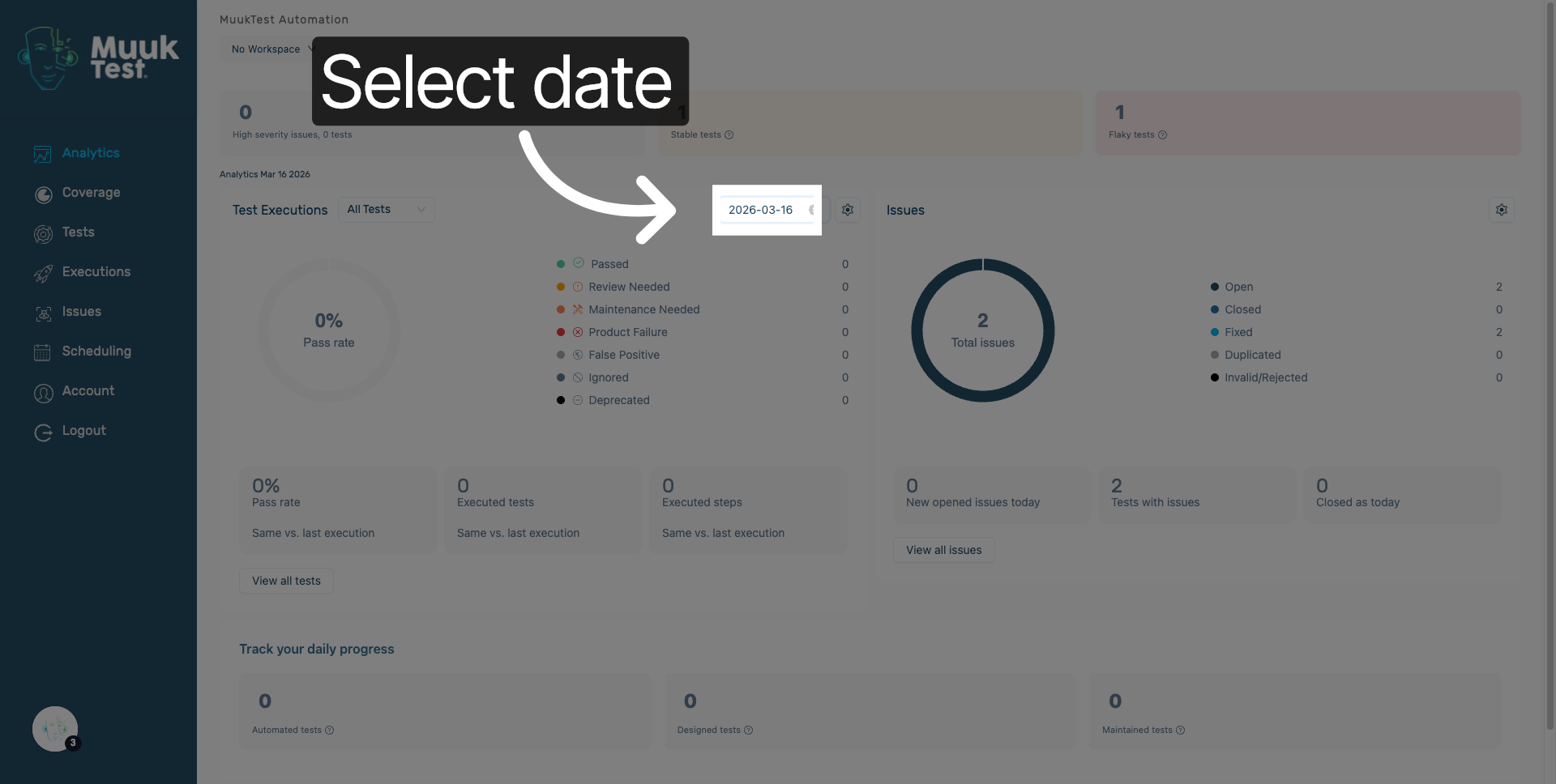
5. Choose Specific Date
Click "date" to choose a specific date for filtering the test results.
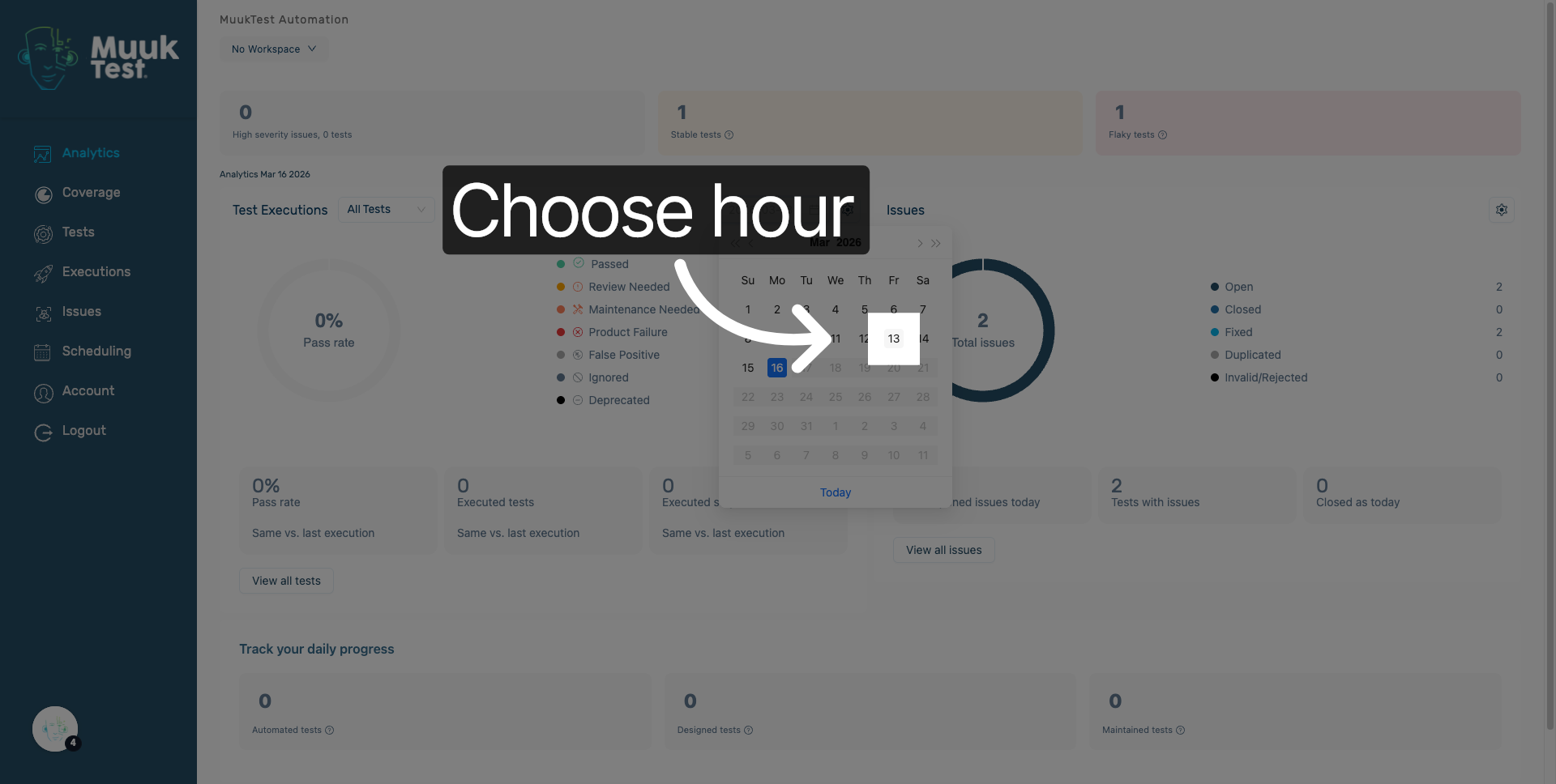
6. Select Hour 13
Click on the "day" to filter results based on the selected date.
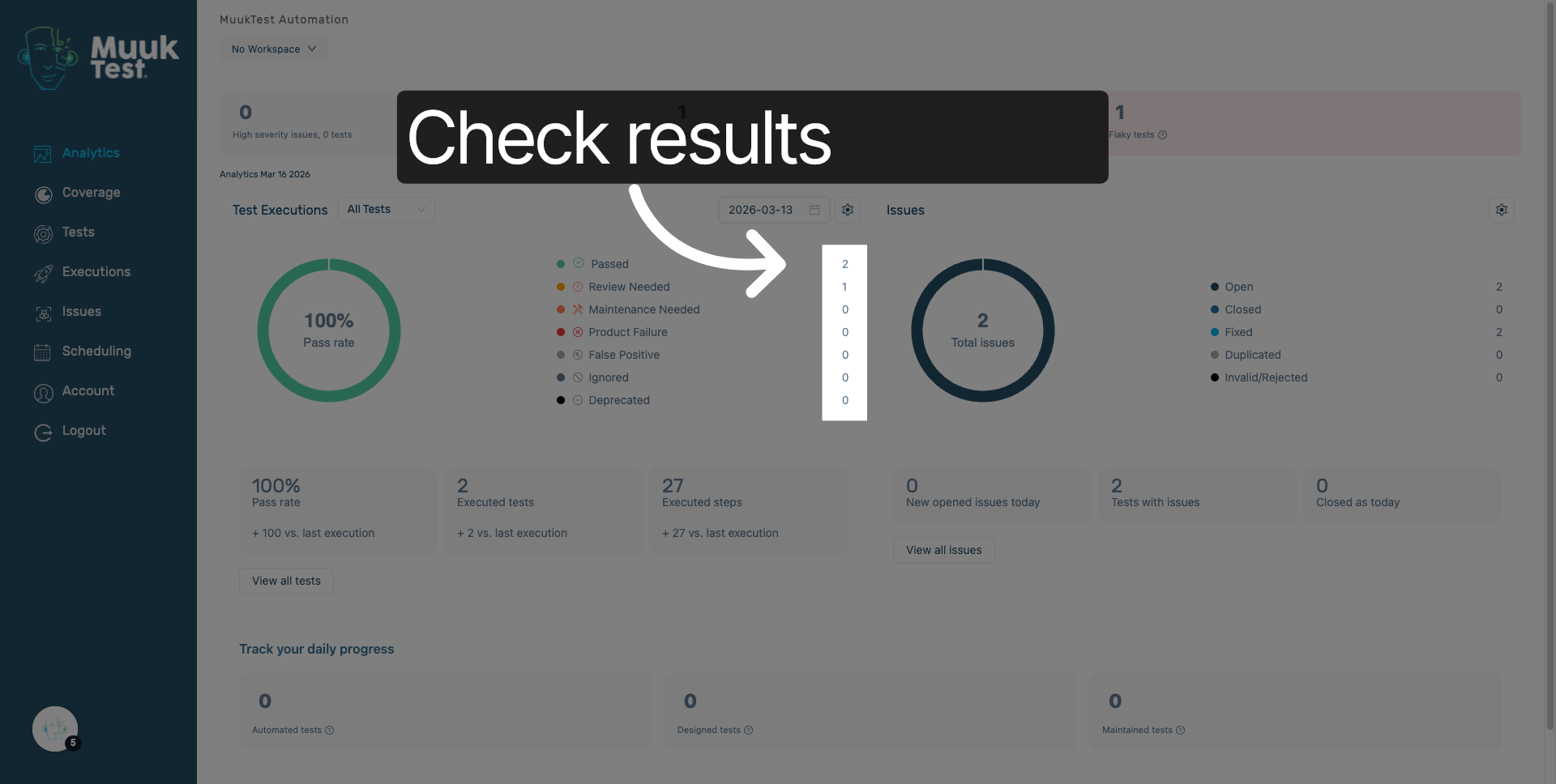
7. Check results
The results are currently filtered.
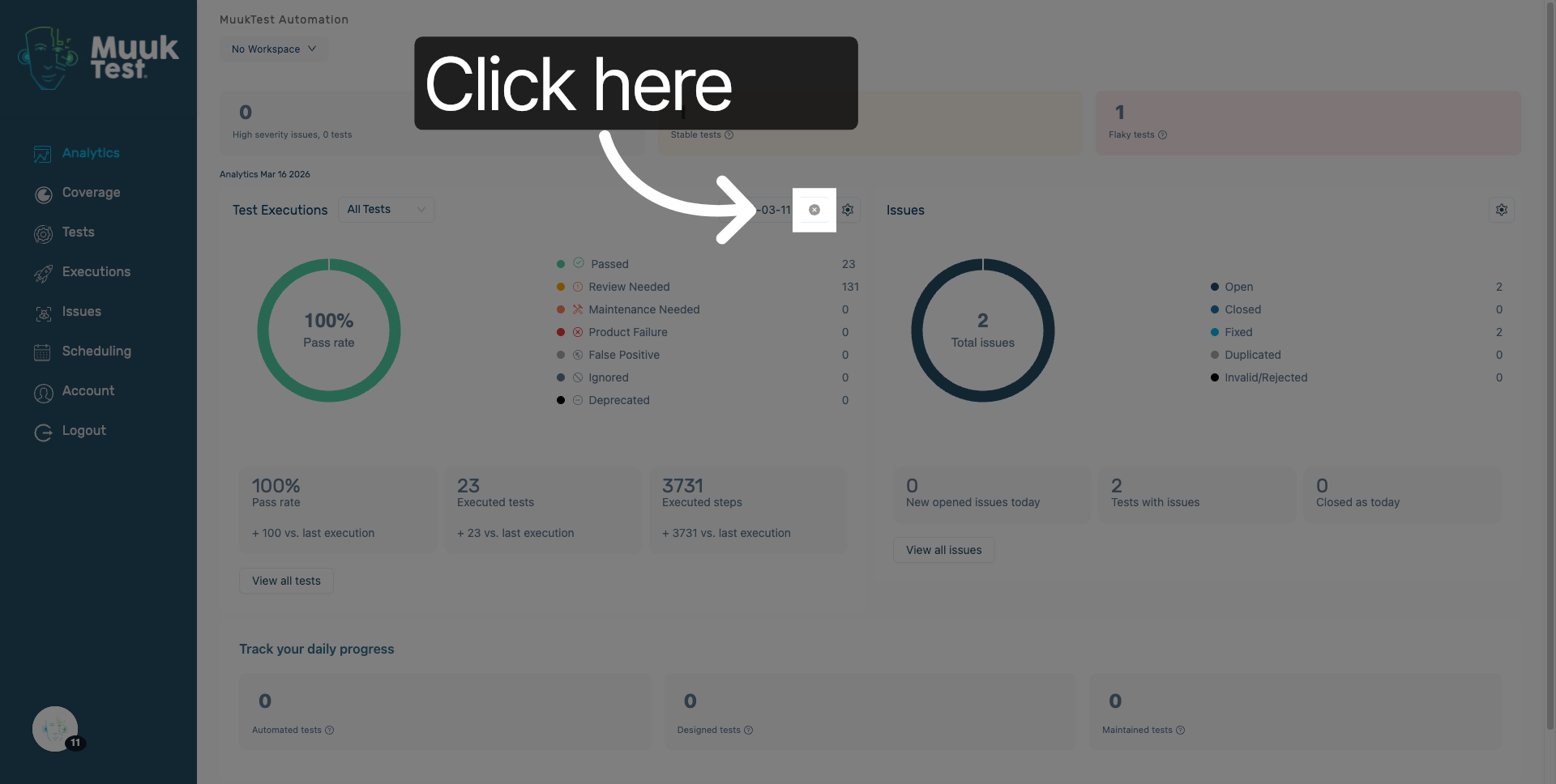
8. Crear Filters
Click here to clear the selected filters and update the test results display accordingly.
You have successfully configured pass rate filters by selecting specific dates in the MuukTest dashboard. This allows you to analyze test performance for targeted timeframes effectively.
Comments
0 comments
Please sign in to leave a comment.