

This tutorial guides you through setting up the BrowserStack integration within MuukTest.
Go to portal.muuktest.com:5000
1. Introduction
You will learn how to connect your project and configure necessary credentials for seamless testing.

2. Navigate to Integrations
Click the Integrations section to begin configuring external service connections.

3. Select BrowserStack Integration
Click BrowserStack to access its integration settings within MuukTest.

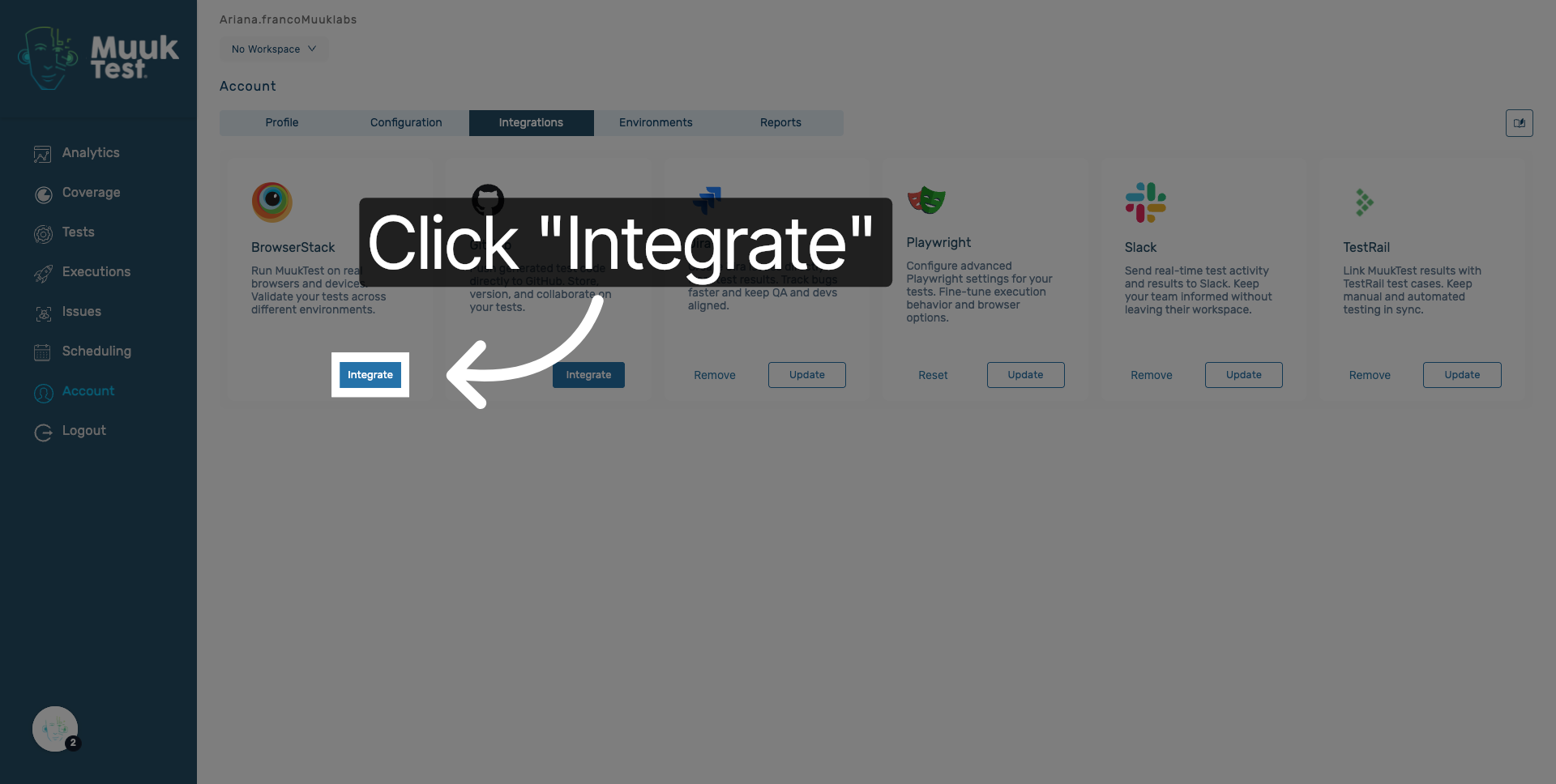
4. Initiate Integration Setup
Click Integrate to start the process of linking BrowserStack with your account.
5. Access Integration Options
Click the available options menu to proceed with integration configuration.

6. Add New Project
Click Add Project to include a new project for BrowserStack integration.

7. Choose Project
Select the project you want to integrate, such as project20.

8. Select Project Name Field
Click the name field to specify the project identifier.

9. Select Technology Field
Click the technology field to define the project's technology stack.

10. Open Additional Settings
Click here to access further configuration options for the integration.

11. Select Capability Name
Click Capability Name to specify the testing capabilities required.

12. Review Configuration Details
Review BrowserStack configuration credentials including user name, access key, project environments, and project selection options.

13. Access Configuration Controls
Click here to manage configuration controls such as saving or canceling changes.

14. Cancel or Save Changes
Click Cancel or Save to discard or apply your configuration changes.

15. Save Configuration
Click Save to confirm and apply the BrowserStack integration settings.

16. Open Username Field
Click here to enter your BrowserStack user name for authentication.

17. Access Username Input
Click here to focus on the user name input field.
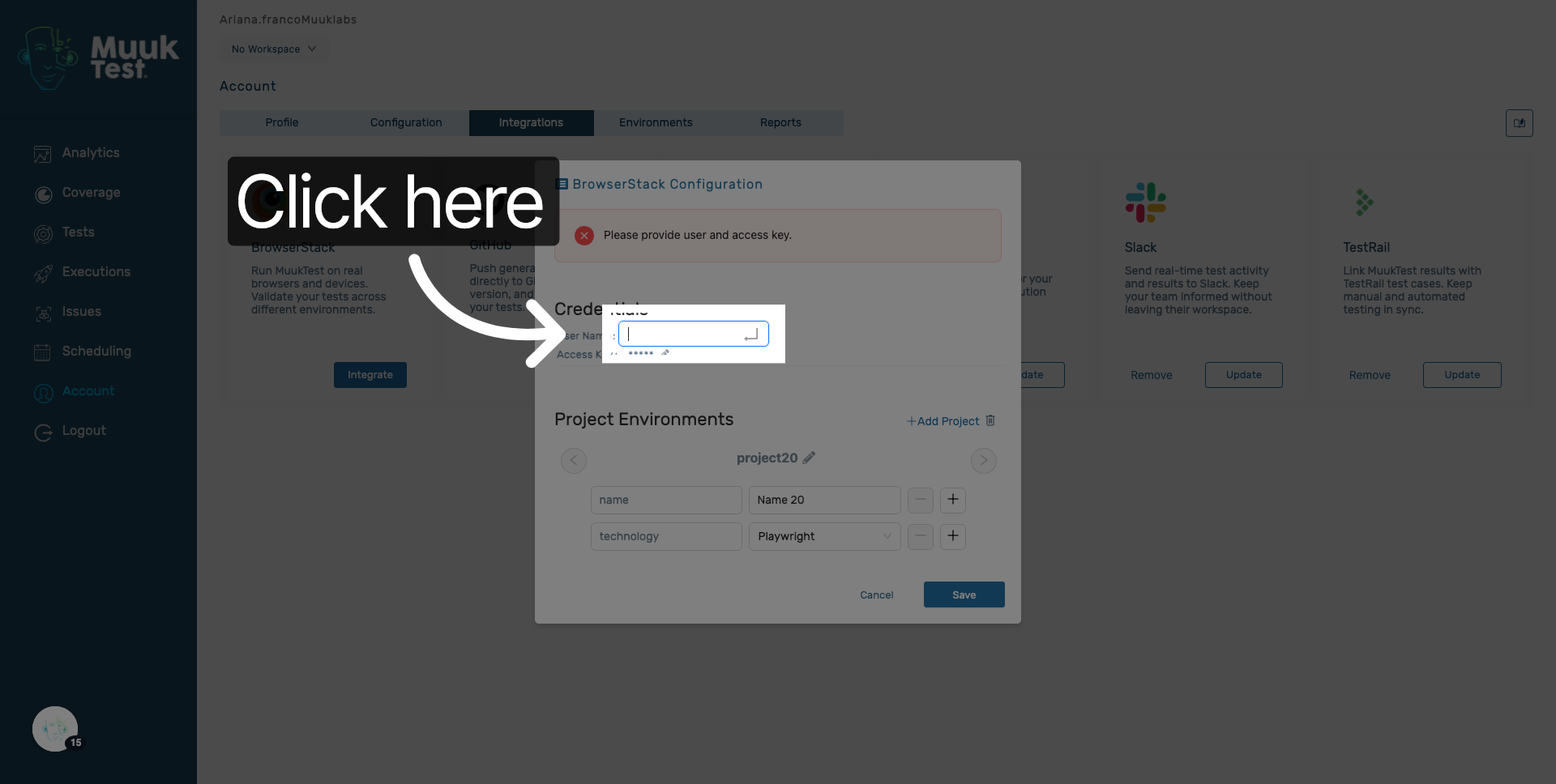
18. Enter User Name
Enter your BrowserStack user name to authenticate the integration.

19. Open Password Field
Click here to access the password input for BrowserStack credentials.

20. Enter Password
Enter your BrowserStack password to complete authentication.
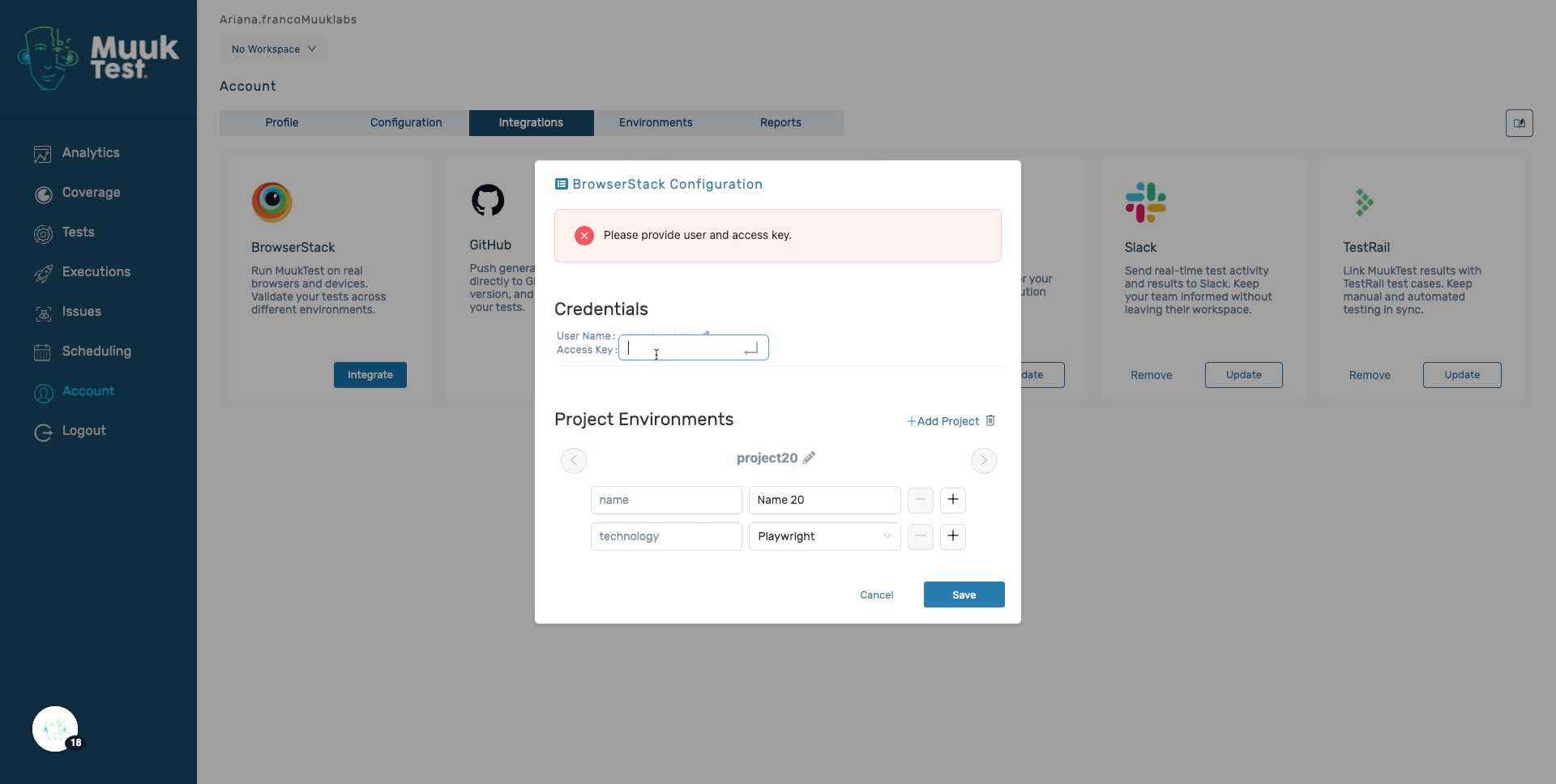
21. Confirm Password Entry
Click the password field to verify your password input.
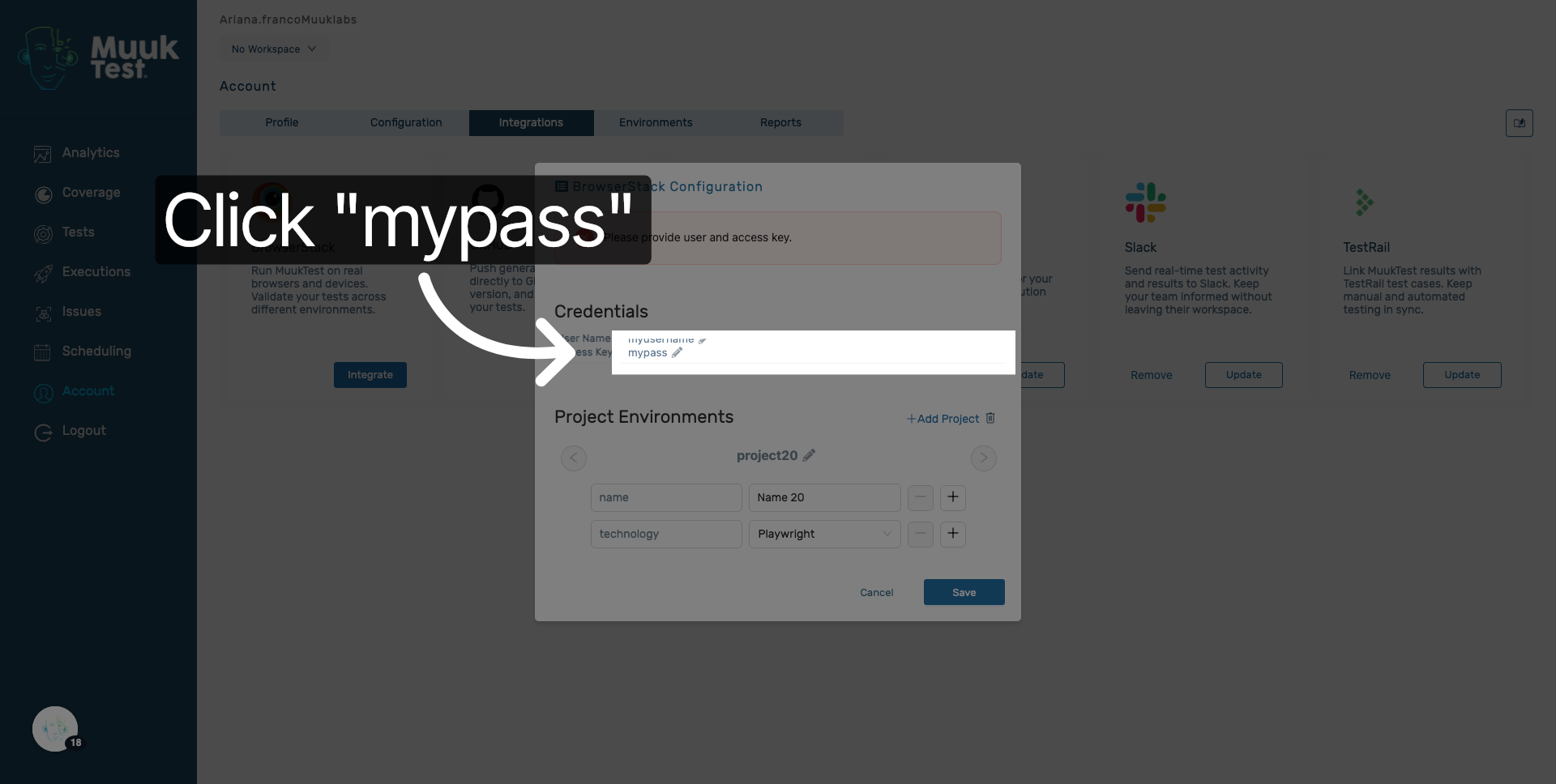
22. Confirm Settings Saved
Click BrowserStack settings saved successfully to confirm the integration is complete.

You have successfully configured the BrowserStack integration within MuukTest by connecting your project and entering the required credentials. This setup enables seamless testing through BrowserStack services, allowing you to manage your projects efficiently.
Comments
0 comments
Please sign in to leave a comment.