
This tutorial guides you through creating a new environment in the Muuktest application. You will learn how to set up the environment with necessary details and configure additional settings for optimal use.
Go to portal.muuktest.com:5000
1. Introduction To Environment Creation
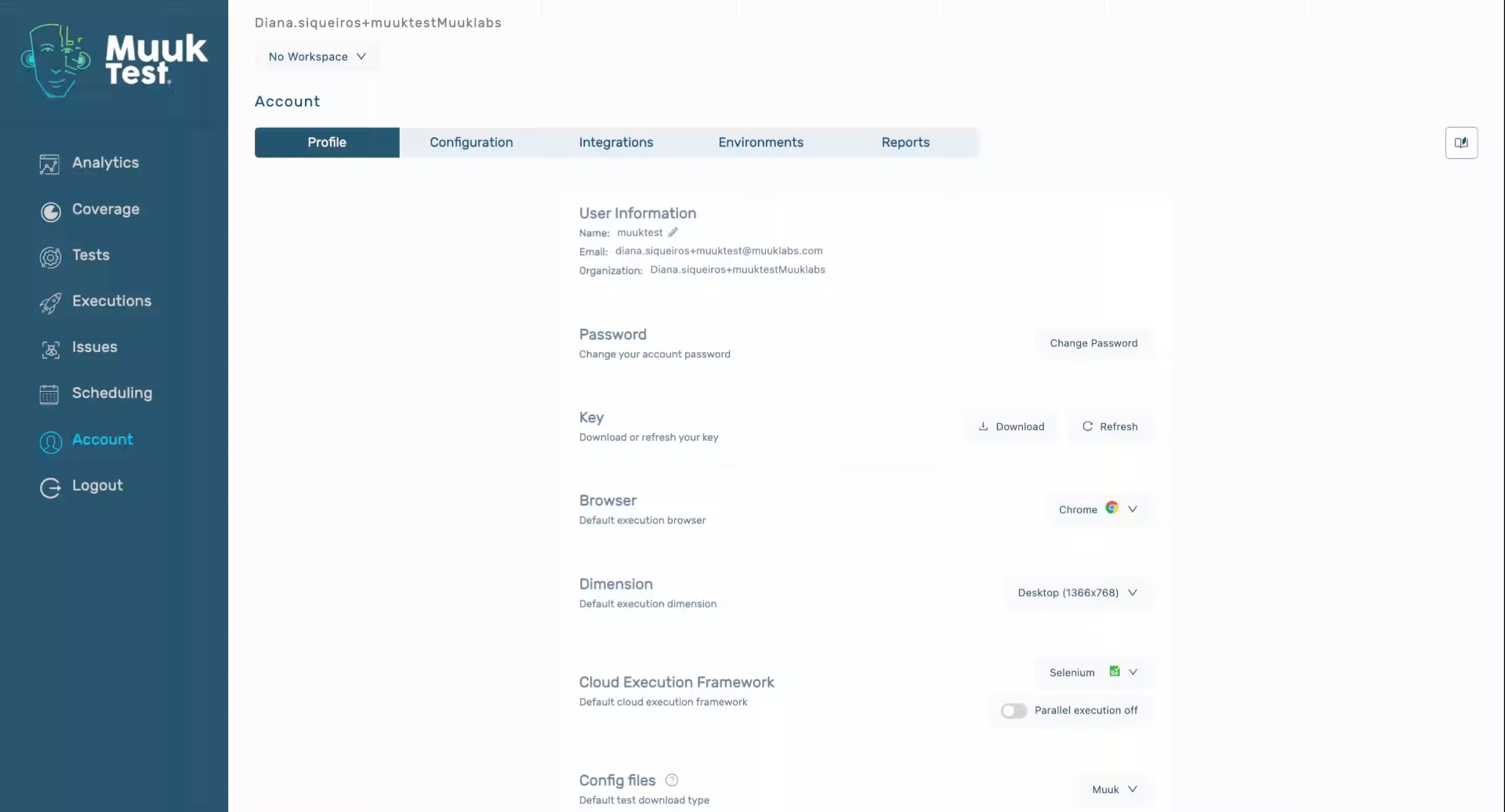
2. Navigate To Environment Setup
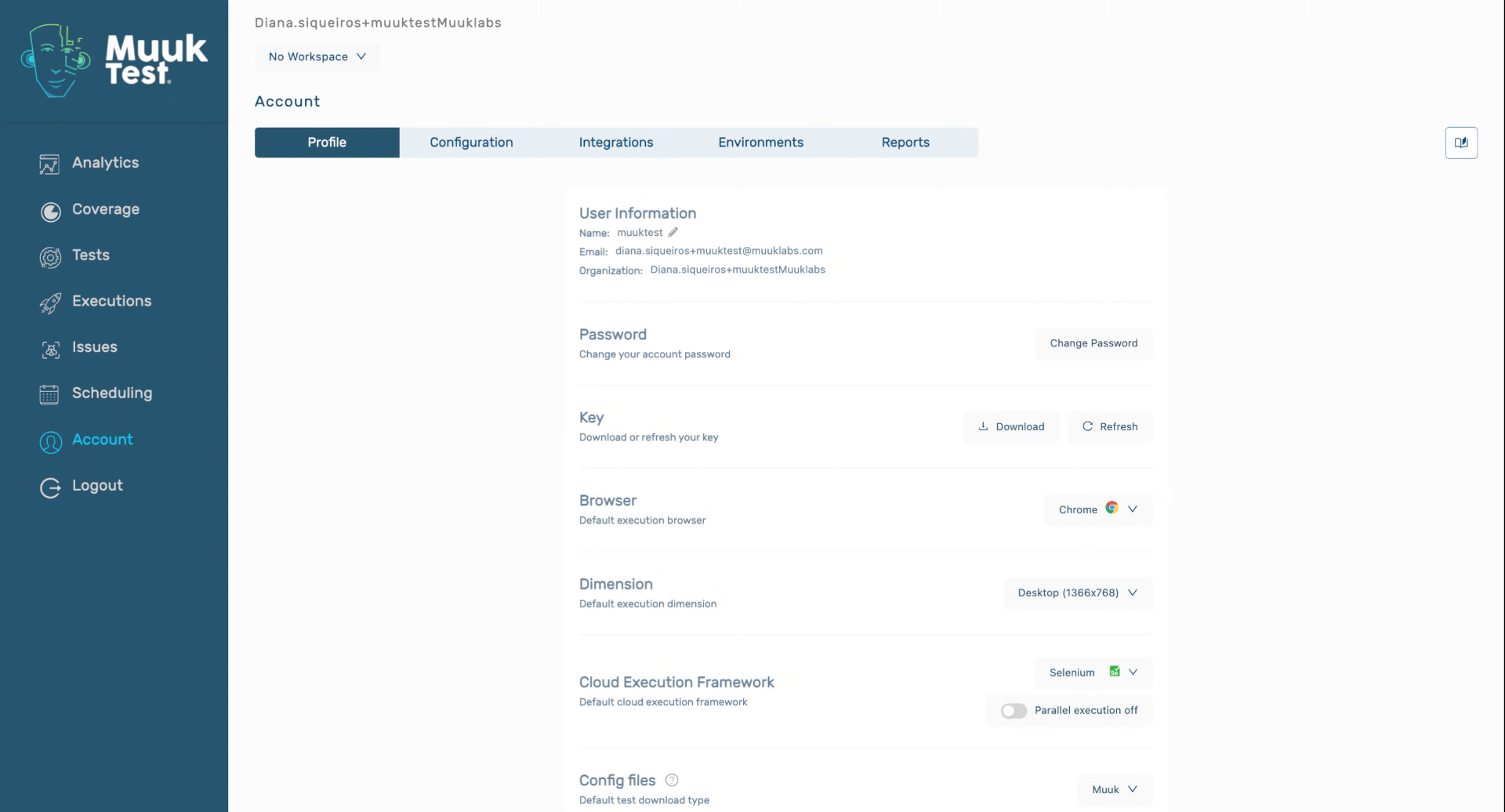
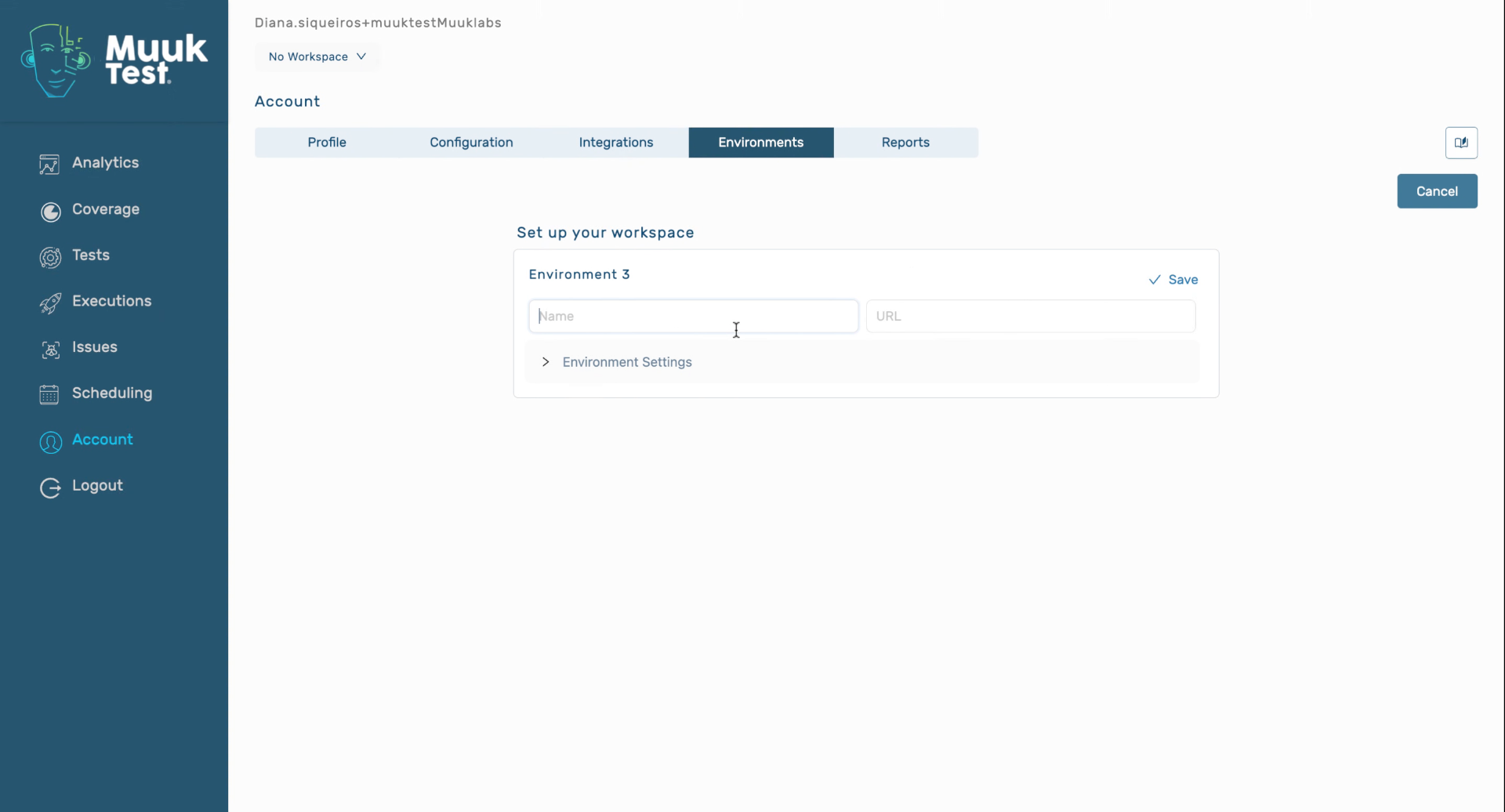
3. Select Environment Name Field
Click the Name field to enter the environment's name.
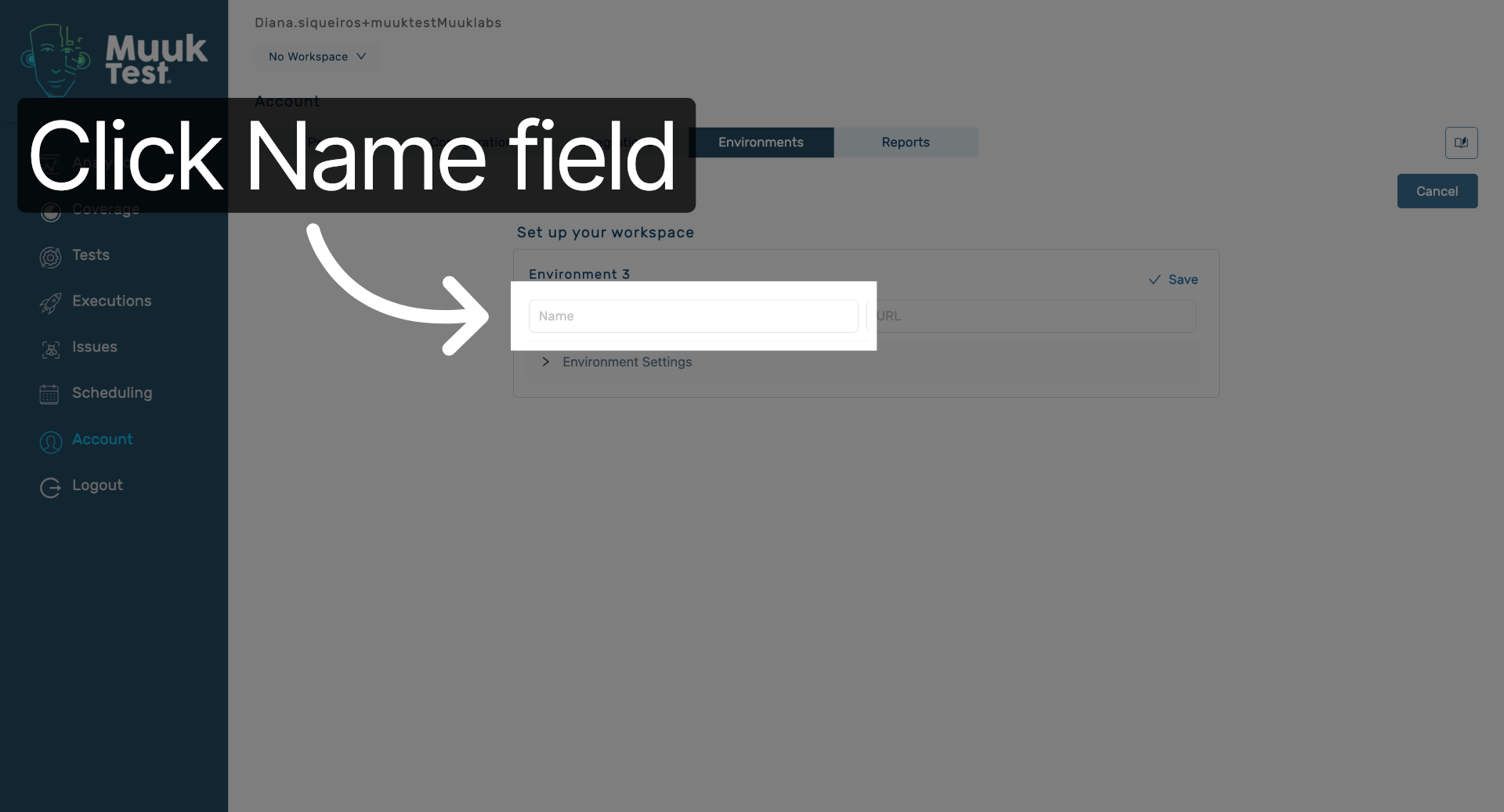
4. Enter Environment Name
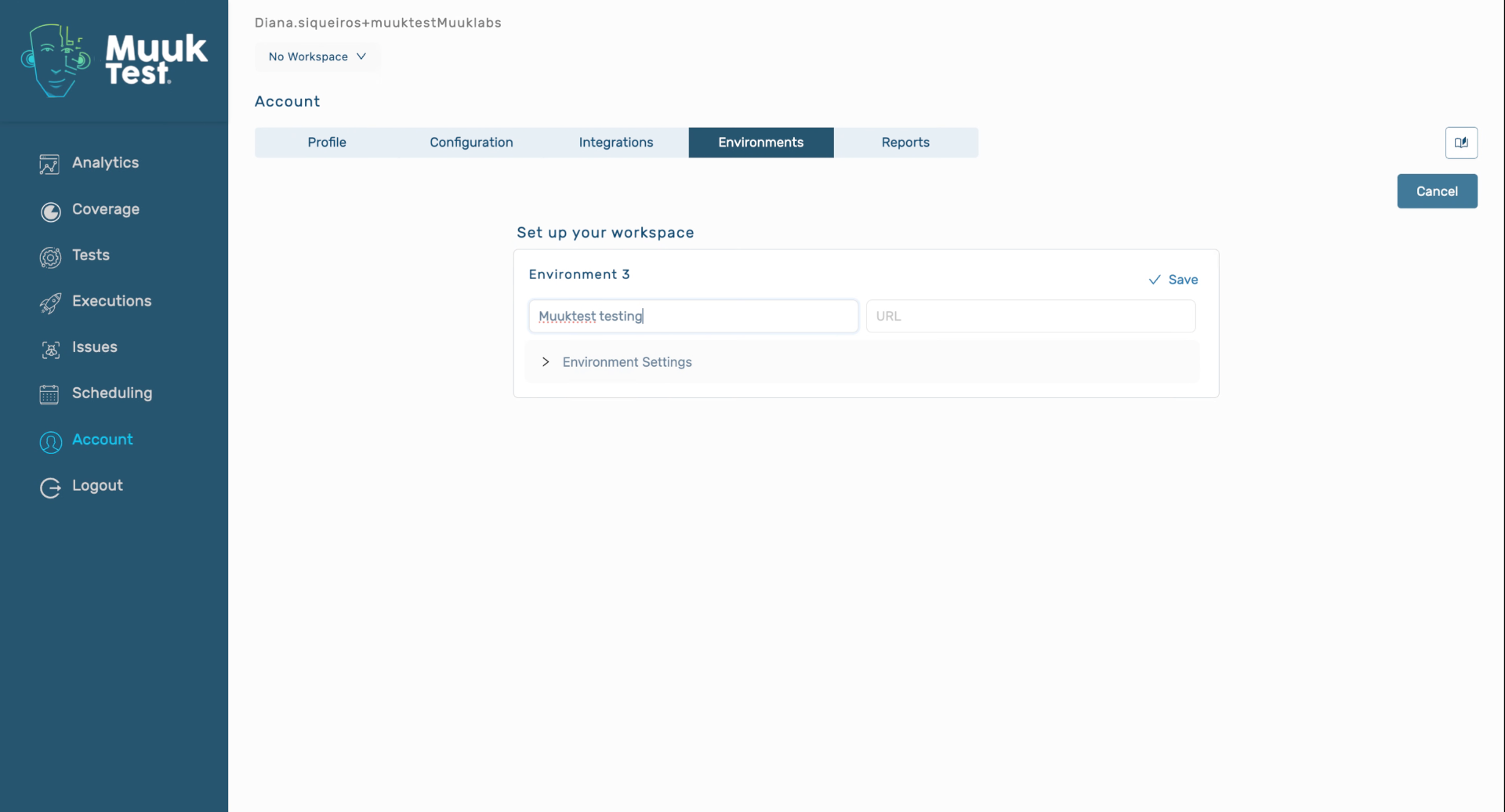
5. Enter Environment URL
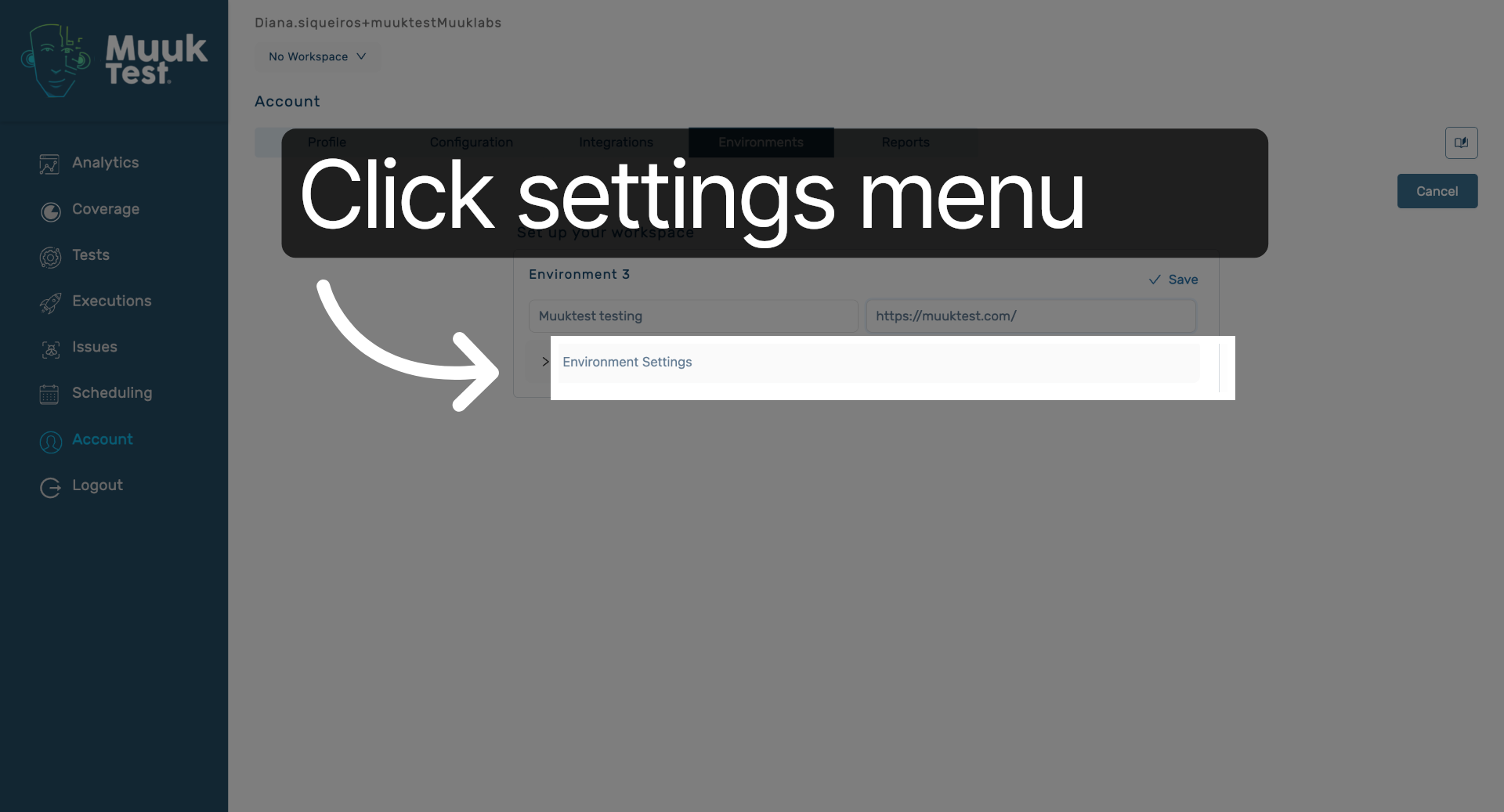
6. Open Environment Settings Menu
Click the environment settings menu to access additional options.
7. Configure Additional Environment Settings
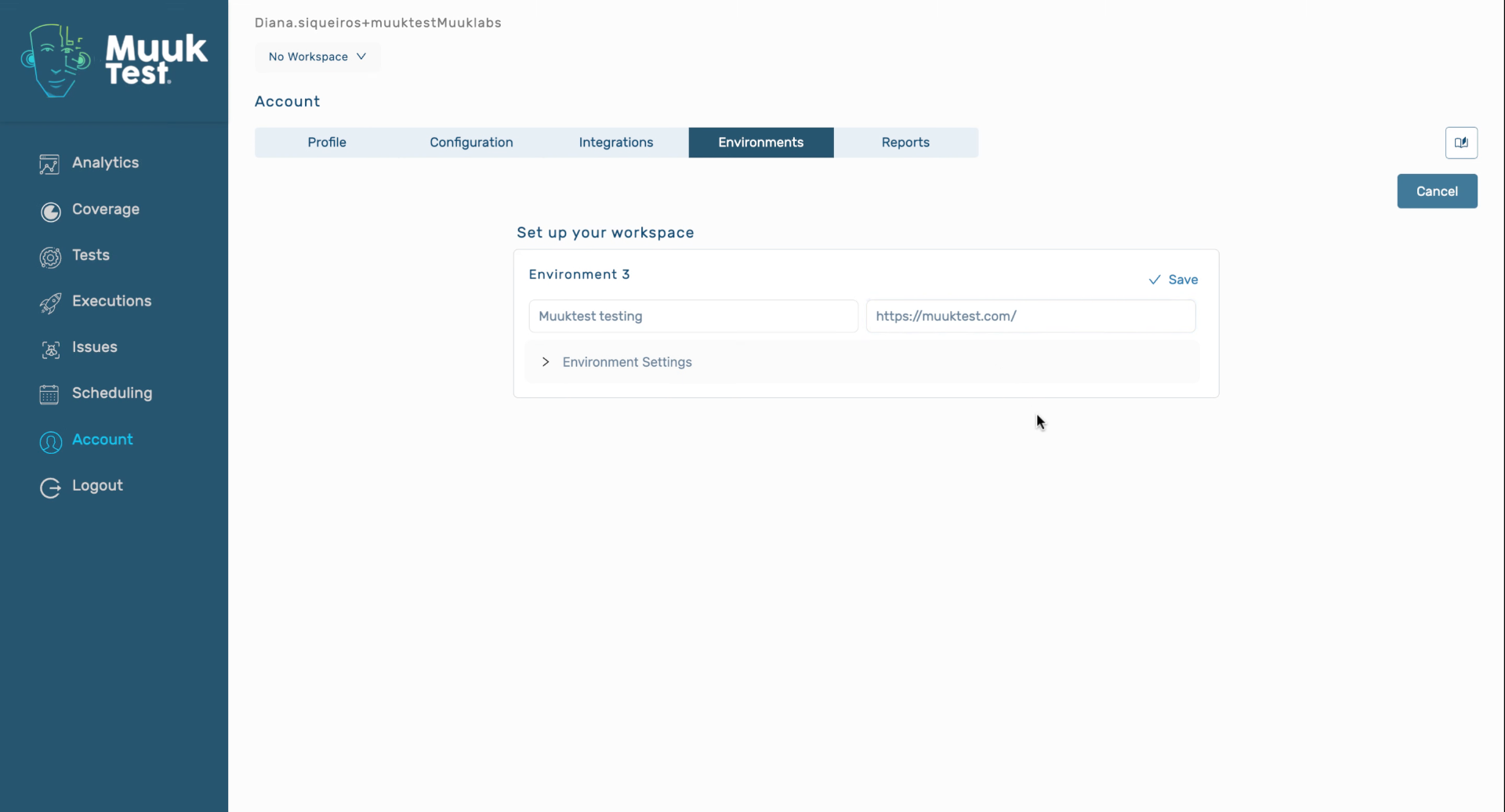
8. Save And Activate Environment
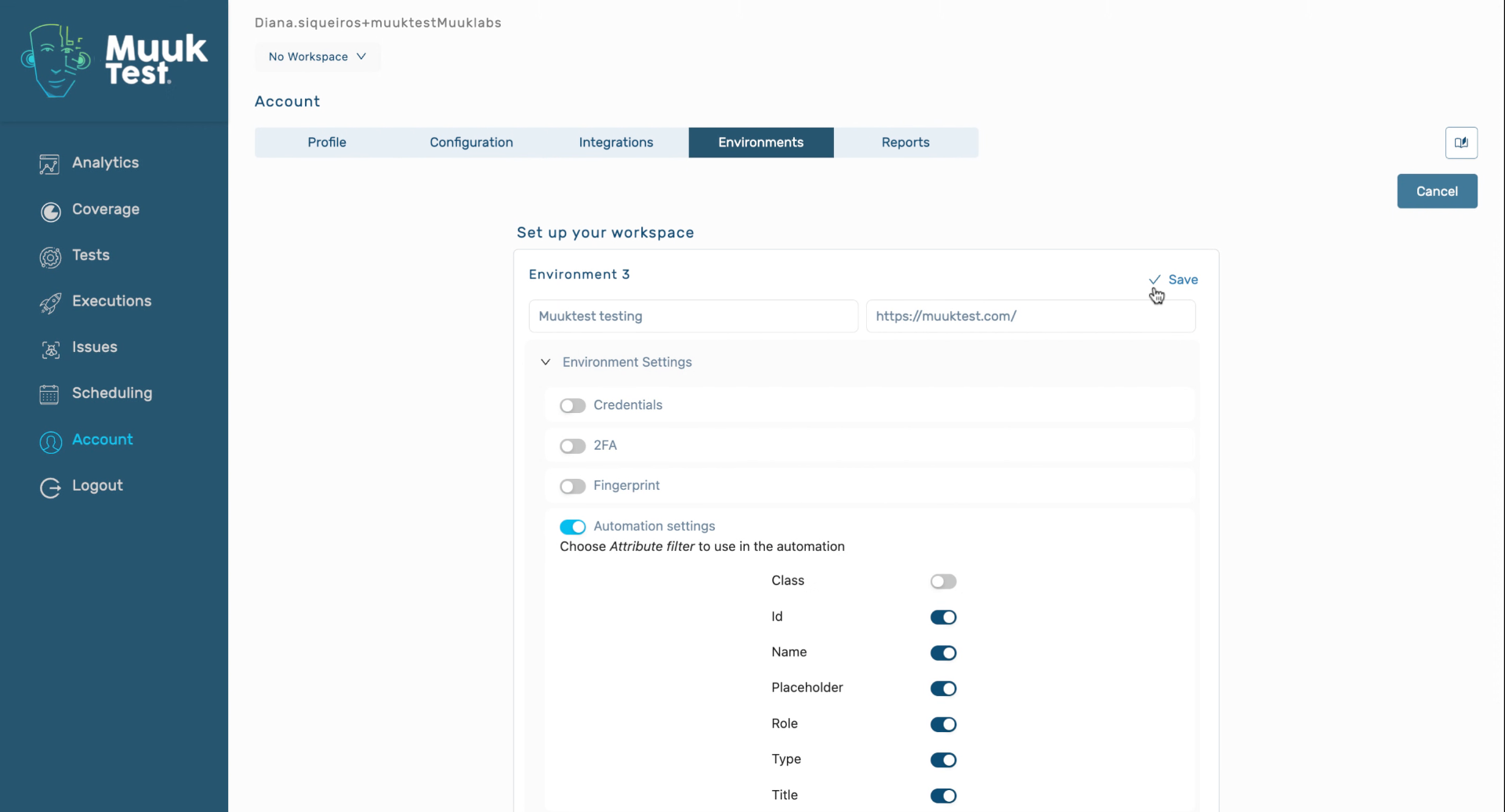
You have successfully created and configured a new environment by entering its name and URL, adjusting additional settings, and saving your changes. Your environment is now ready for use, and you can proceed to manage or deploy it as needed.
Comments
0 comments
Please sign in to leave a comment.