
This tutorial will guide you through integrating Muuktest with Testrail to streamline your testing workflow. Before starting, ensure you have your Testrail URL, user credentials, and API key ready for setup.
1. Navigate To Integrations Tab
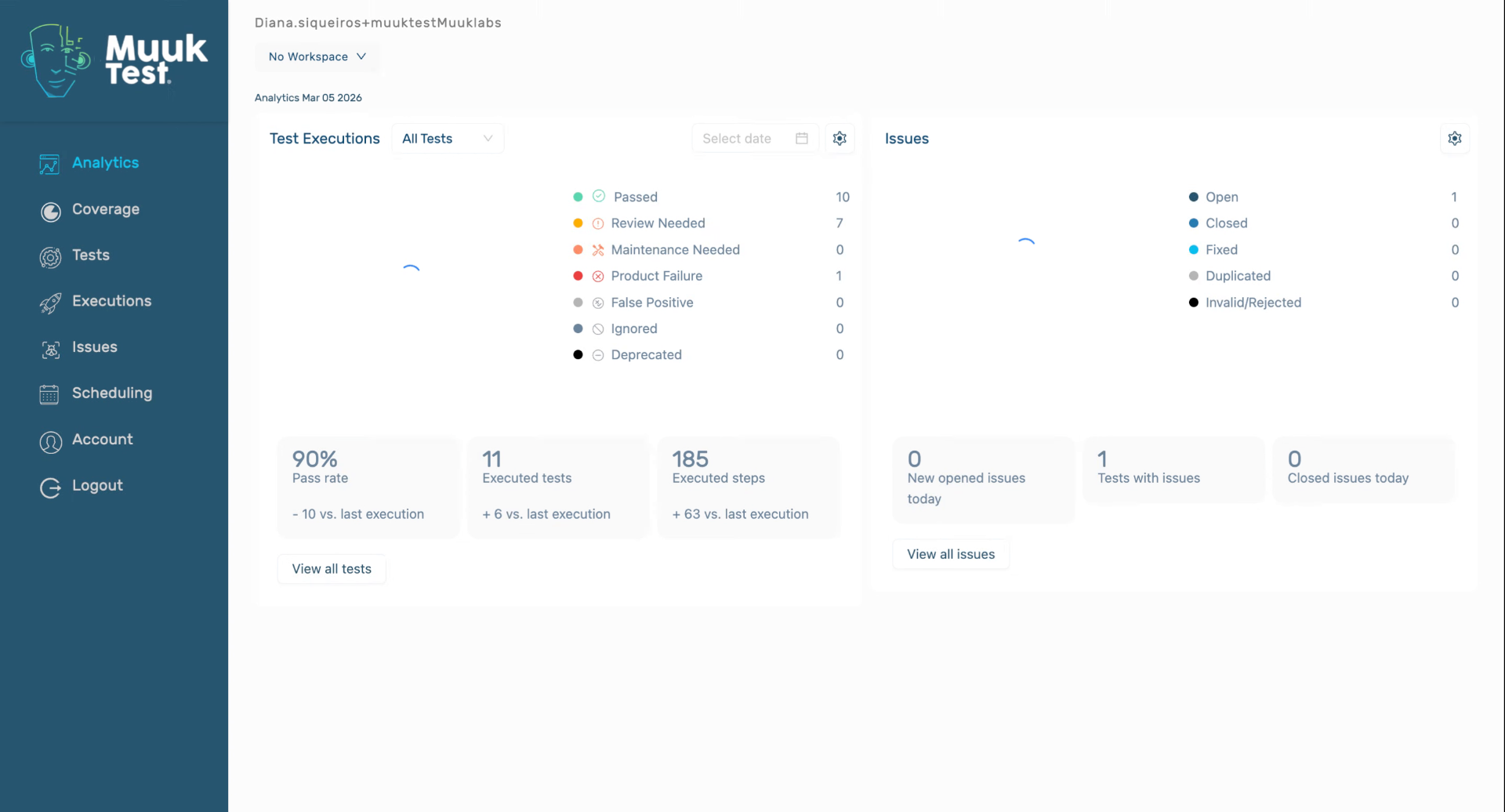
2. Click Integrate Button
Click the Integrate button to start the Testrail integration process within MuukTest.
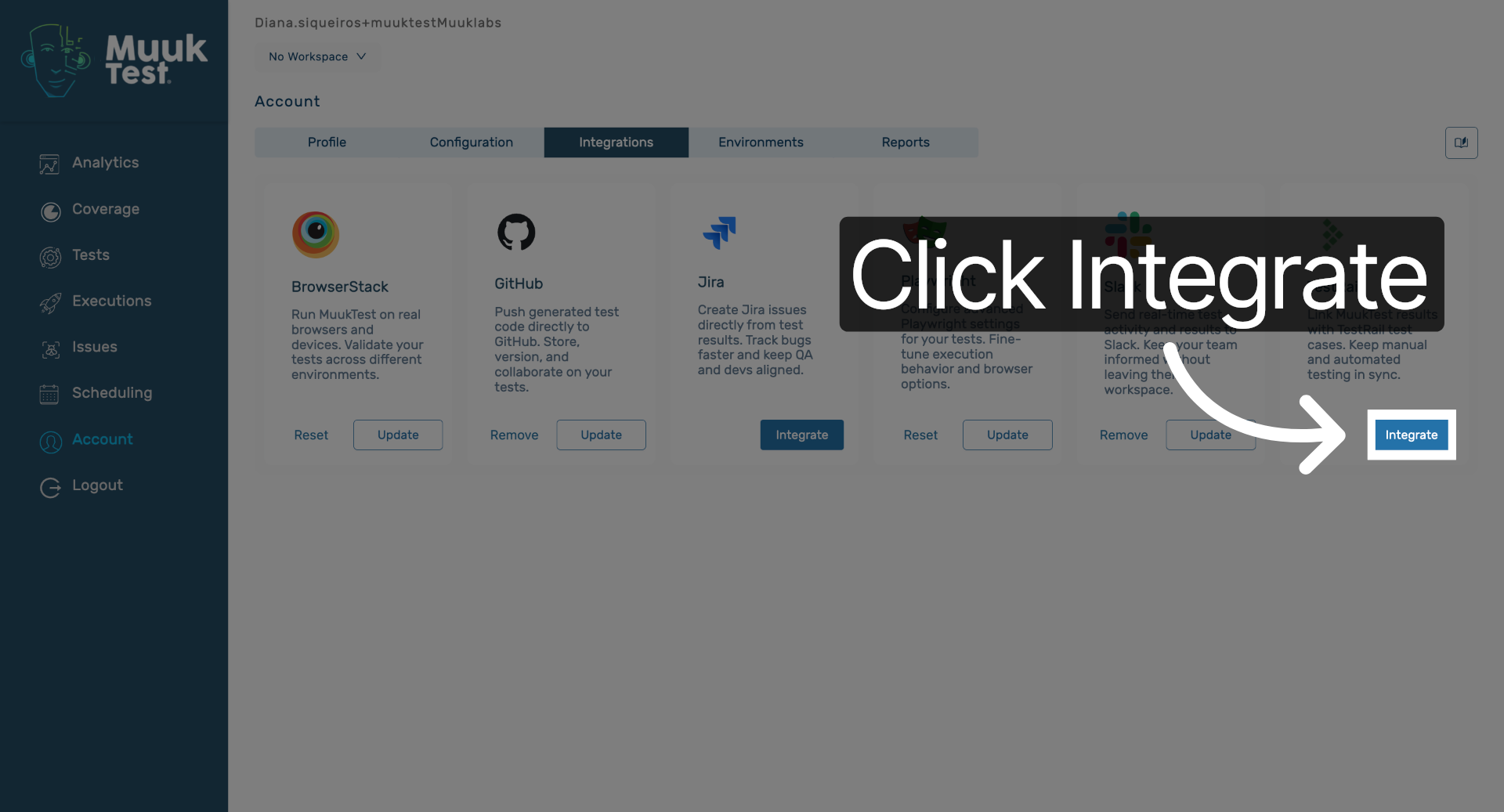
3. Enter Testrail URL
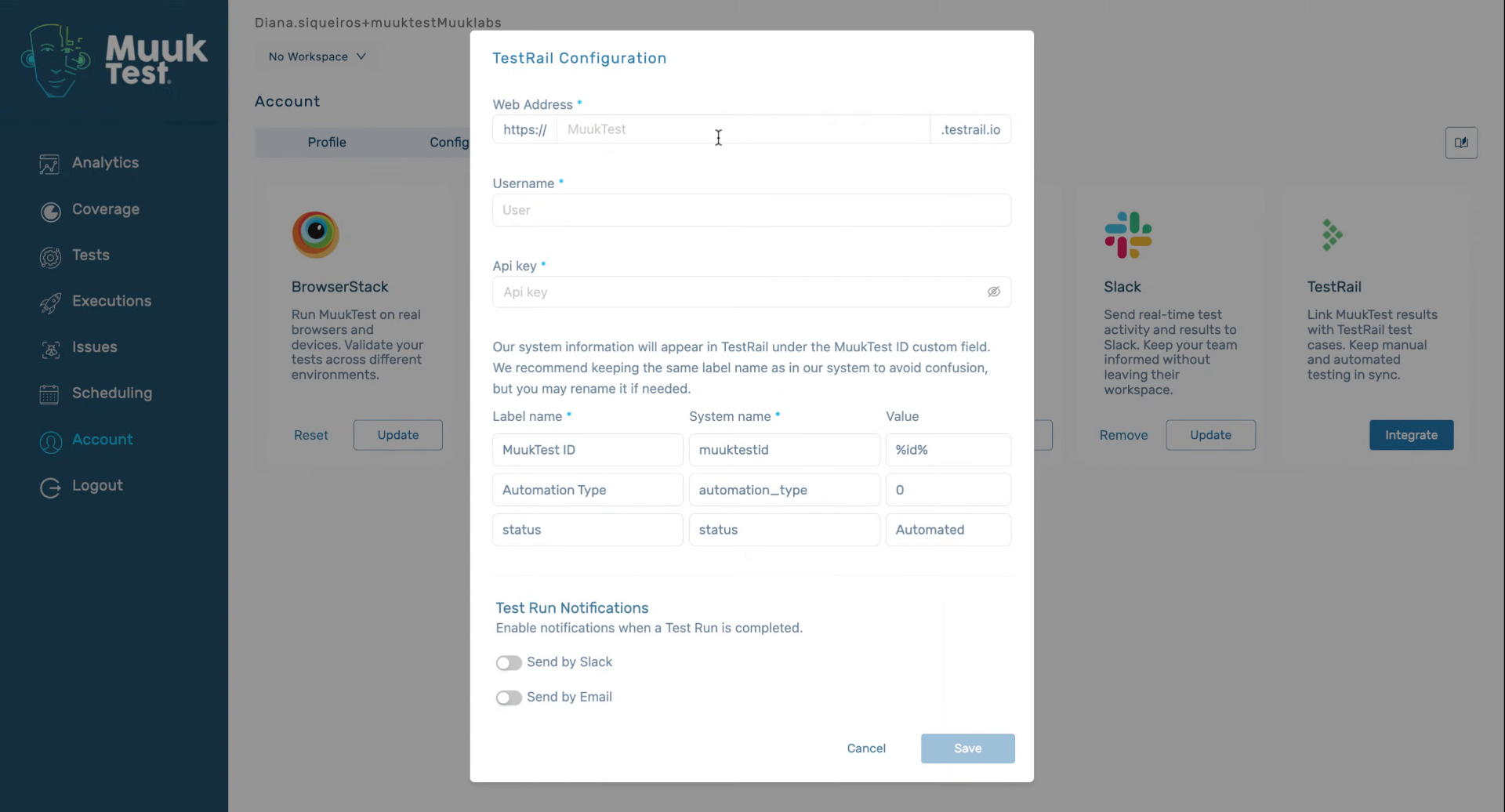
4. Enter Username
Enter your username to link your account with Testrail.
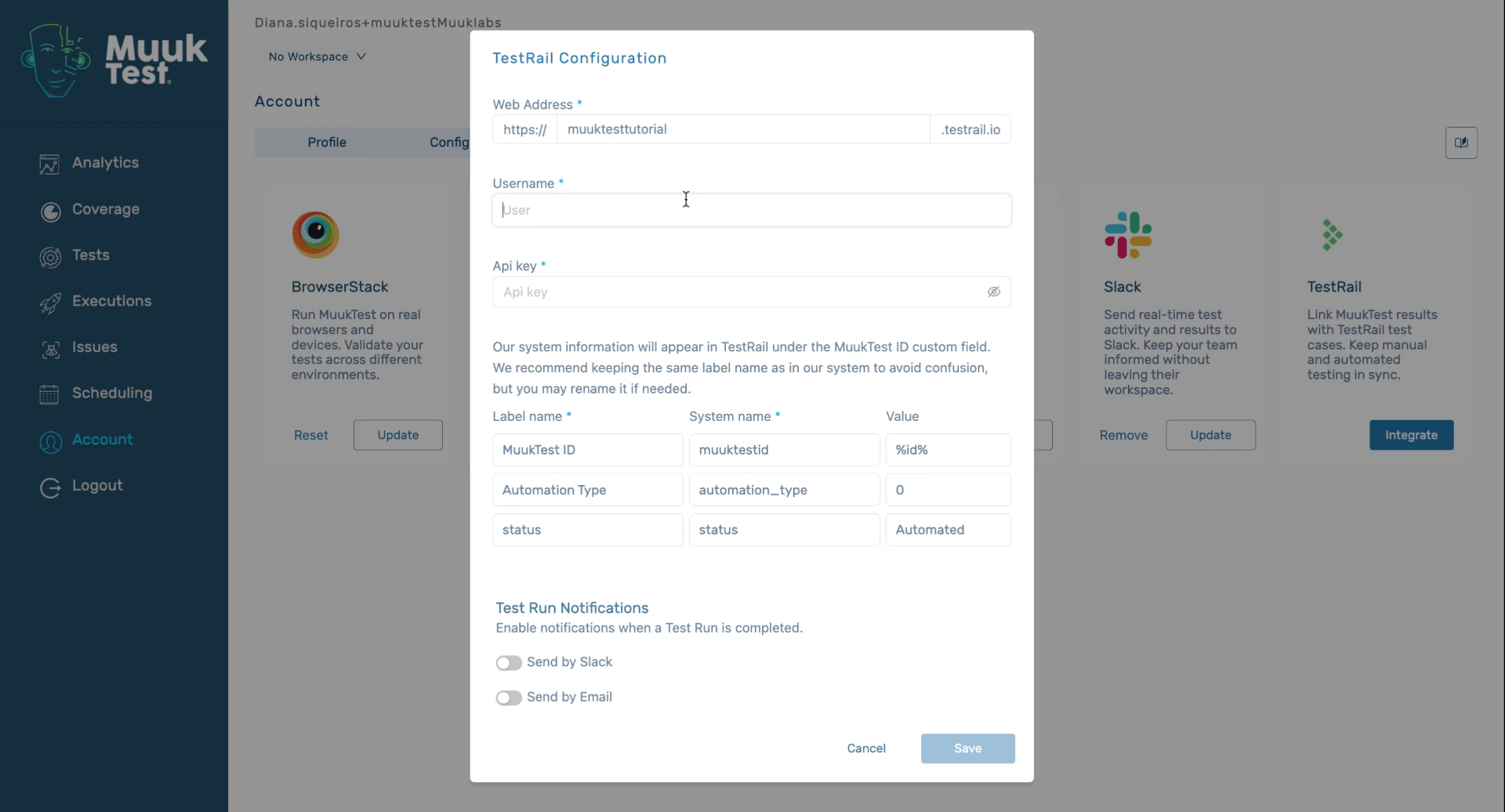
5. Enter API Key
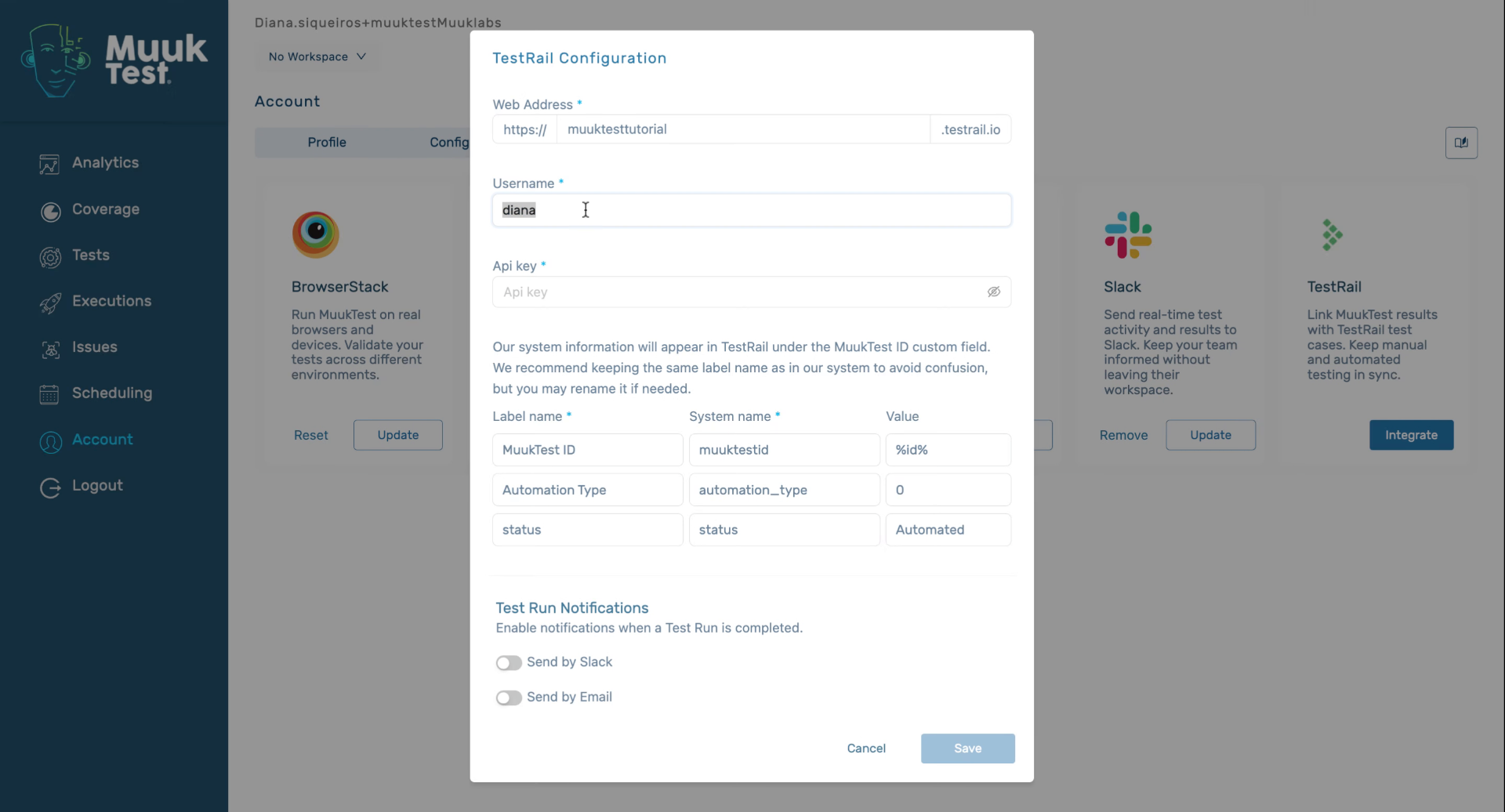
6. Click API Key Field
Click the API key field to input your API credentials.
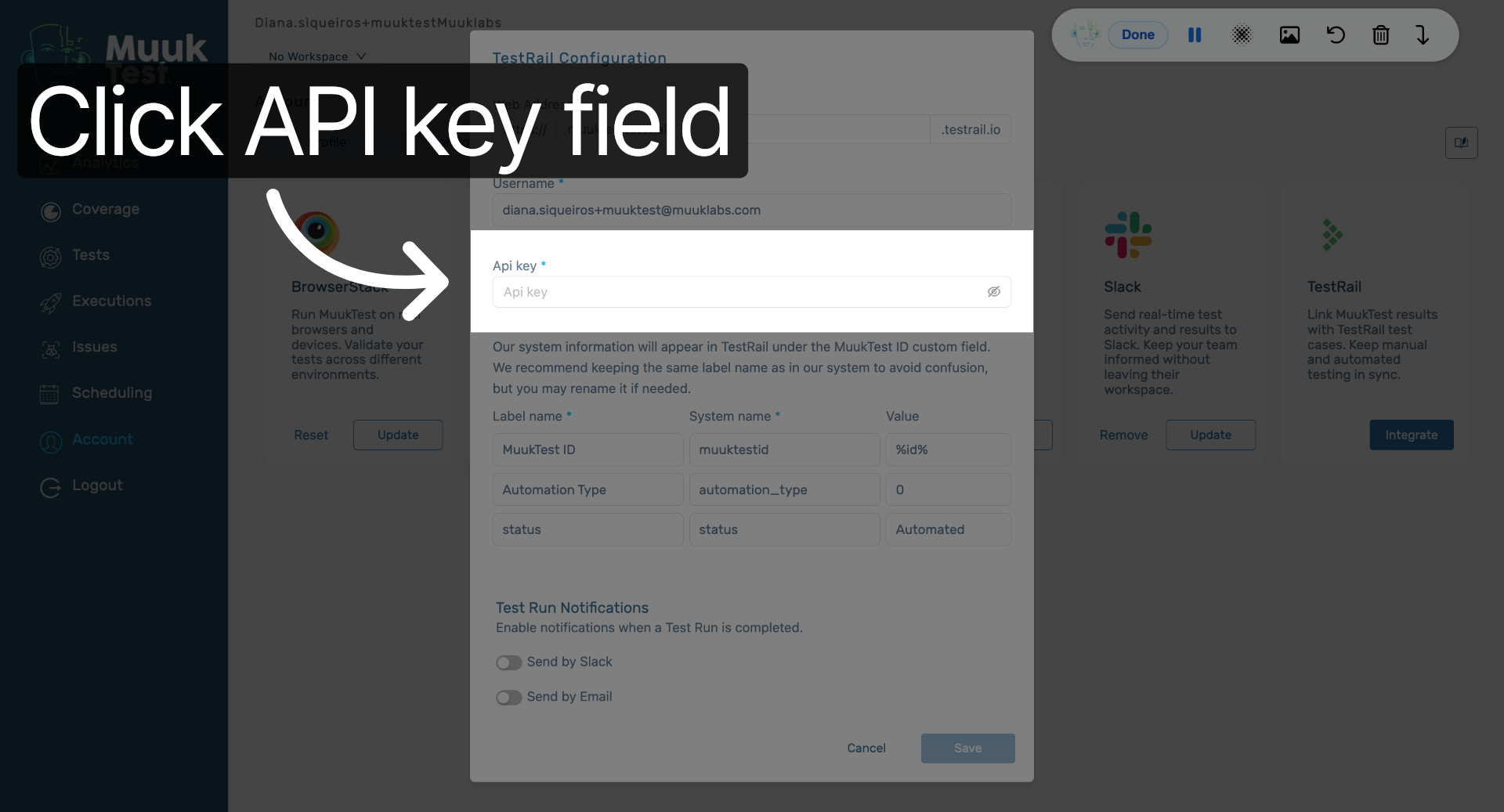
7. Enter API Key Value
Enter your API key to authenticate the integration securely.
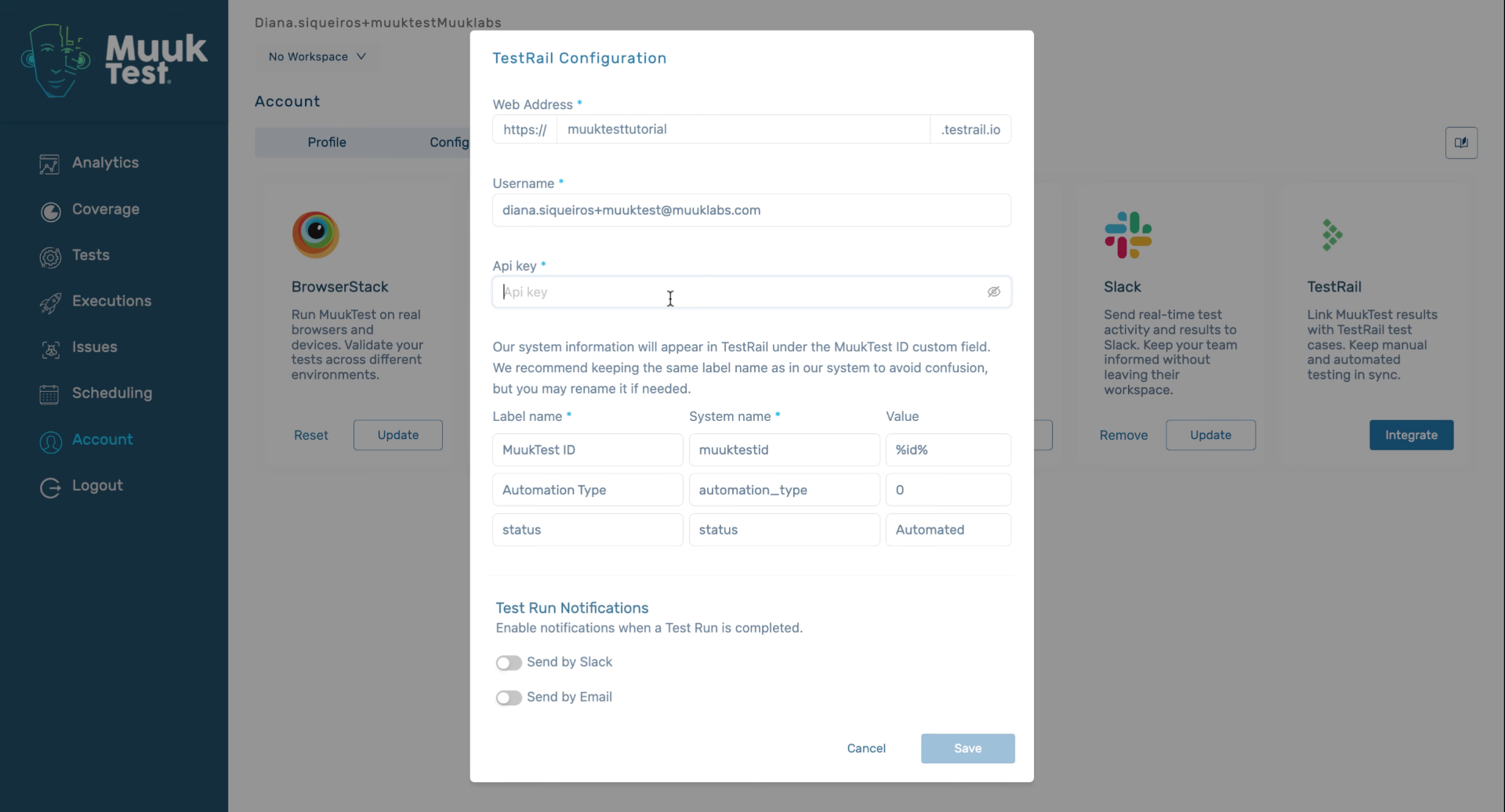
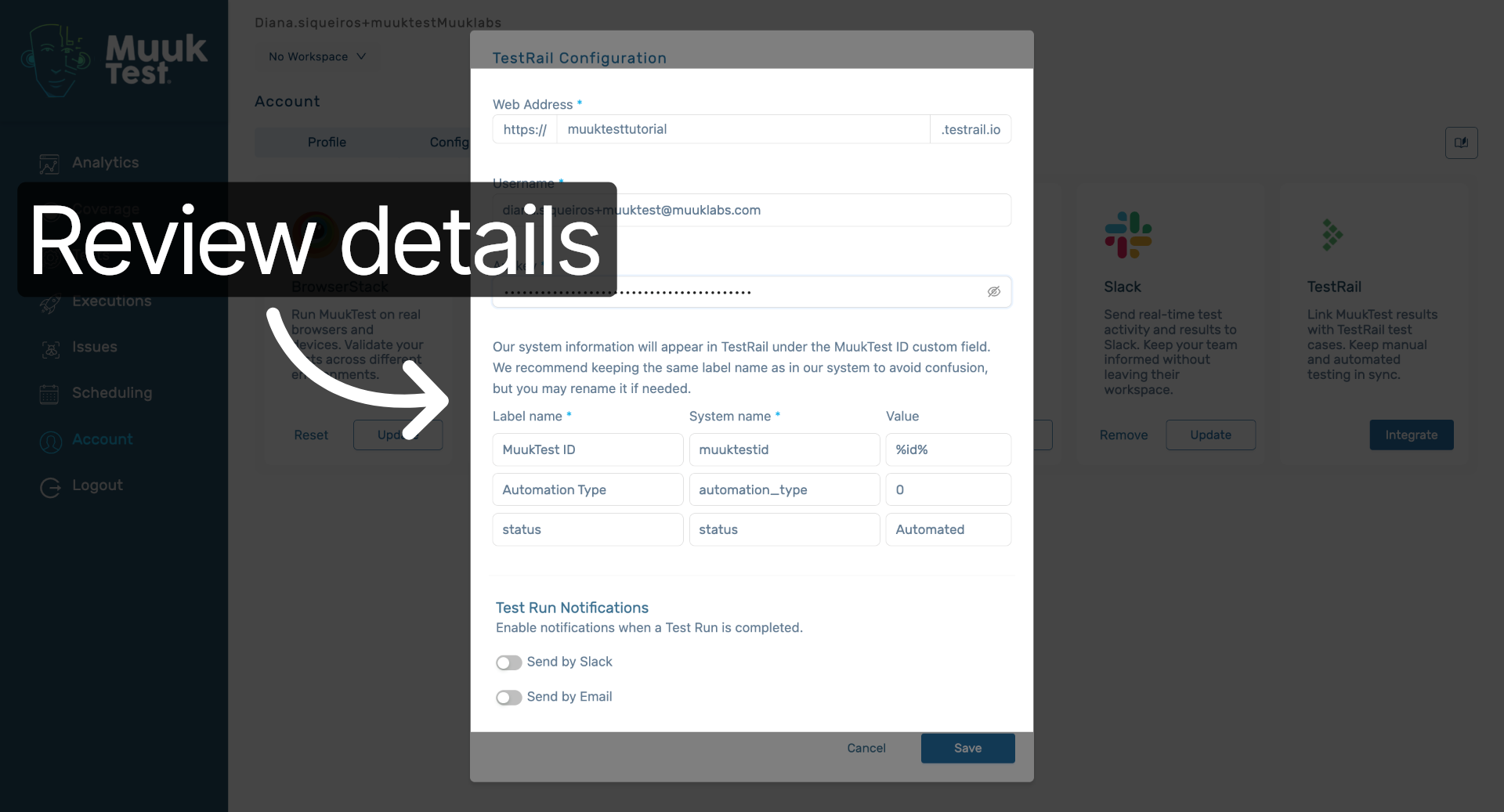
8. Review Integration Details
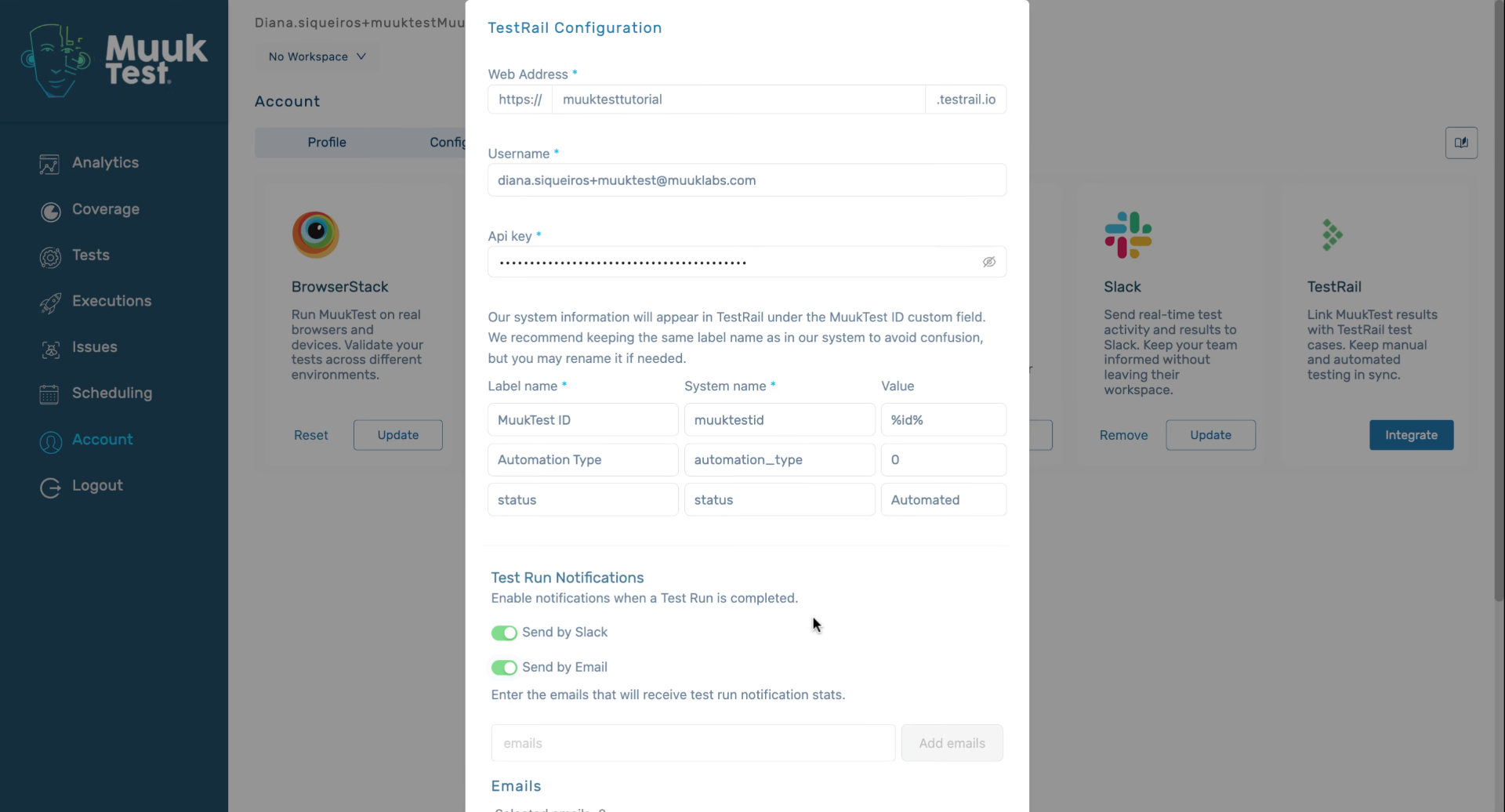
Review the integration details including web address, username, and API key to ensure accuracy.
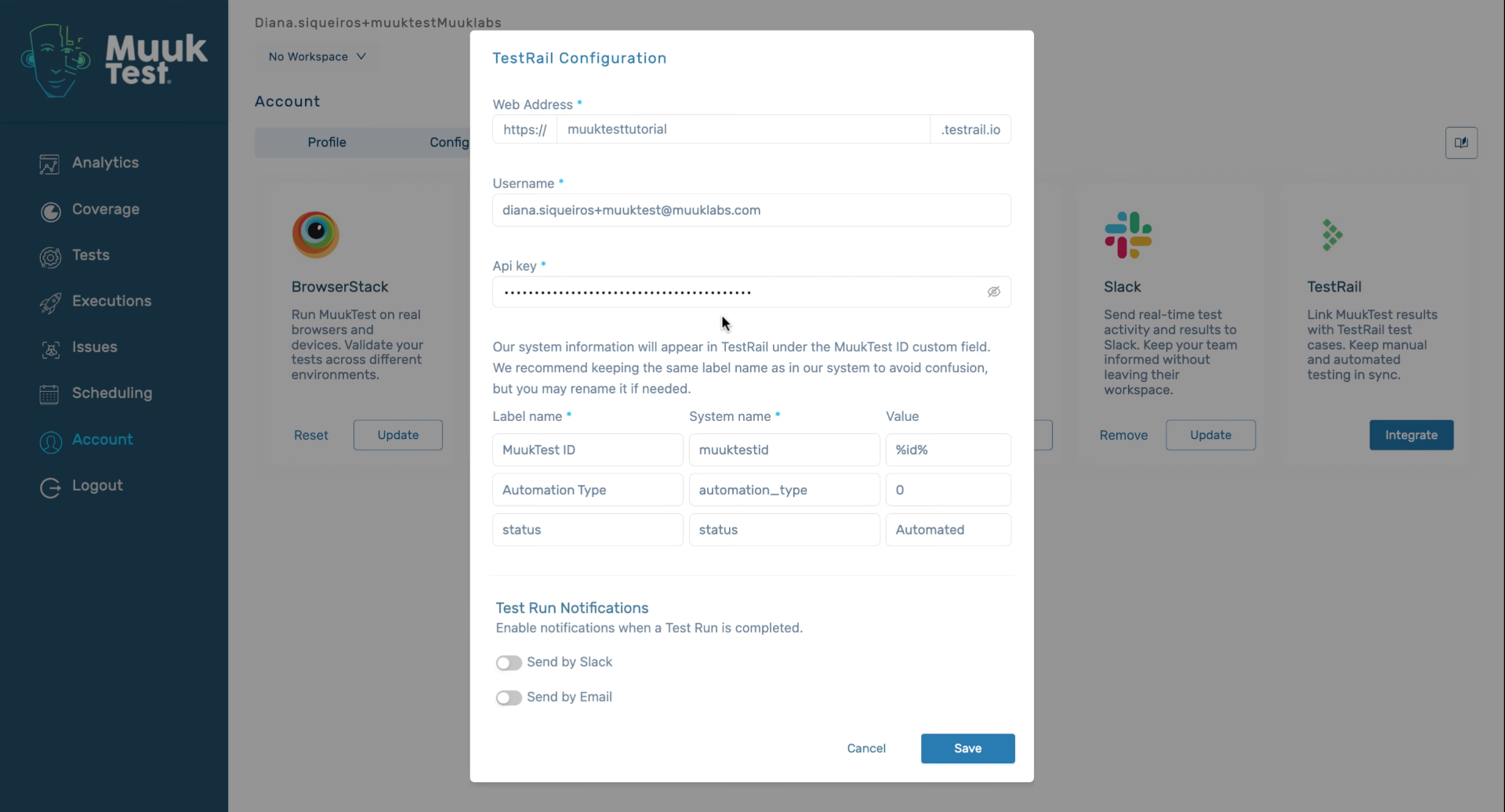
9. Enable Notifications
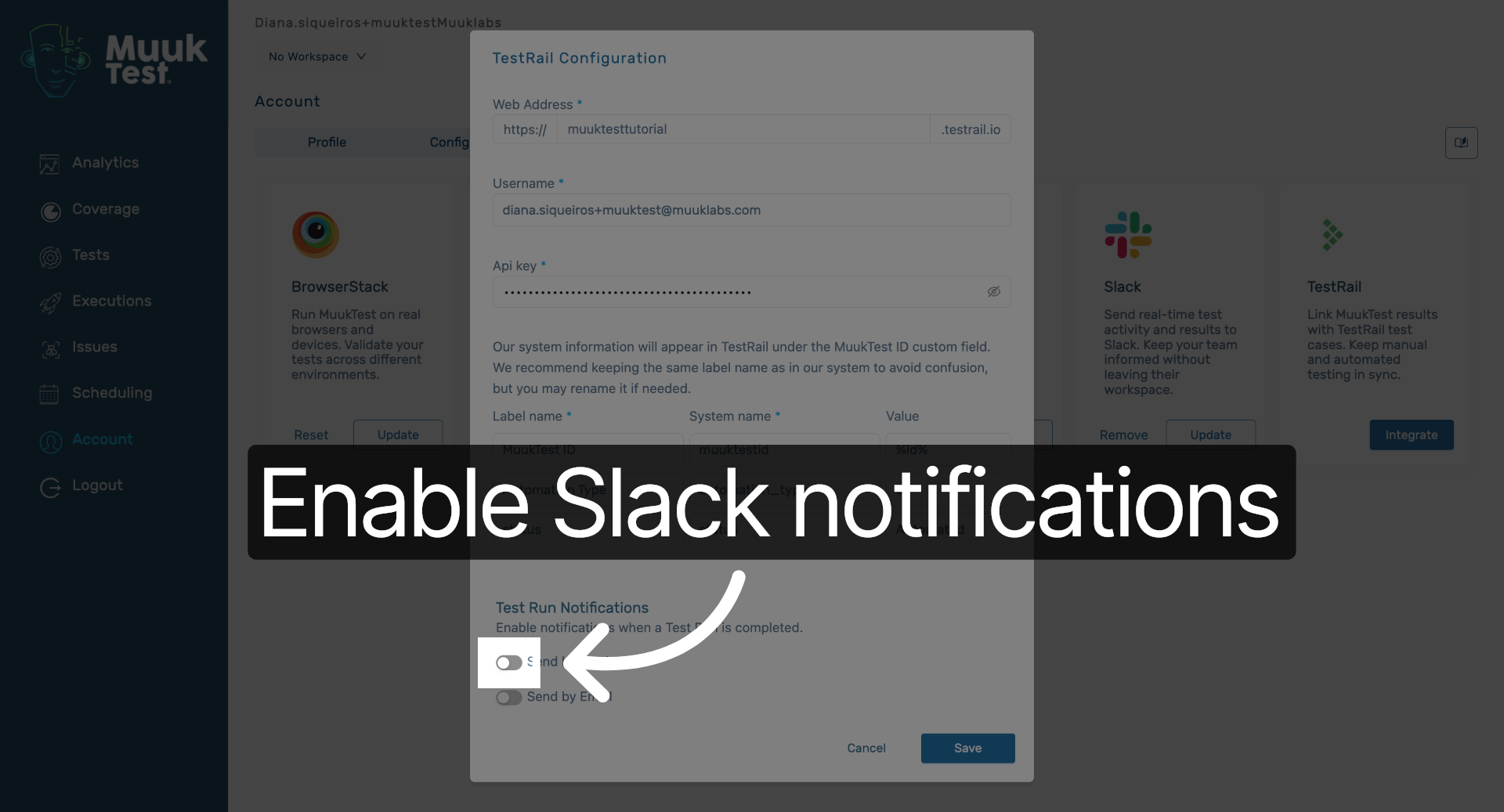
10. Click Slack Notification
Click here to enable Slack notifications for test run updates.
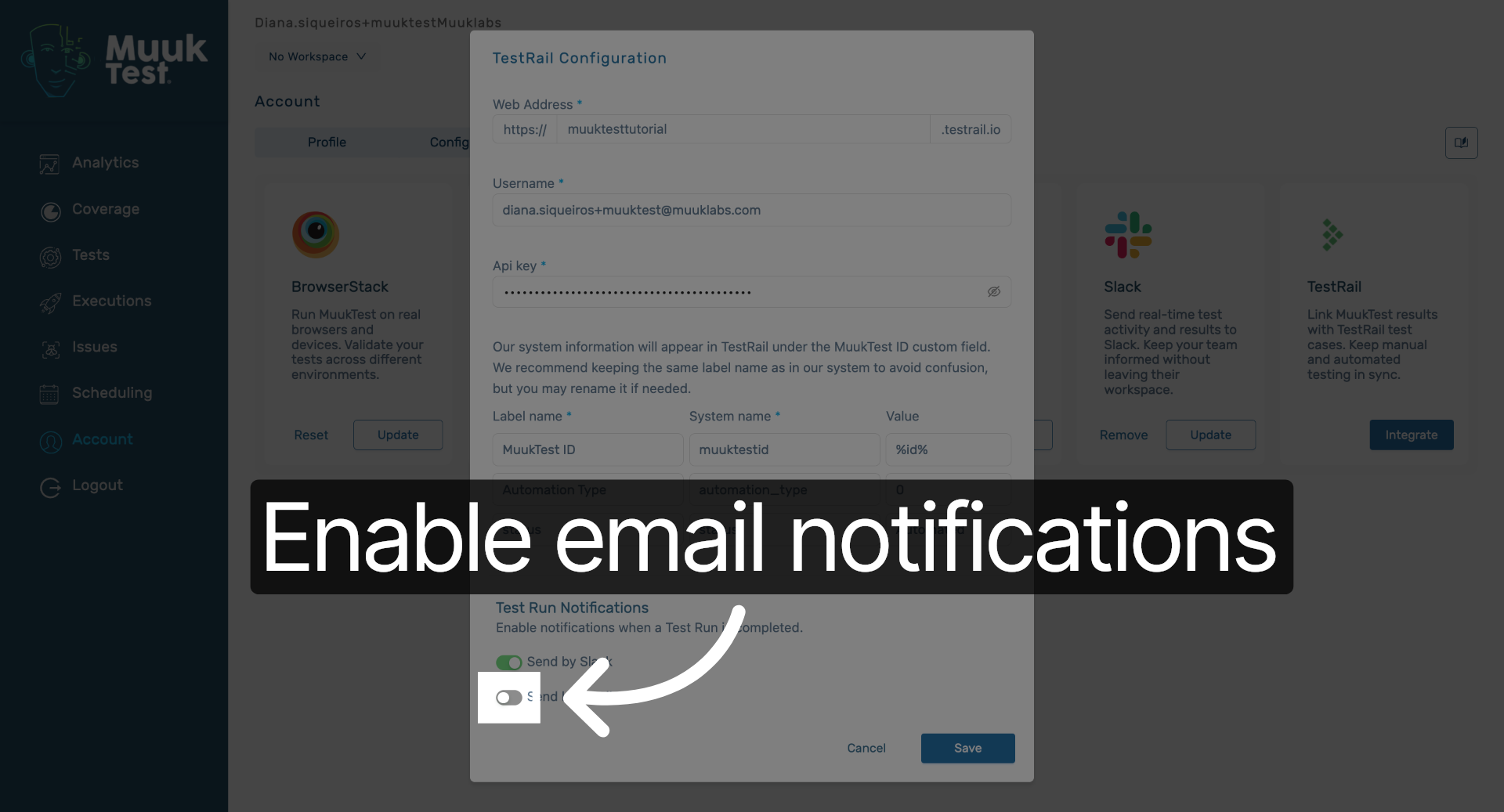
11. Click Email Notification
Click here to enable email notifications for test run updates.
12. Add Notification Emails
If we want to add email, we type our email here. Press enter, add emails. When we see it on the list, we click save
You have successfully integrated Muuktest with Testrail by configuring the connection settings and enabling notifications. You can now monitor test runs and receive updates via Slack or email.
Comments
0 comments
Please sign in to leave a comment.