
This tutorial guides you through integrating Playwright within your MuukTest account
Go to portal.muuktest.com:5000
1. Introduction
You will configure the necessary project and device settings to complete the integration successfully.
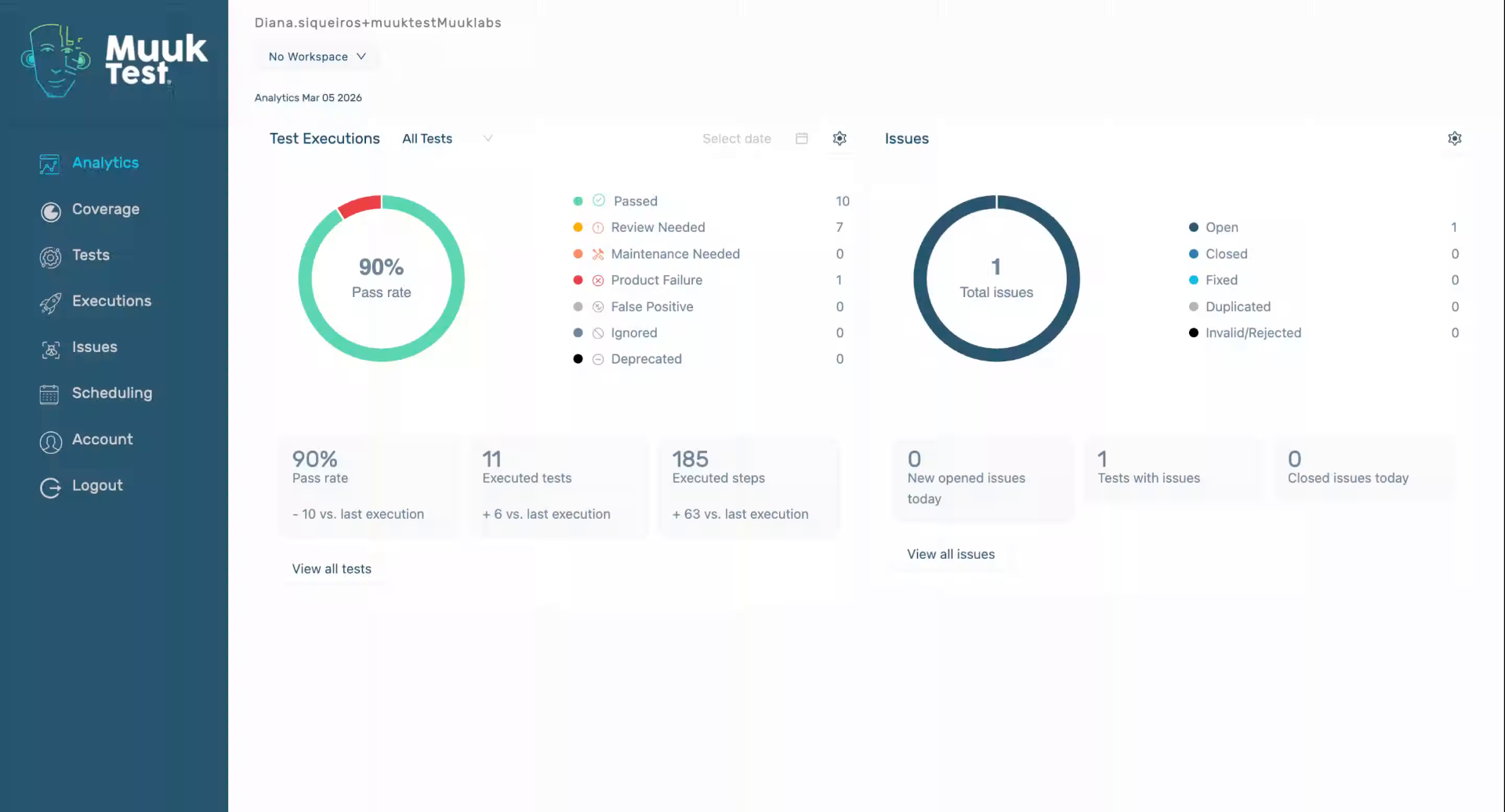
2. Access Account Settings
Click the "Account" option to open your account settings in MuukTest.
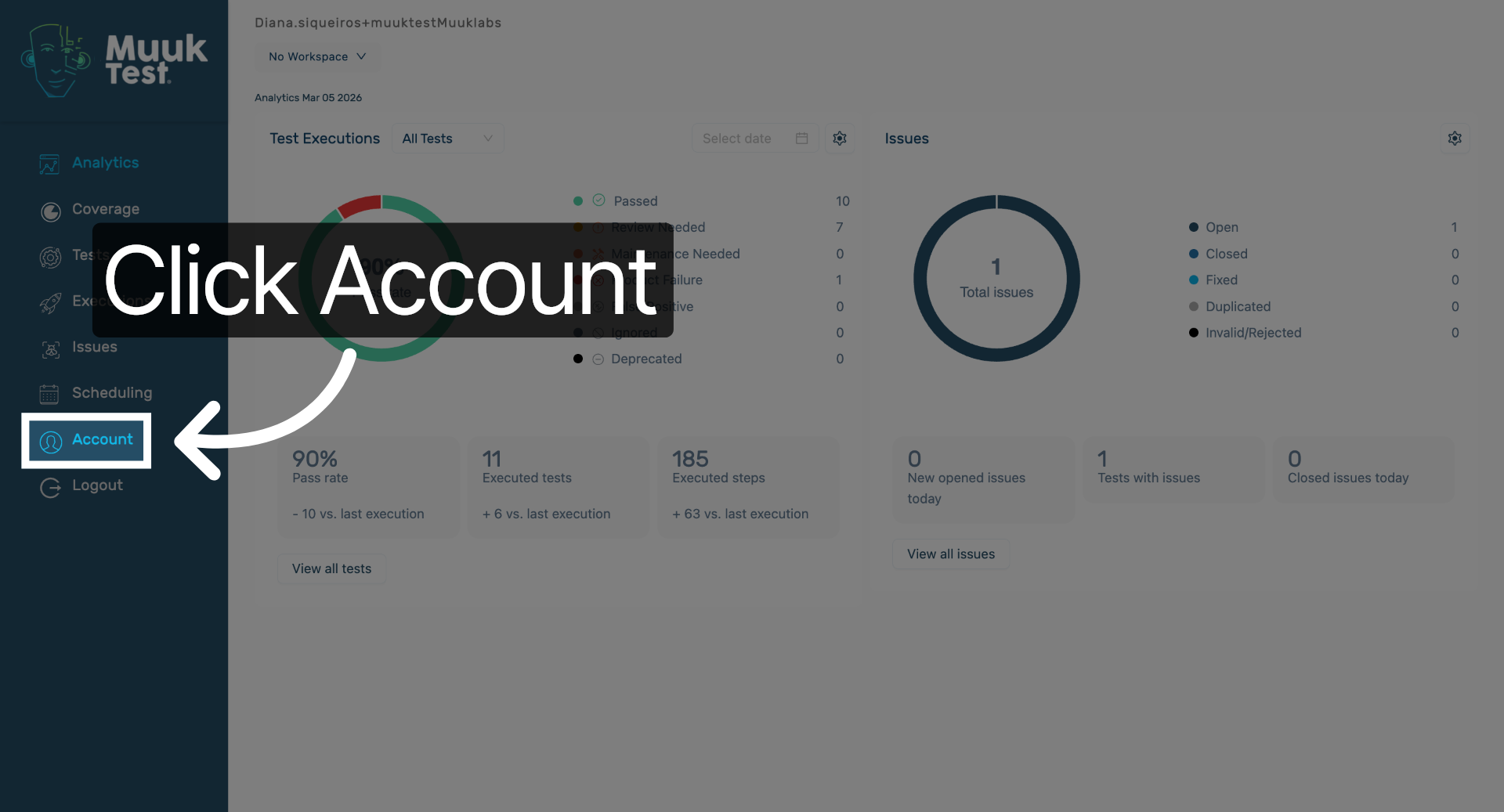
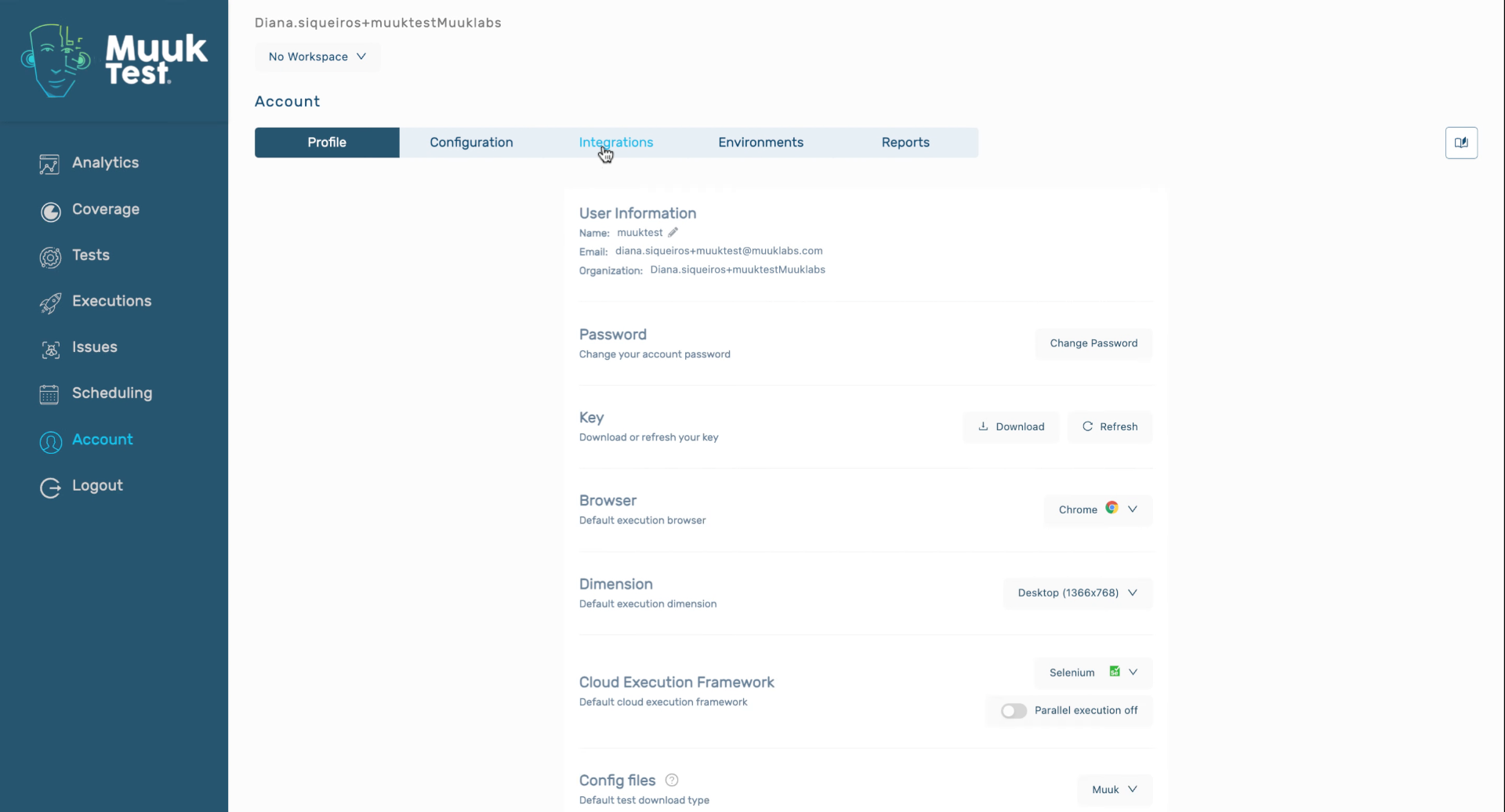
3. Open Integrations Section
Click the "Integrations" tab to view available integration options.
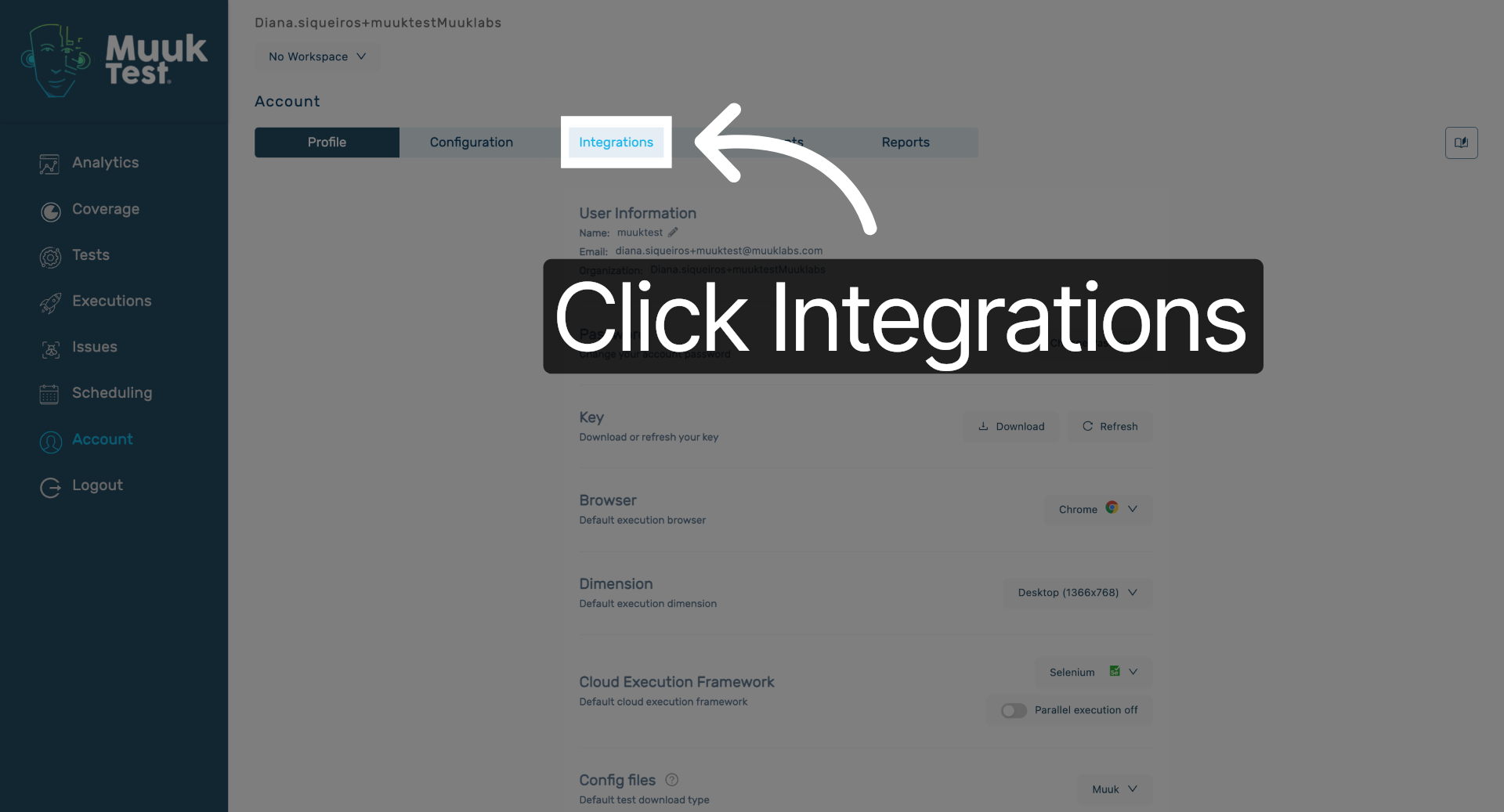
4. Search Integrations
Enter "integrations" in the search field to filter integration options.
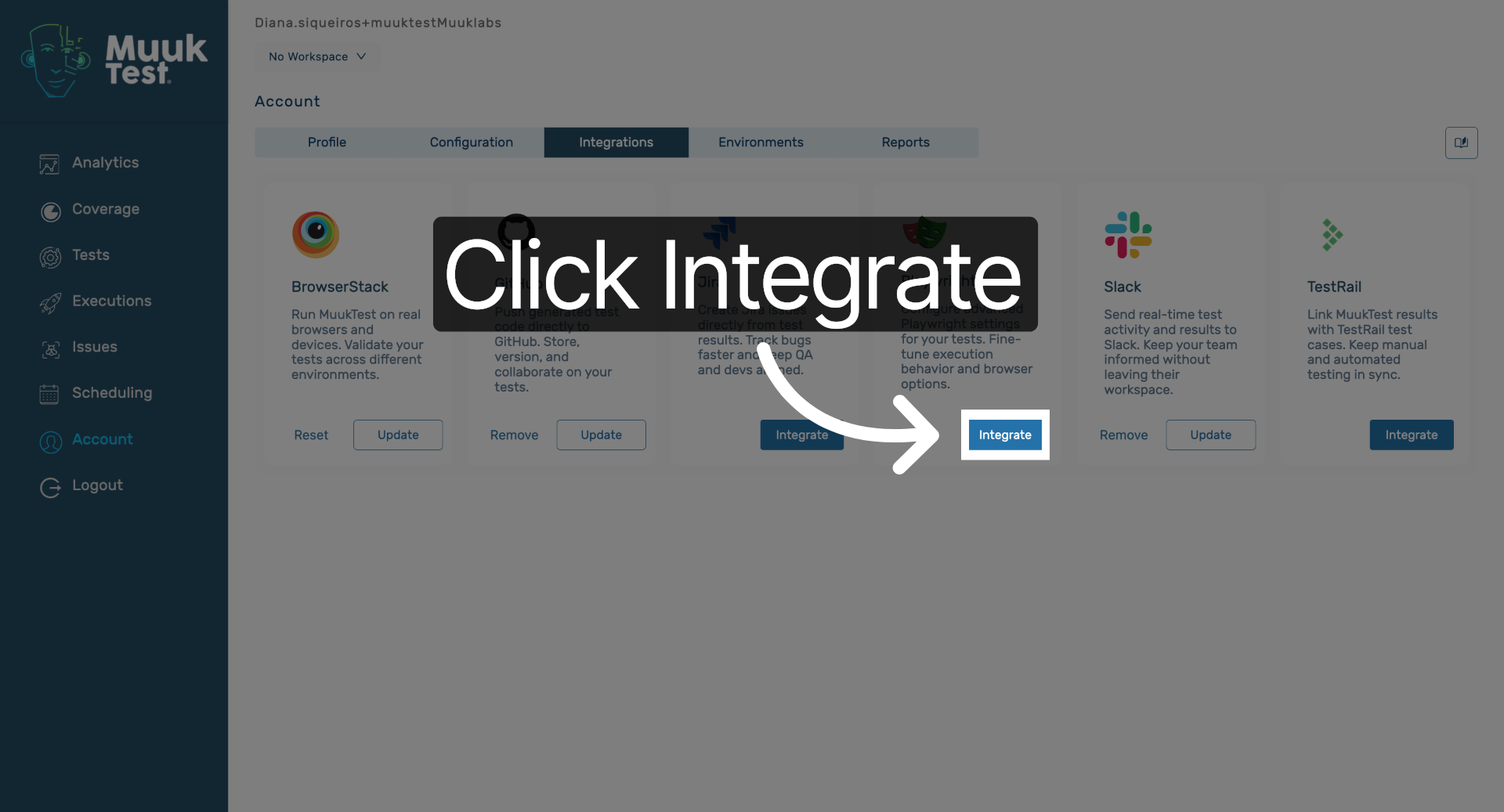
5. Start Integration Process
Click the "Integrate" button to begin setting up a new integration.
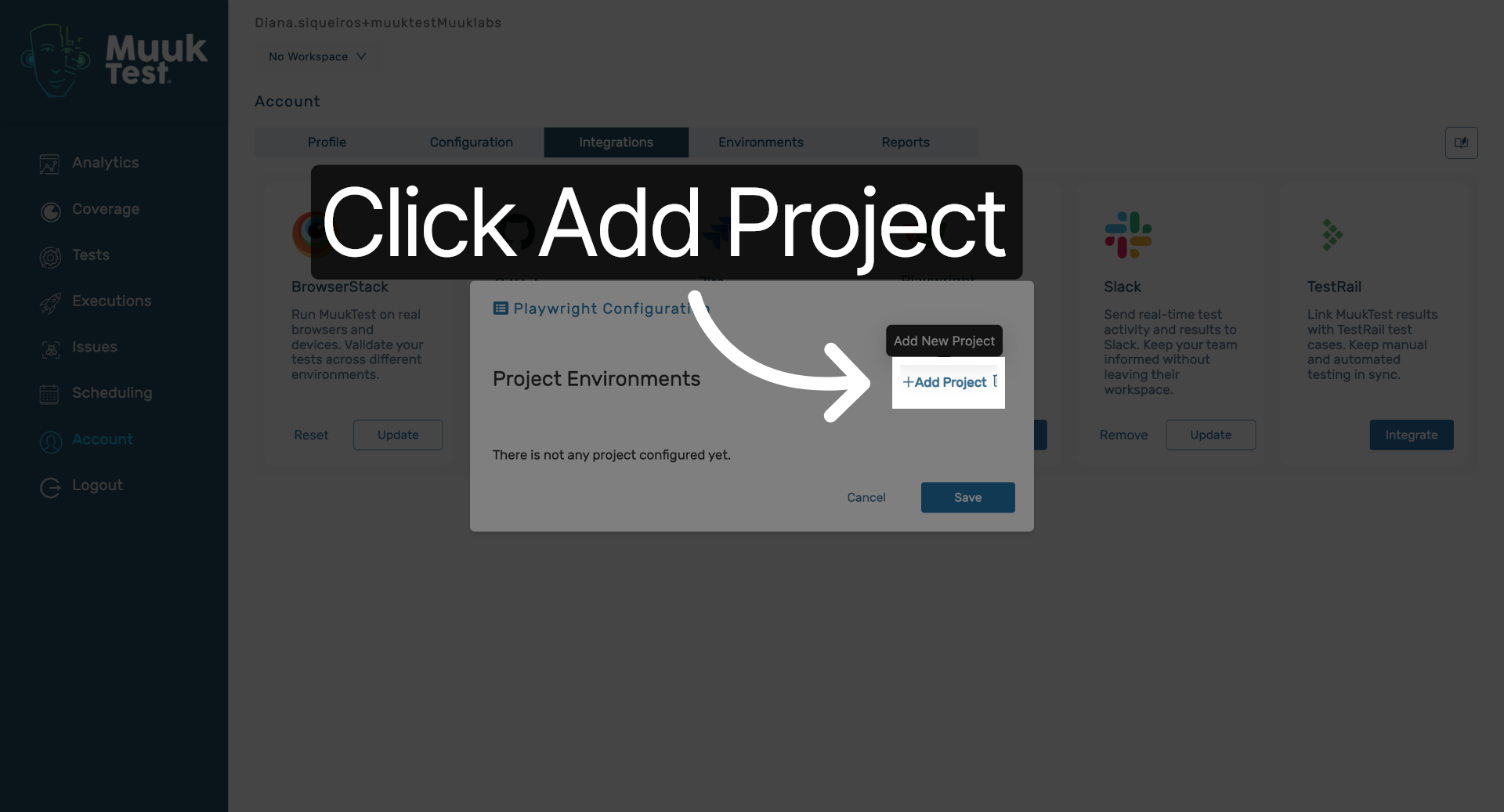
6. Add New Project
Click "Add Project" to create a new project for your Playwright integration.
7. Select Project Name
Click the project name to select it for configuration.
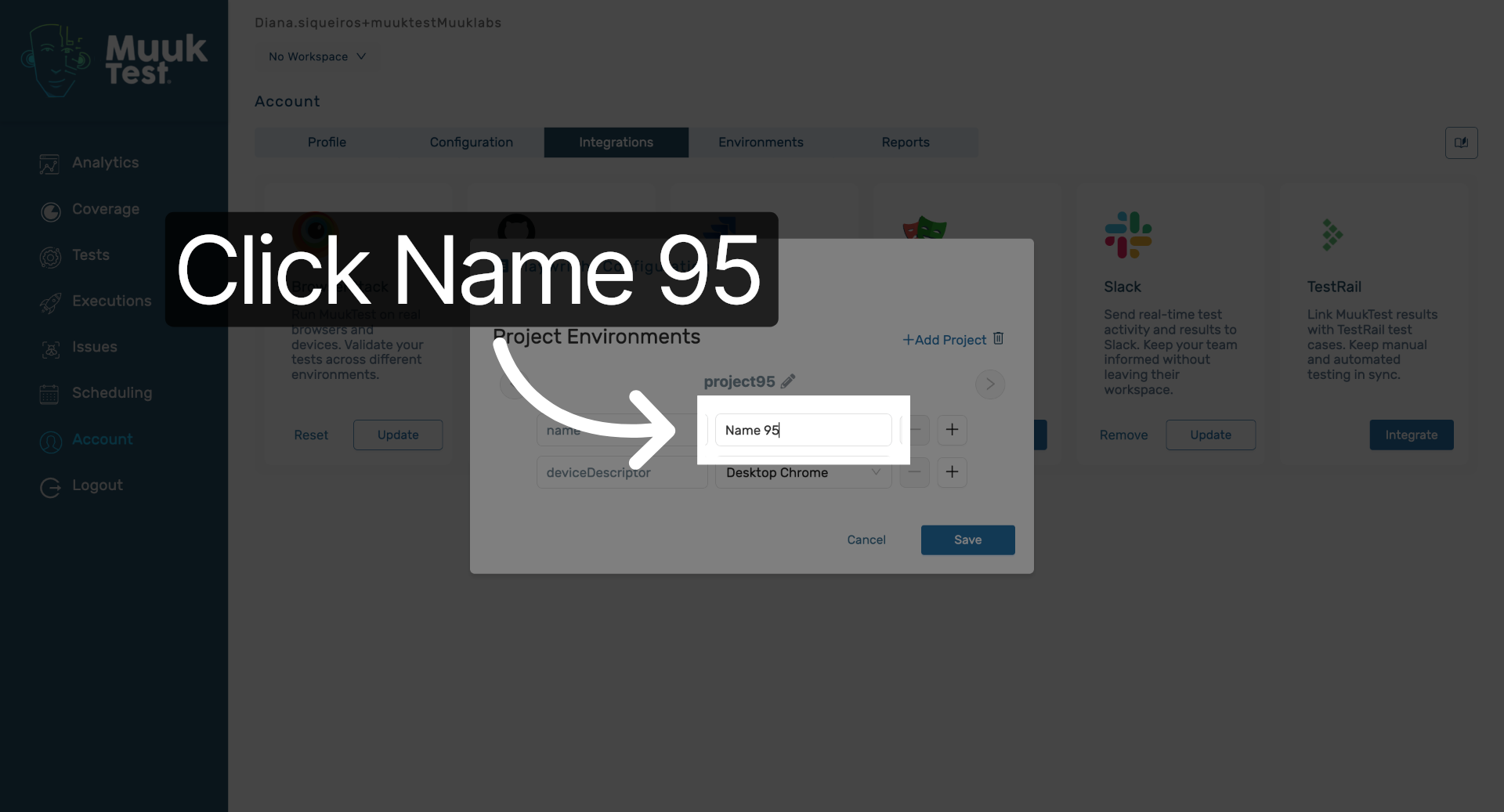
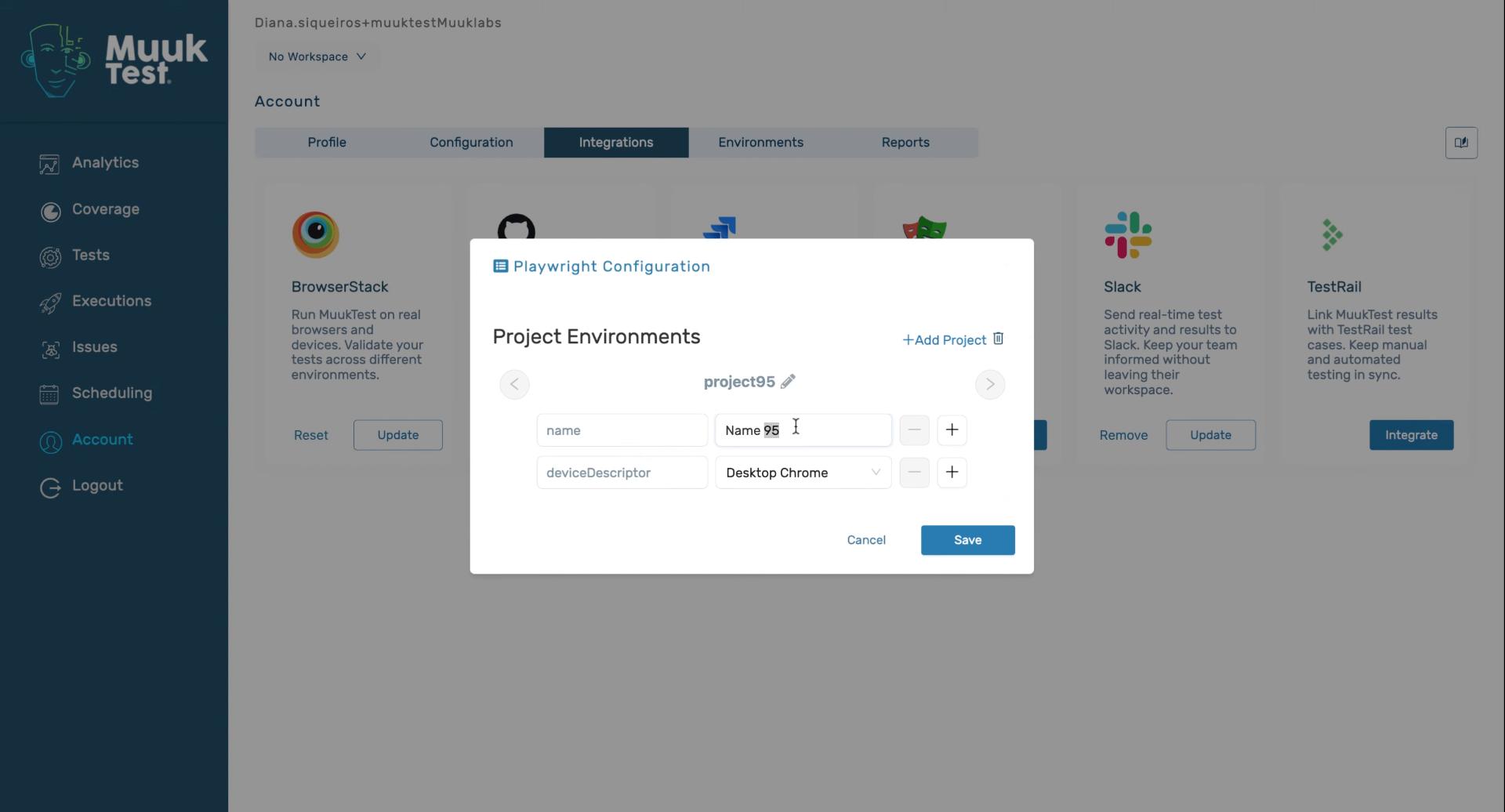
8. Specify Device Name
Enter the device name to specify the testing environment.
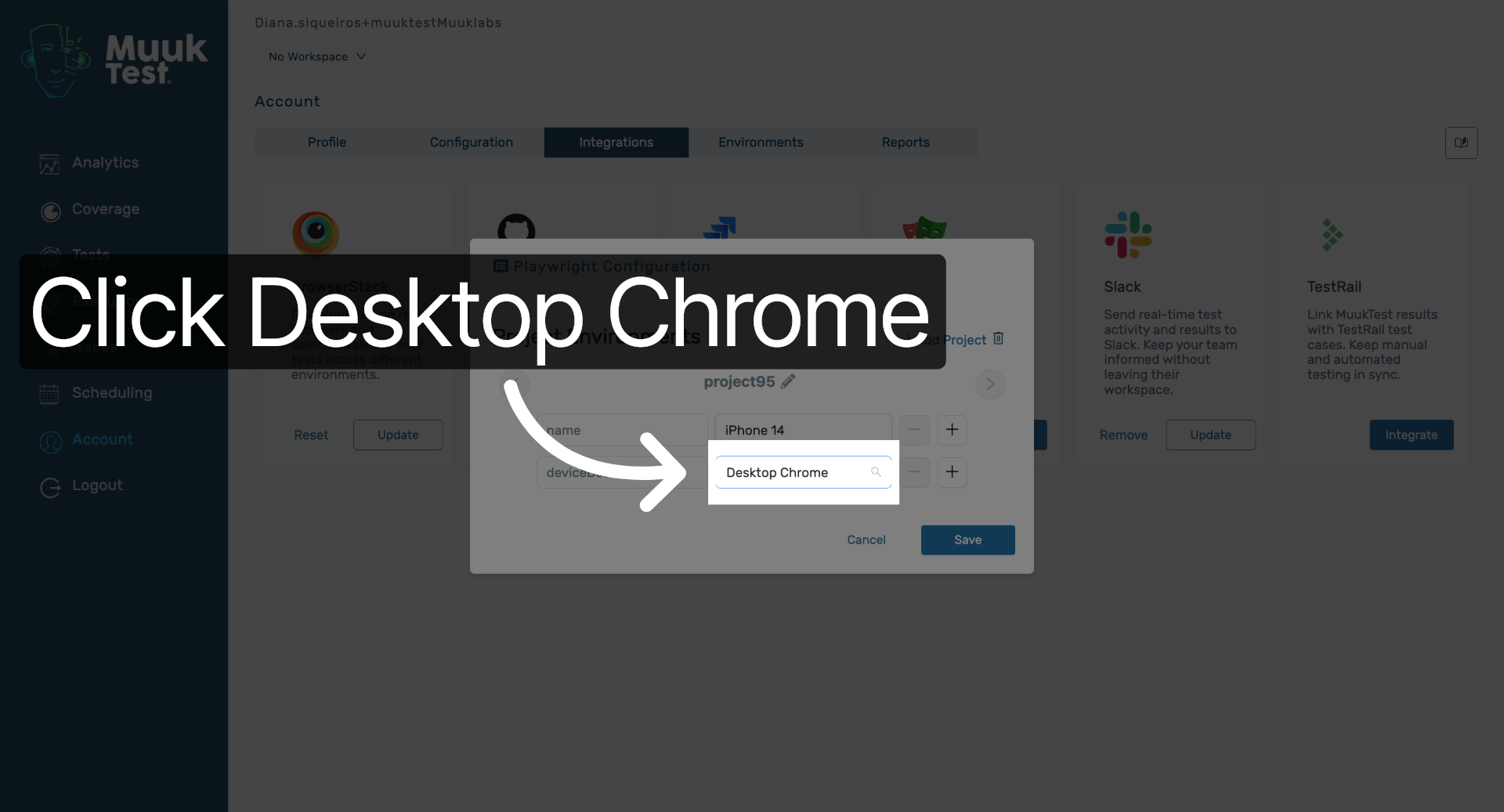
9. Choose Desktop Browser
Click the device descriptor dropdown to select the device for testing.
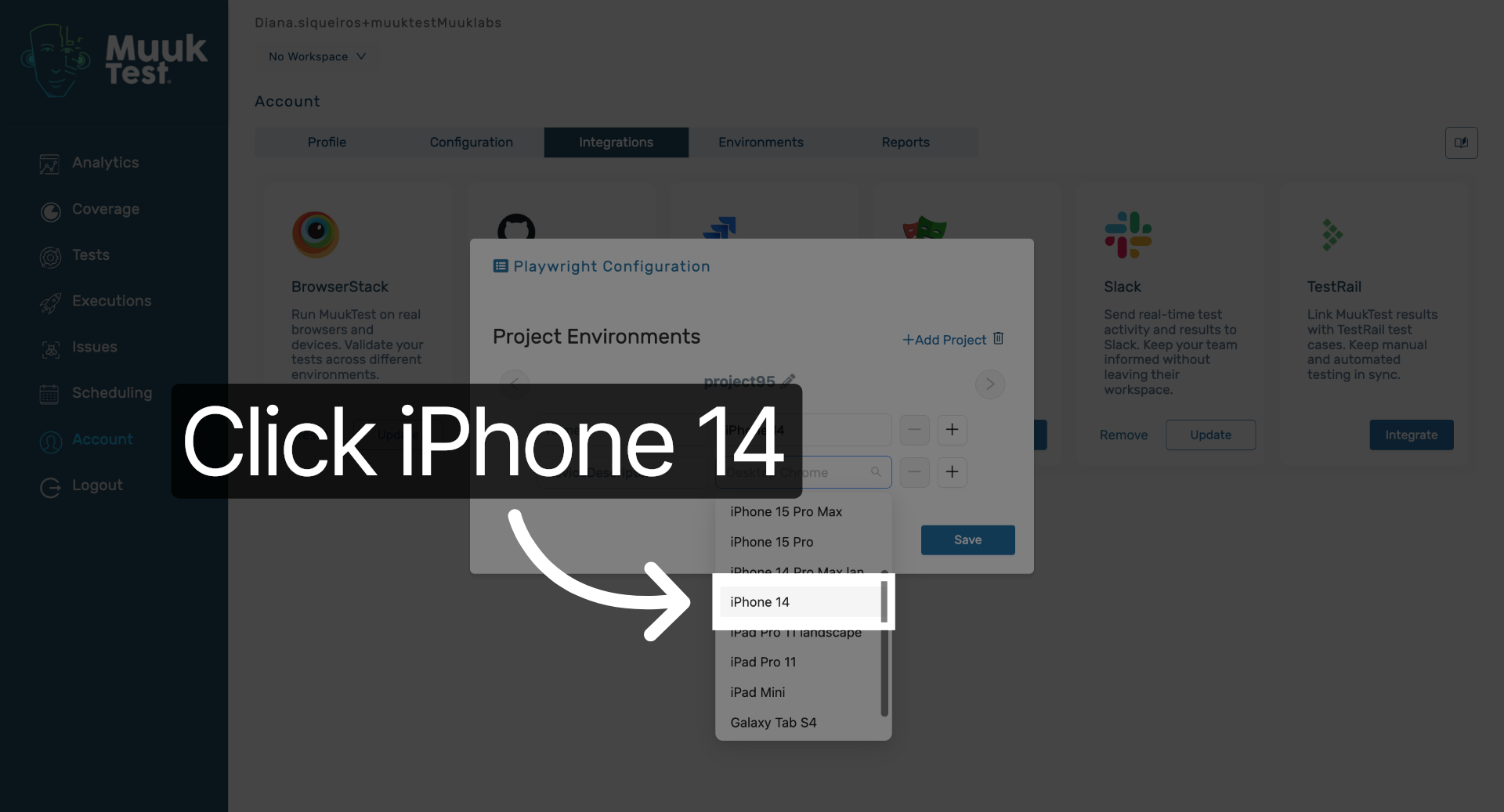
10. Select Mobile Device
Choose the device for your tests.
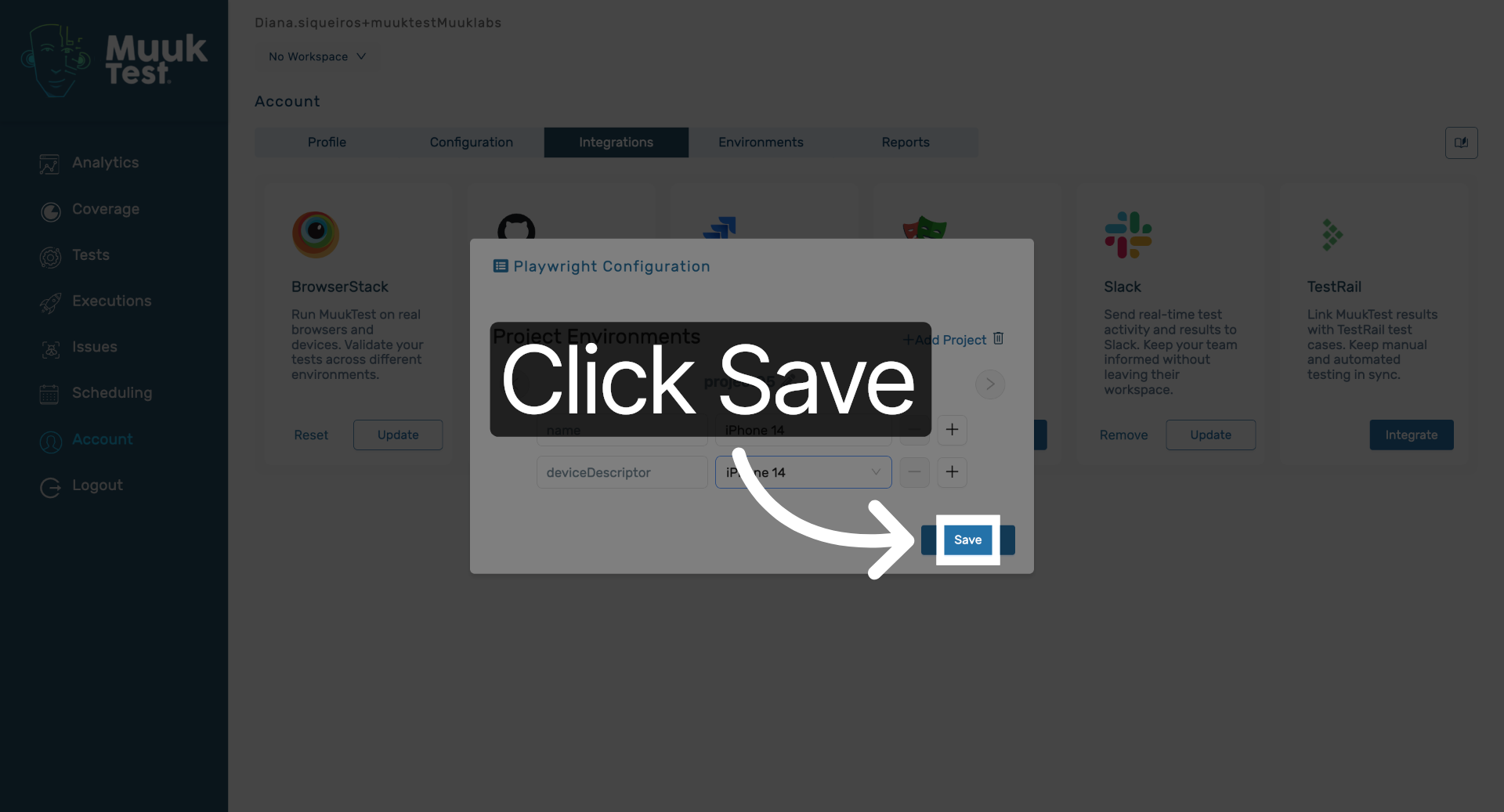
11. Save Integration Settings
Click the "Save" button to save your Playwright integration configuration.
You have successfully integrated Playwright with your MuukTest account by configuring the project and selecting the appropriate devices and browsers. You can now proceed to run tests using this integration or explore additional settings to customize your testing environment further.
Comments
0 comments
Please sign in to leave a comment.