
This tutorial guides you through changing your password securely in the Muuktest application
Go to portal.muuktest.com:5000
1. Introduction
You will learn how to access the password change request and update your credentials safely.
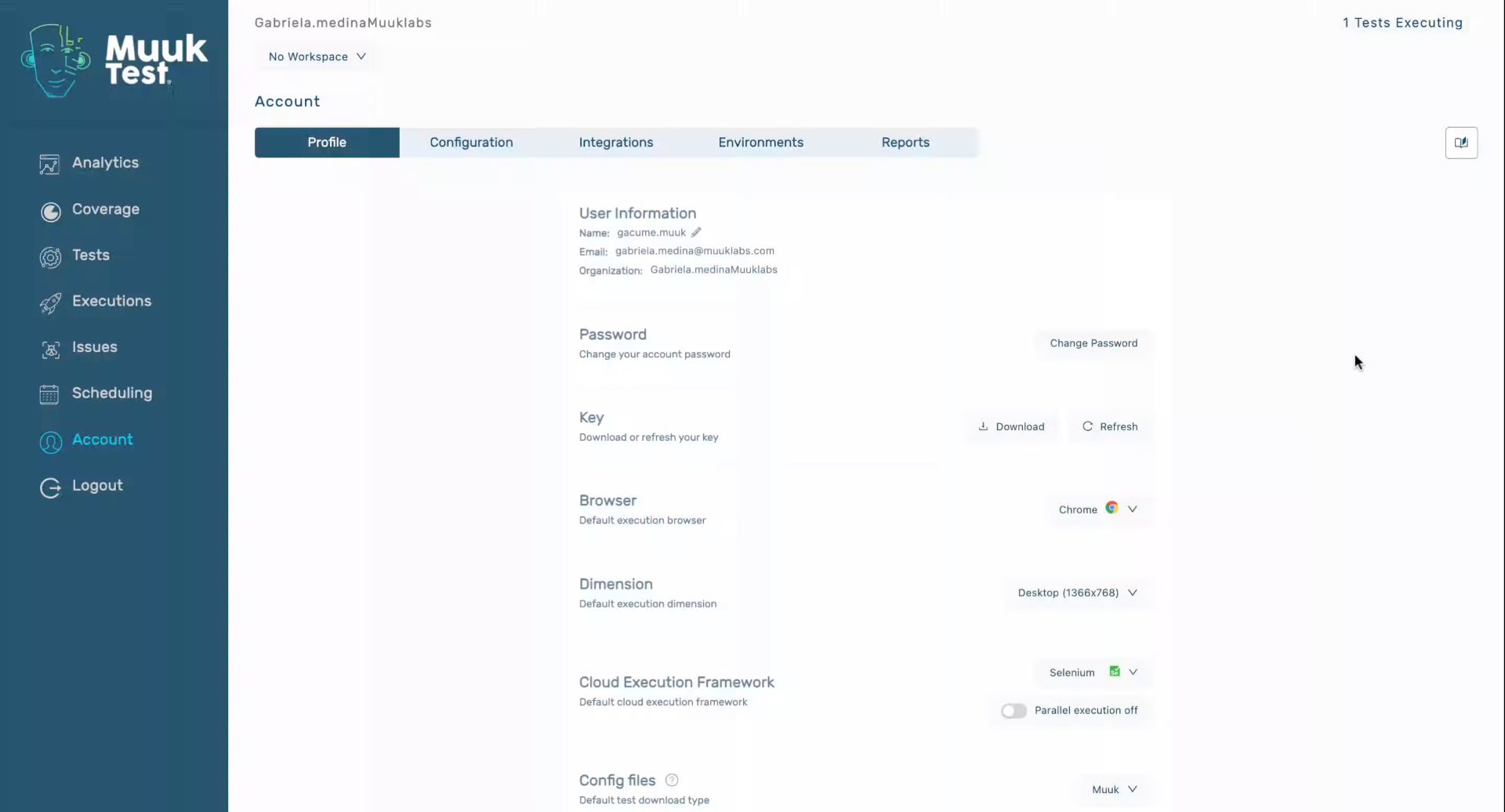
2. Access Password Change Option
Click "Change Password" to begin updating your account credentials in Muuktest.
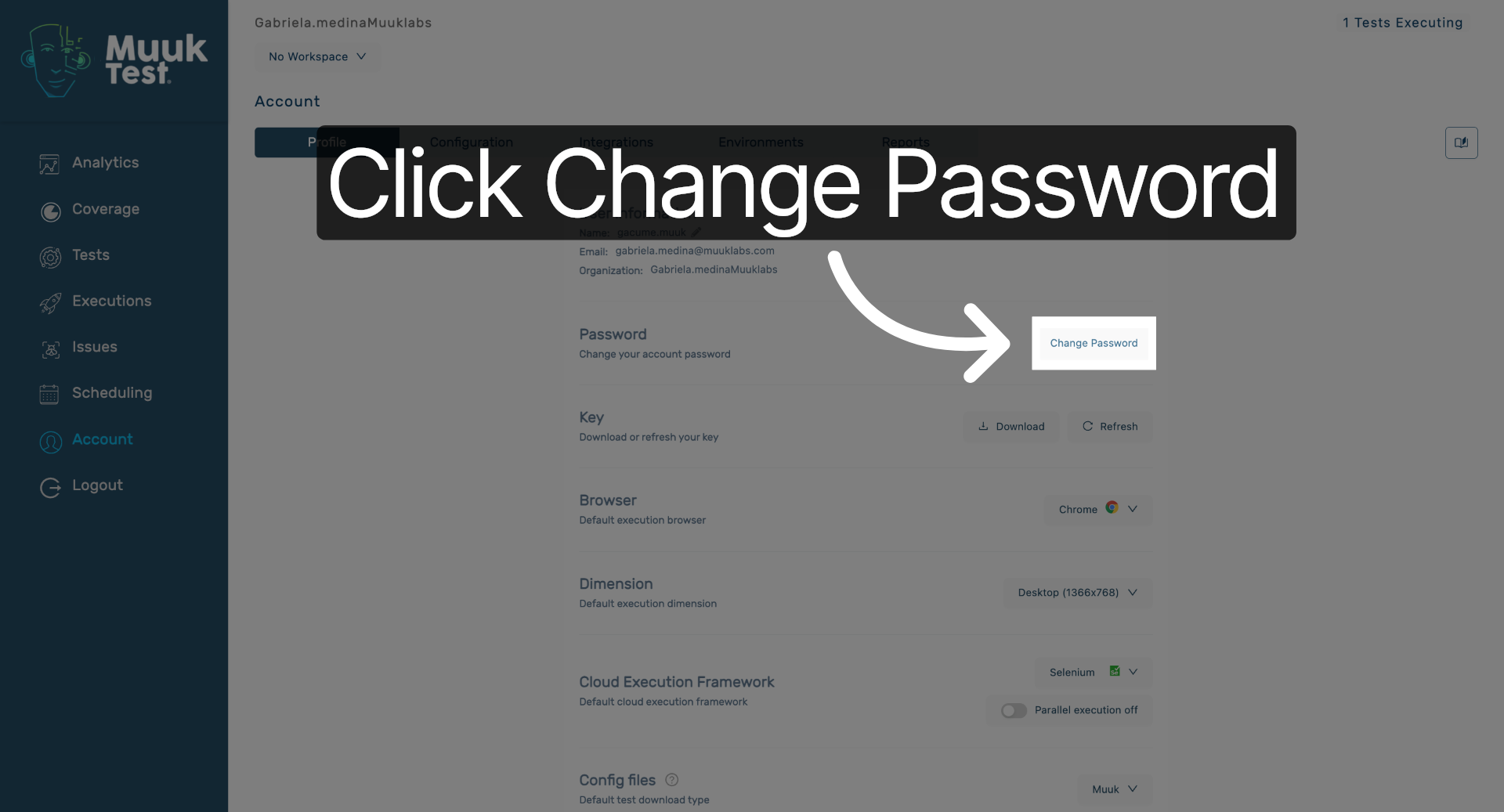
3. Open Password Change Request Email
Click "Change Password Request" in your email inbox.
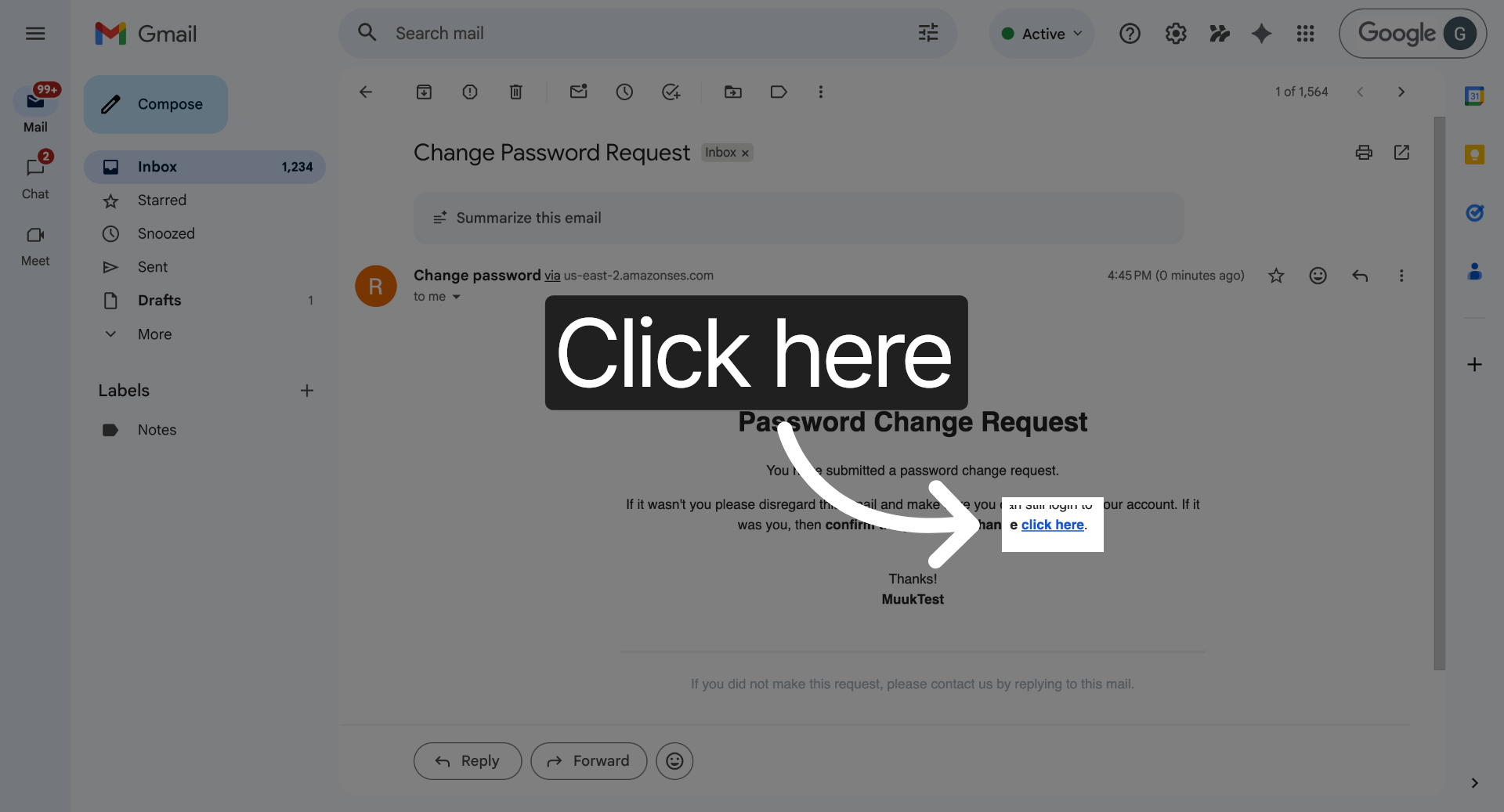
4. Follow Password Change Link
Click "click here" in the email to open the password reset page.
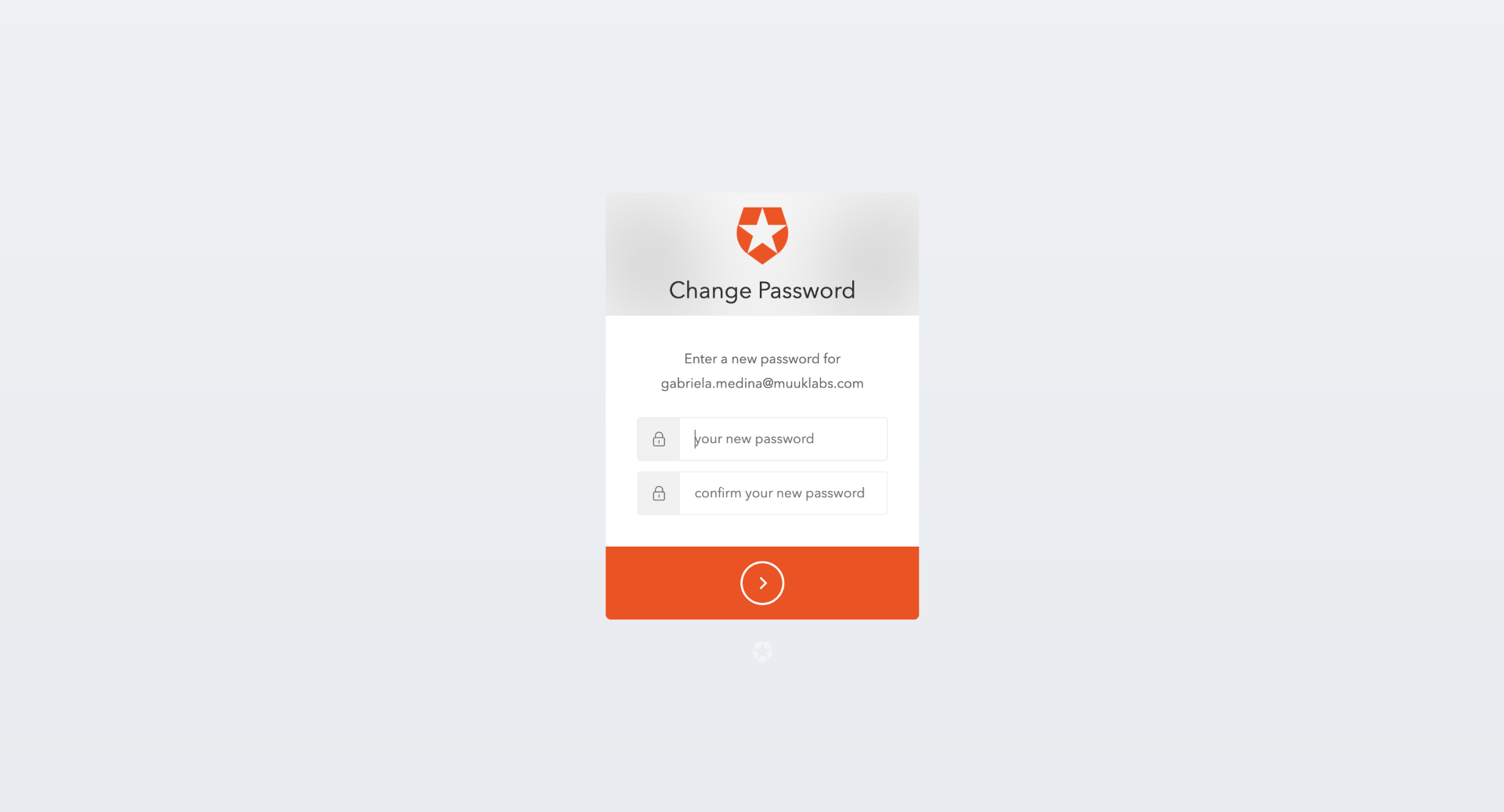
5. Navigate to Password Reset Page
You will be redirected to a new tab to access the password reset form.
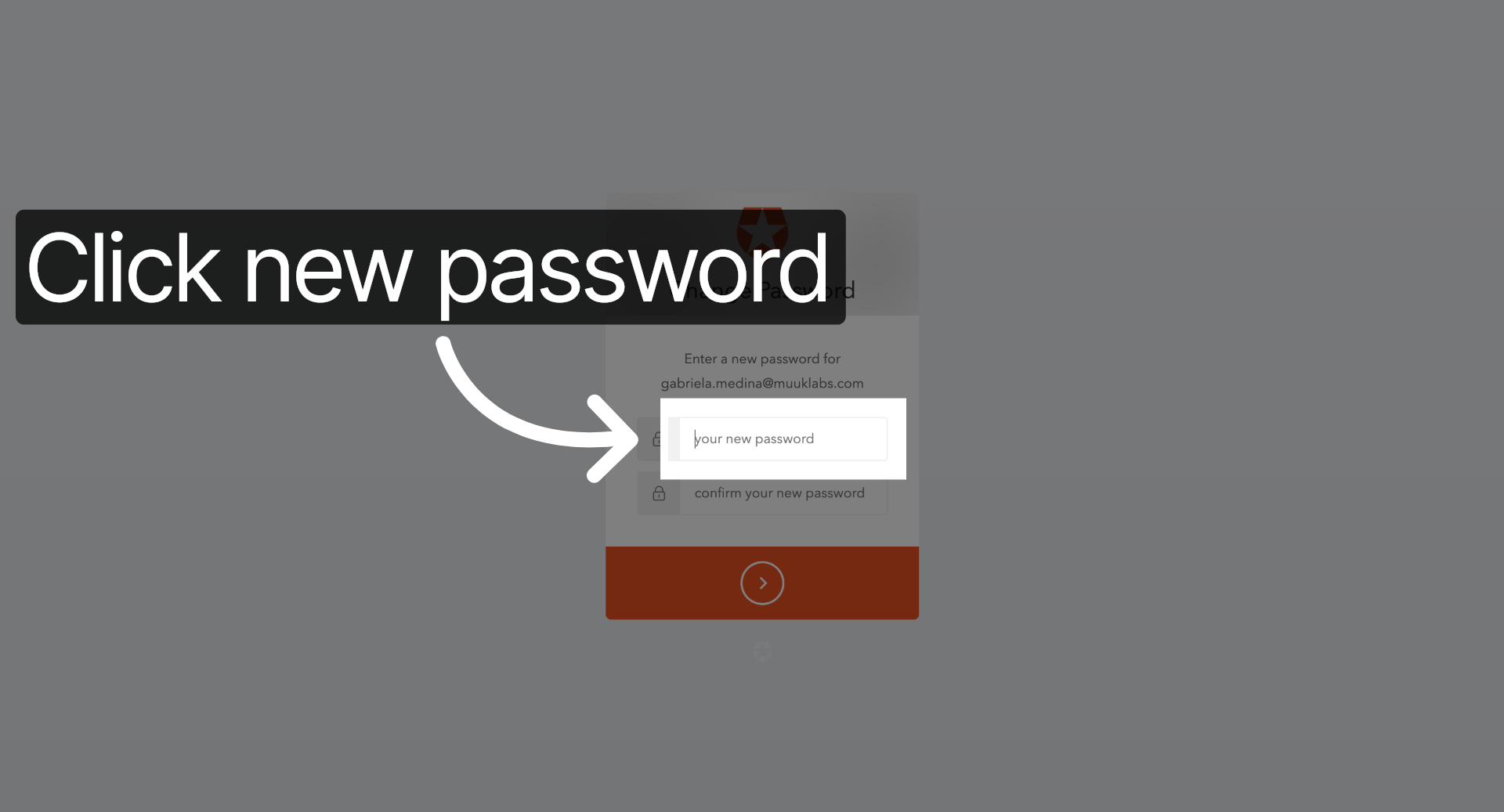
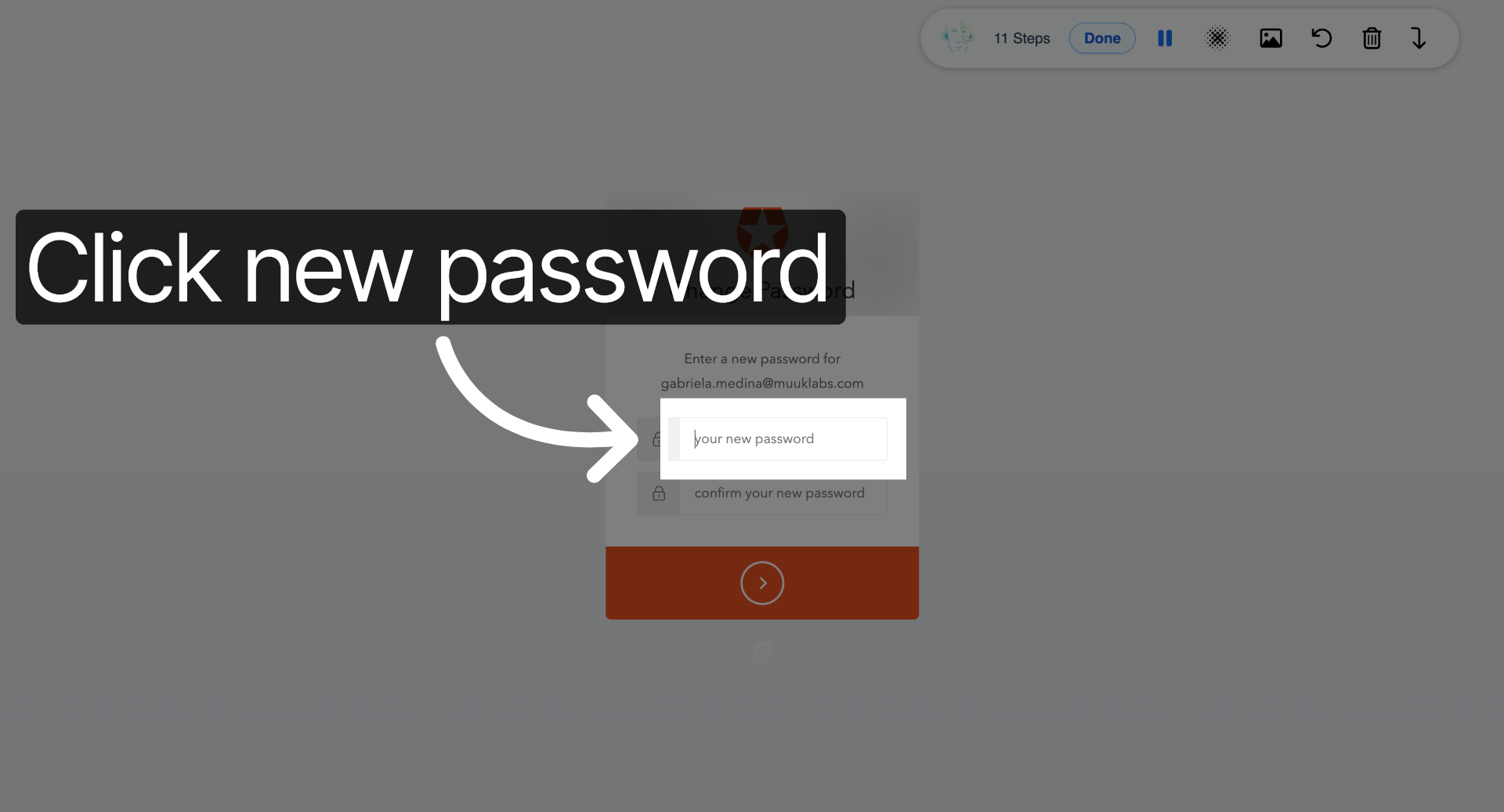
6. Select New Password Field
Click the field labeled "your new password" to prepare for entering your new password.
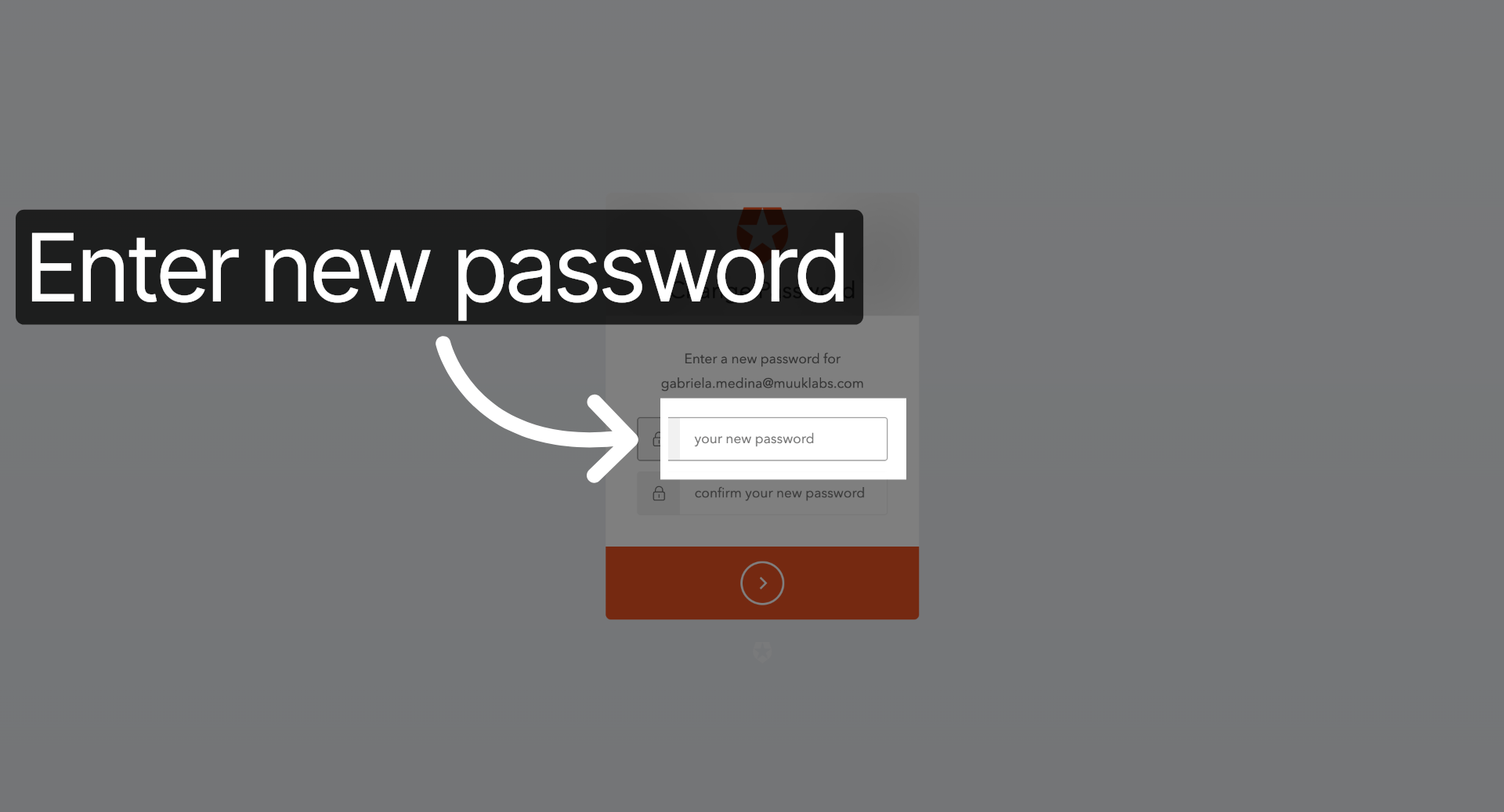
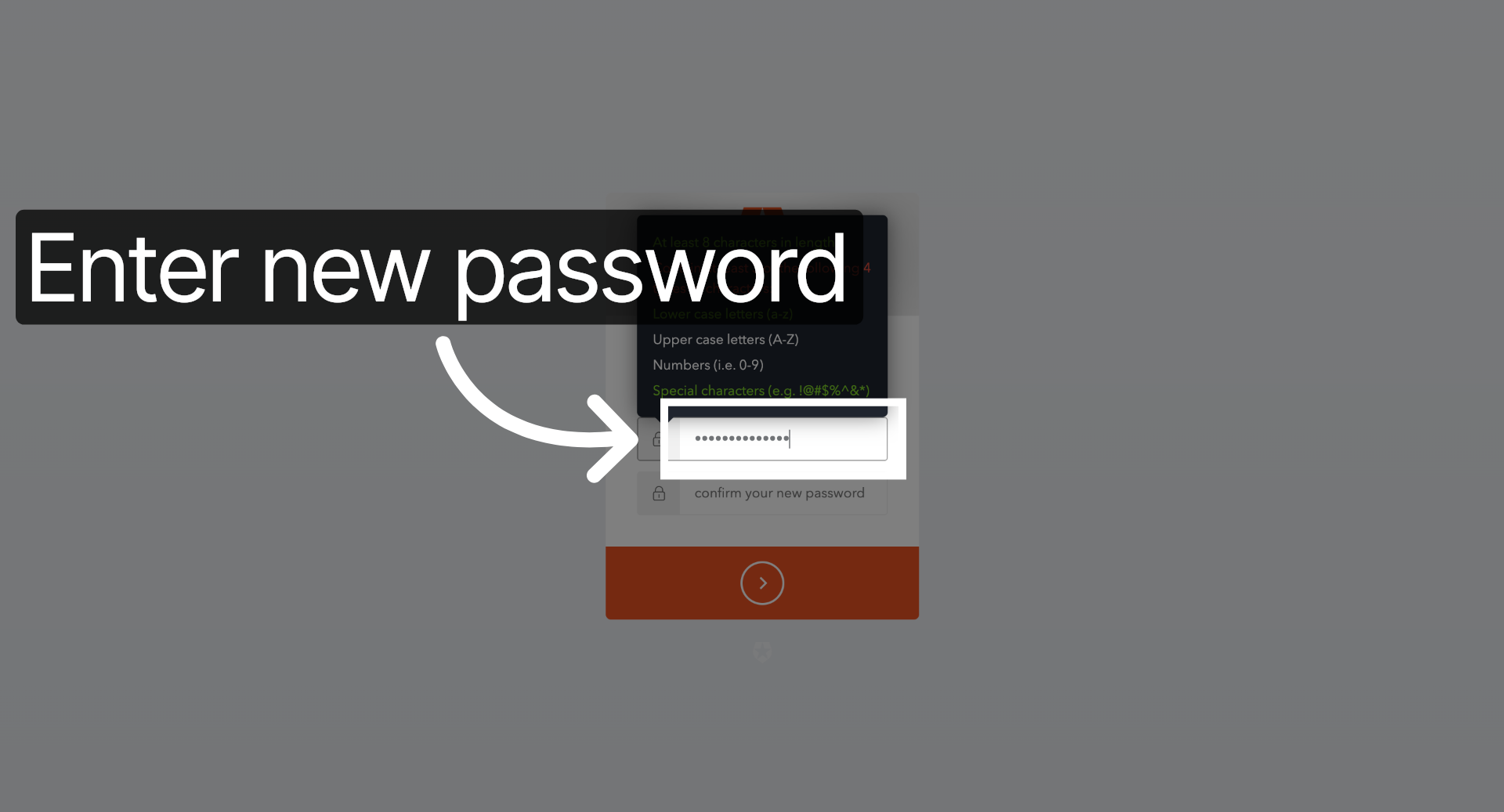
7. Enter New Password
Enter your new password in the designated field to update your account credentials securely.
8. Select Confirm Password Field
Click the "your new password" field again to prepare for confirming your new password.
9. Enter New Password Again
Enter your new password again in the confirmation field to verify accuracy.
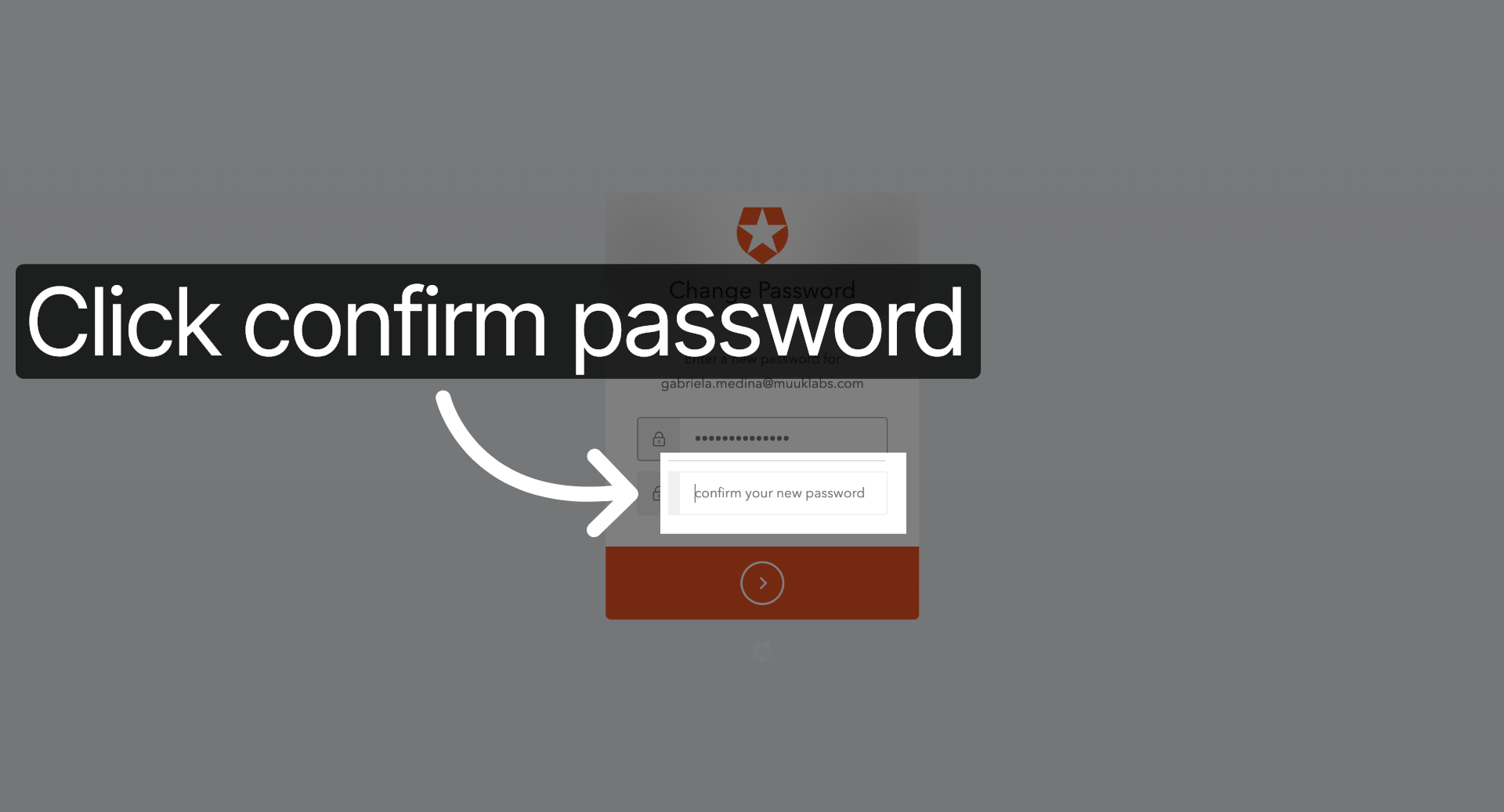
10. Select Confirm Password Input
Click "confirm your new password" to focus on confirming your new password.
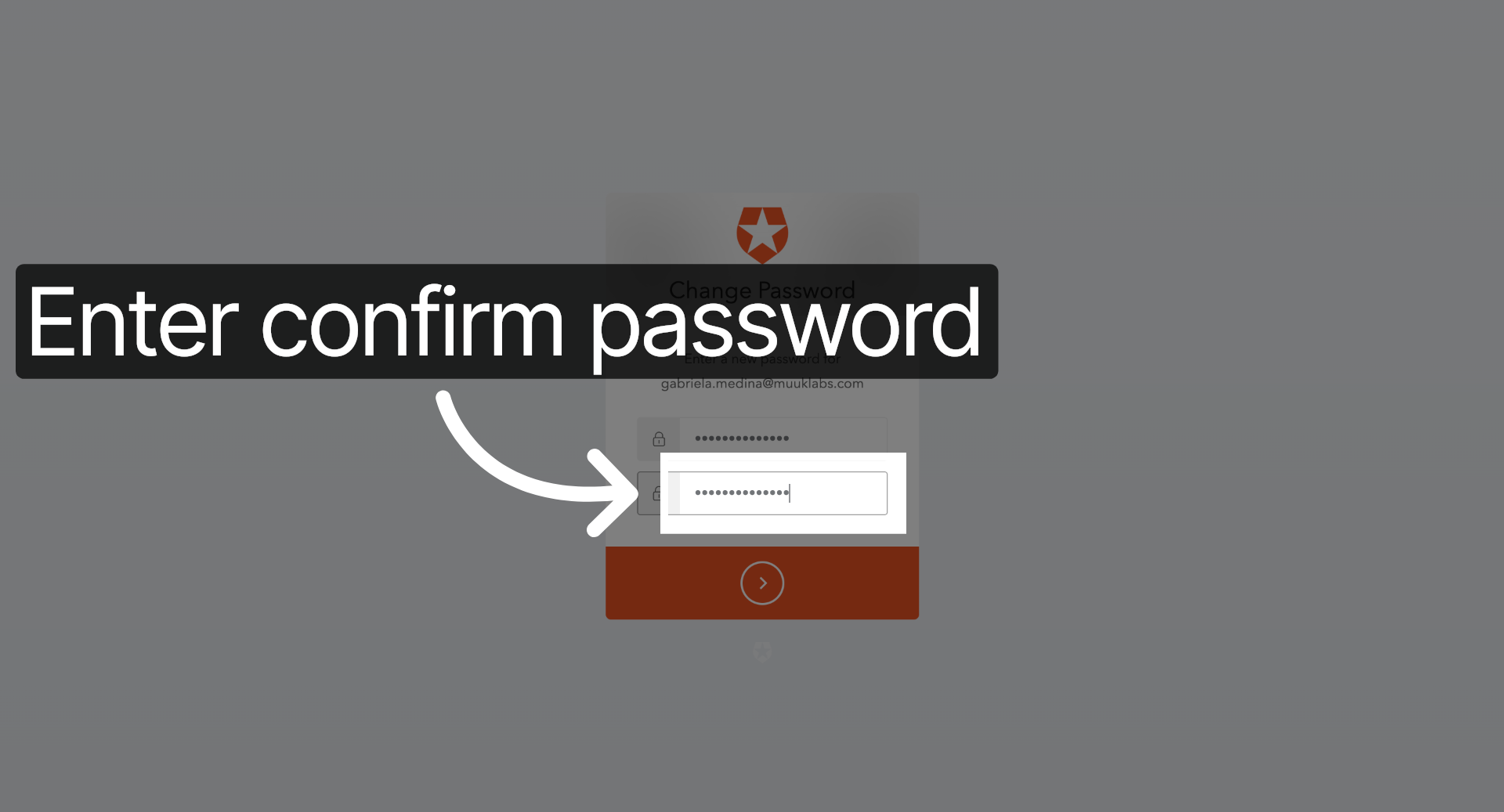
11. Confirm New Password
Enter your new password again in the confirmation field to complete the verification process.
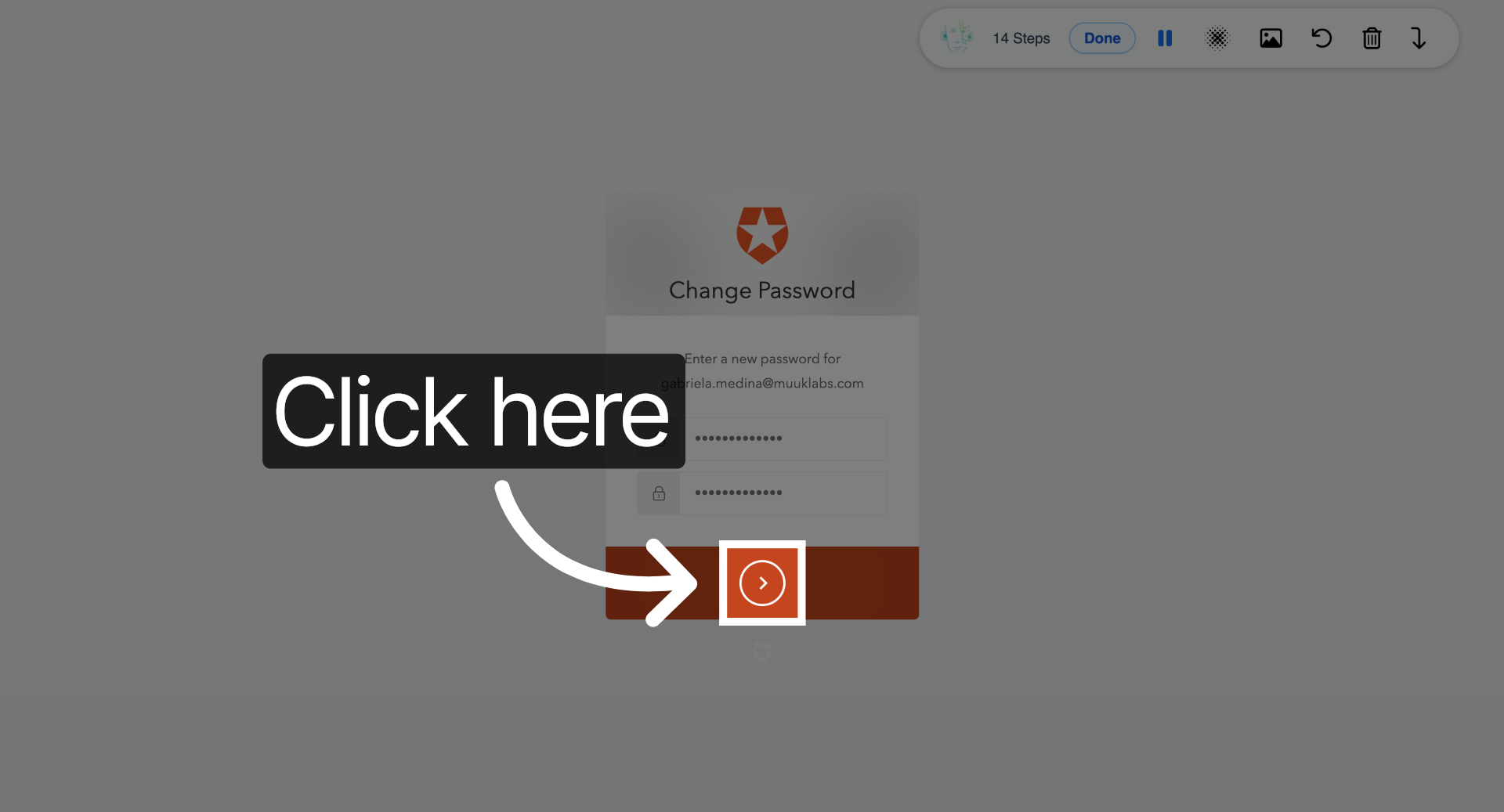
12. Finalize Password Change
Click here to submit your new password and complete the password change process securely.
You have successfully changed your password in the Muuktest application by following the secure password reset process. For additional security, consider updating your recovery options or reviewing your account settings.
Comments
0 comments
Please sign in to leave a comment.