

This tutorial explains how to change your default browser within the Muuktest application
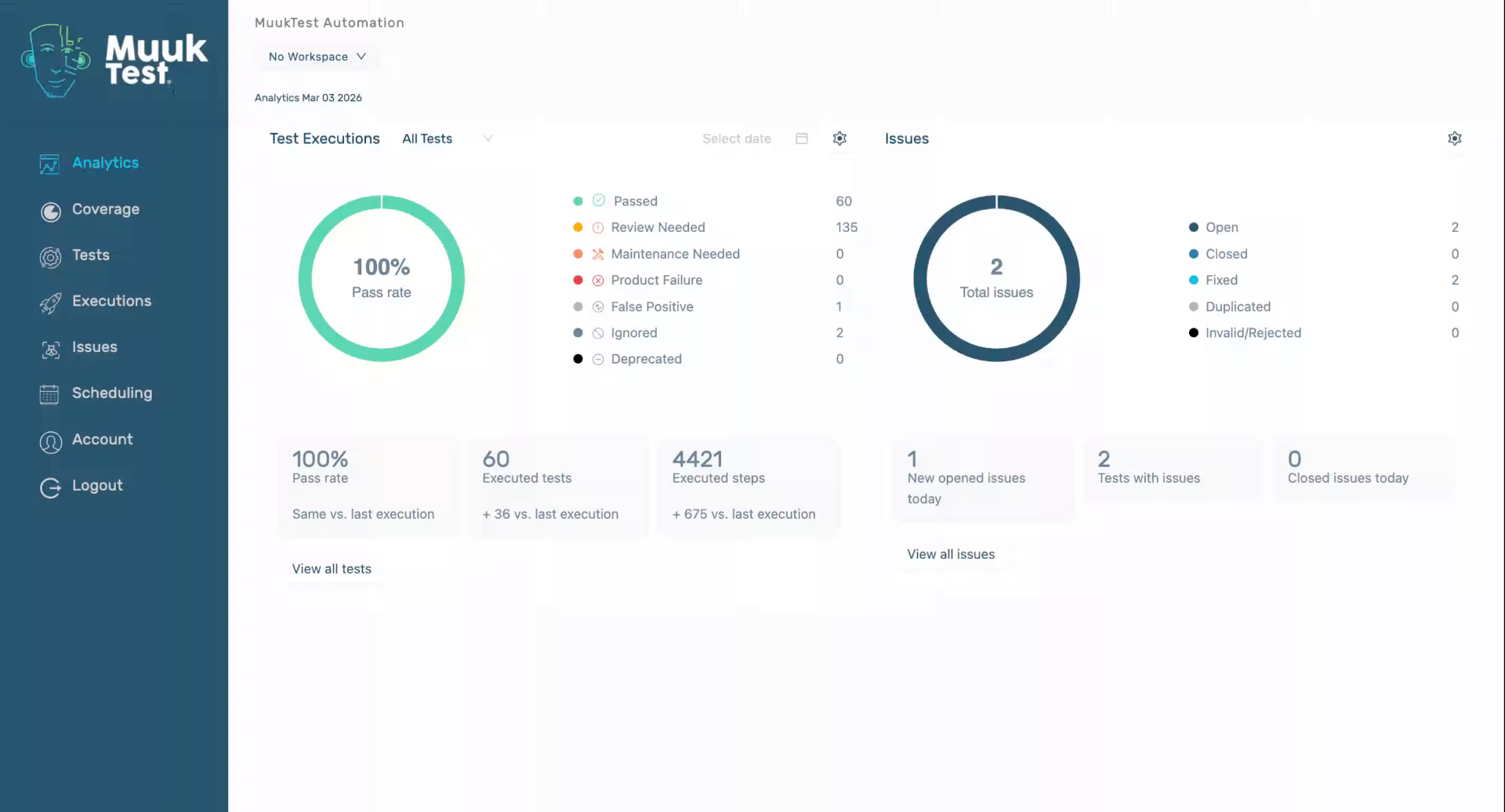
Go to portal.muuktest.com:5000
1. Introduction
You will learn to select a new browser preference to customize your browsing experience.
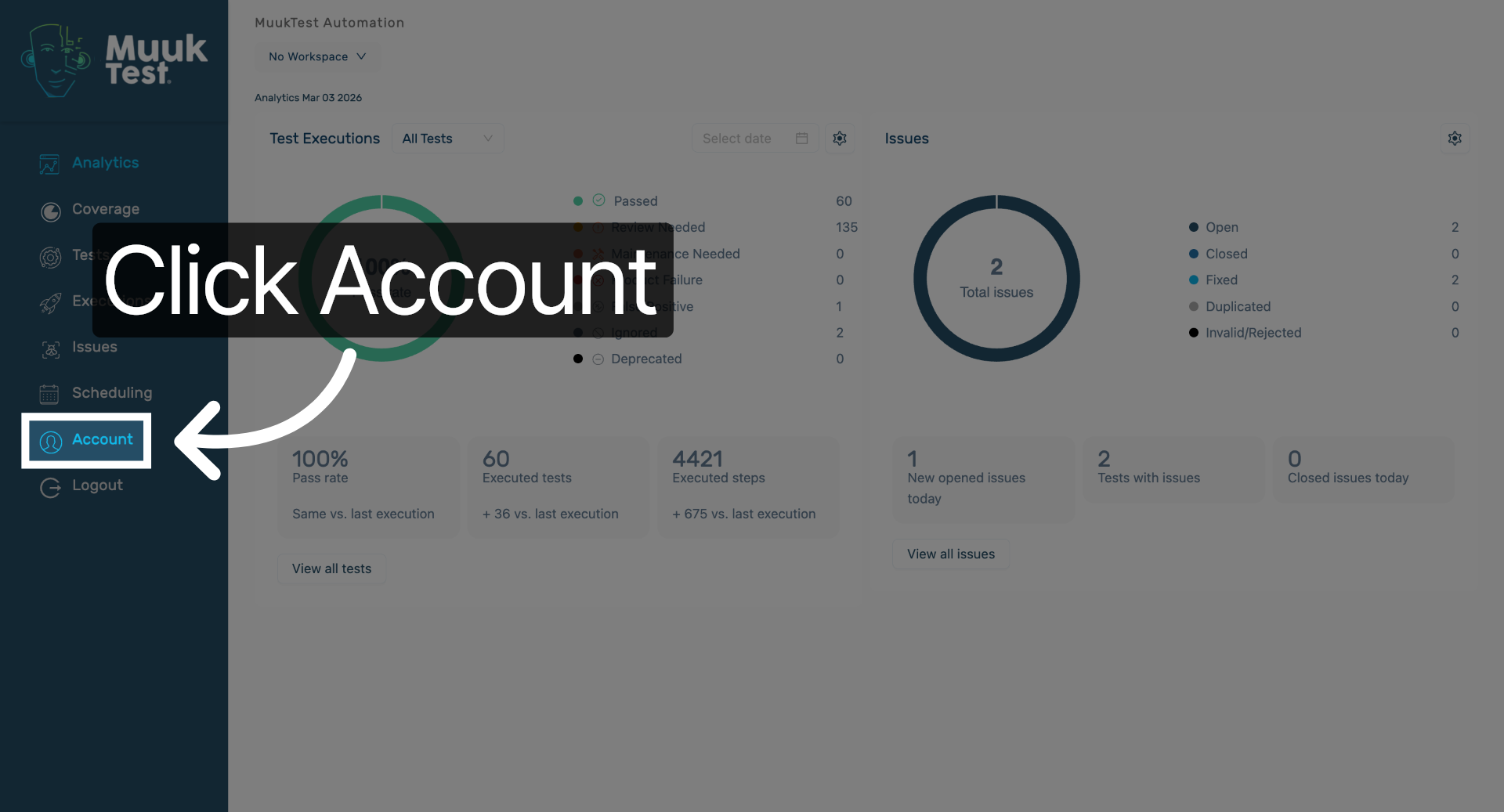
2. Access Account Settings
Click "Account" to open your account settings where browser preferences can be managed.
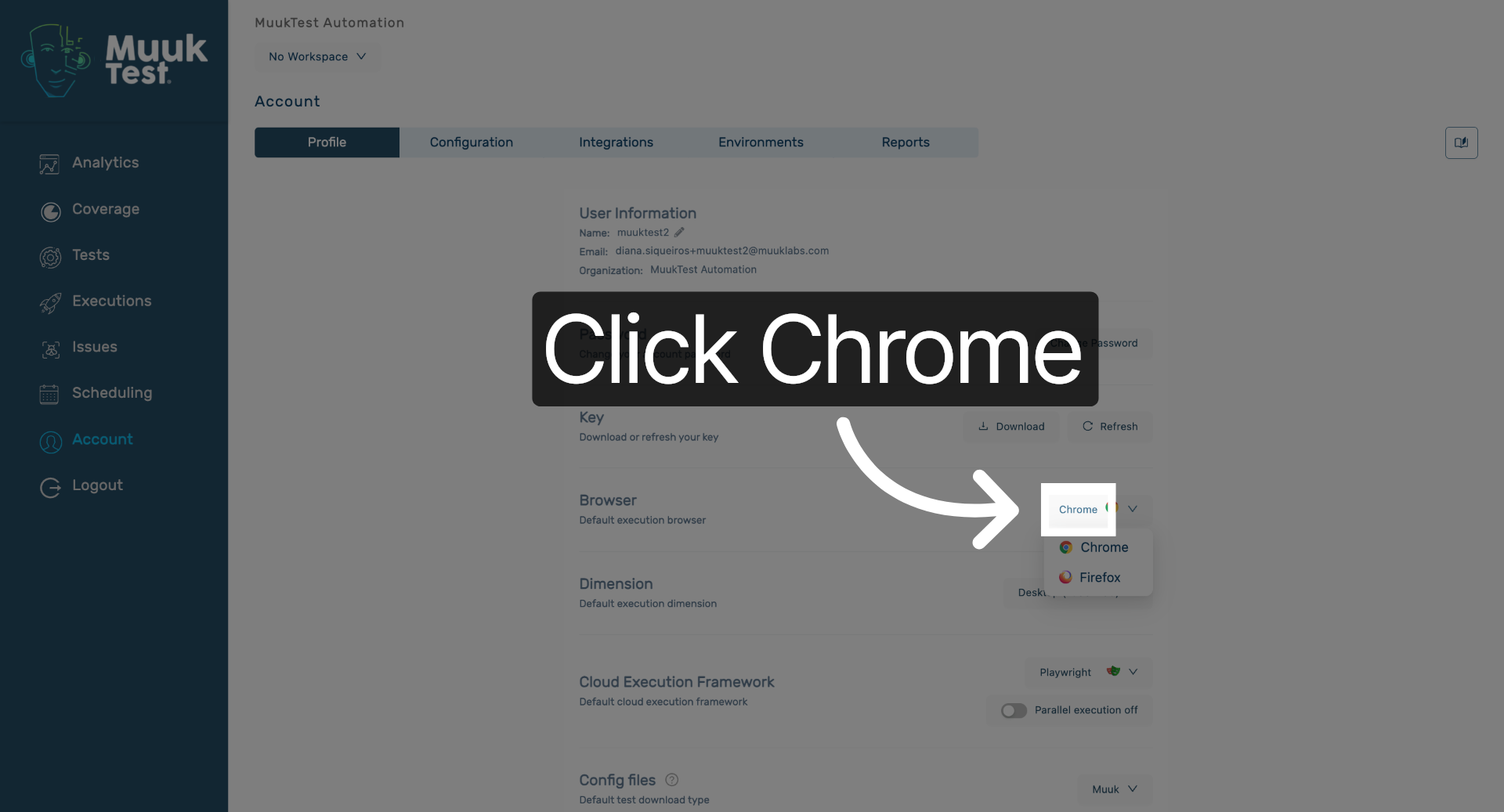
3. Open Chrome Browser Option
Click the dropdown to view or select your default browser option.
4. Select Firefox Browser
Click "Firefox" to set Mozilla Firefox as your new default browser in the application.
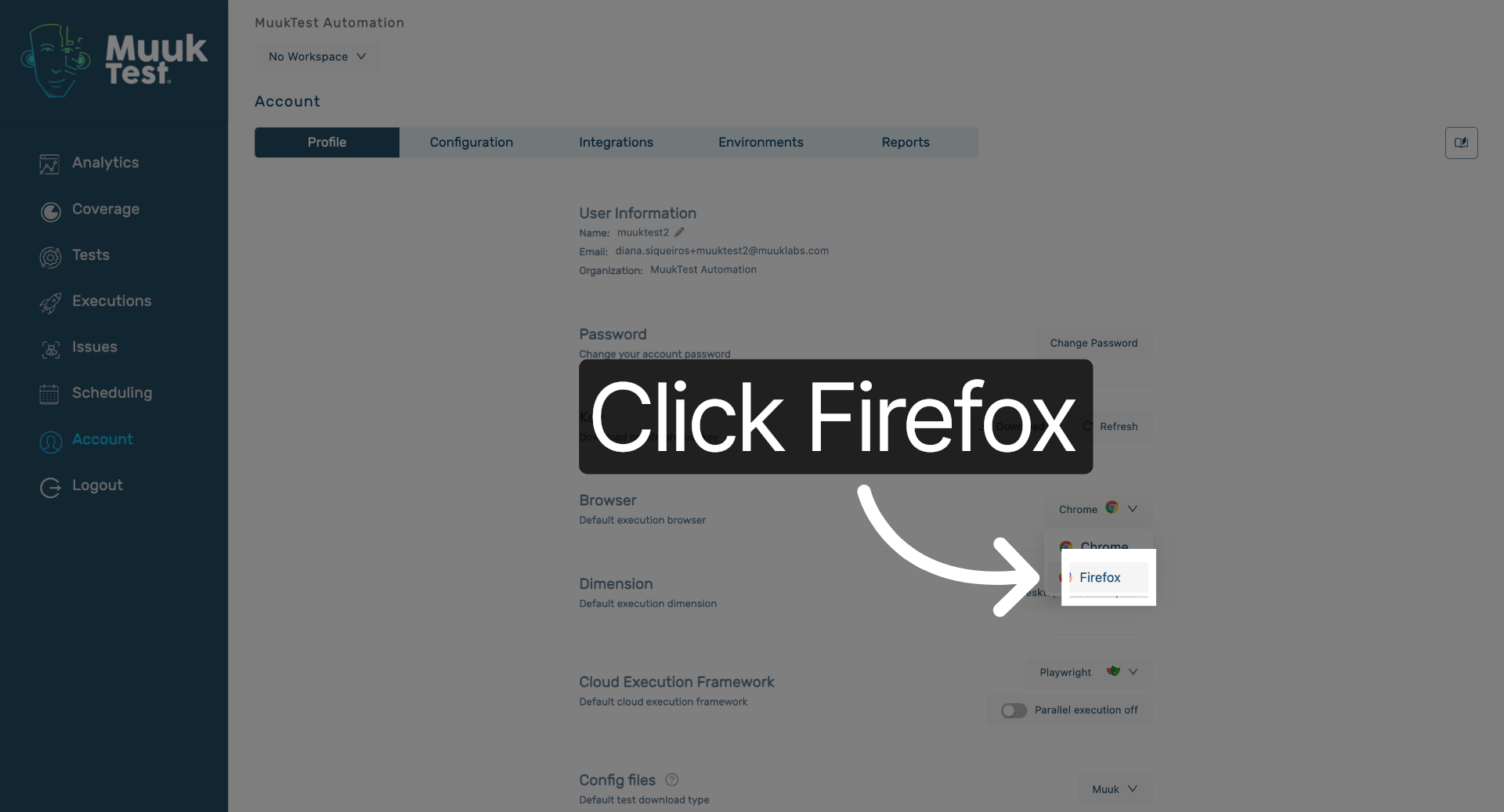
You have successfully changed the default browser in the Muuktest application by selecting Firefox as your preferred option. This update customizes your browsing experience according to your choice.
Comments
0 comments
Please sign in to leave a comment.