
This tutorial explains how to change the default dimensions in MuukTest
Go to portal.muuktest.com:5000
1. Introduction
You will learn to navigate the account settings and select different device dimensions.
2. Access Account Settings
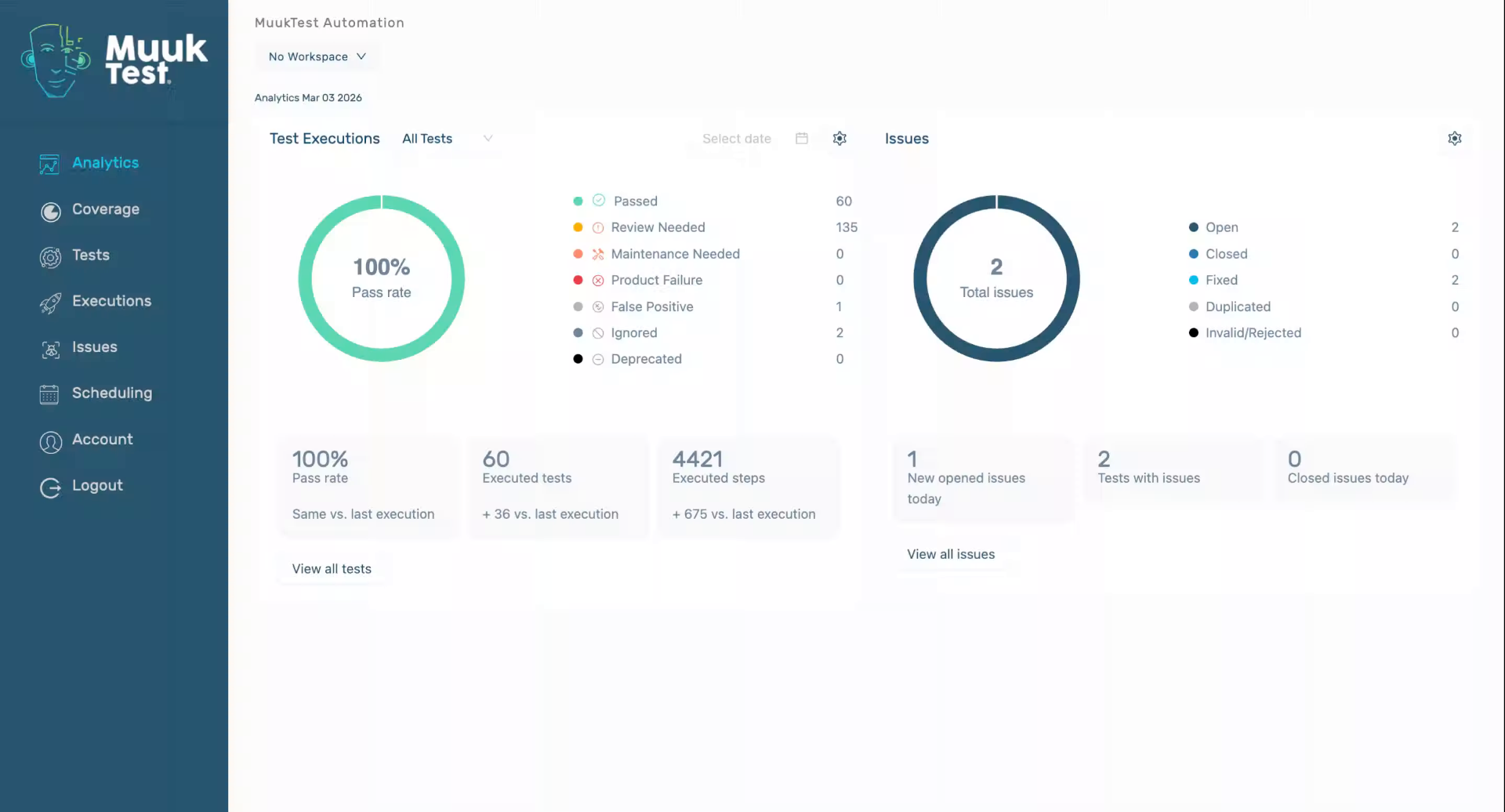
Click "Account" to open your account settings where you can manage default dimensions.
3. Select Desktop Dimension
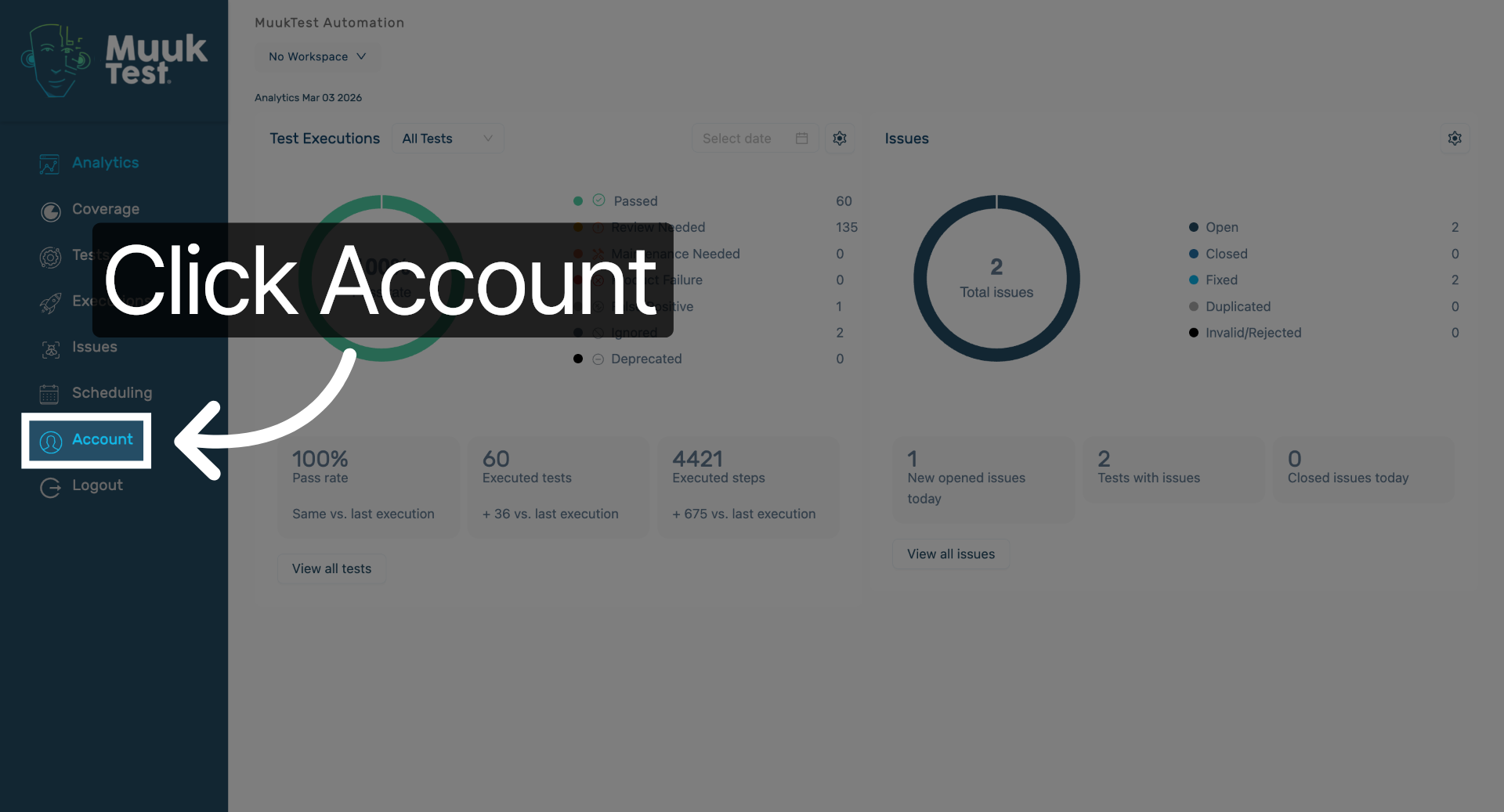
Click the dropdown to view the dimension options.
4. Choose Your New Dimension
Click your desired value to change the default dimension.
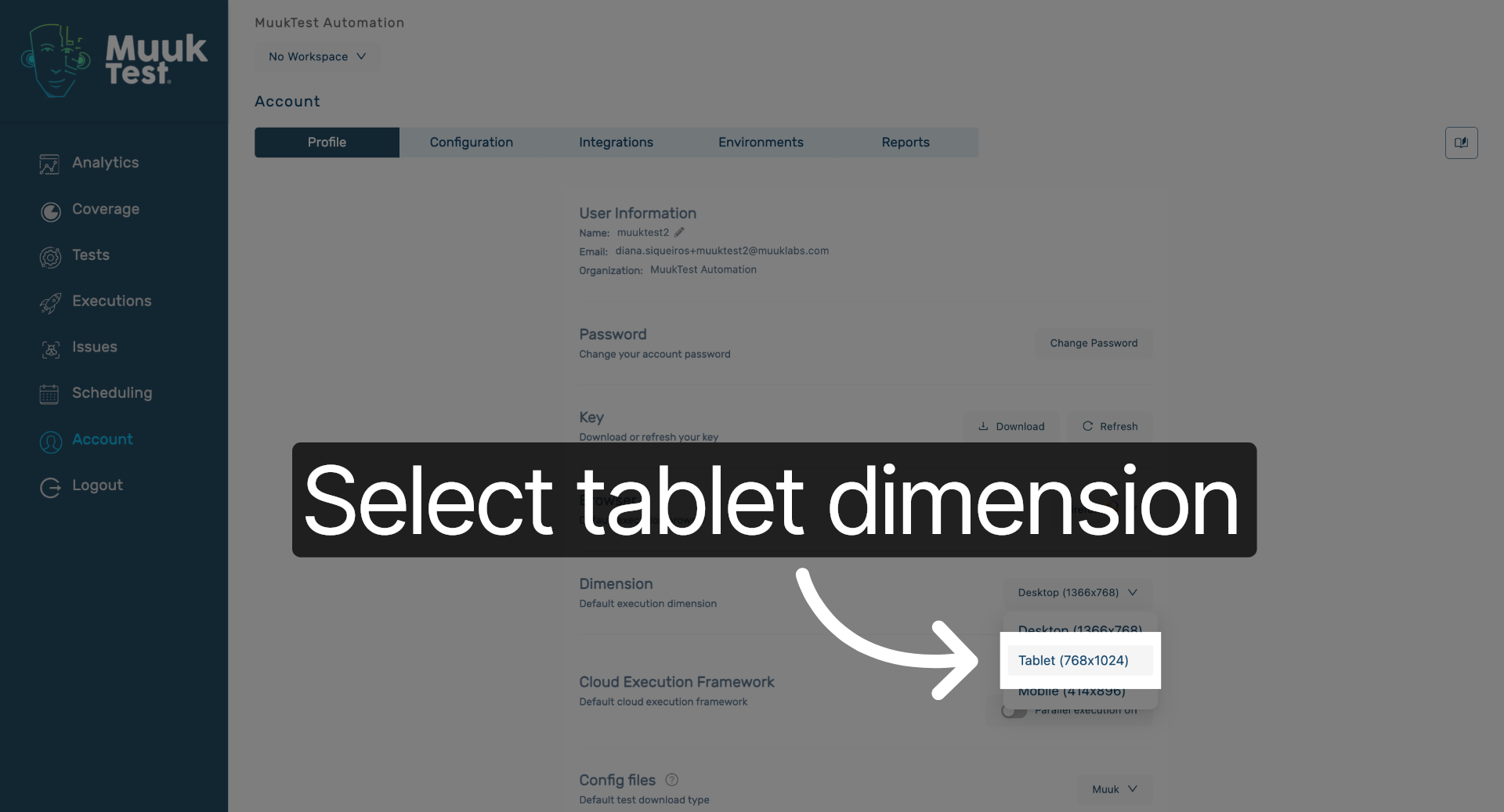
You have successfully changed the default dimensions by selecting desktop and tablet views in the account settings. This allows you to customize how your application displays on different devices.
Comments
0 comments
Please sign in to leave a comment.