
This tutorial will guide you through configuring your status report to receive timely updates. You will learn how to set report details, choose delivery methods, and save your configuration for effective monitoring.
Go to portal.muuktest.com:5000
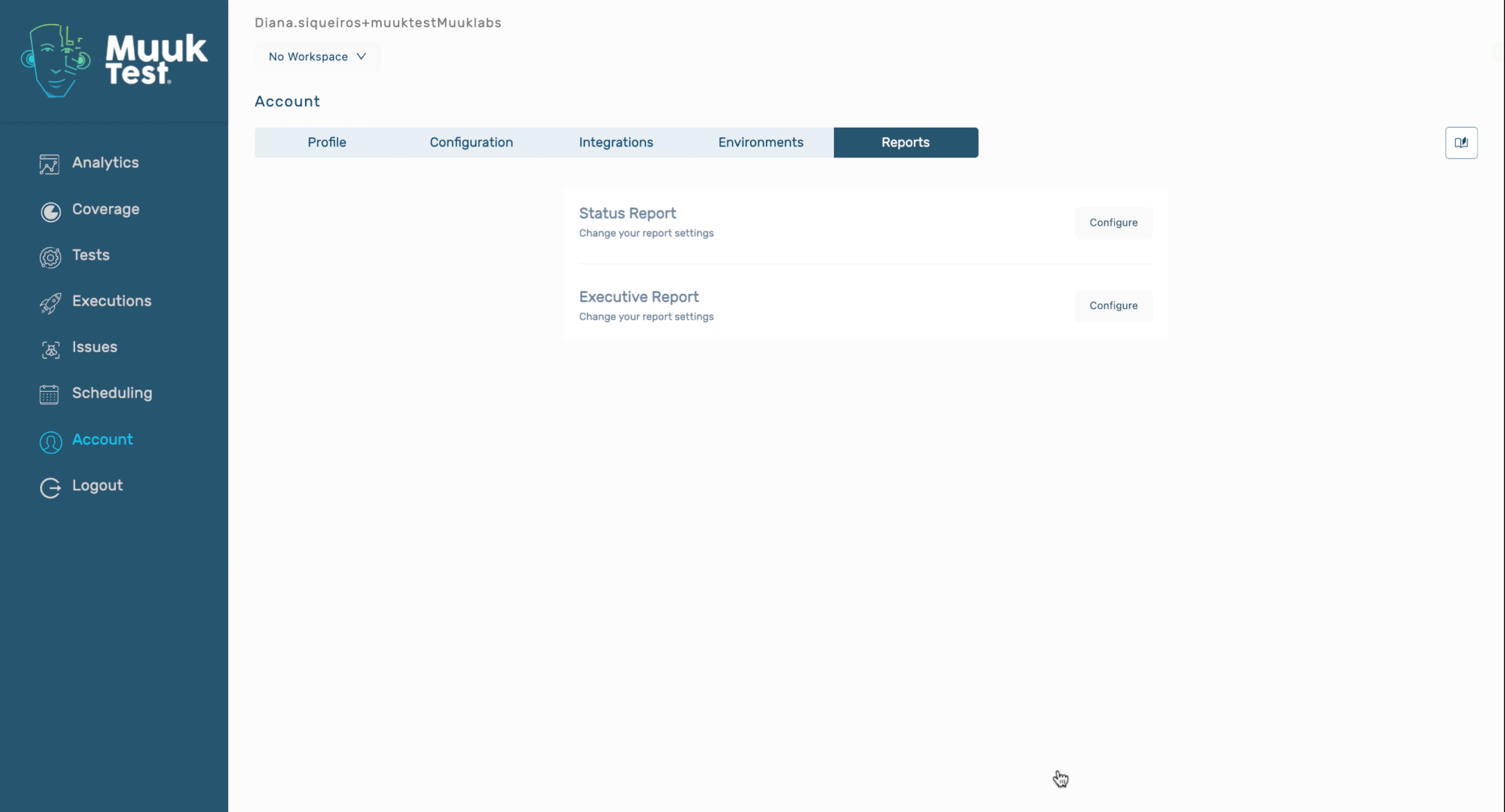
1. Navigate To Status Report
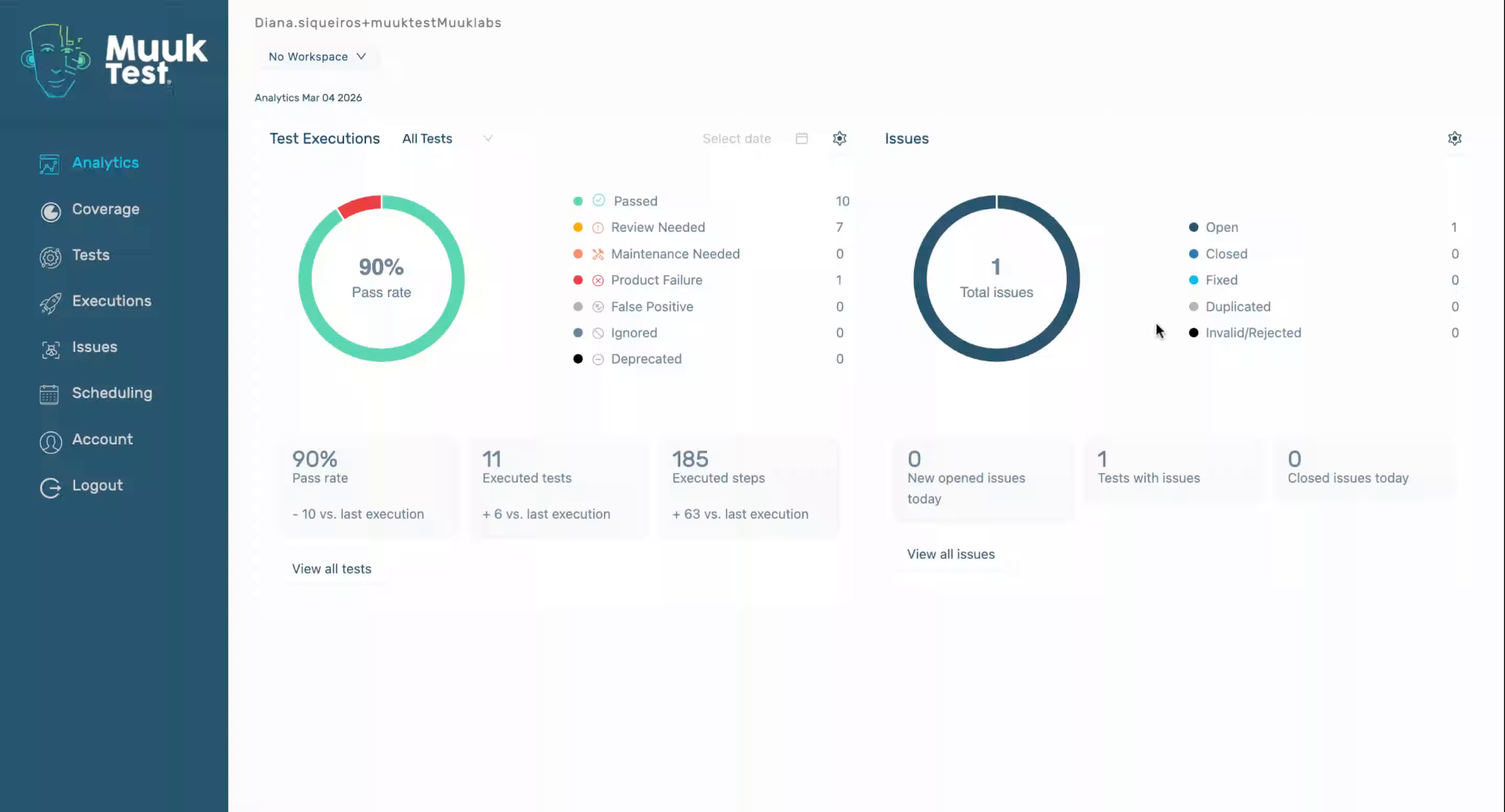
2. Click Configure Button
Click the Configure button to begin customizing your status report settings.
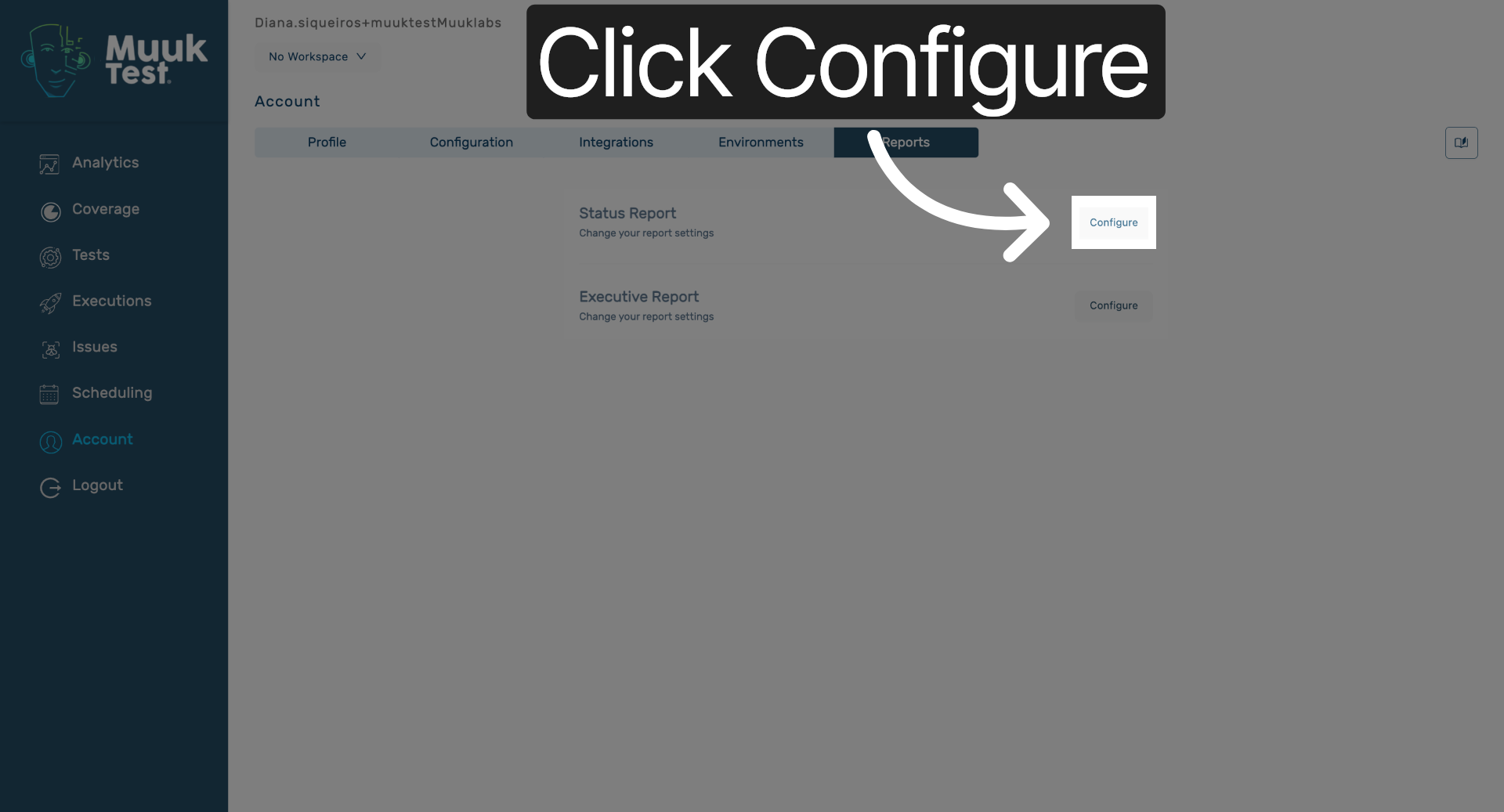
3. Enter Report Name And Start Date
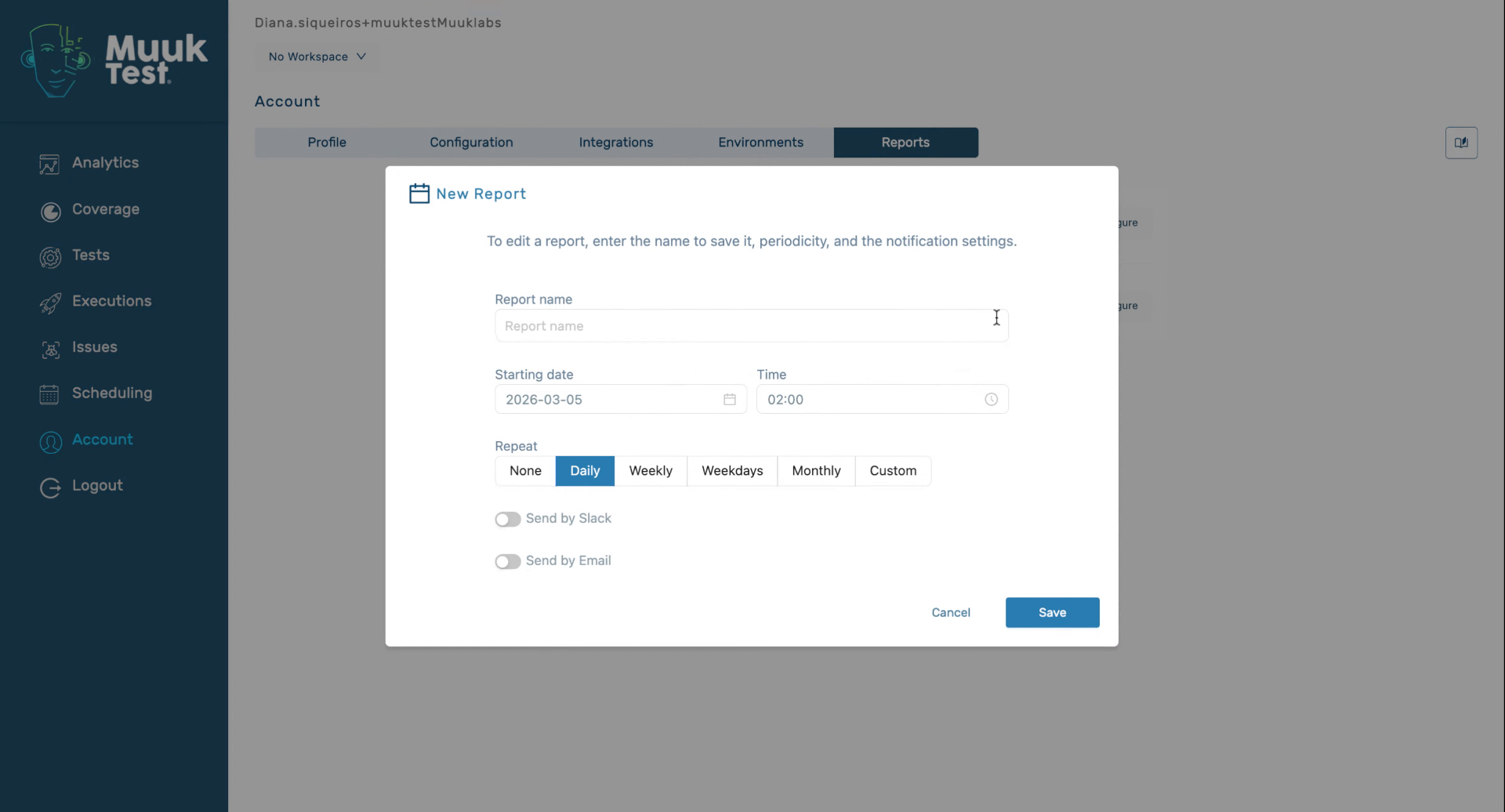
4. Set Report Frequency Options
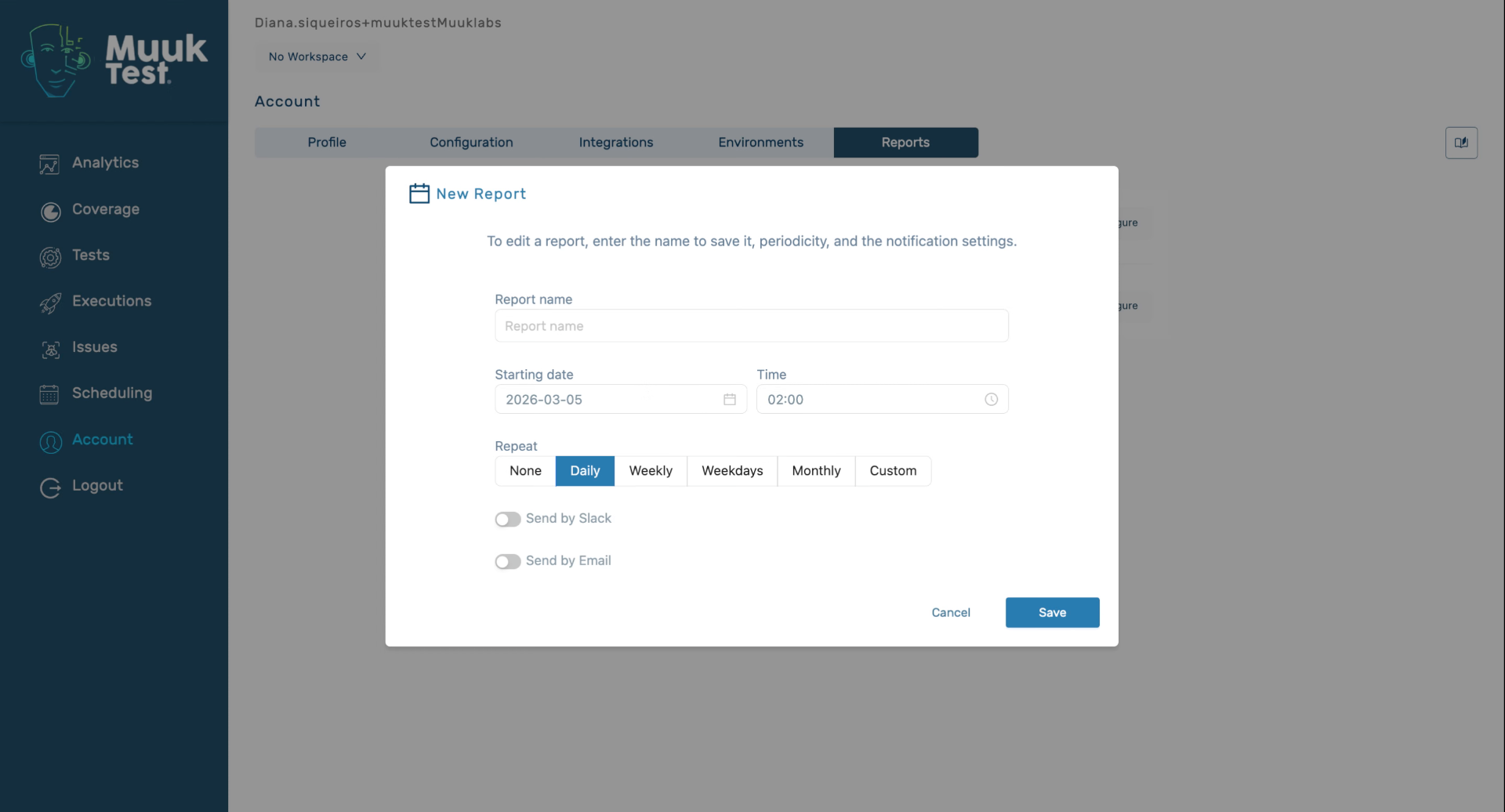
5. Select Report Name Field
Click the Report name field to edit or update the report's title as needed.
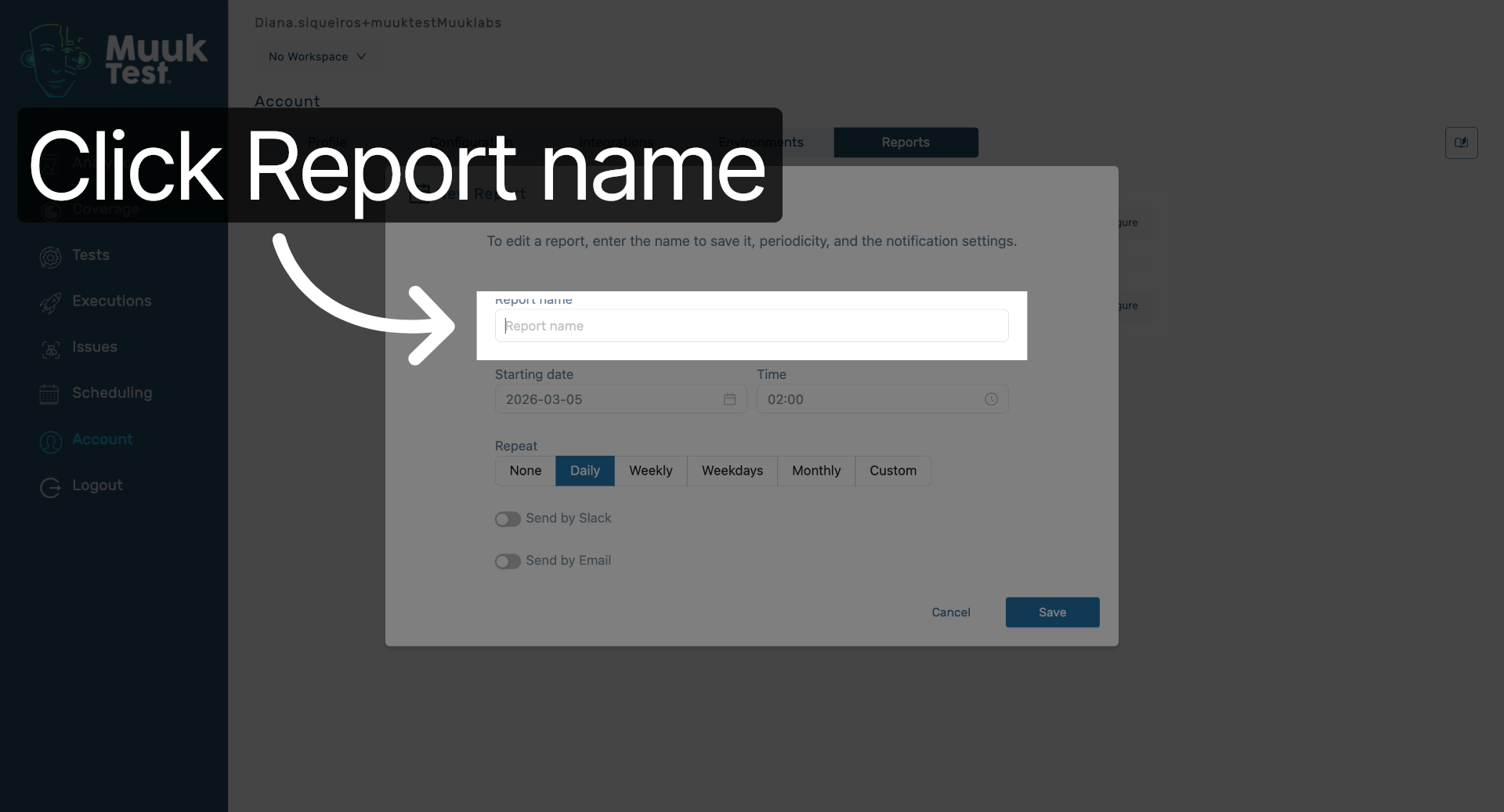
6. Choose Slack Or Email Delivery
Once we've entered all the necessary information, we can choose between Slack or email to receive the updates on this report. For Slack, we need integration to be done first; for email, we only need to input the emails in which we want to receive the report.
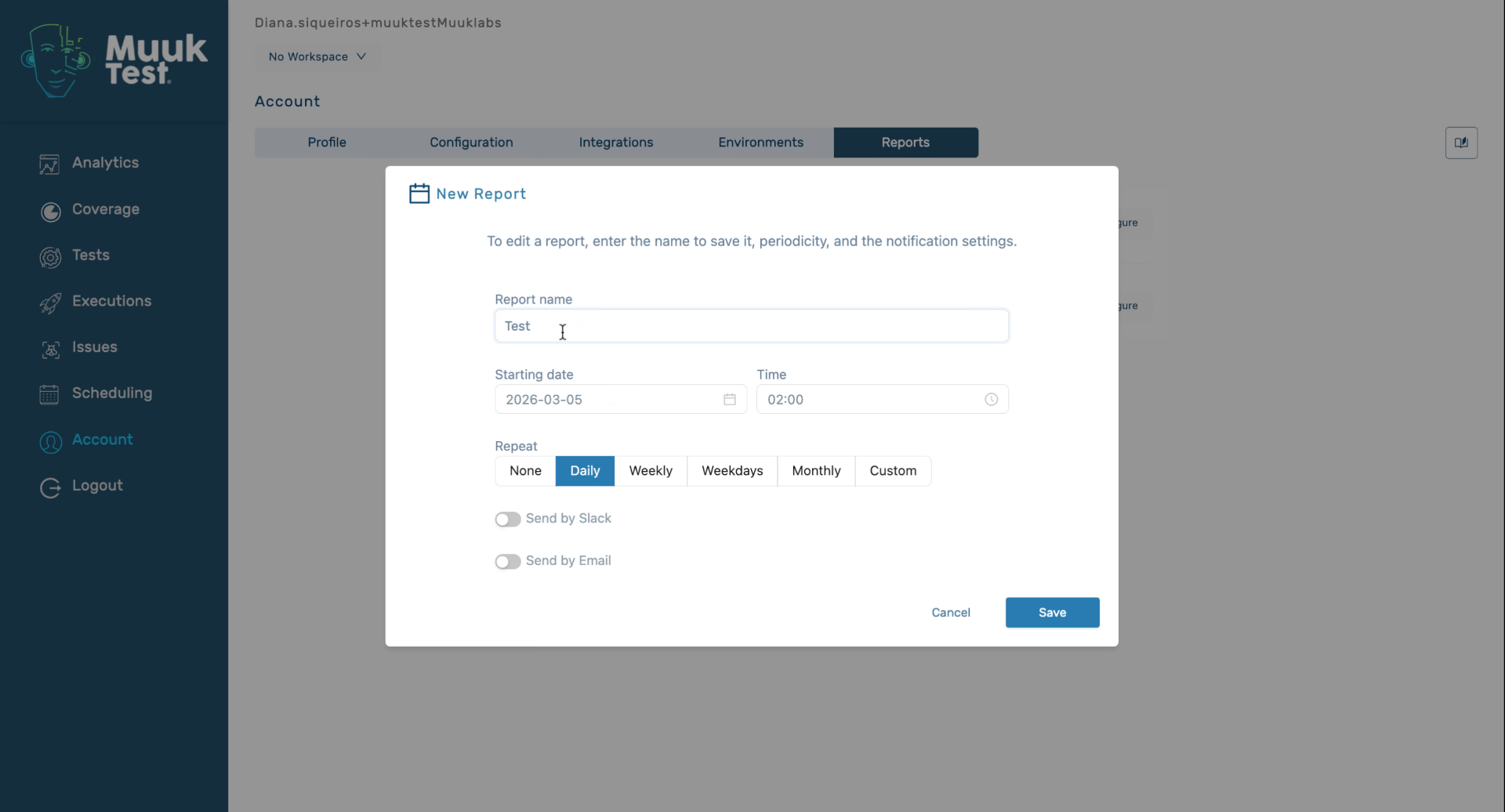
7. Add Emails For Report Delivery
Add emails here. We can see all the emails we have selected to receive the report.
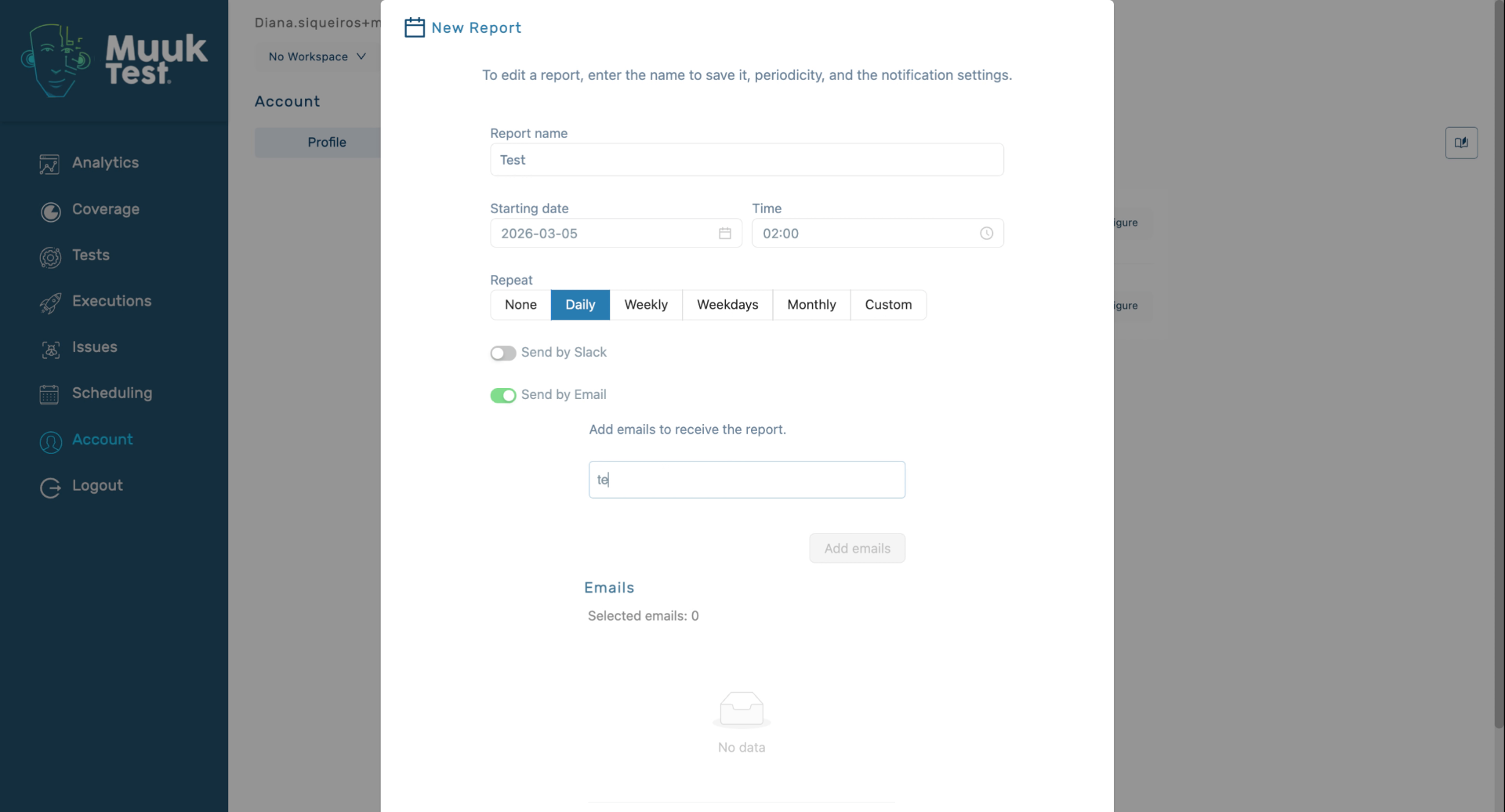
8. Save Report Configuration
You have successfully configured your status report by setting the report details, choosing delivery options, and saving your preferences. You can now monitor your reports through your selected channels and adjust settings as needed.
Comments
0 comments
Please sign in to leave a comment.