
This tutorial will guide you through configuring an executive report in your account. You will learn how to set up the report name, schedule, and delivery preferences to receive timely updates.
Go to portal.muuktest.com:5000
1. Navigate to Reports Tab
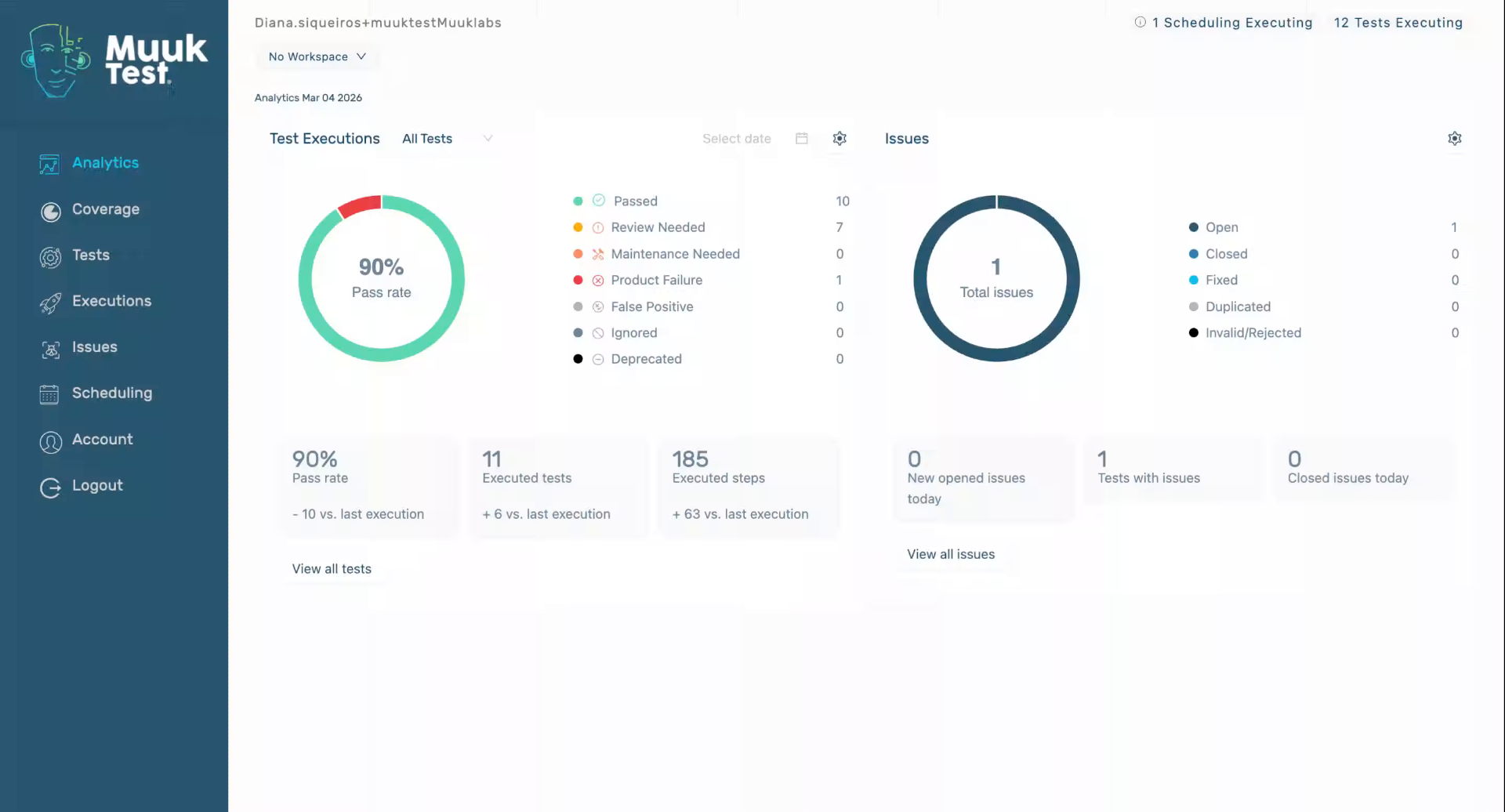
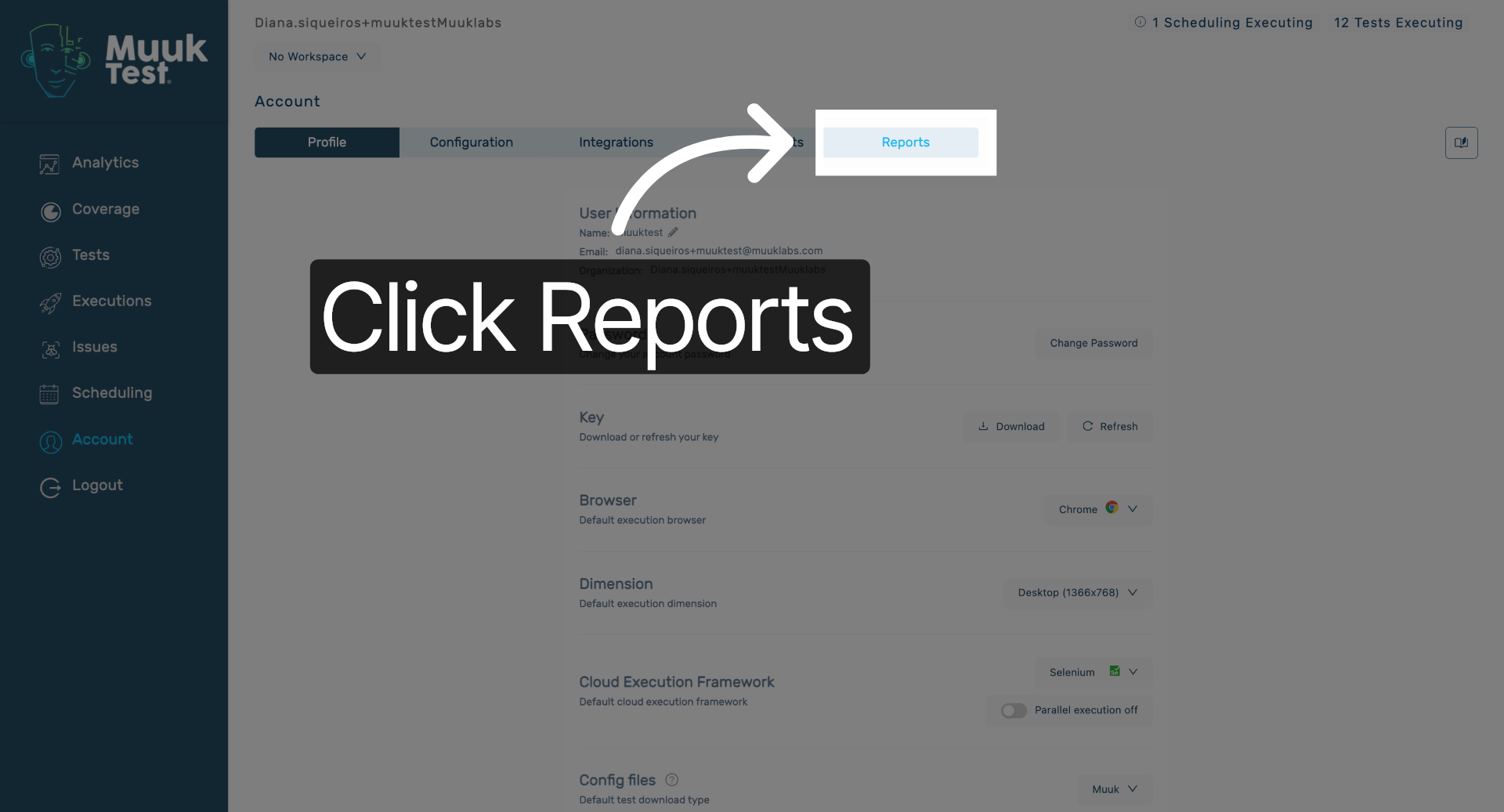
Hello! Today we're going to learn how to configure our executive report. We're going to navigate to our account view. We're going to click on reports tab.
2. Open Reports Section
Click the Reports tab to access the reporting features within the MuukTest application.
3. Access Executive Report Configuration
4. Enter Report Name and Schedule
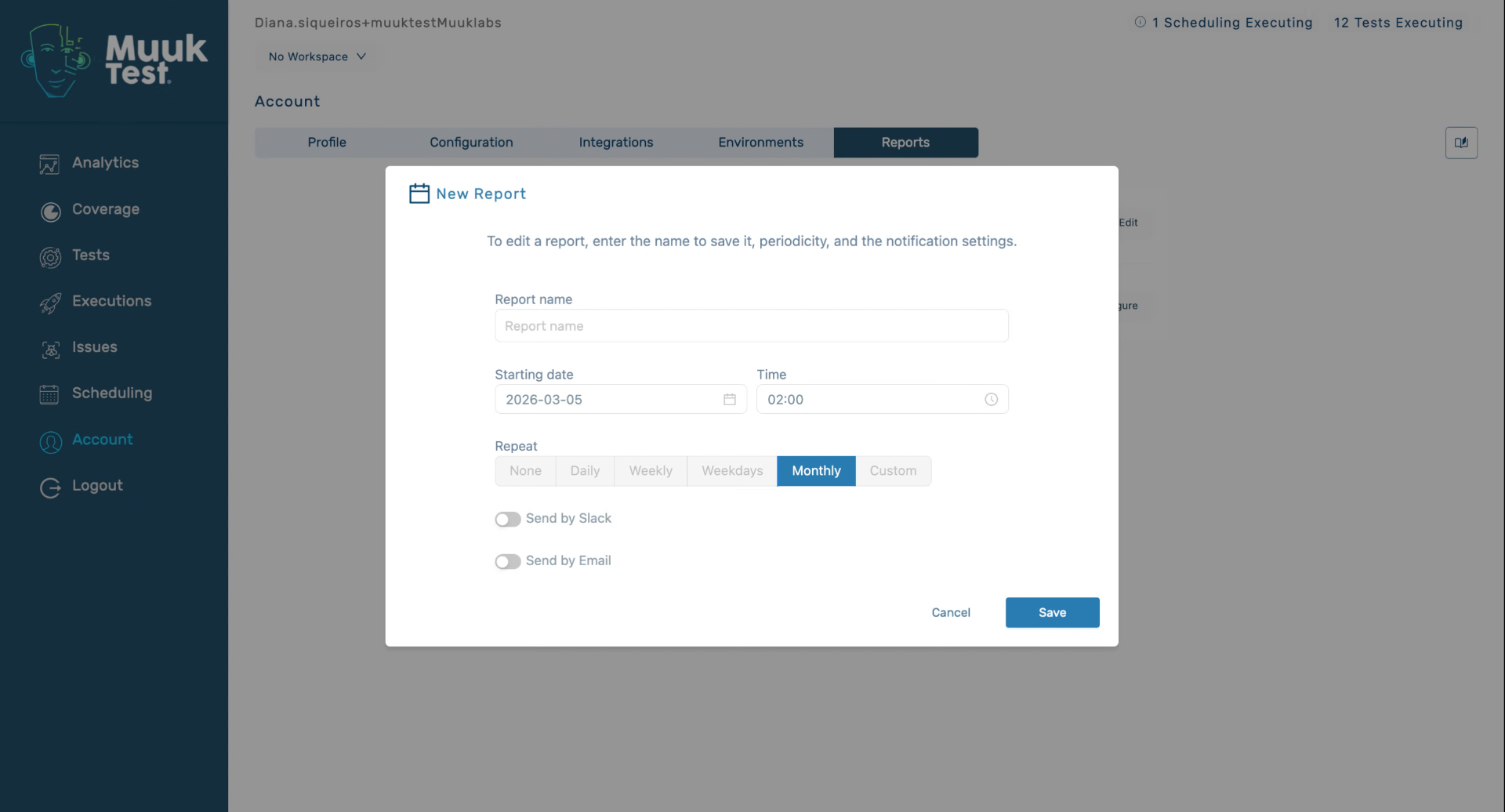
5. Understand Monthly Report Frequency
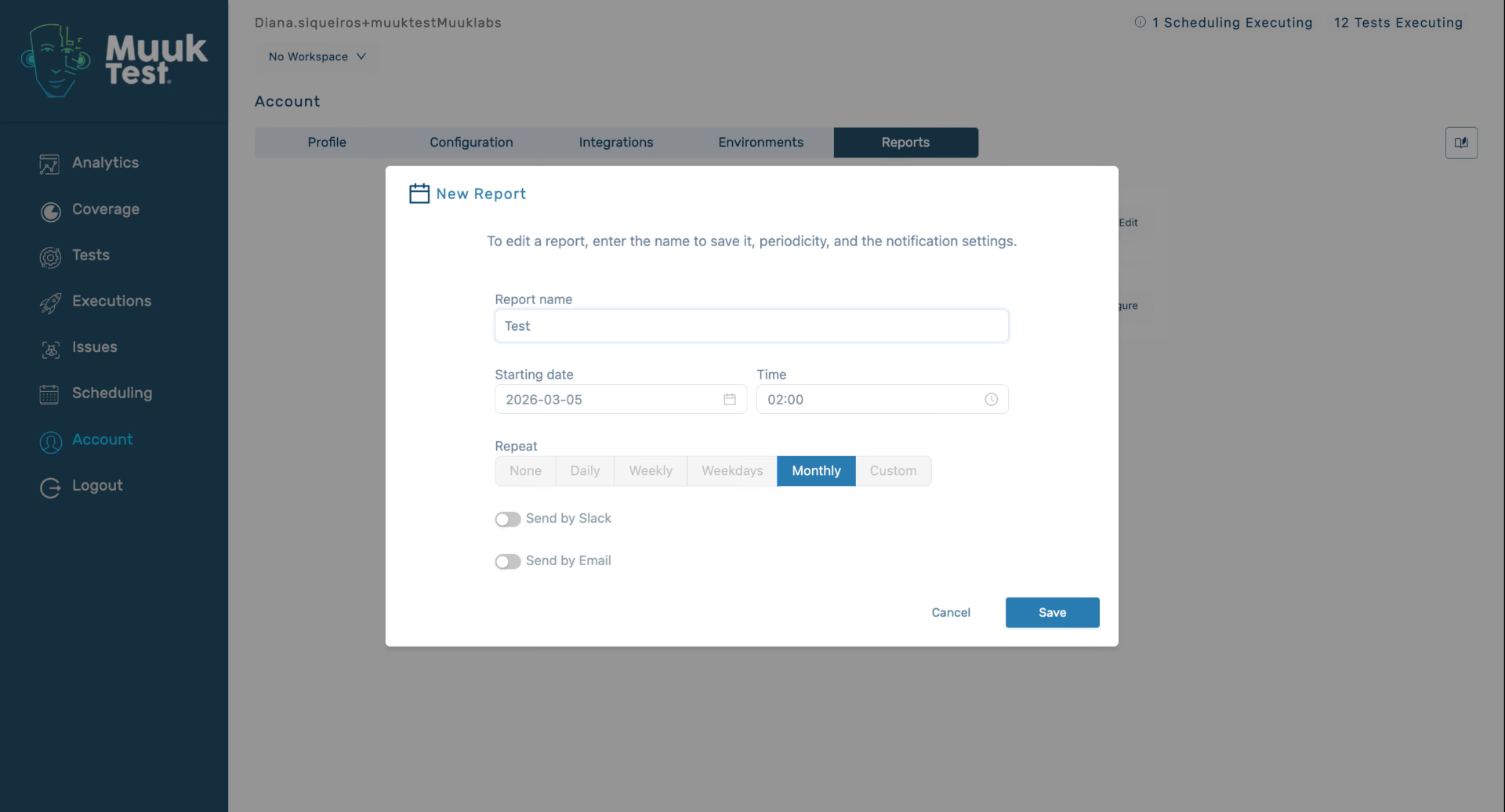
6. Select Report Delivery Method
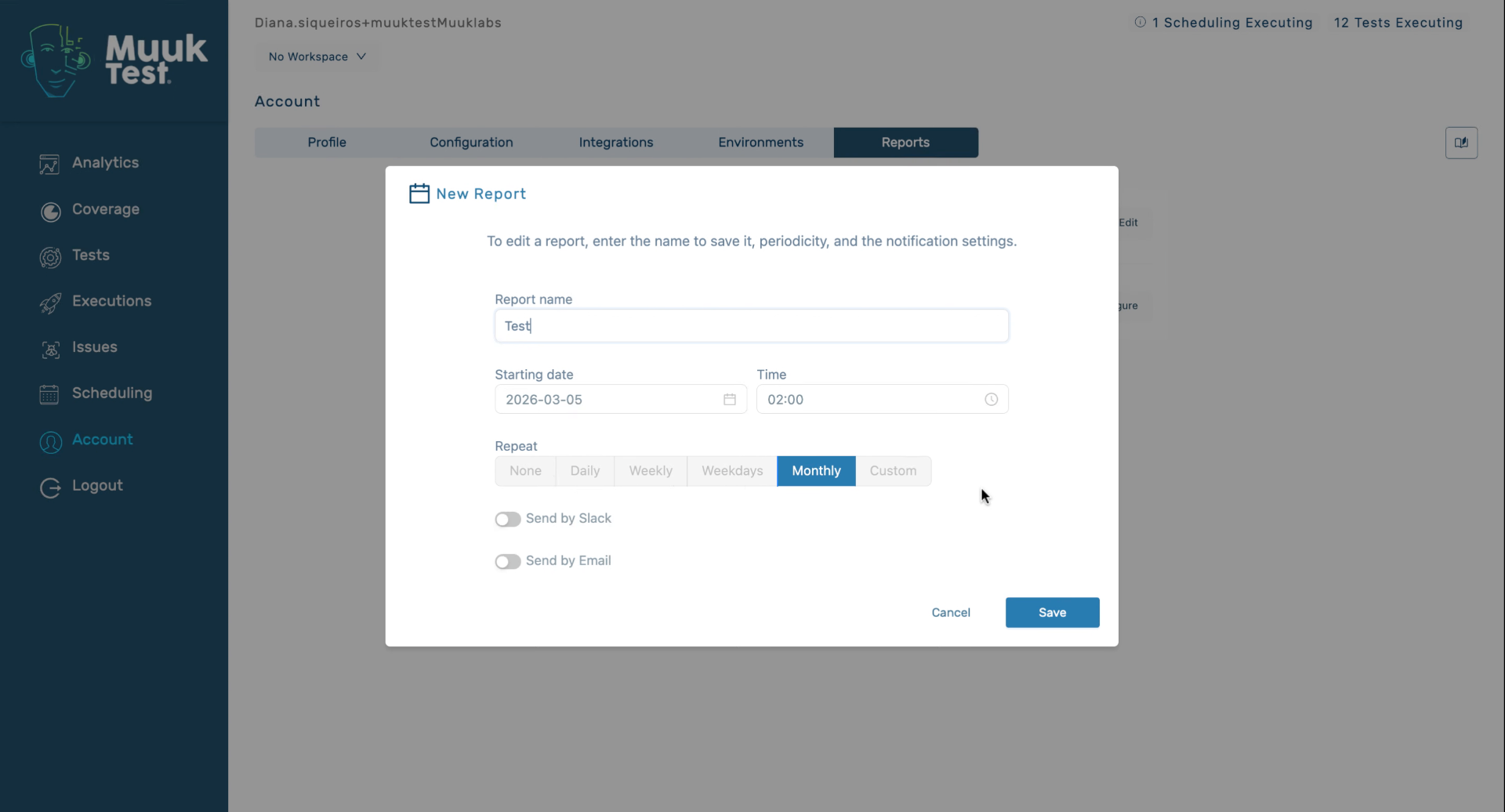
7. Add Email for Report Delivery
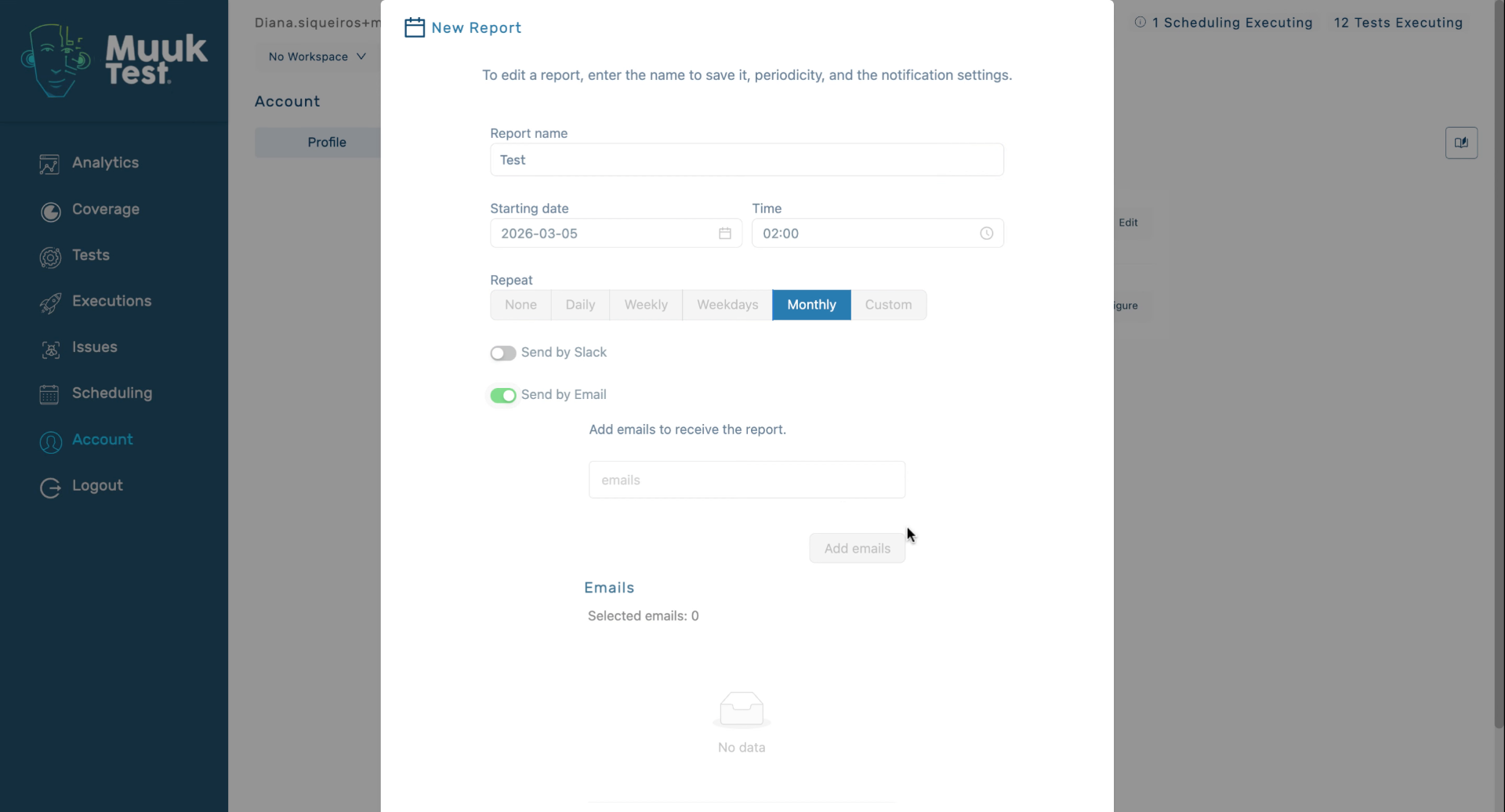
8. Save Report Configuration
Once we see it here and click save, we're going to receive a report with the time and frequency selected. In this case, it's only monthly.
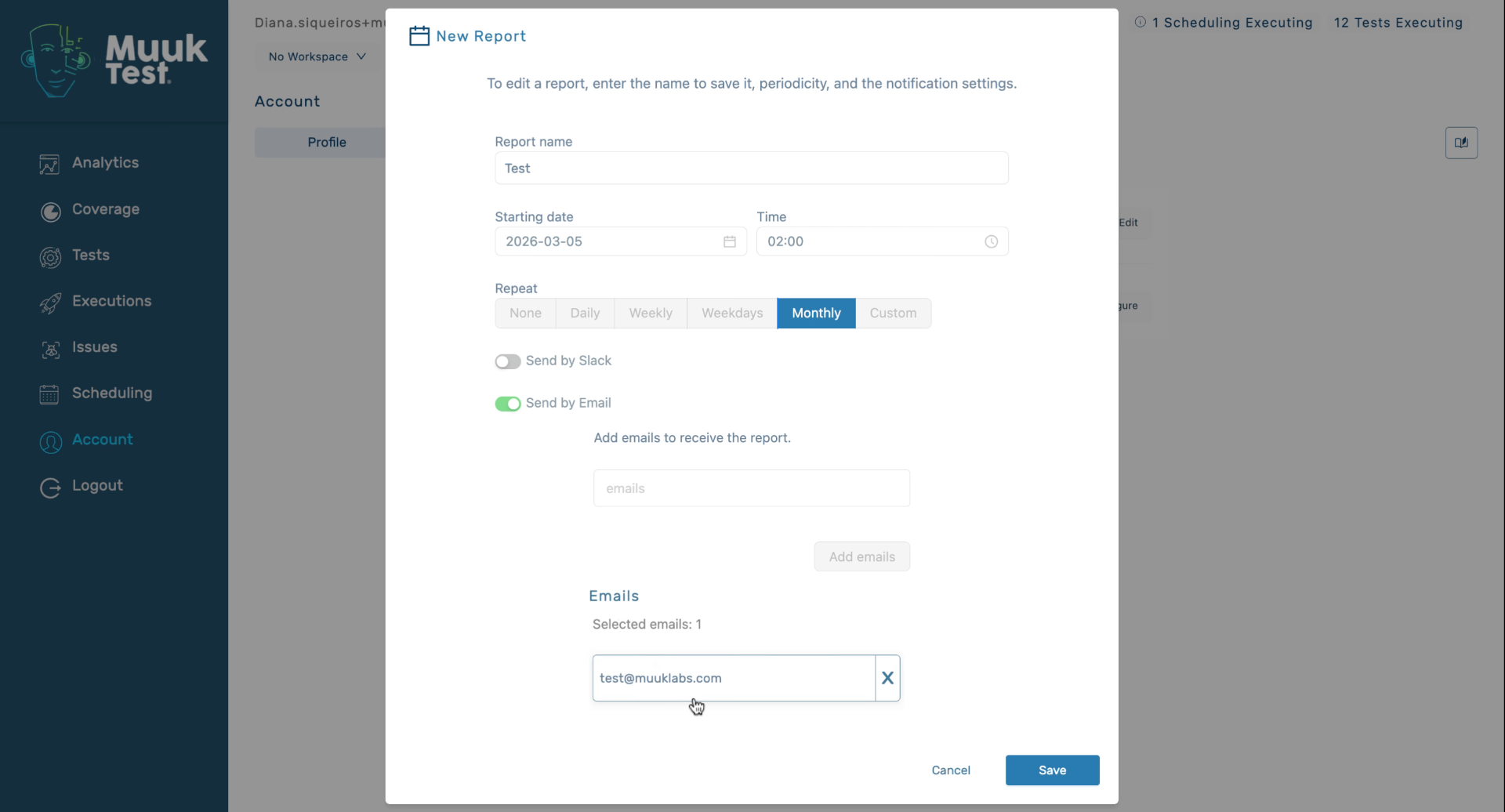
9. Confirm Report Configuration Success
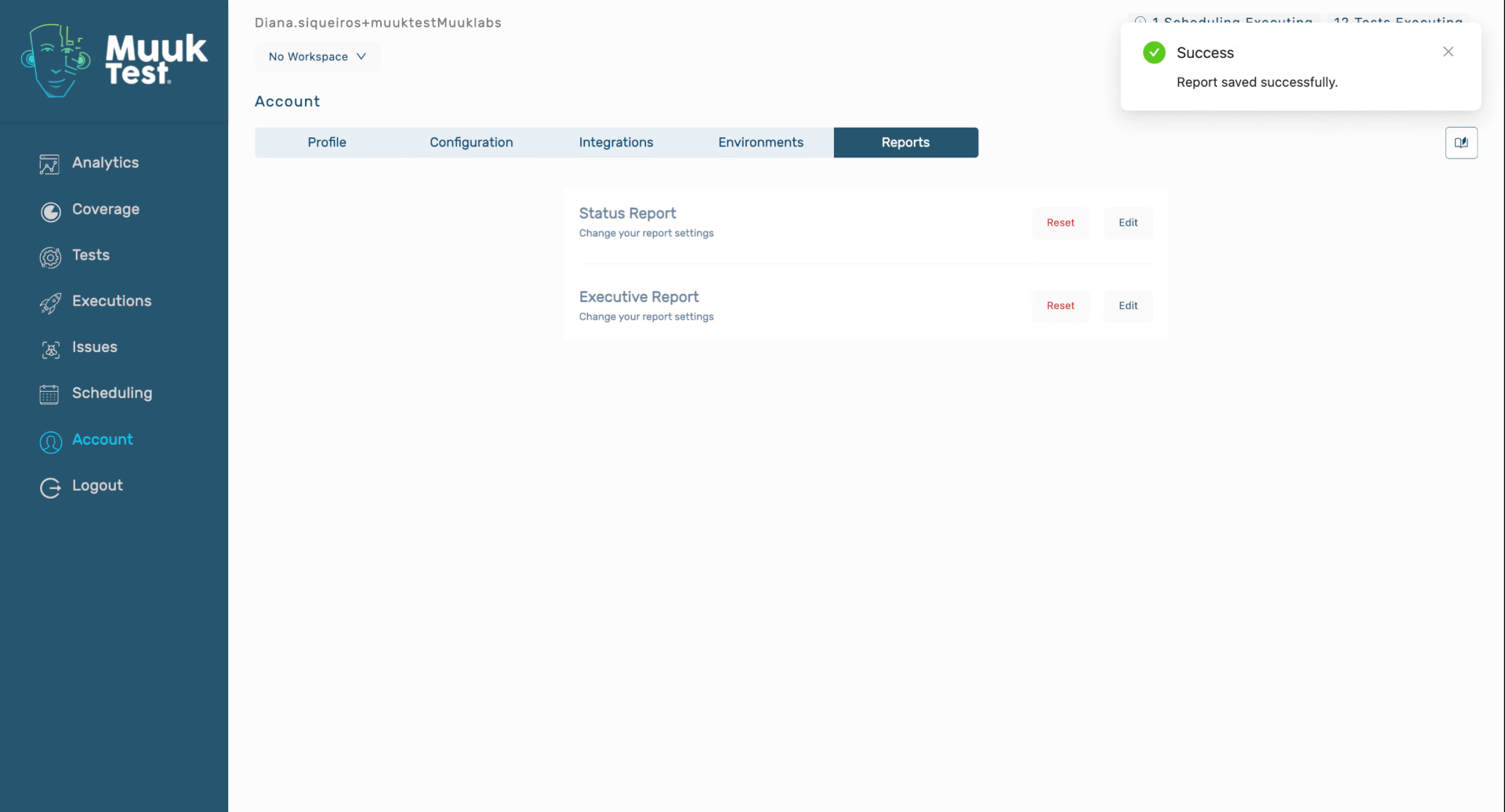
You have successfully configured the executive report with the desired name, schedule, and delivery method. You can now expect to receive the report according to the selected settings.
Comments
0 comments
Please sign in to leave a comment.