
This tutorial will teach you how to execute tests in Muuktest effectively. Before starting, ensure you have access to the Muuktest platform and the tests you want to run.
Go to portal.muuktest.com:5000
1. Introduction To Test Execution
Hello, today we're going to learn how to execute a test in Muuktest.
2. Use Execute Now Button Options
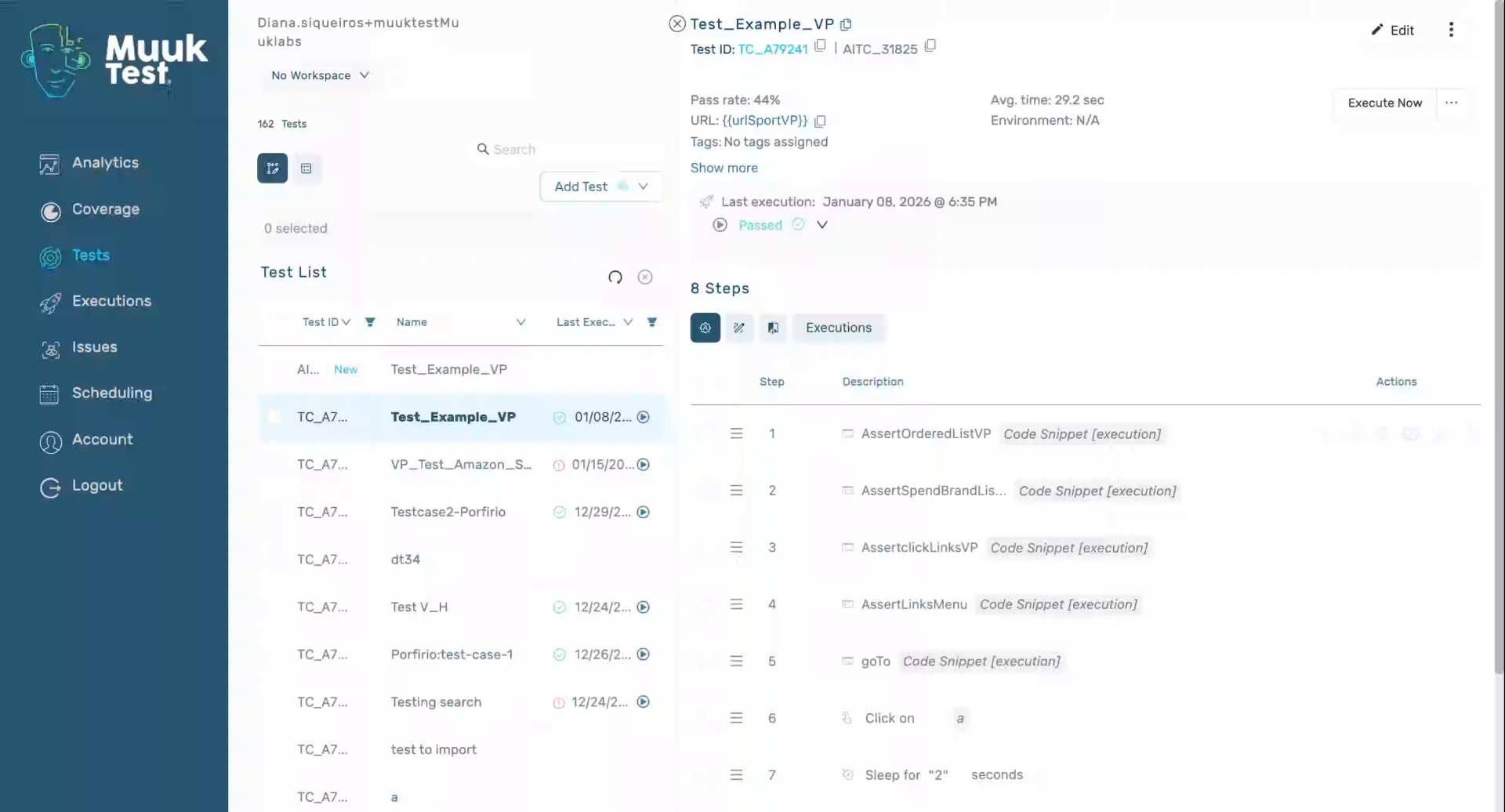
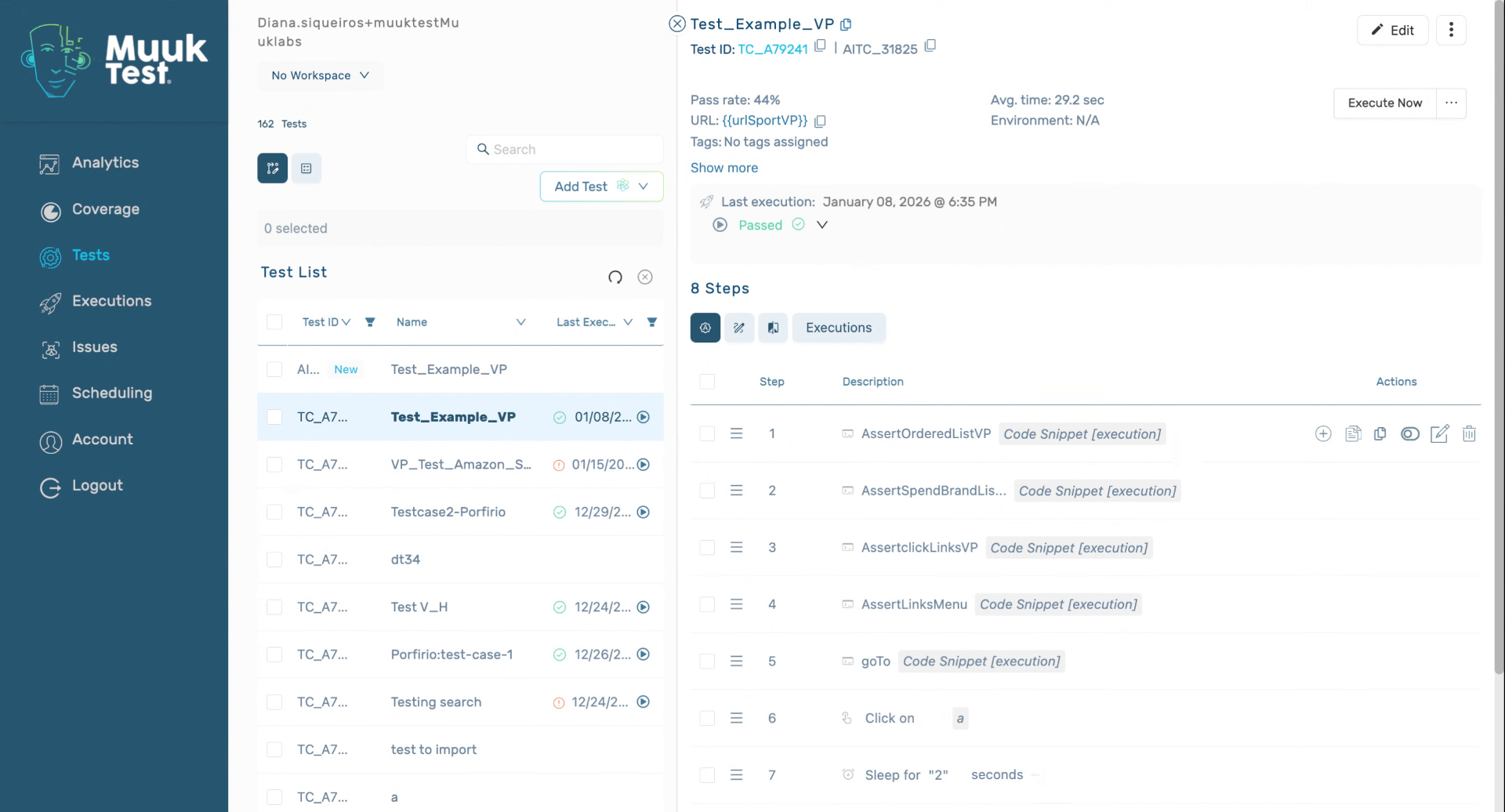
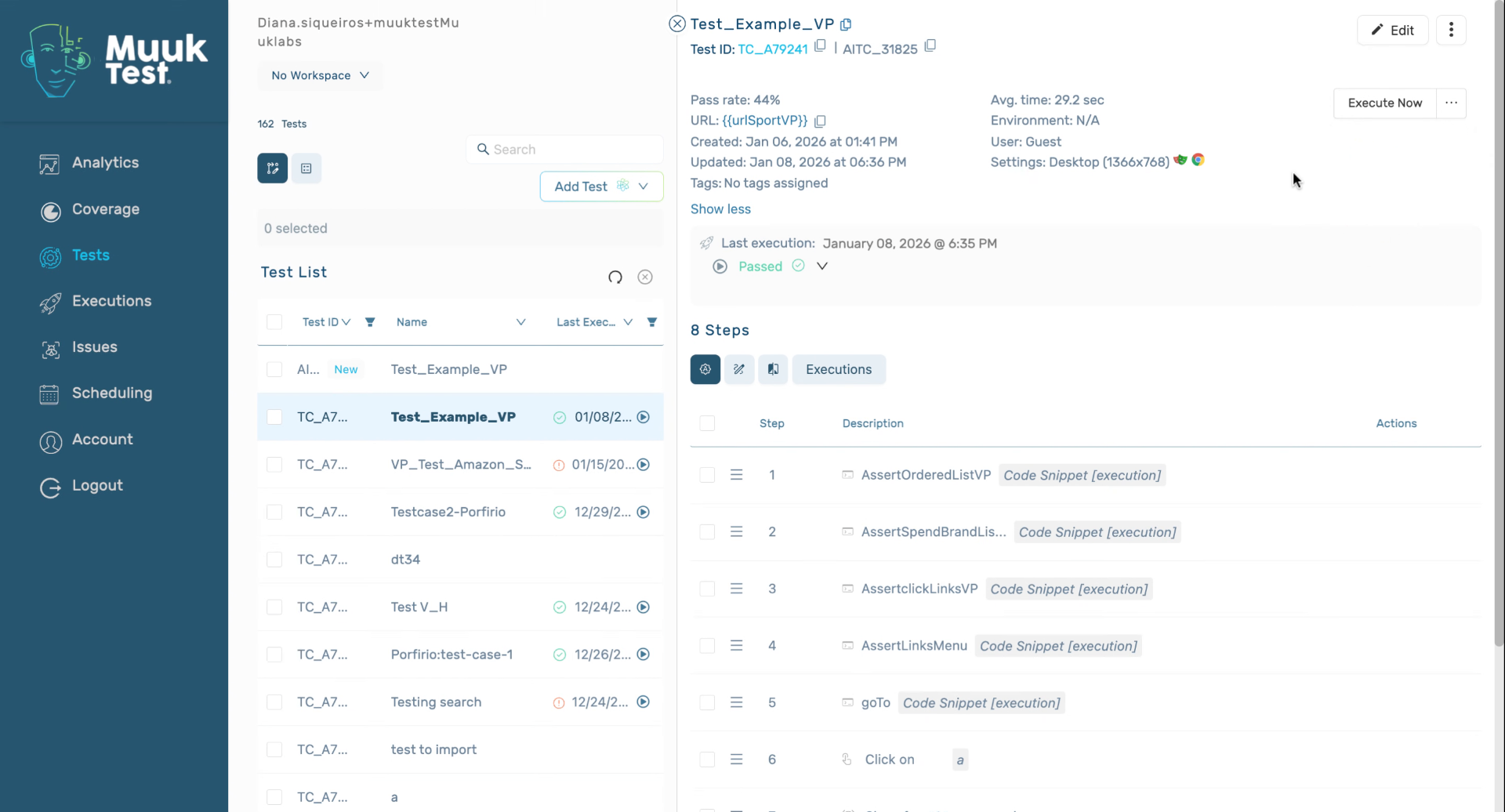
Here we can see the execute now button. If we click that button, we're going to be using the default settings that we have. In this case, it's going to be Playwright and Google Chrome. If we want to run with any other browsers, we can just use this drop down. We can use Firefox, Chrome, and if we have integrations like BrowserStack, we can use different options. For example, Apple 14. We can also download the code.
3. Execute Tests Via Command Line
4. Edit Default Execution Settings
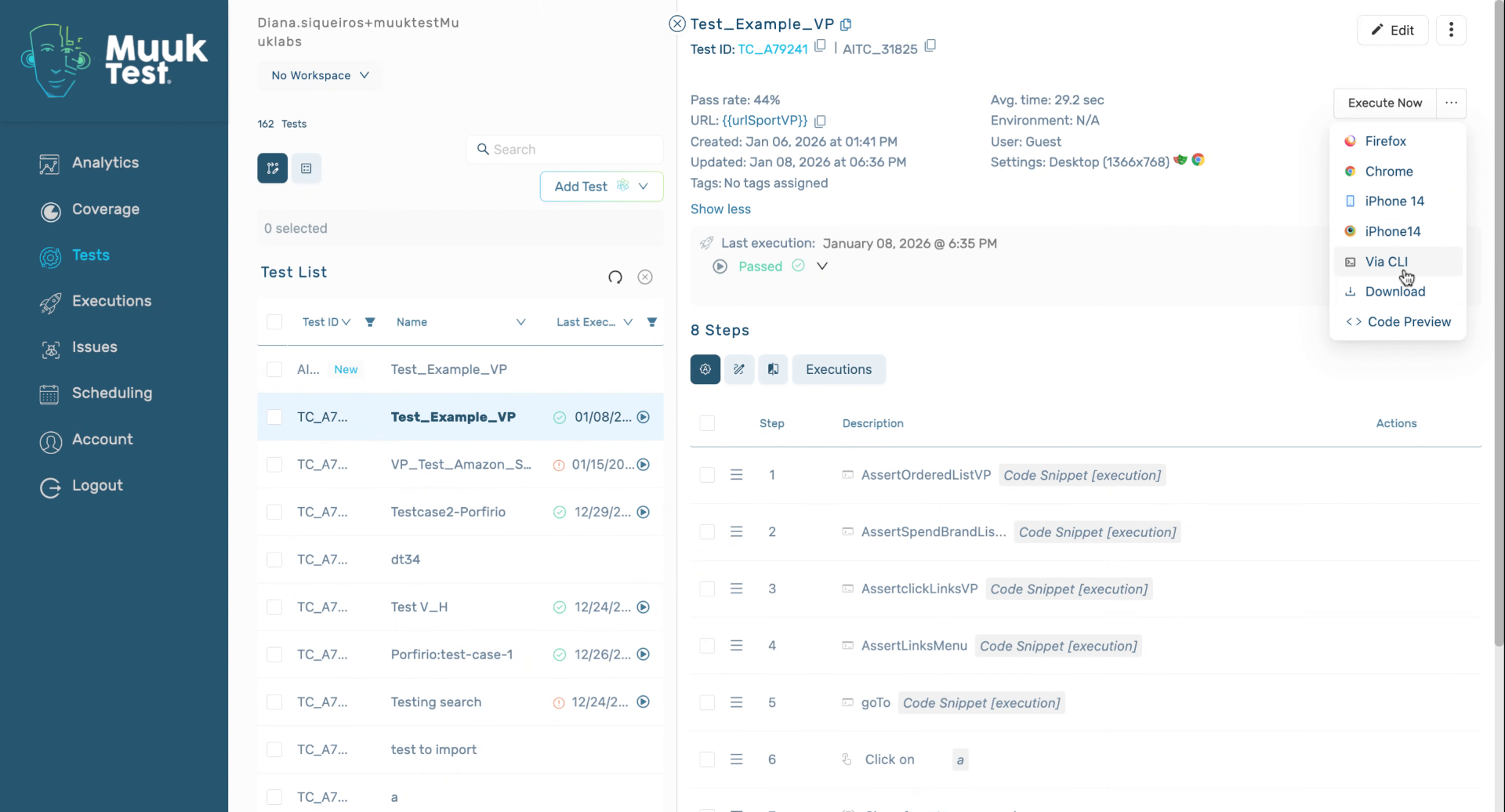
To change default settings, we can edit them here. Go to Advanced. And here we click for our technology and our browser.
5. Start Active Test Execution
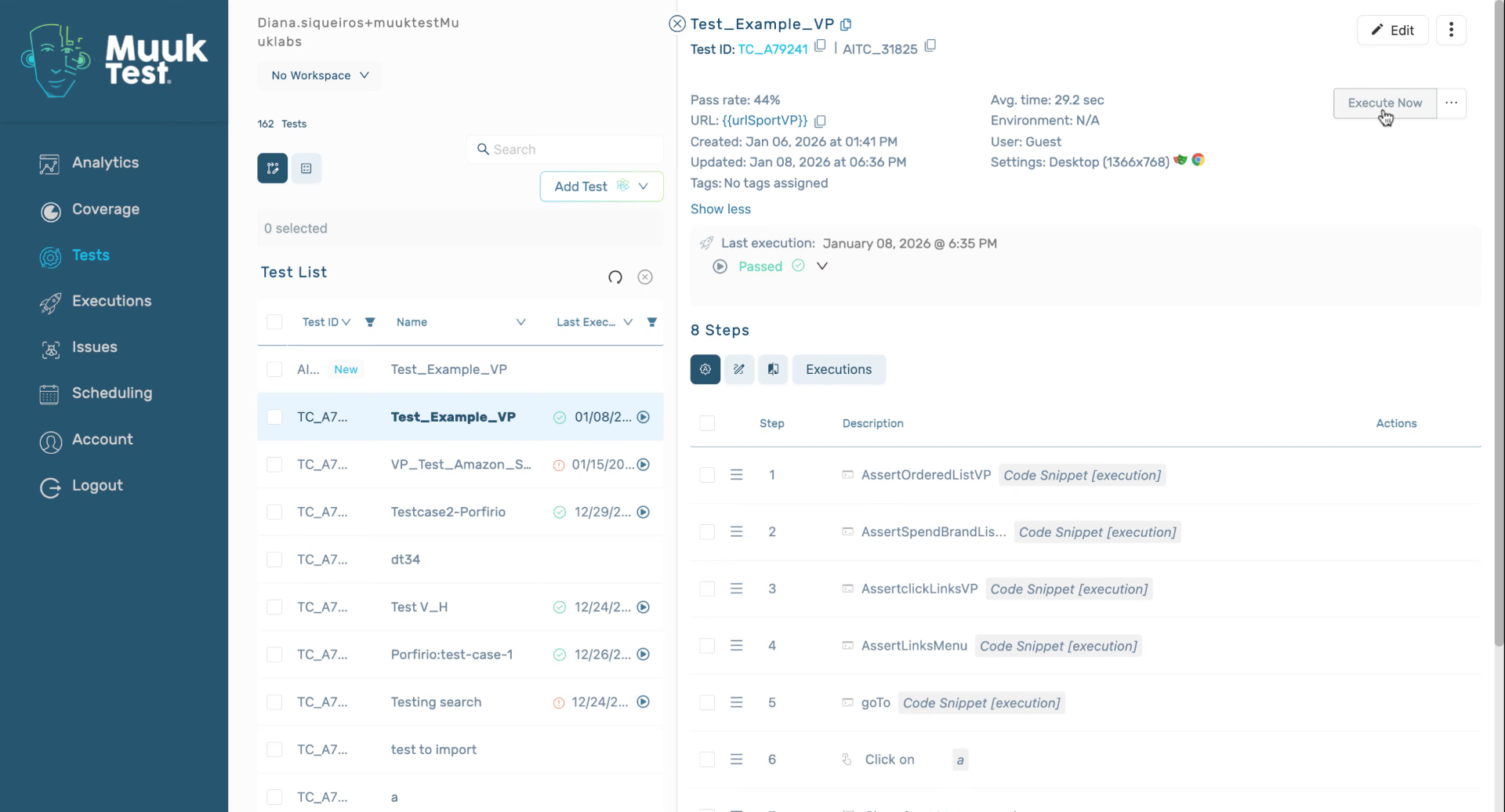
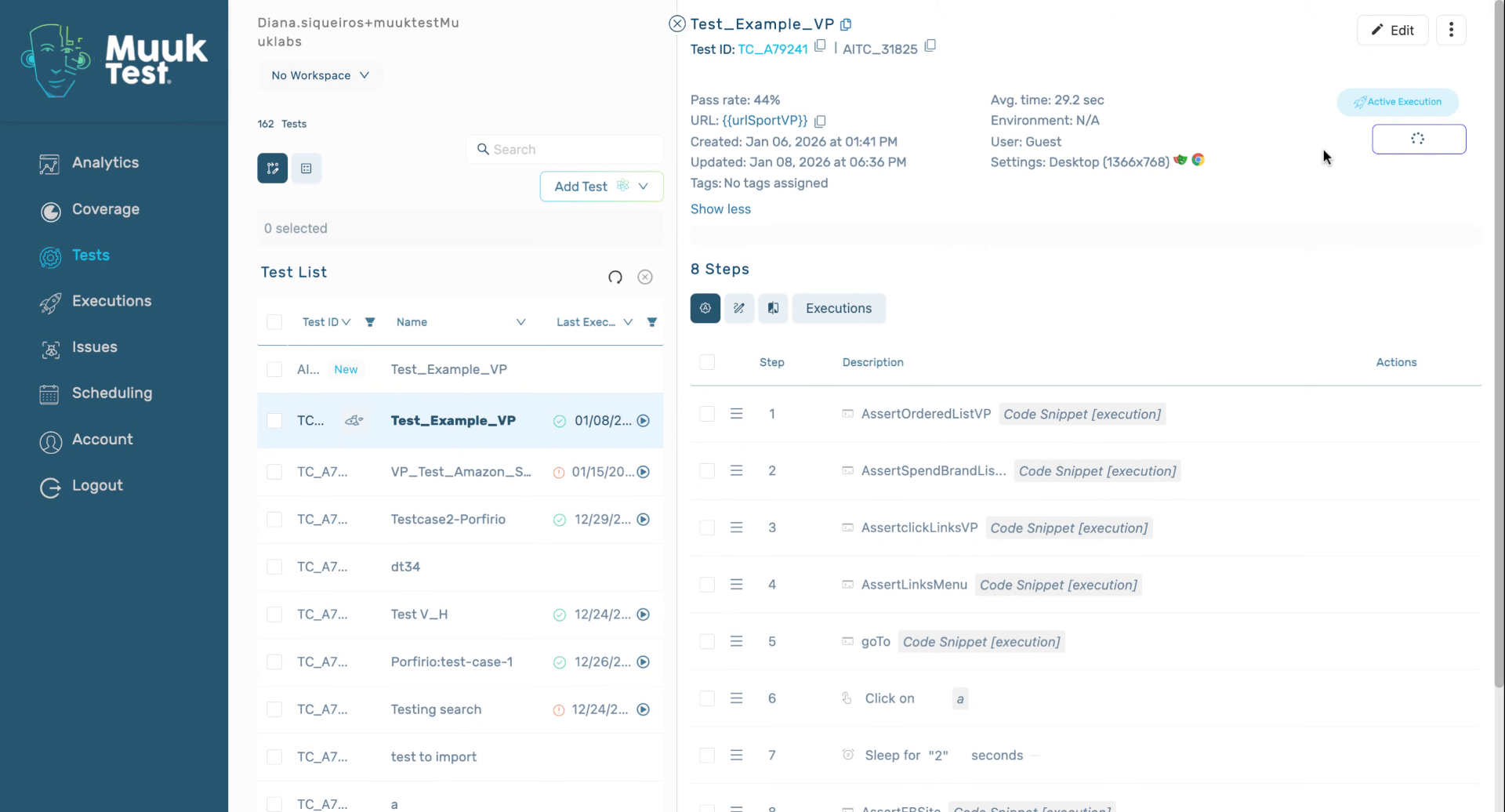
Then we click Execute. It's going to be in active execution.
6. Understand Execution Queue Behavior
7. View Execution Results
8. Review Execution History Details
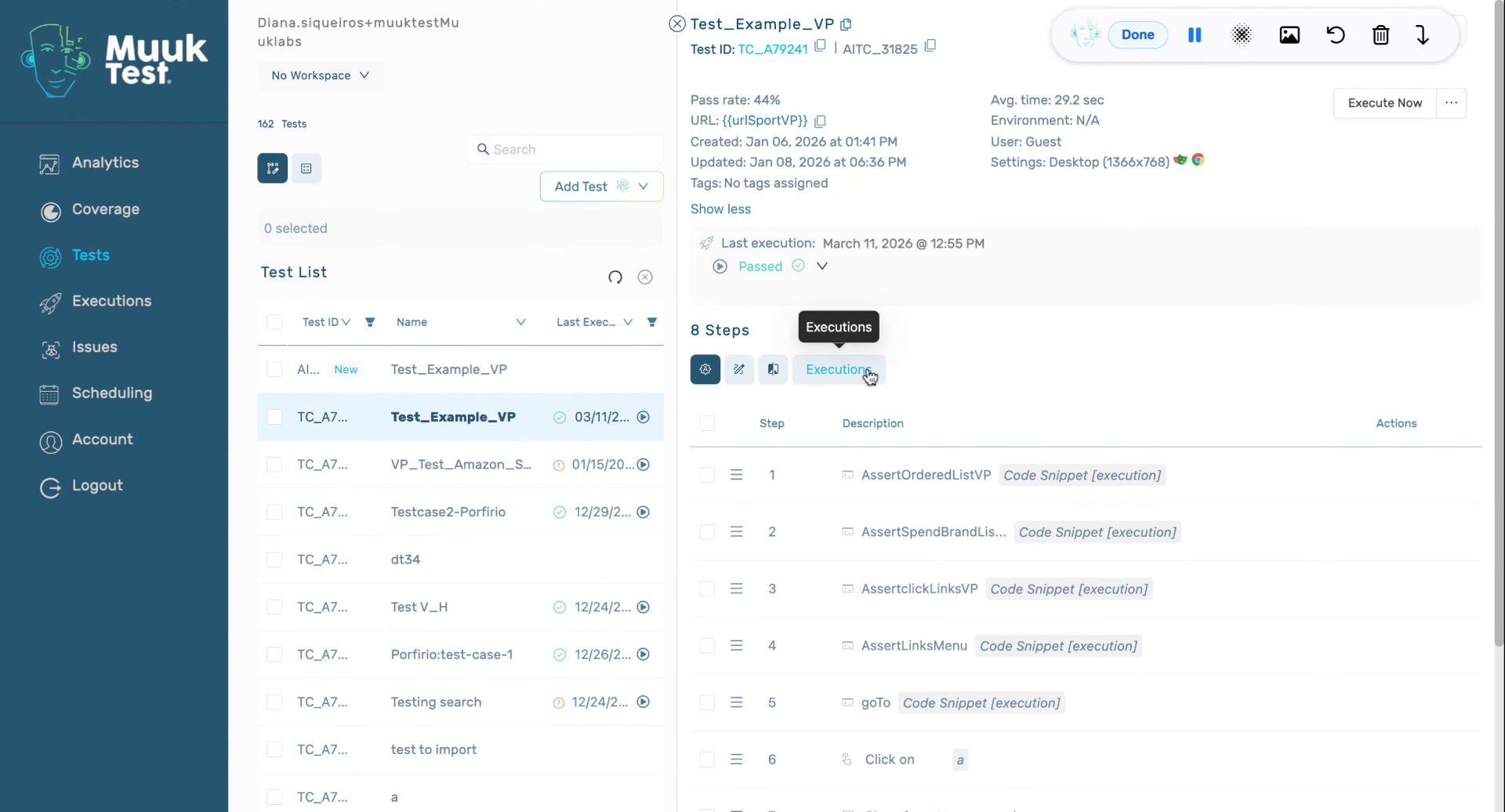
9. Run Multiple Tests Simultaneously
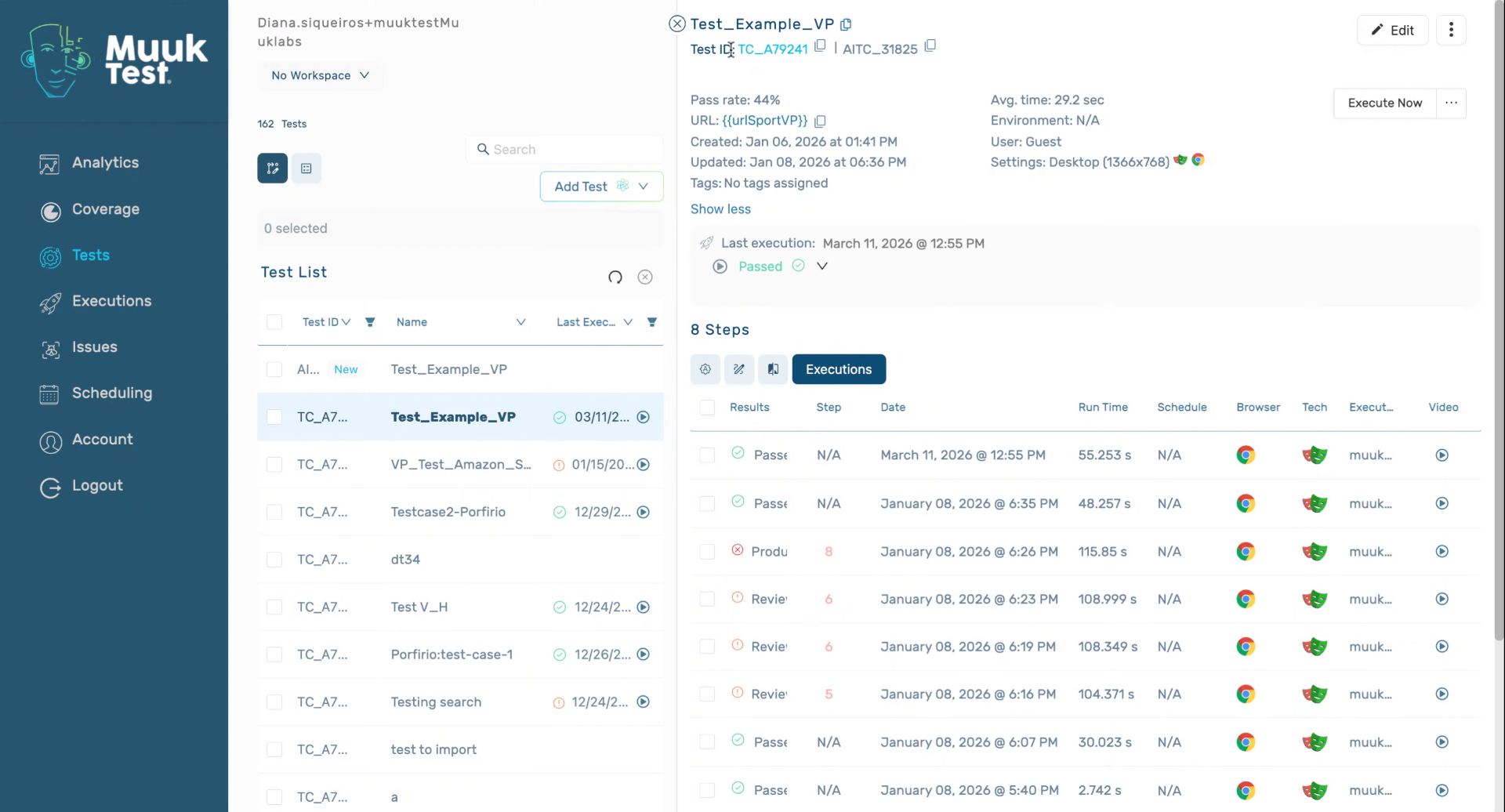
10. Choose Parallel Or Single Execution
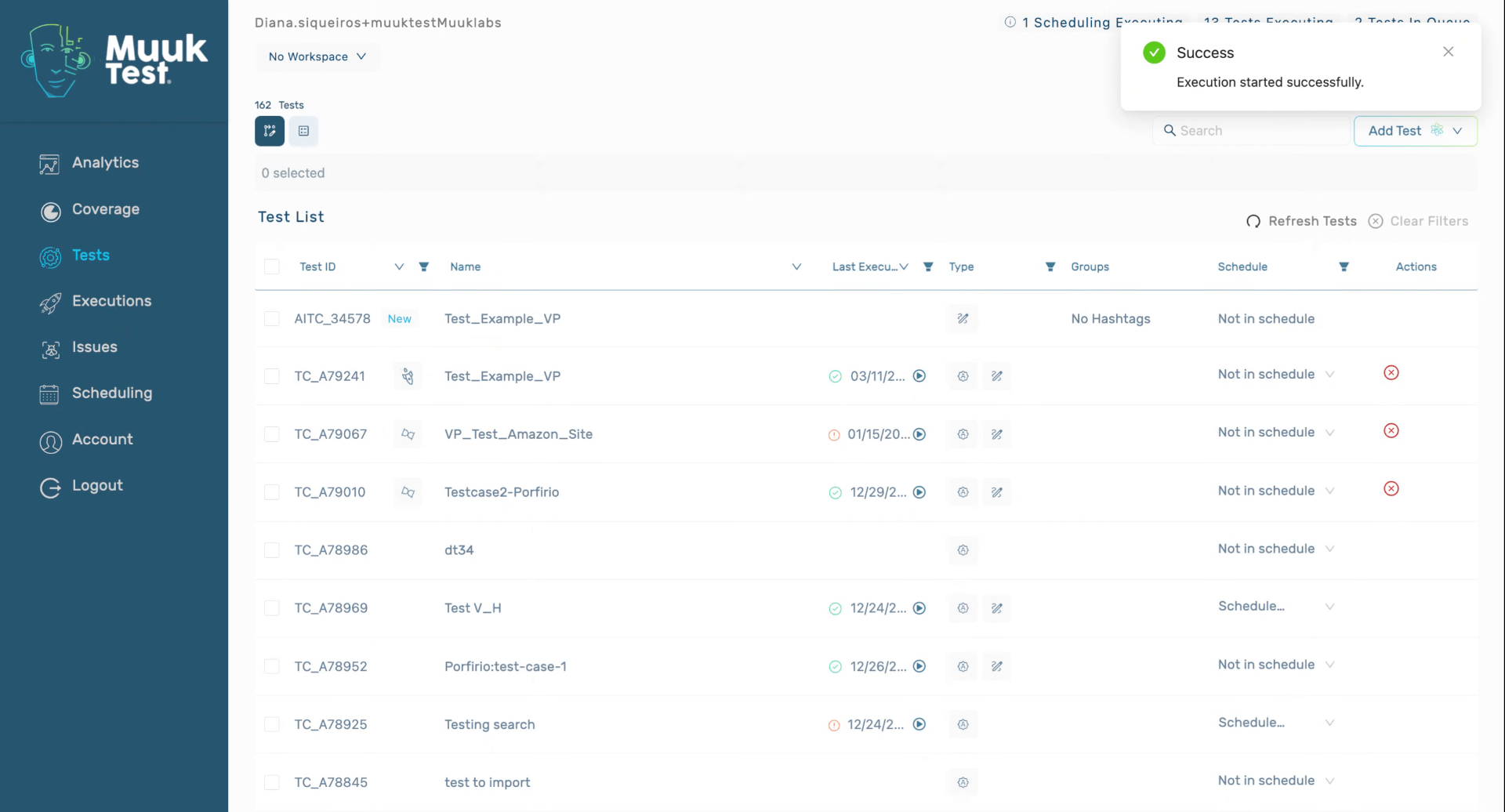
11. Use Alternative Test Execution View
If you don't want to see the test details, you can also execute your tests through the table view. Just go to your test and click on cloud execute.
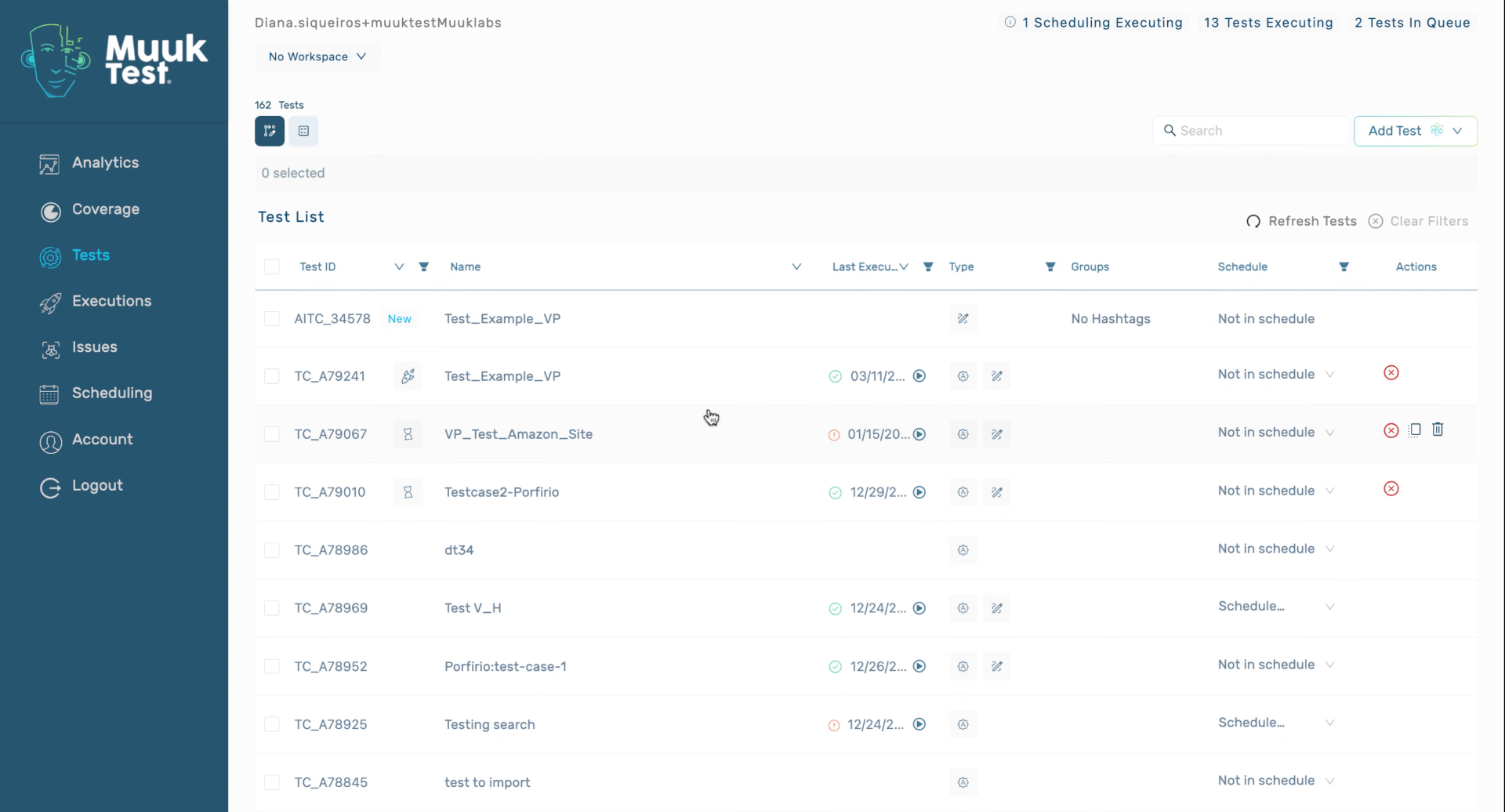
This tutorial guided you through executing tests in Muuktest, including using default and custom settings, managing execution queues, and viewing results. You can now run single or multiple tests and explore alternative execution views for efficiency.
Comments
0 comments
Please sign in to leave a comment.