

This tutorial will guide you through editing a test effectively. You will learn how to update test statuses, modify multiple fields, and configure detailed test settings.
Go to portal.muuktest.com:5000
1. Introduction to Editing Tests
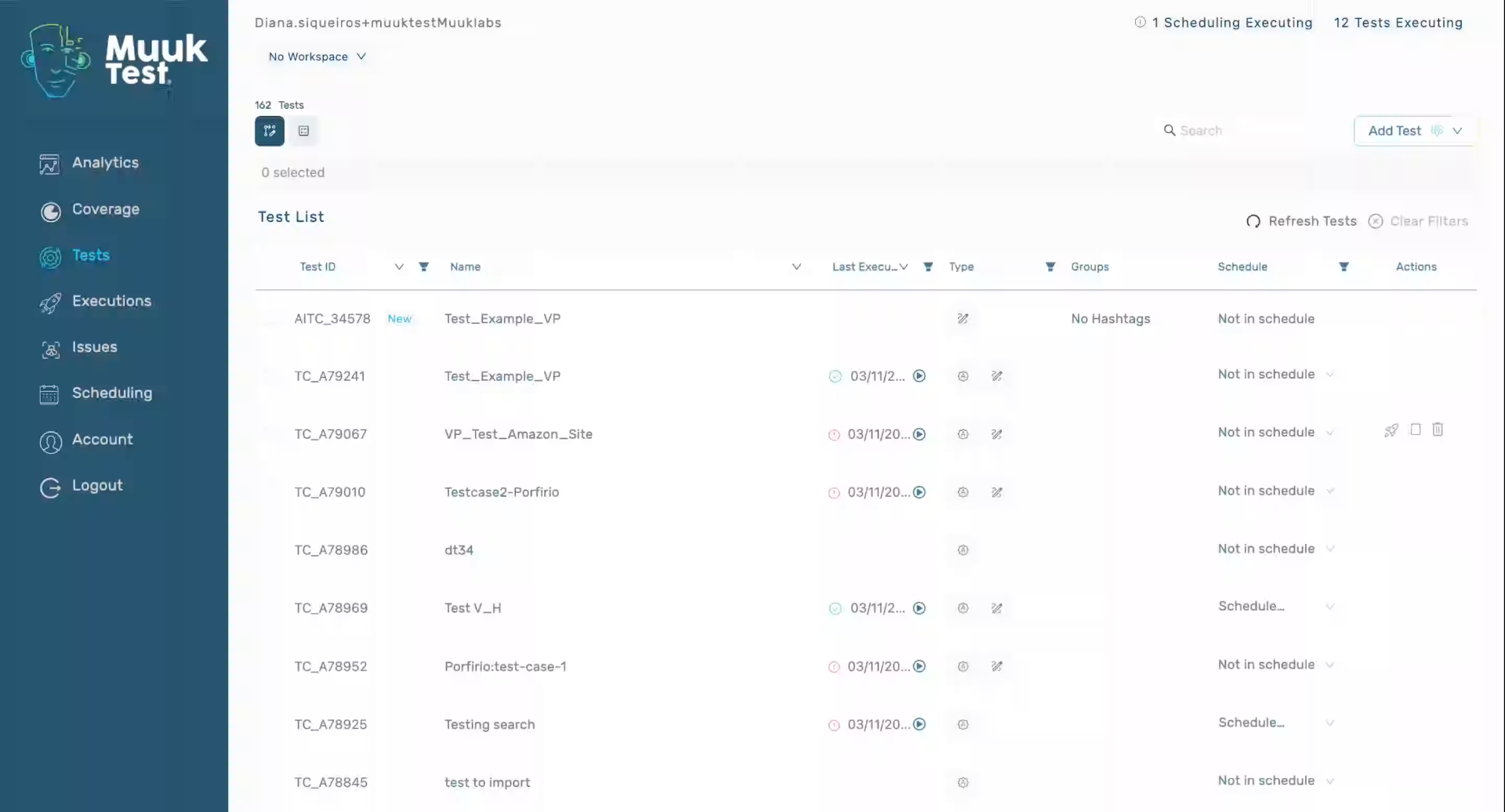
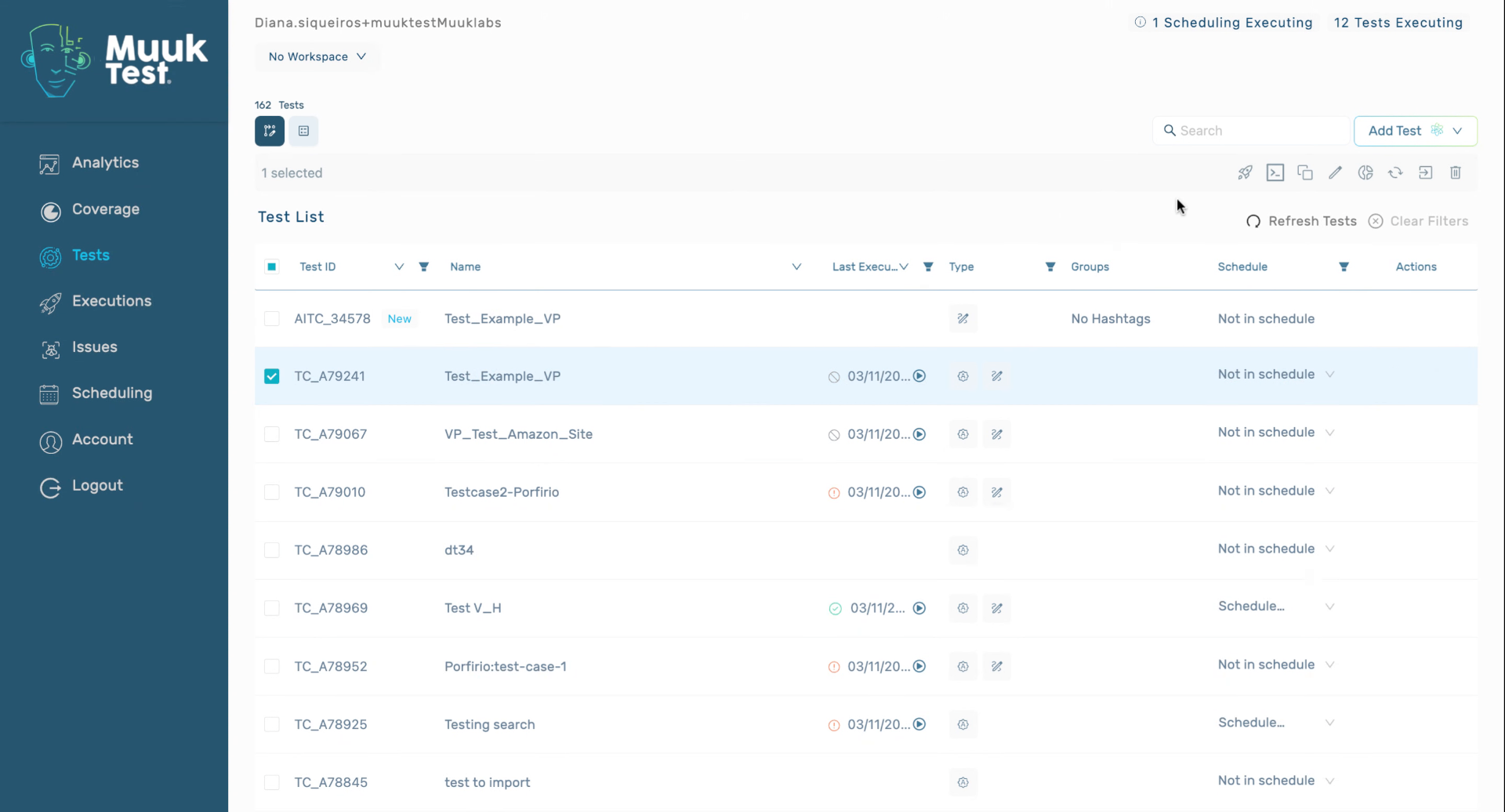
2. Edit Test Status in Bulk
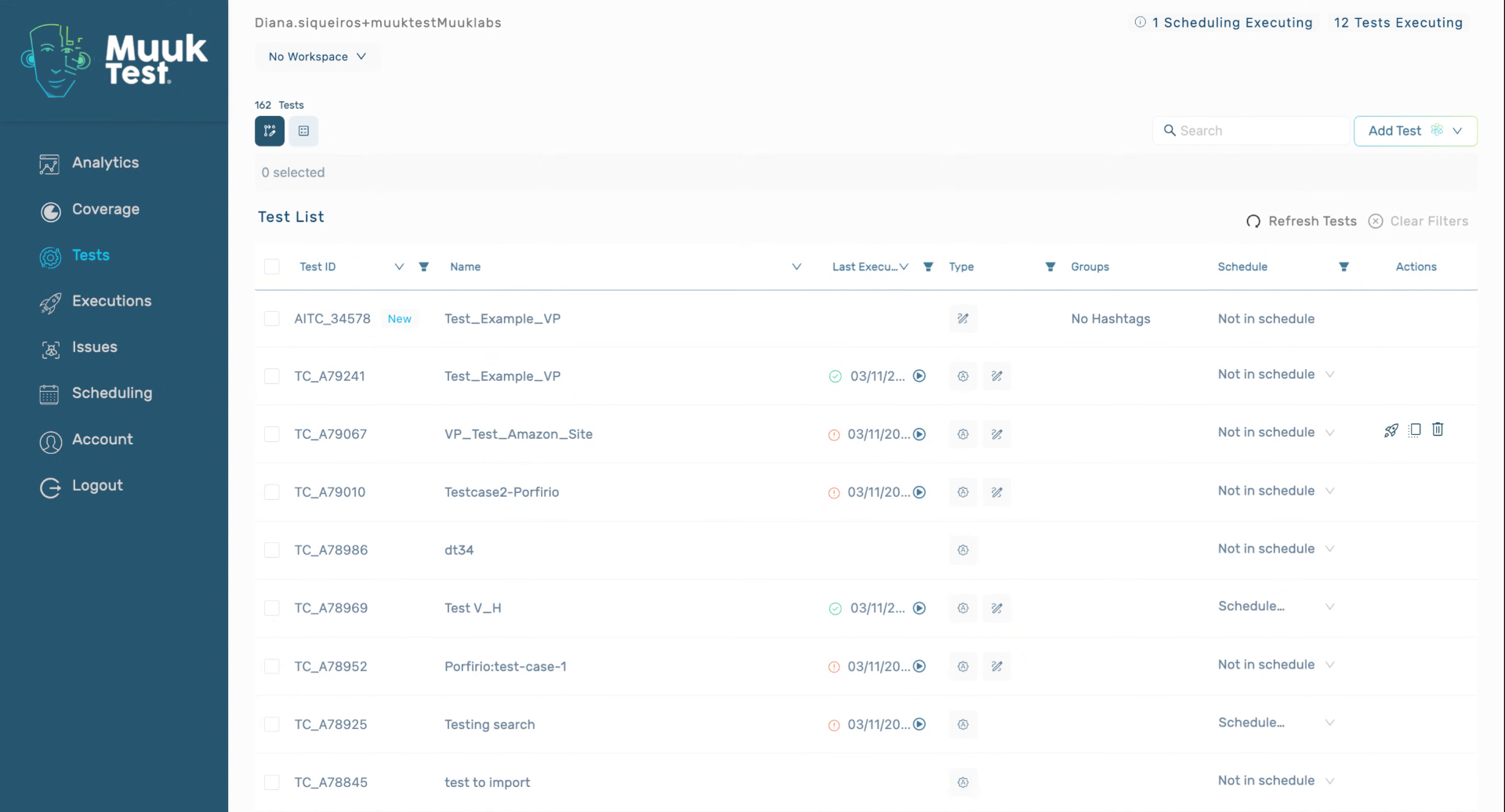
3. Edit Multiple Fields in Bulk
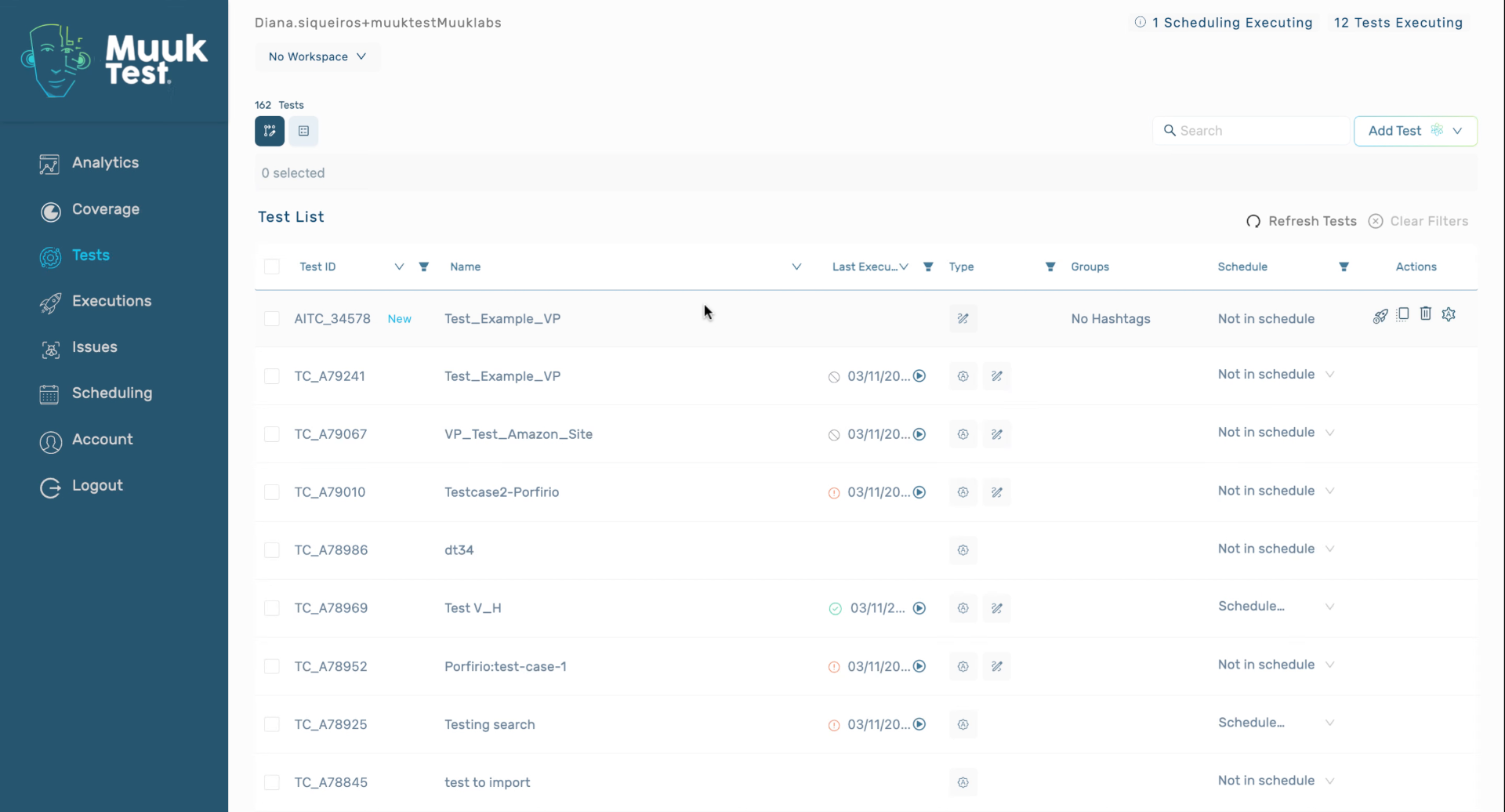
4. Open Test Details View
5. Modify Default Test Settings
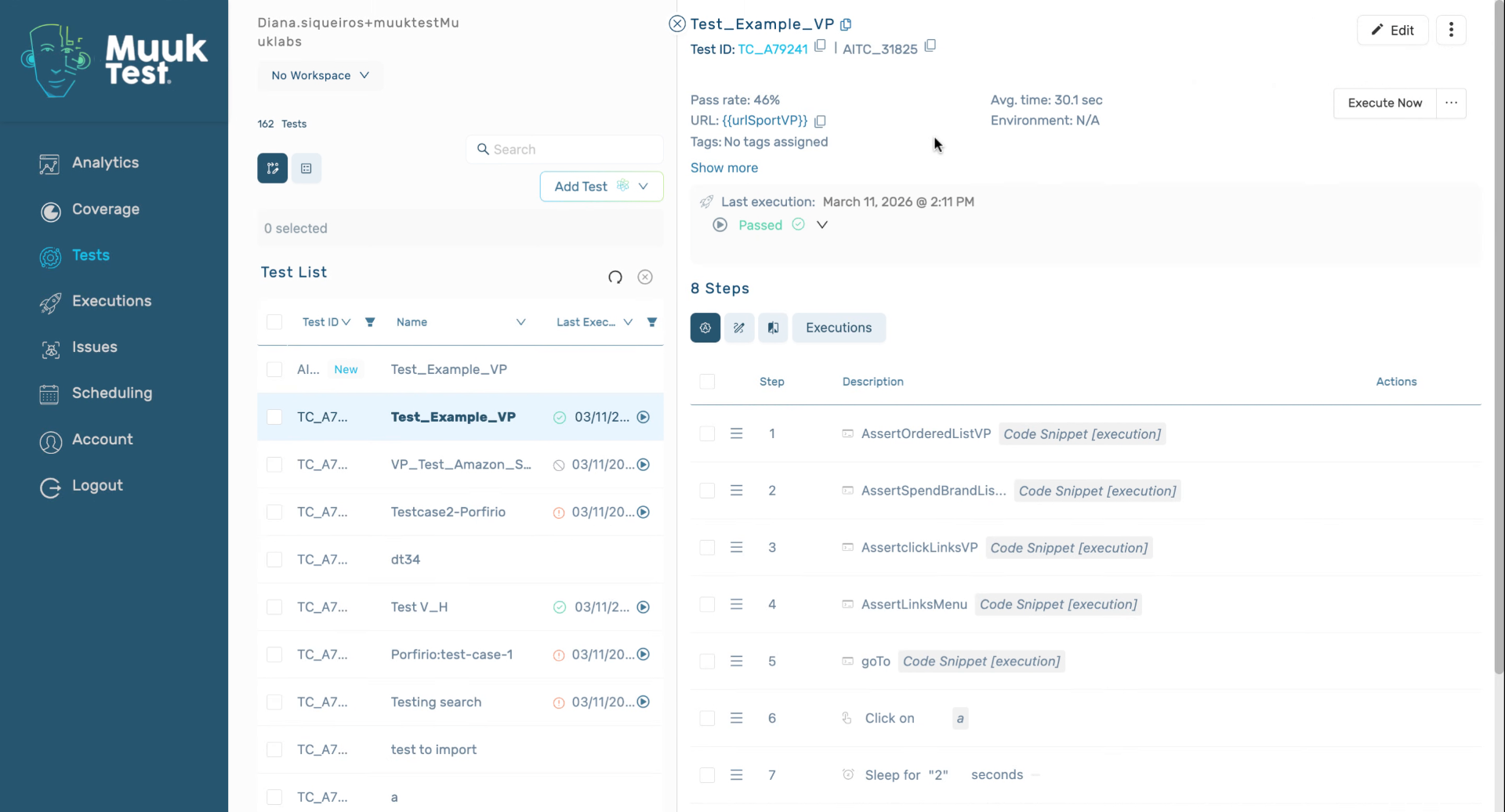
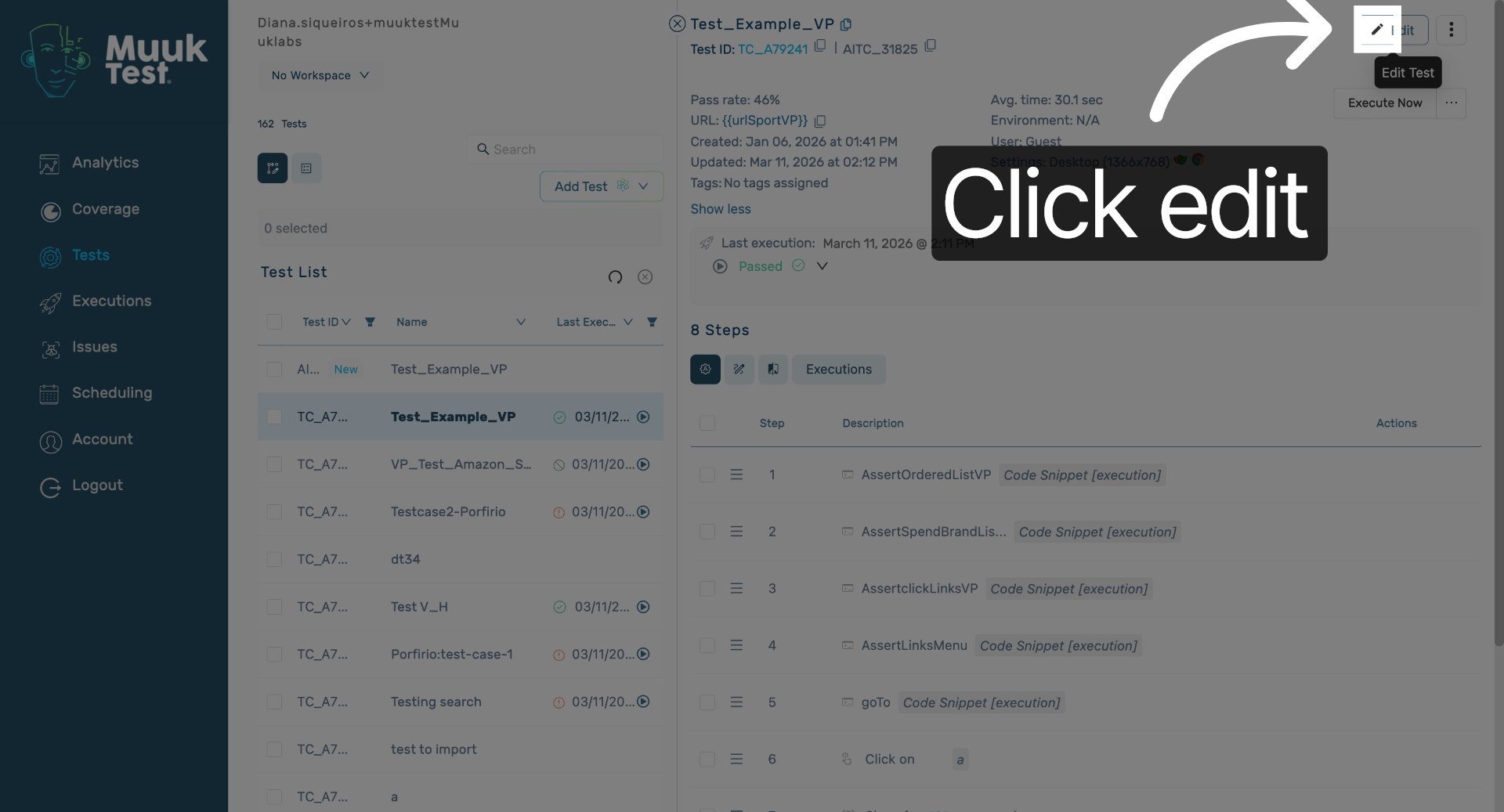
6. Enter Edit Mode
Click to enter edit mode for modifying test settings.
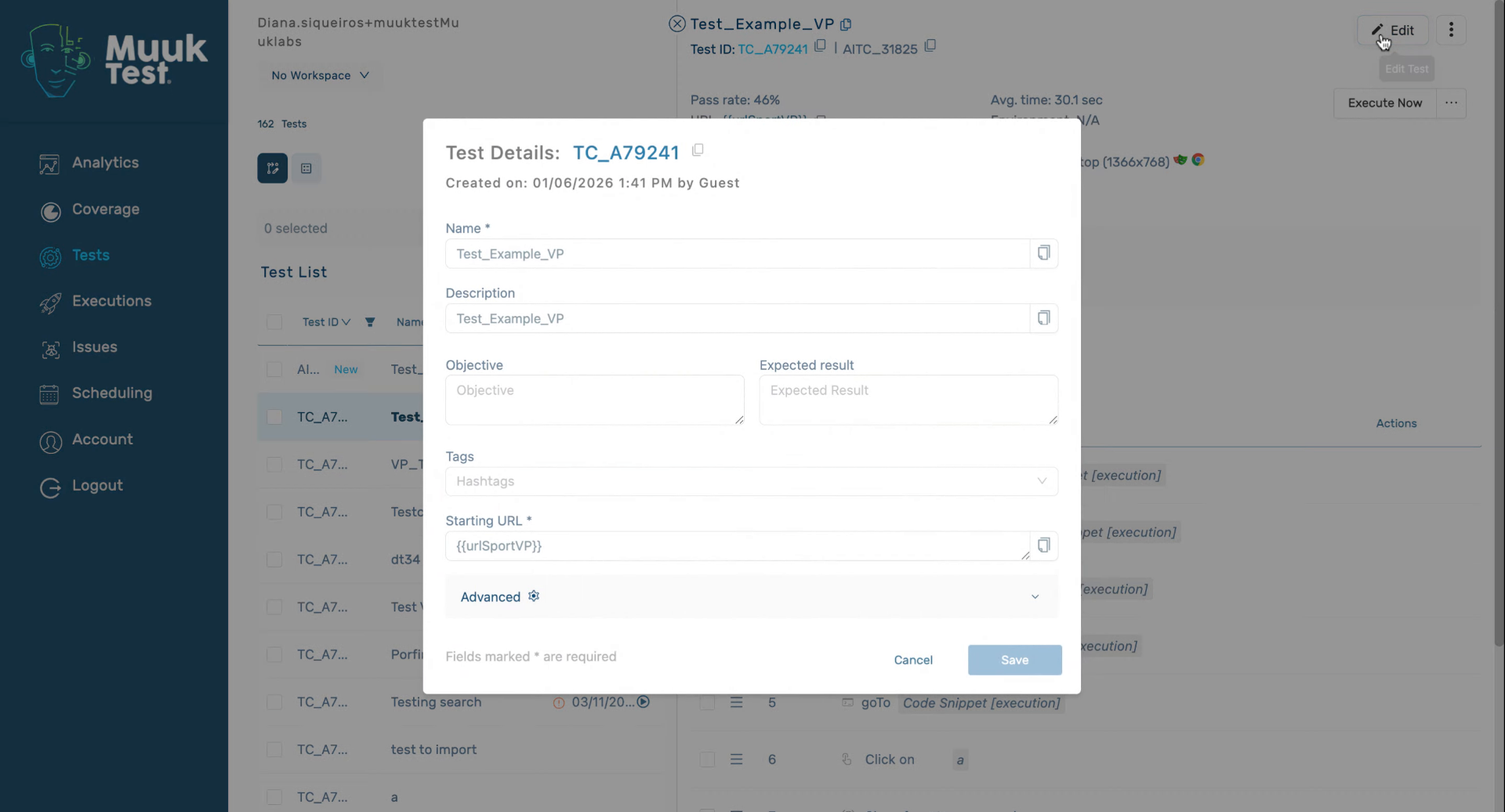
7. Edit Test Metadata
8. Configure Screen and Technology
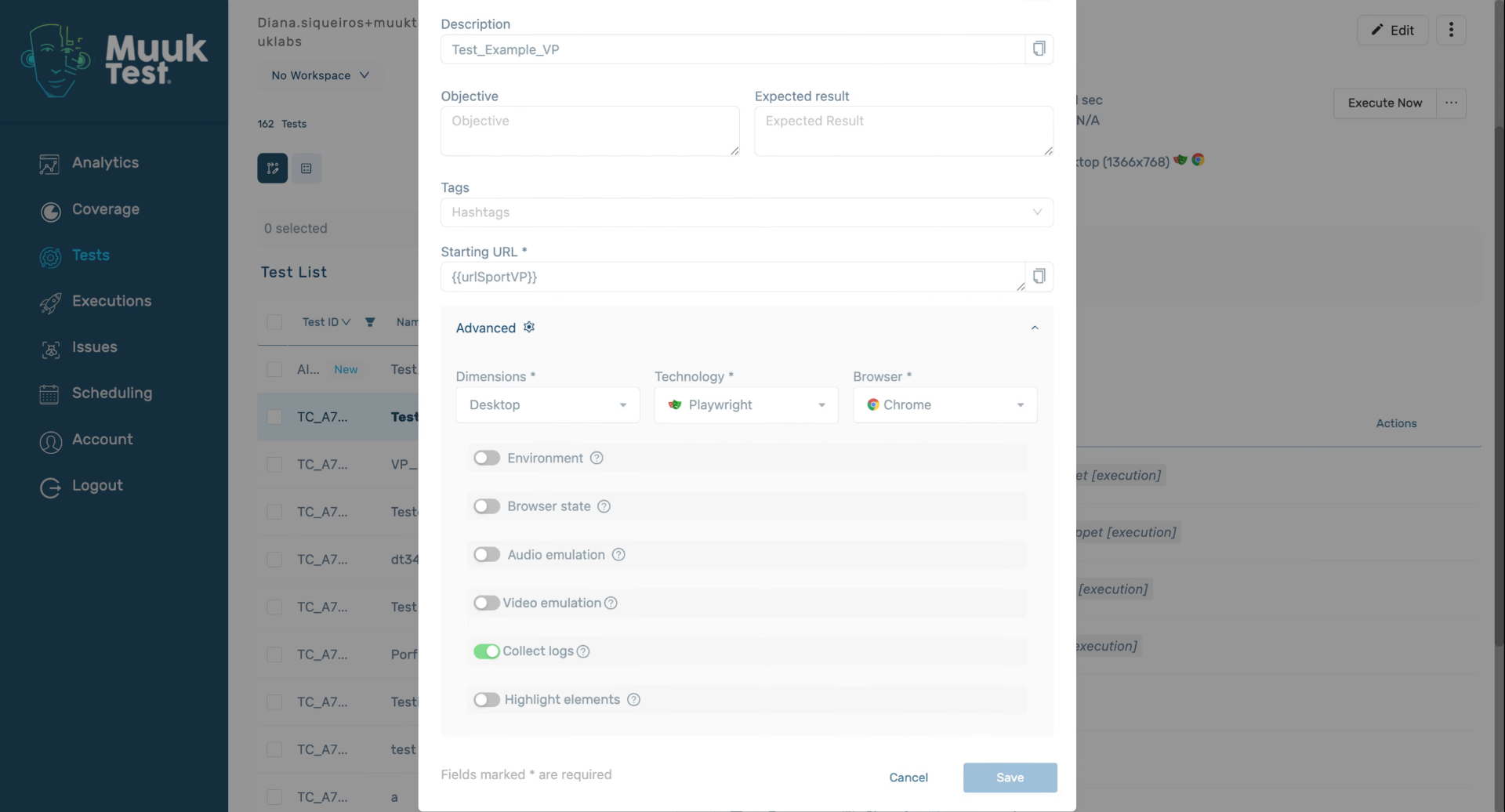
9. Select Browsers for Integration
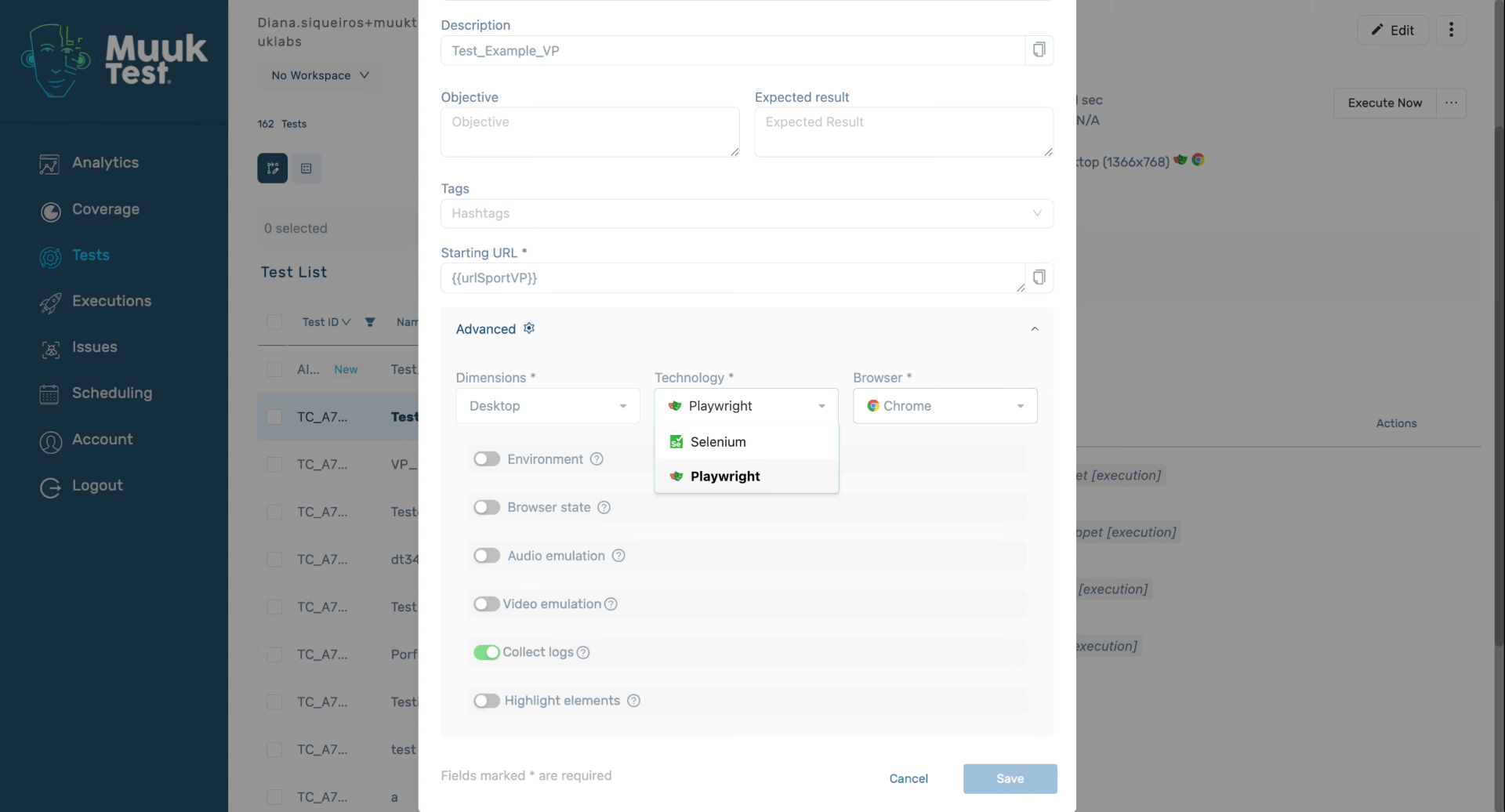
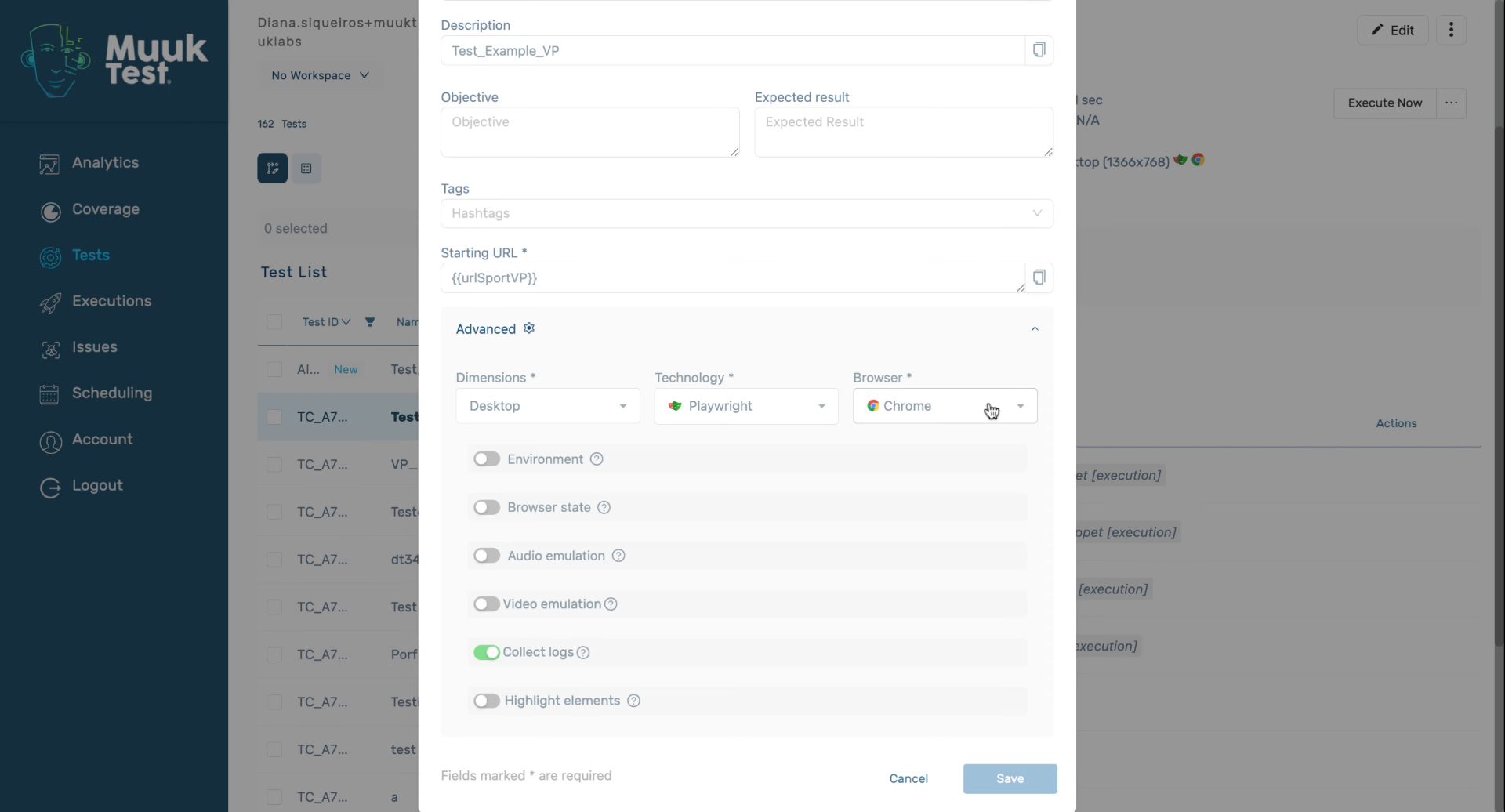
10. Set Environment and Emulation Options
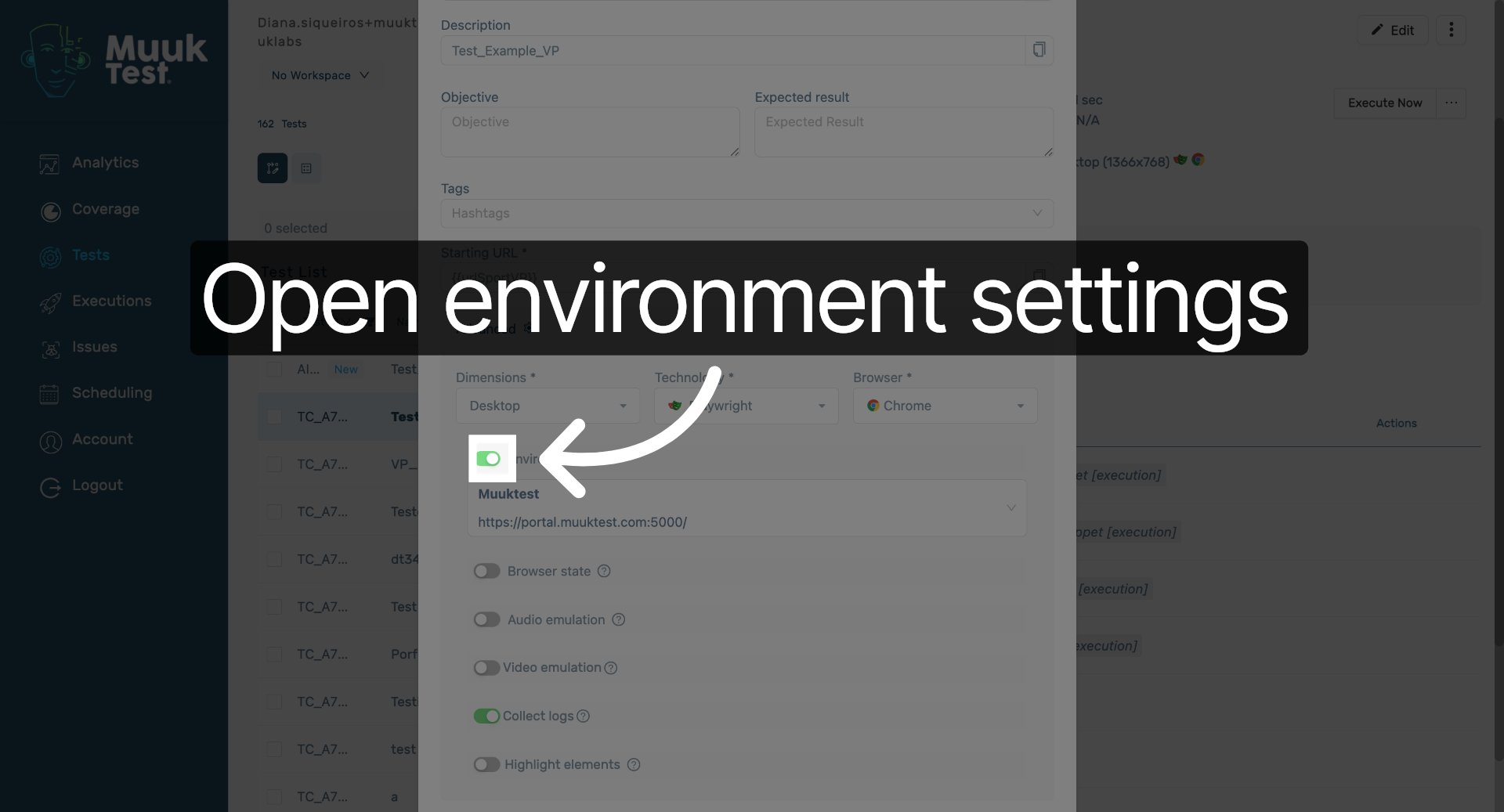
11. Open Environment Settings
Click to open the environment settings for your test.
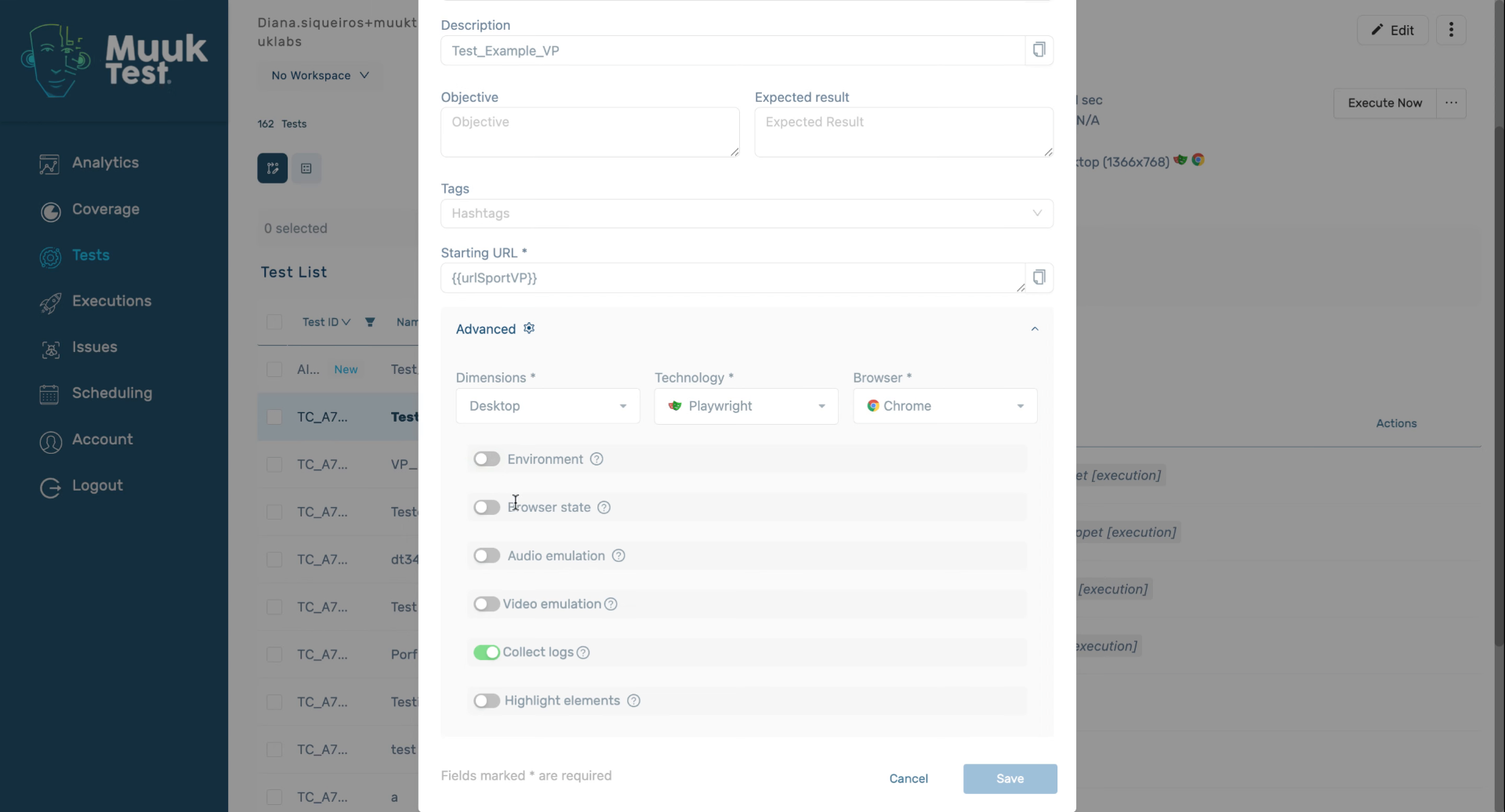
12. Save Browser State and Emulations
13. Highlight Elements in Video
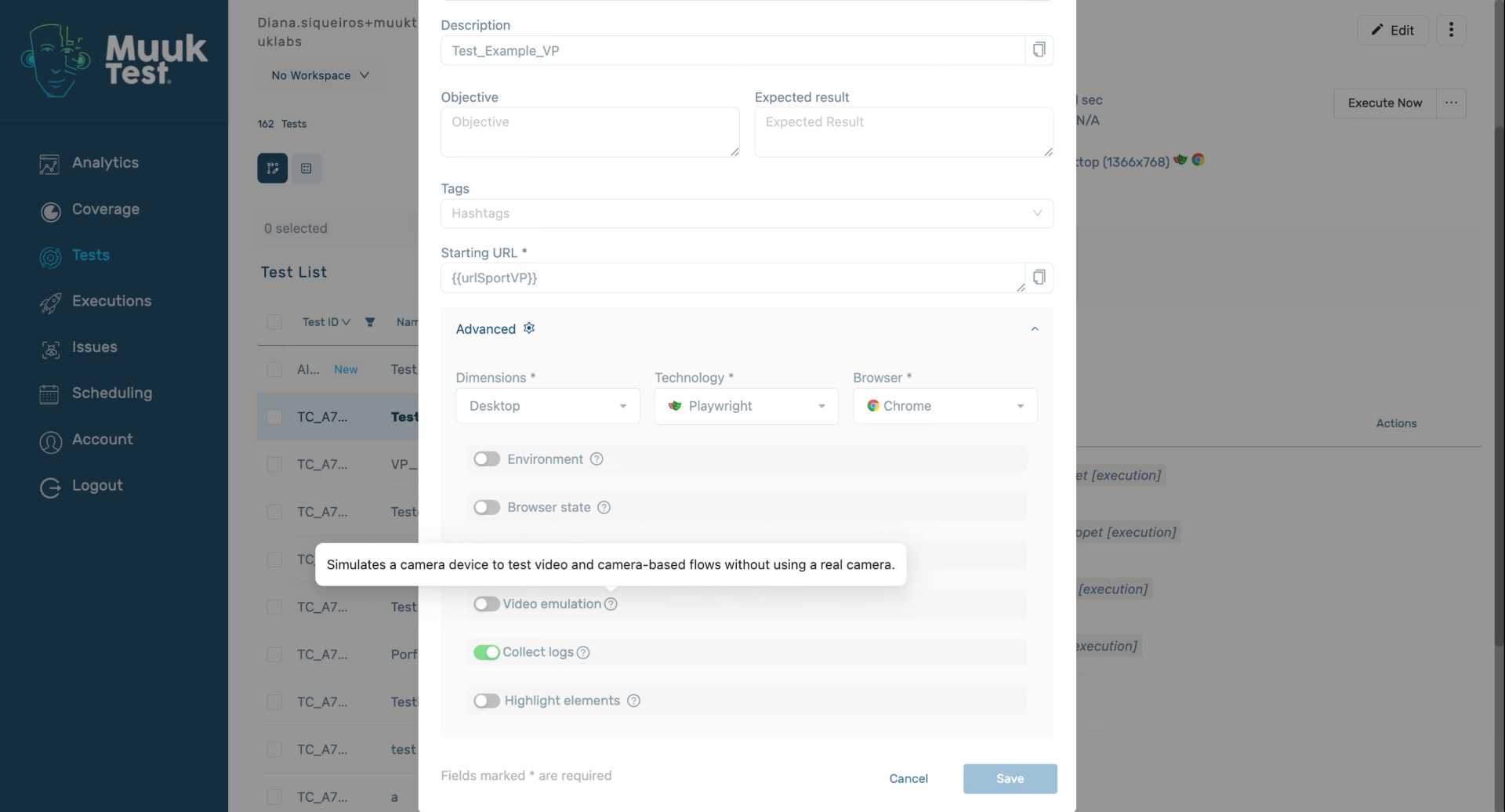
14. Confirm Video Highlighting
Click to confirm the highlighting settings for video playback.
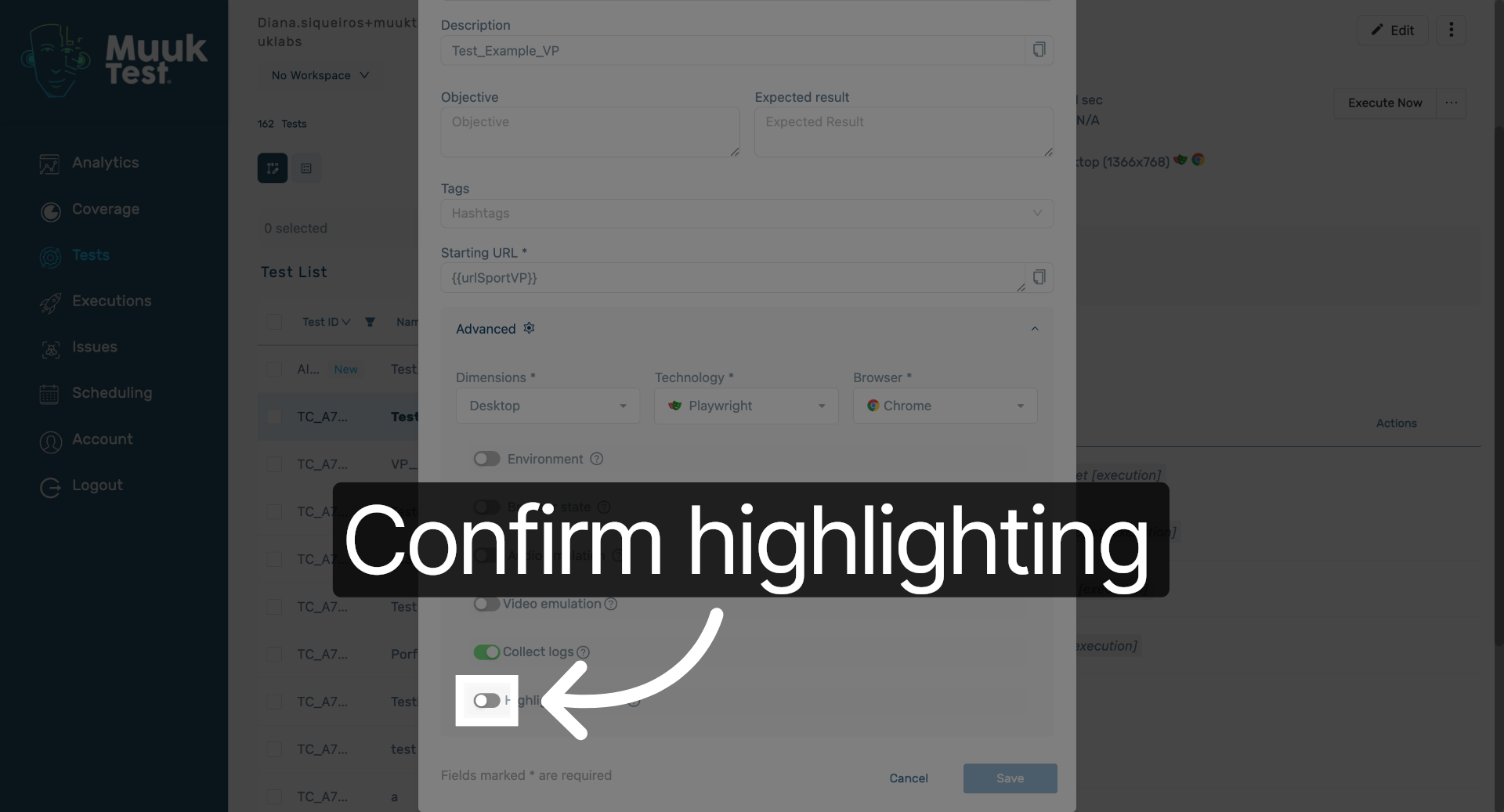
15. Performance Recommendation
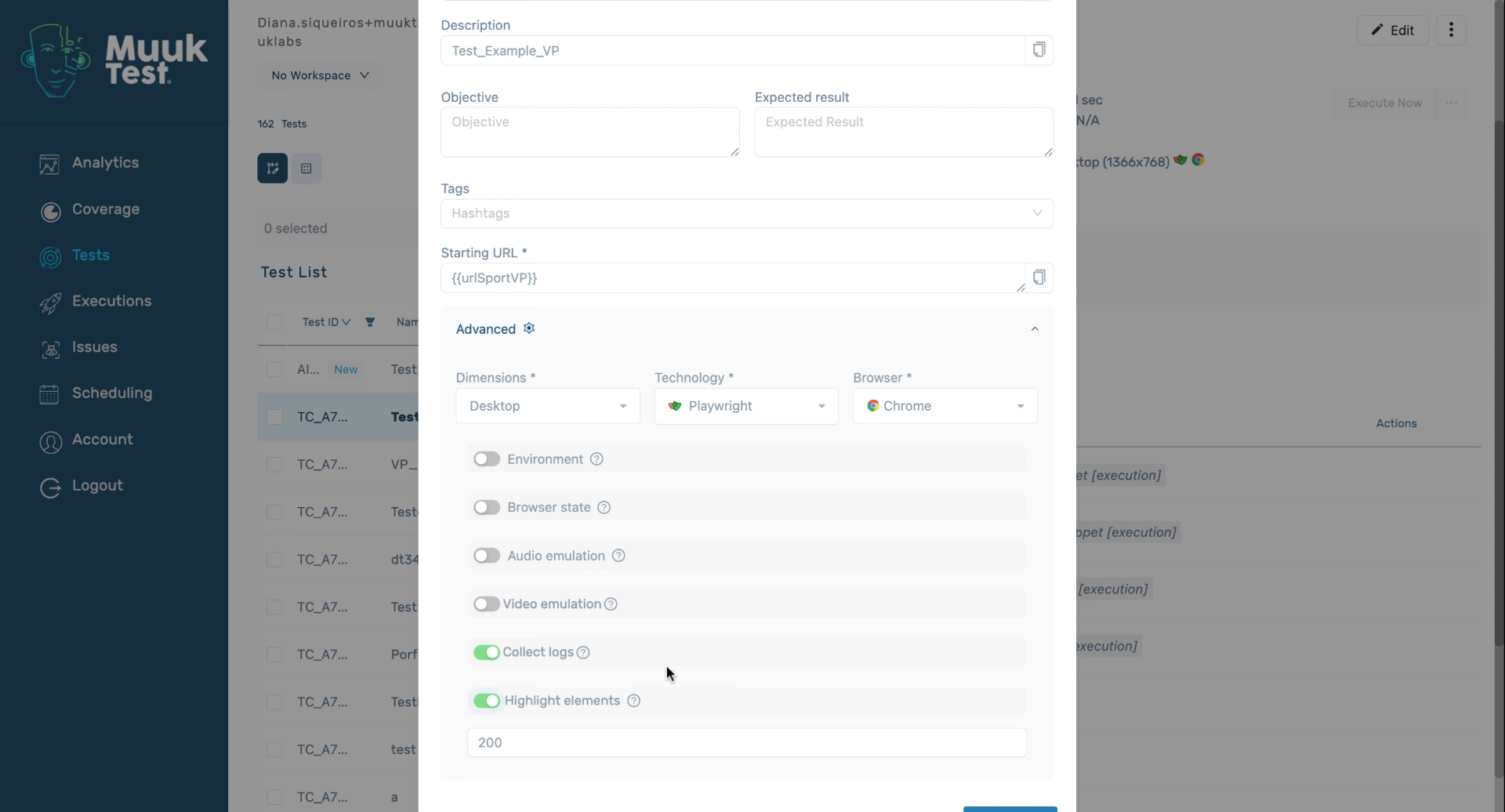
16. Save Edited Test
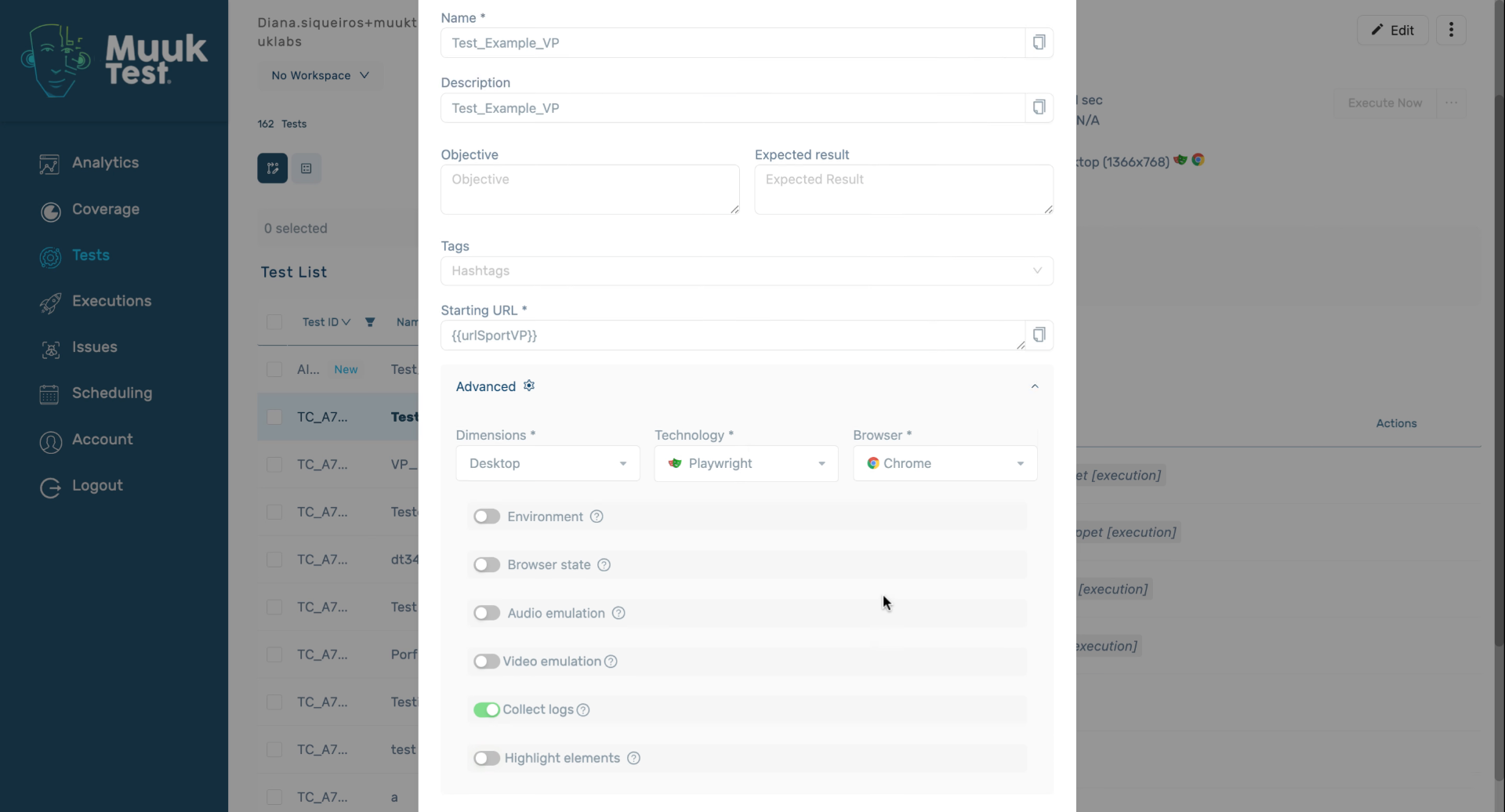
17. Closing Thanks
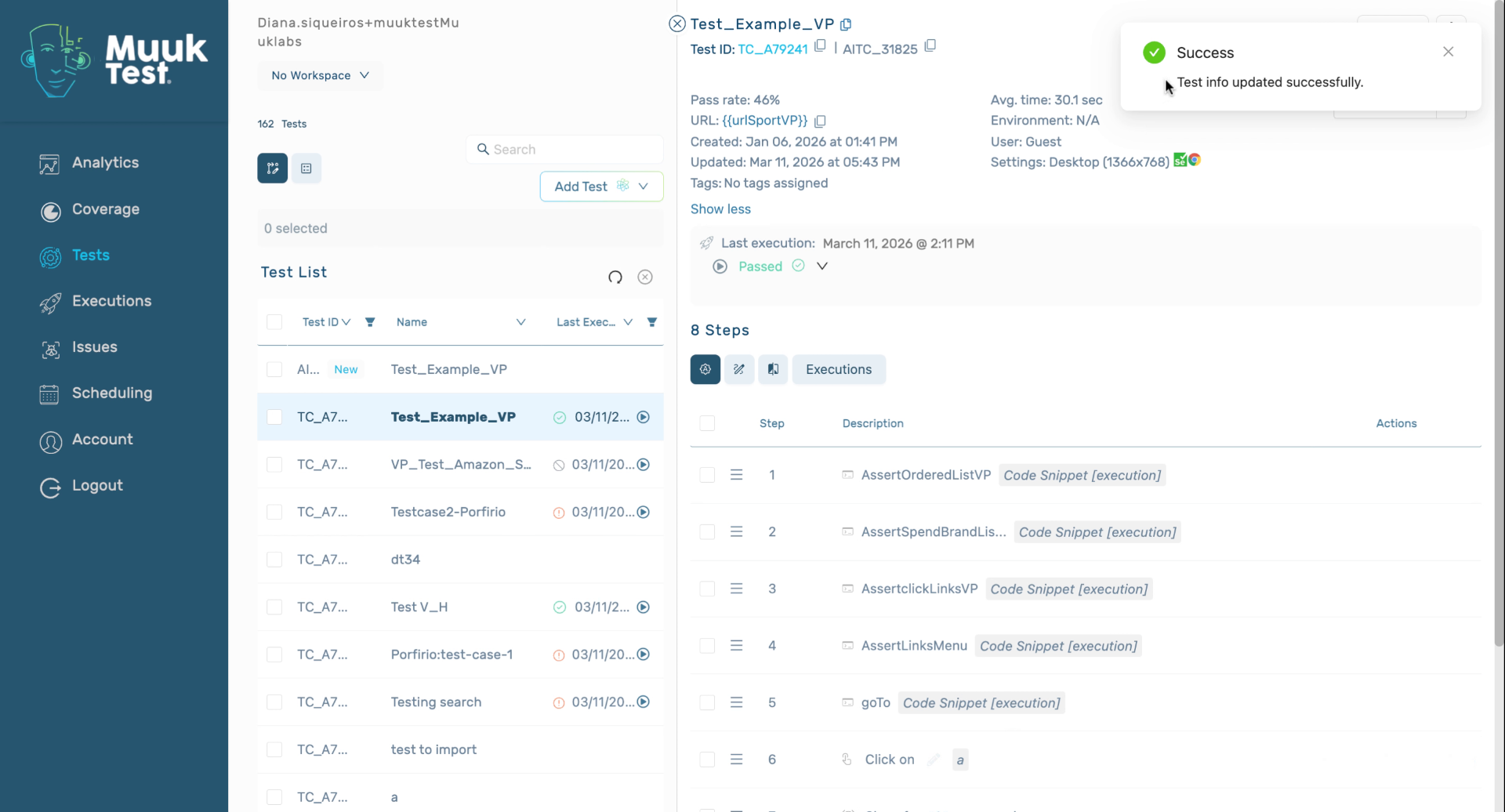
You have successfully edited your test by updating statuses, modifying multiple fields in bulk, and adjusting detailed settings including environment and browser options. To continue, explore additional test management features or review test execution results.
Comments
0 comments
Please sign in to leave a comment.