

This tutorial guides you through filtering and sorting tests in the MuukTest application. You will learn how to use various filters and sorting options to manage test executions effectively.
Go to portal.muuktest.com:5000
1. Overview of Test Table Columns
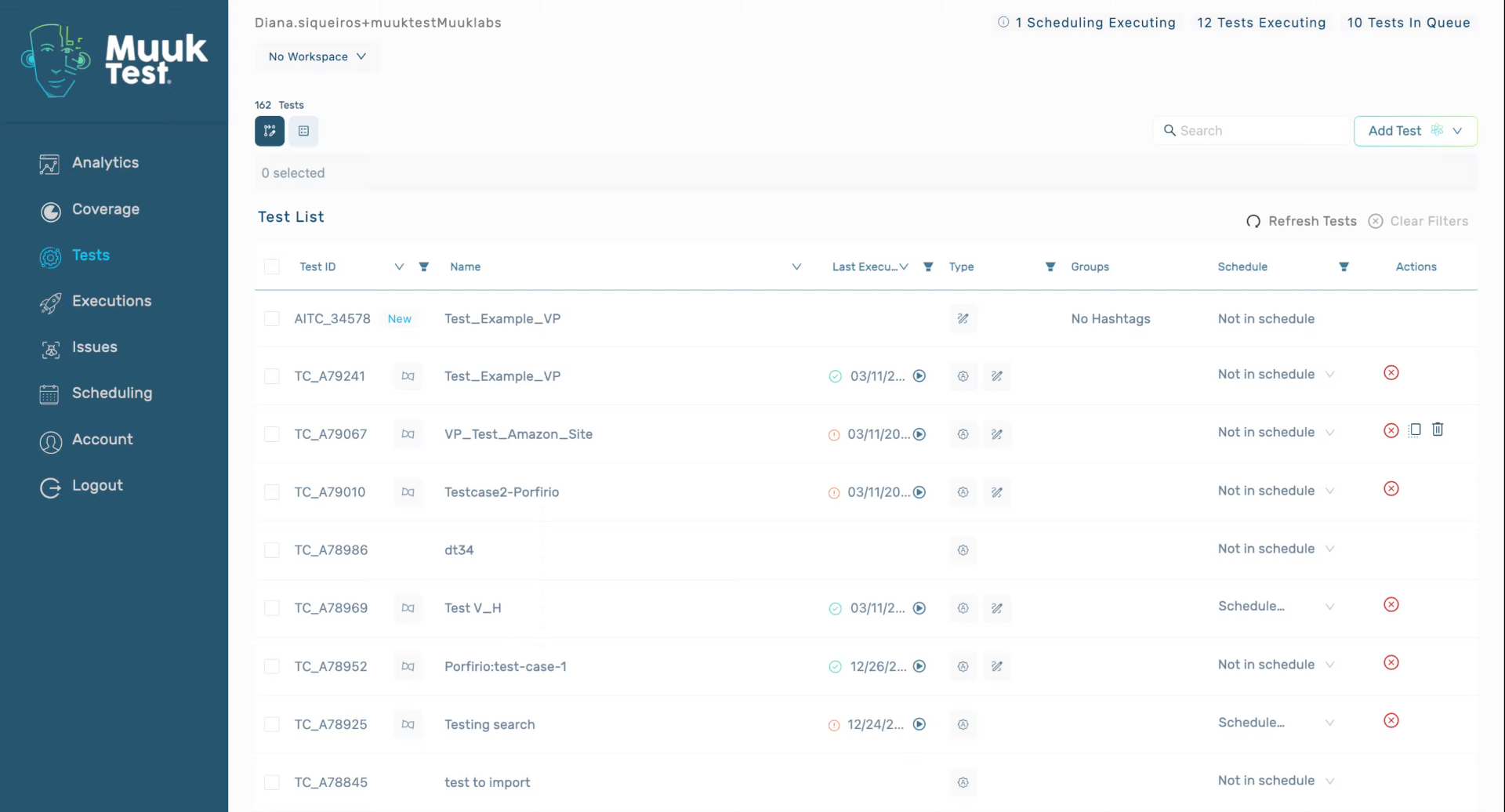
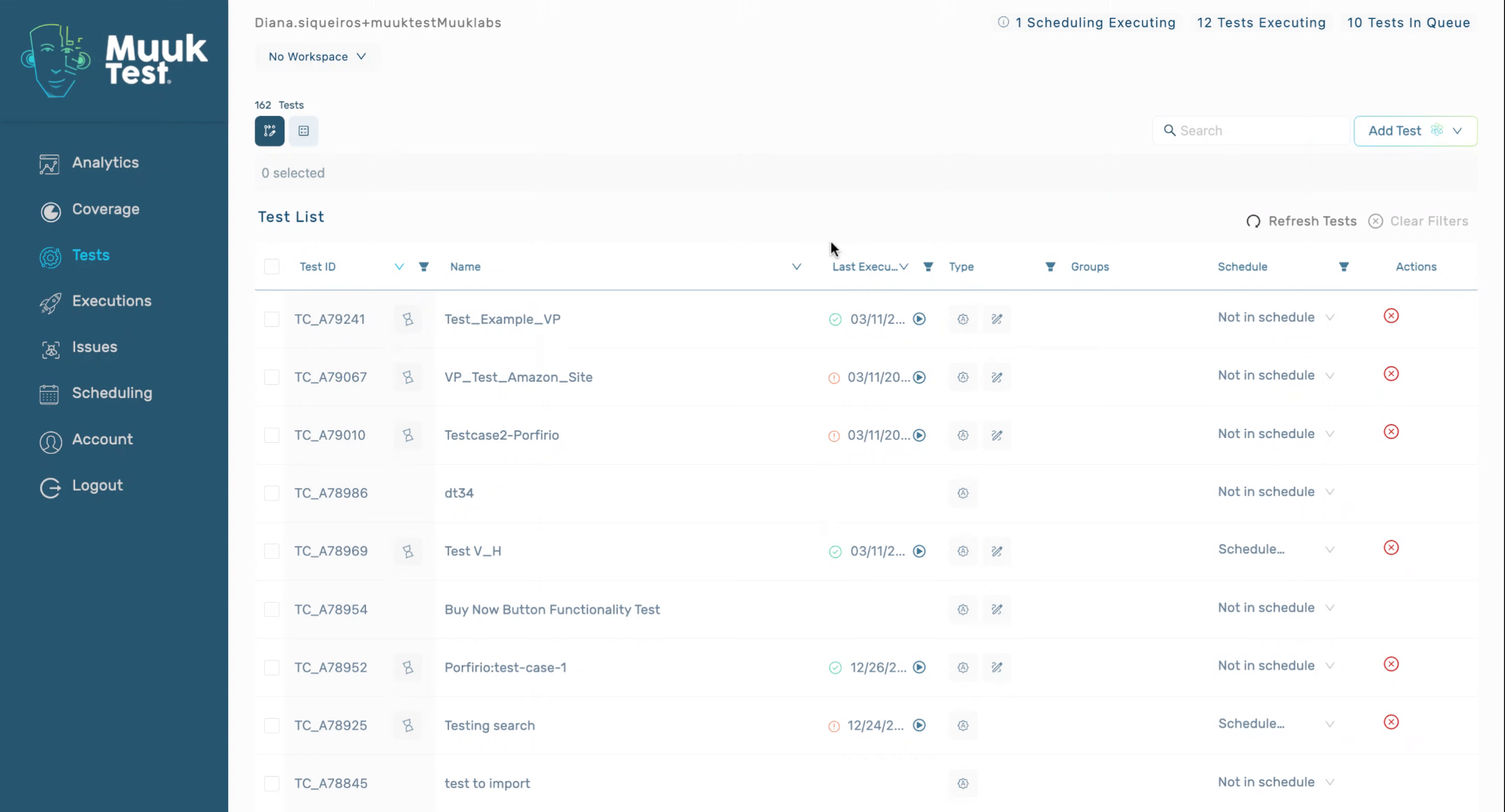
Hello. Today we're going to learn how to sort and filter in our tests table. Here we can see different columns. We have test ID, name, last execution, type, groups, schedule, and actions
2. Filter Tests by ID and Status
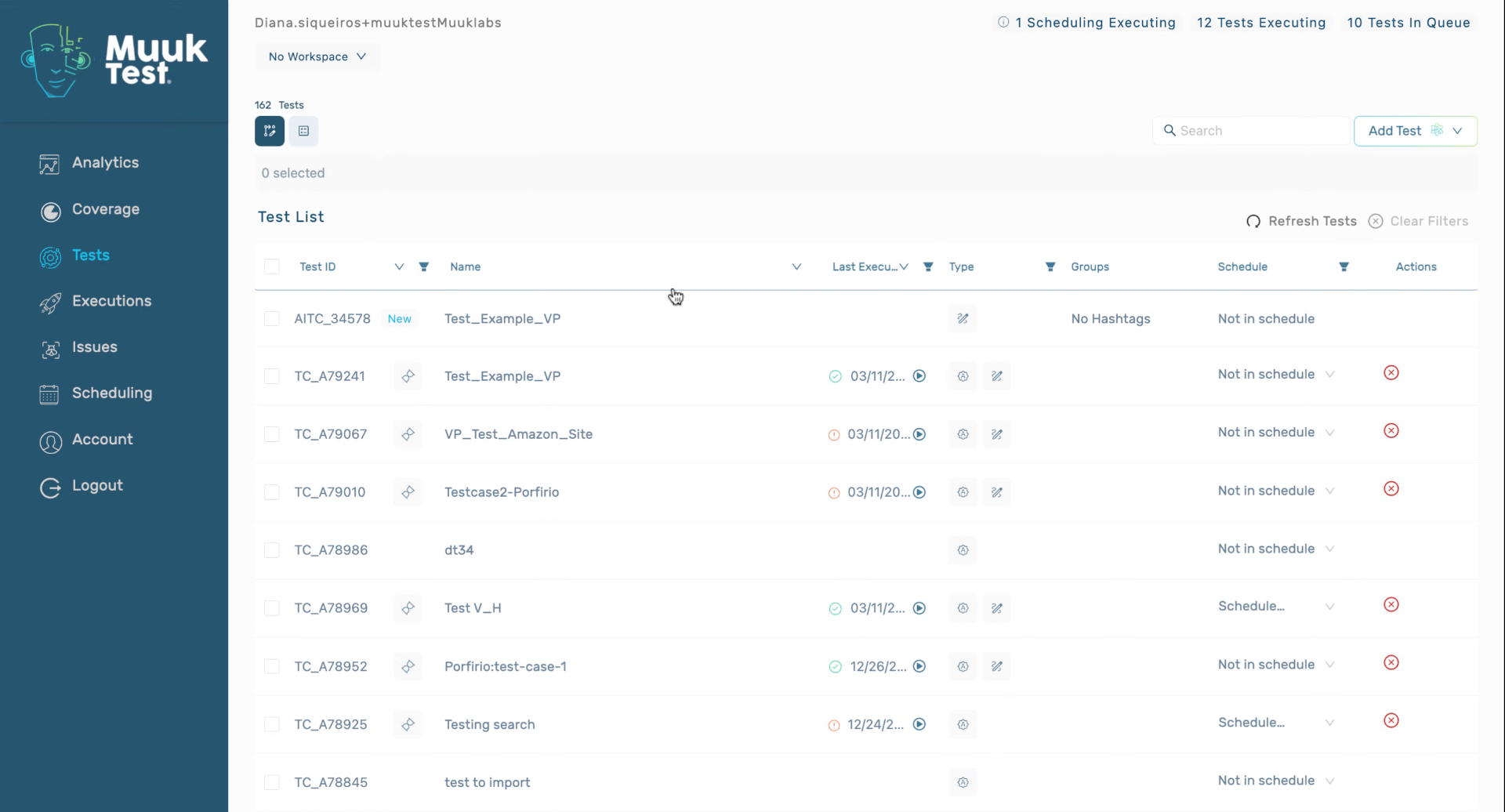
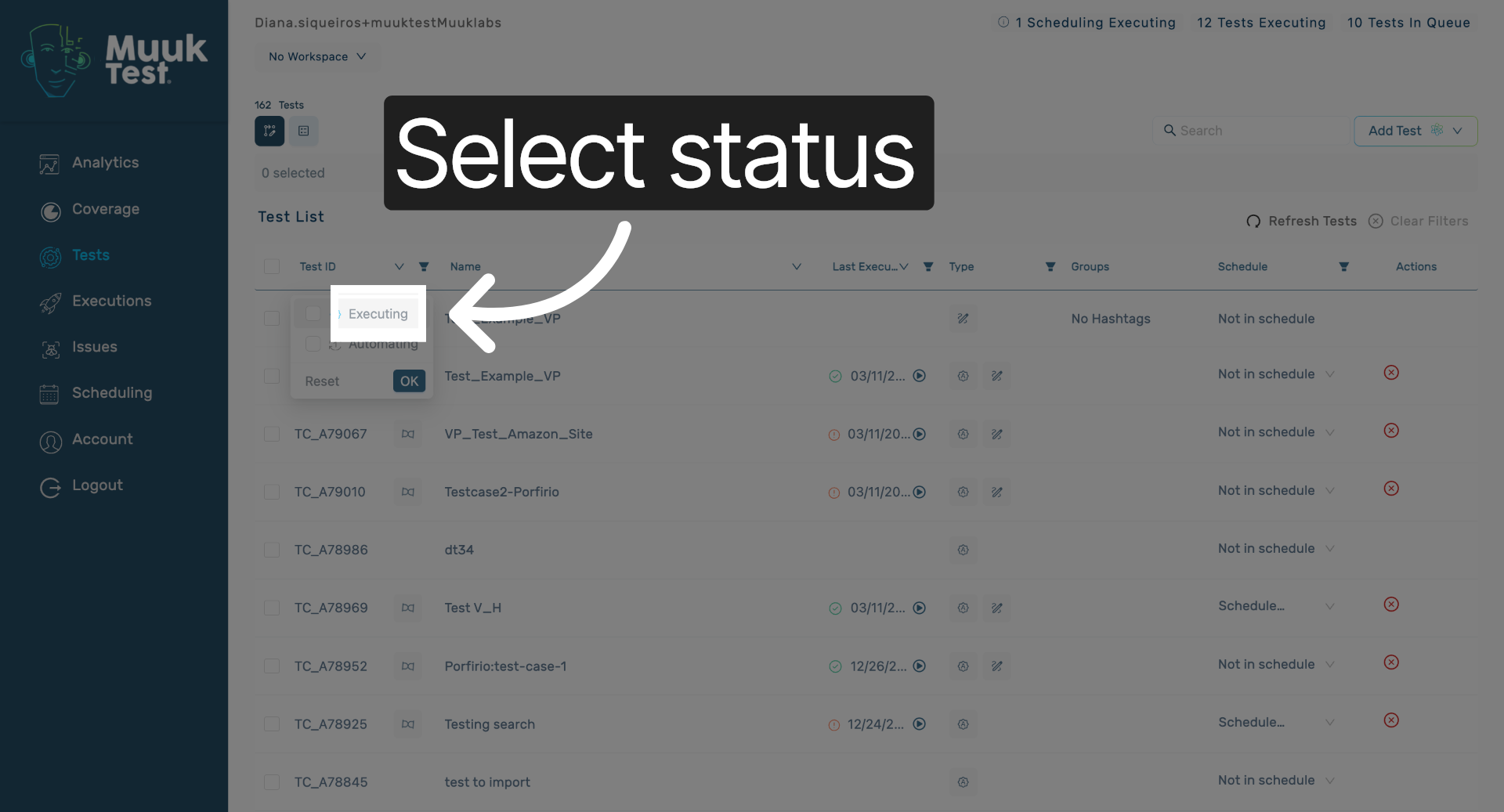
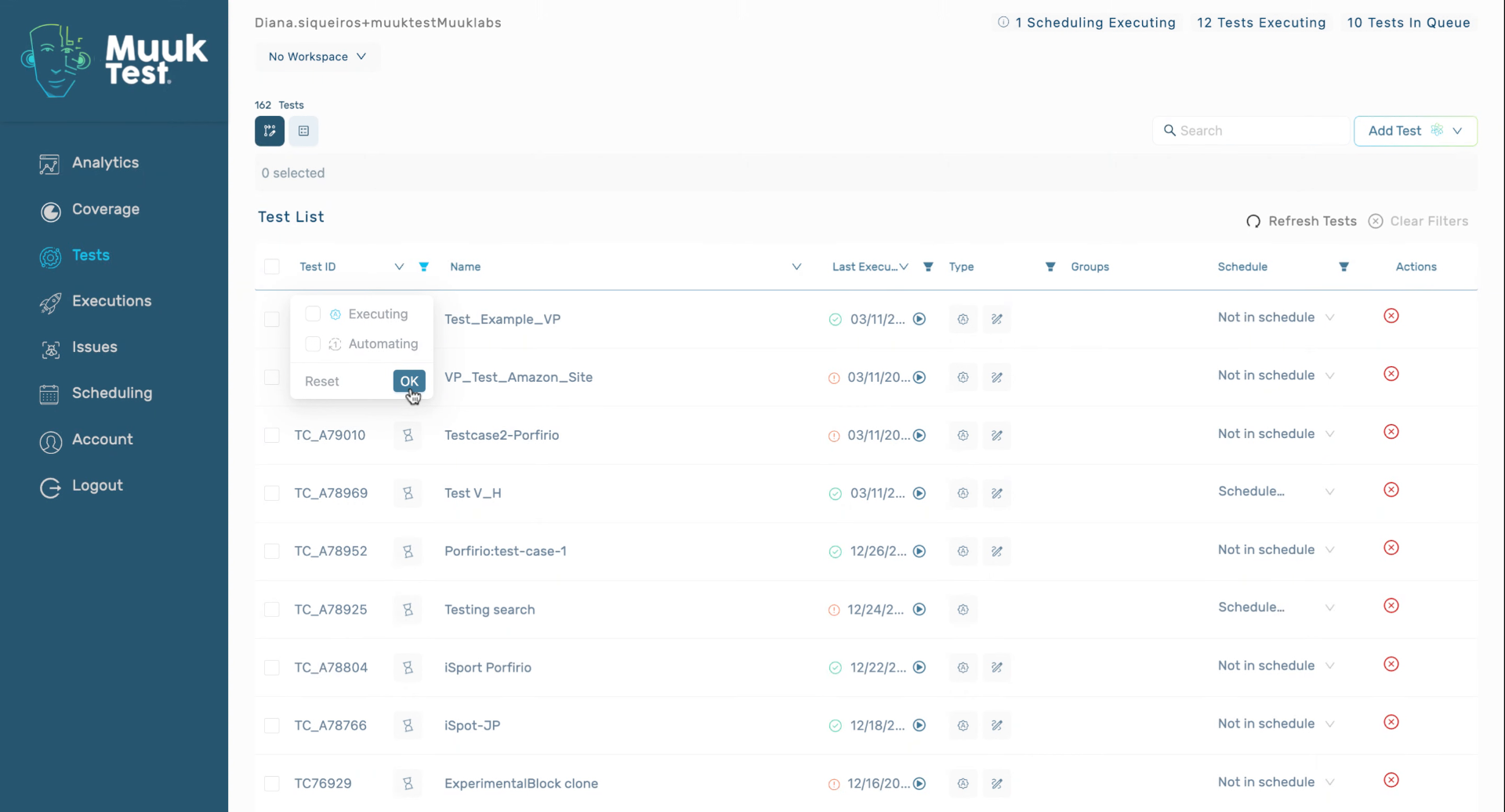
For our test ID, we can also filter with our execution or if it's in queue. You can see here executing or automating.
3. Select Executing Status
Select the executing status to filter tests that are currently running.
4. View Running and Queued Tests
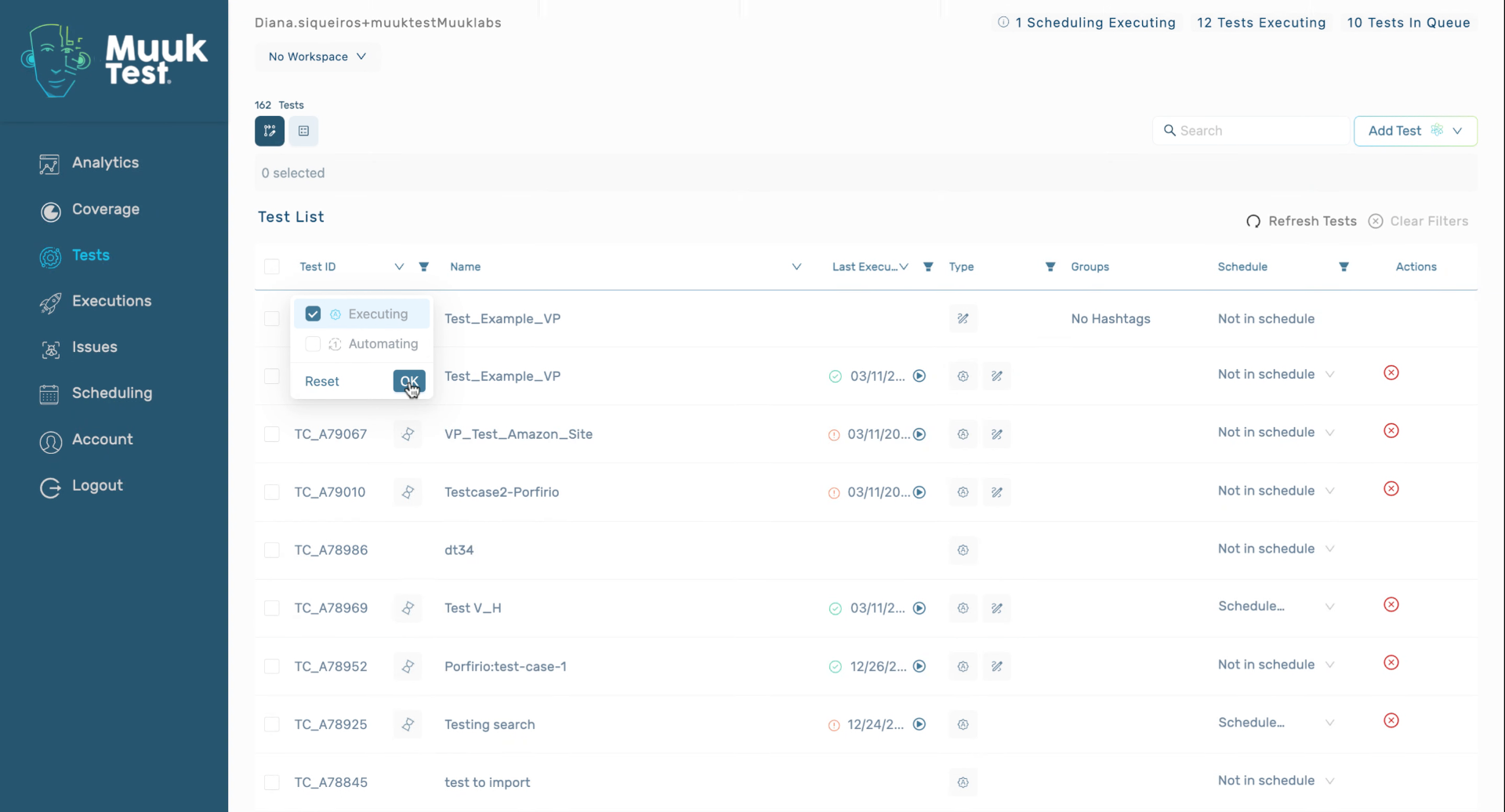
Here we're going to see tests that are running or in queue. If we send a test to automate, you can also filter it here to appear.
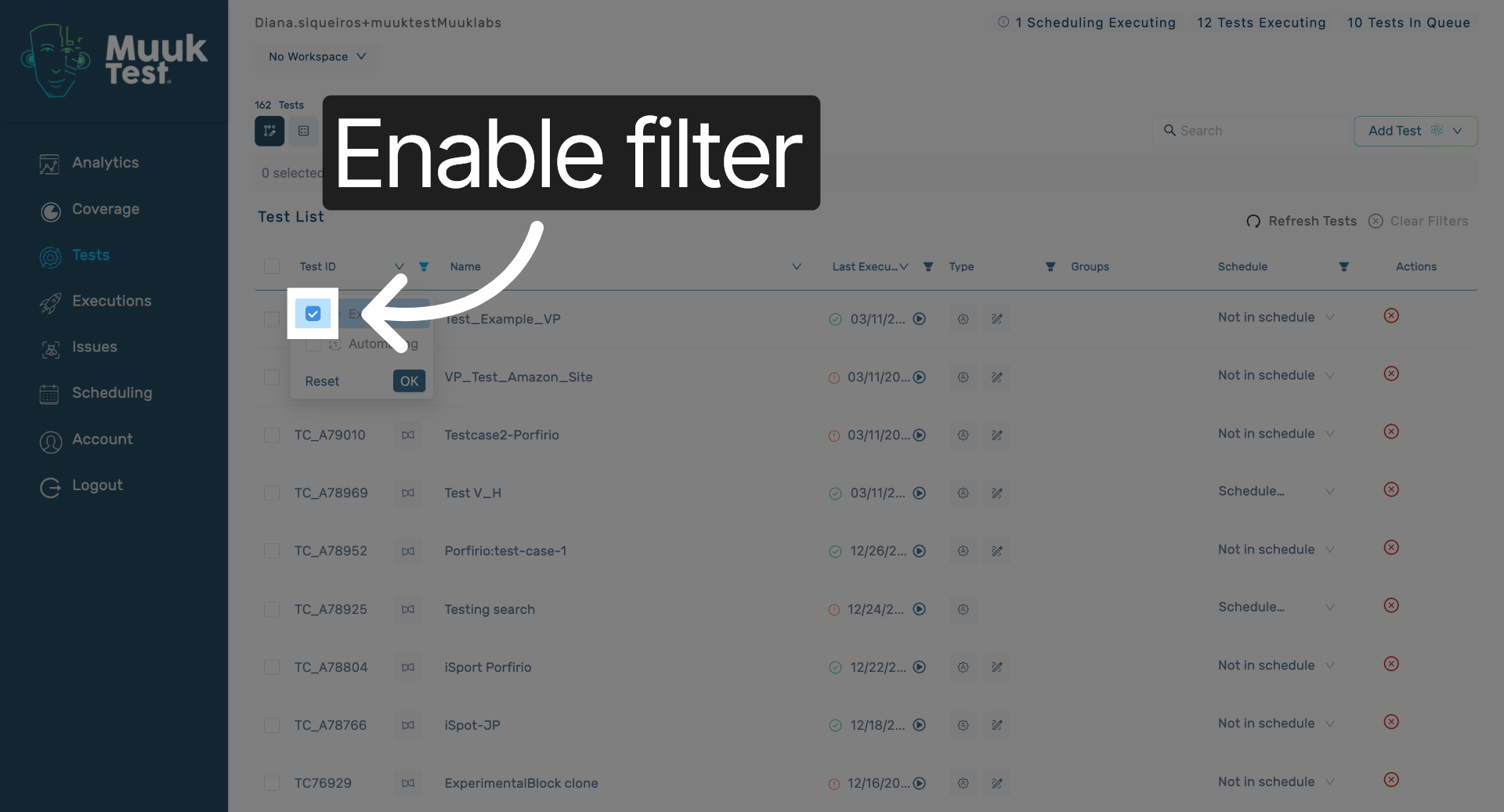
5. Enable Filter Option
Enable the filter option to include tests that are running or queued in the view.
6. Sort Tests Ascending or Descending
7. Sort and Filter by Name and Execution
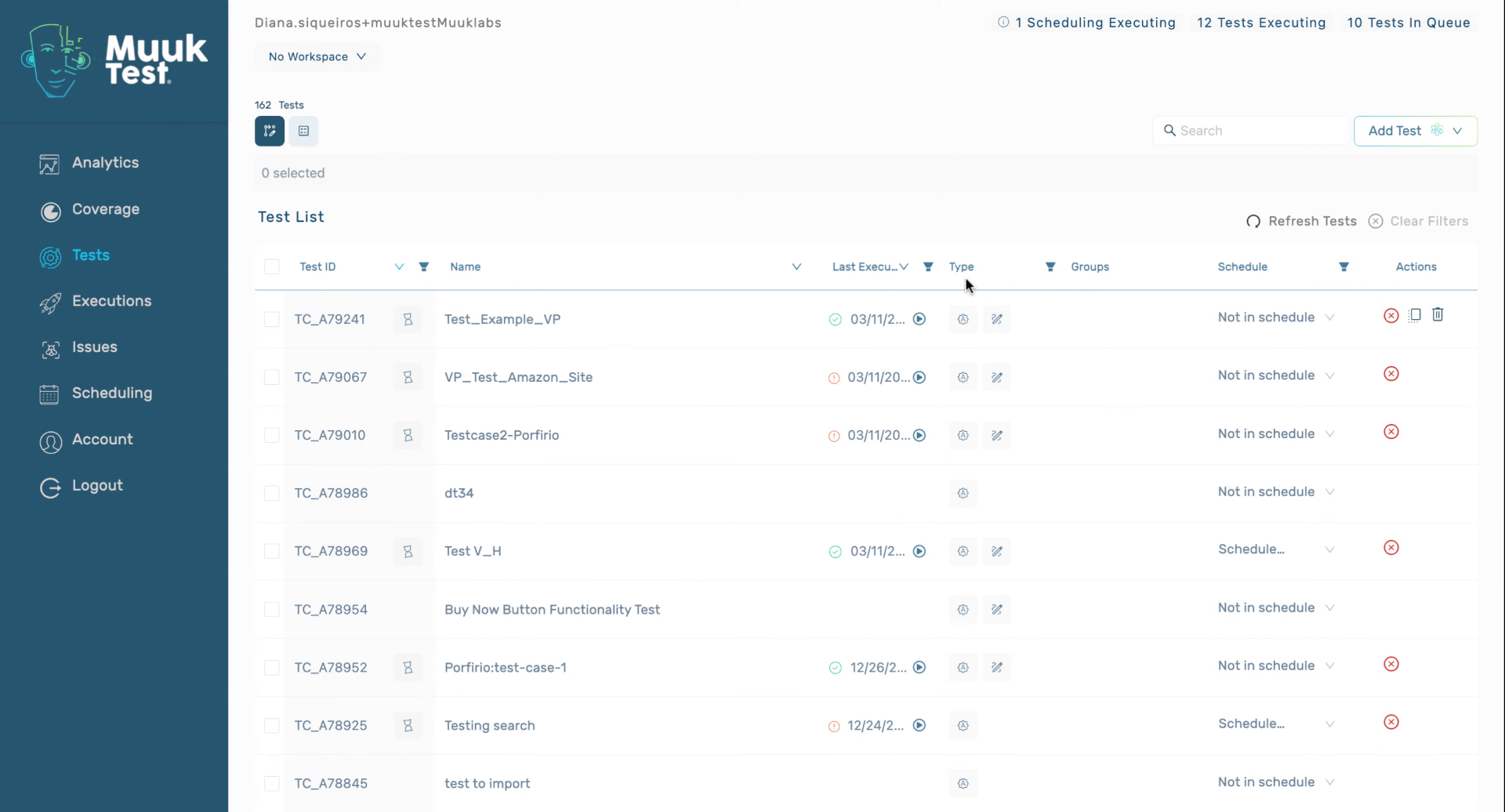
The name, we can also click to sort. Then we have our last execution. We can filter by results of the execution. For example, if you want to see the passed tests, we can click OK, and then we'll only see those.
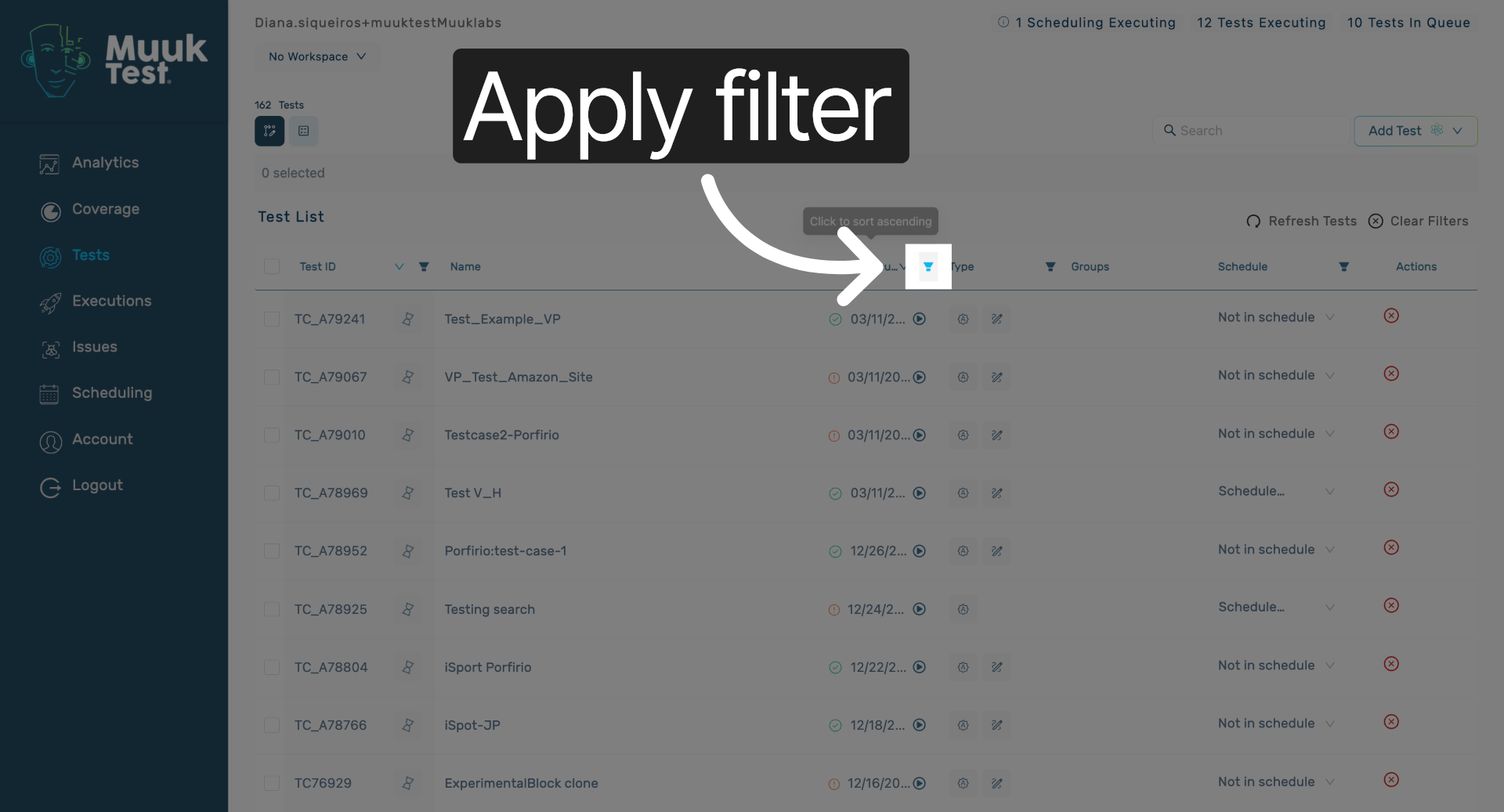
8. Click to Apply Filter
Click here to apply the selected filters and update the test table accordingly.
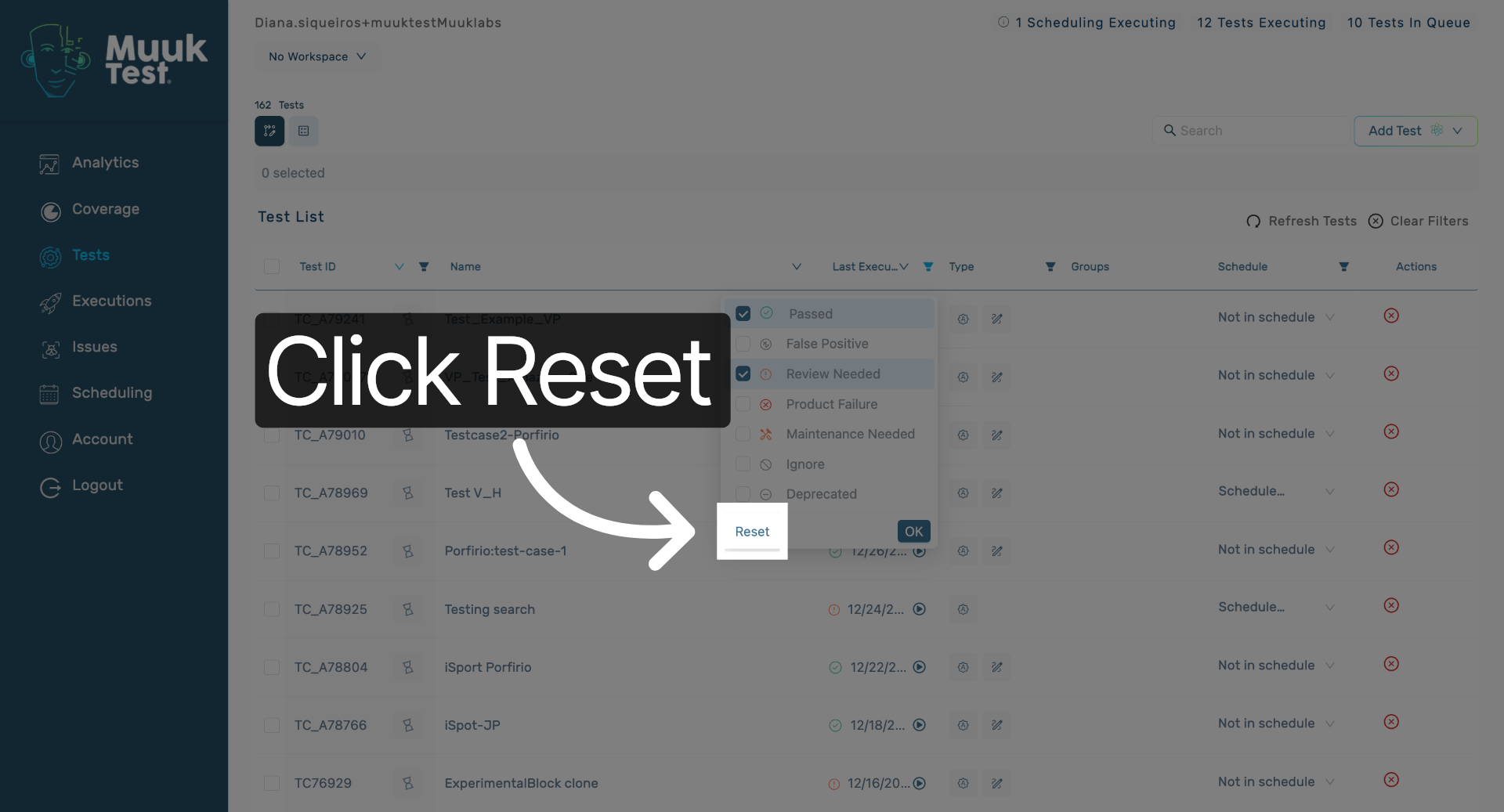
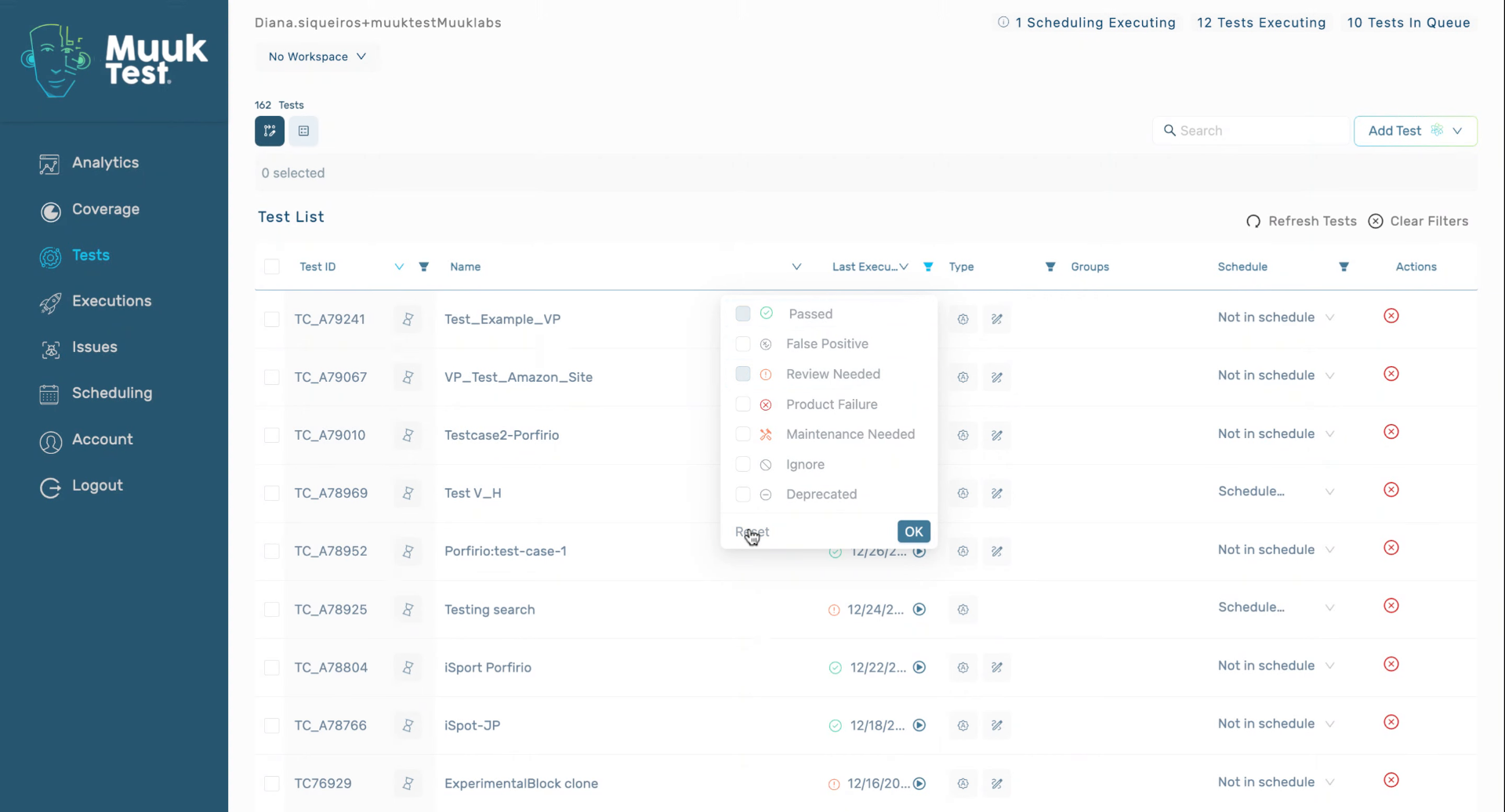
9. Reset Filters
Click the Reset button to clear all applied filters and return to the default test view.
10. Clear All Filters
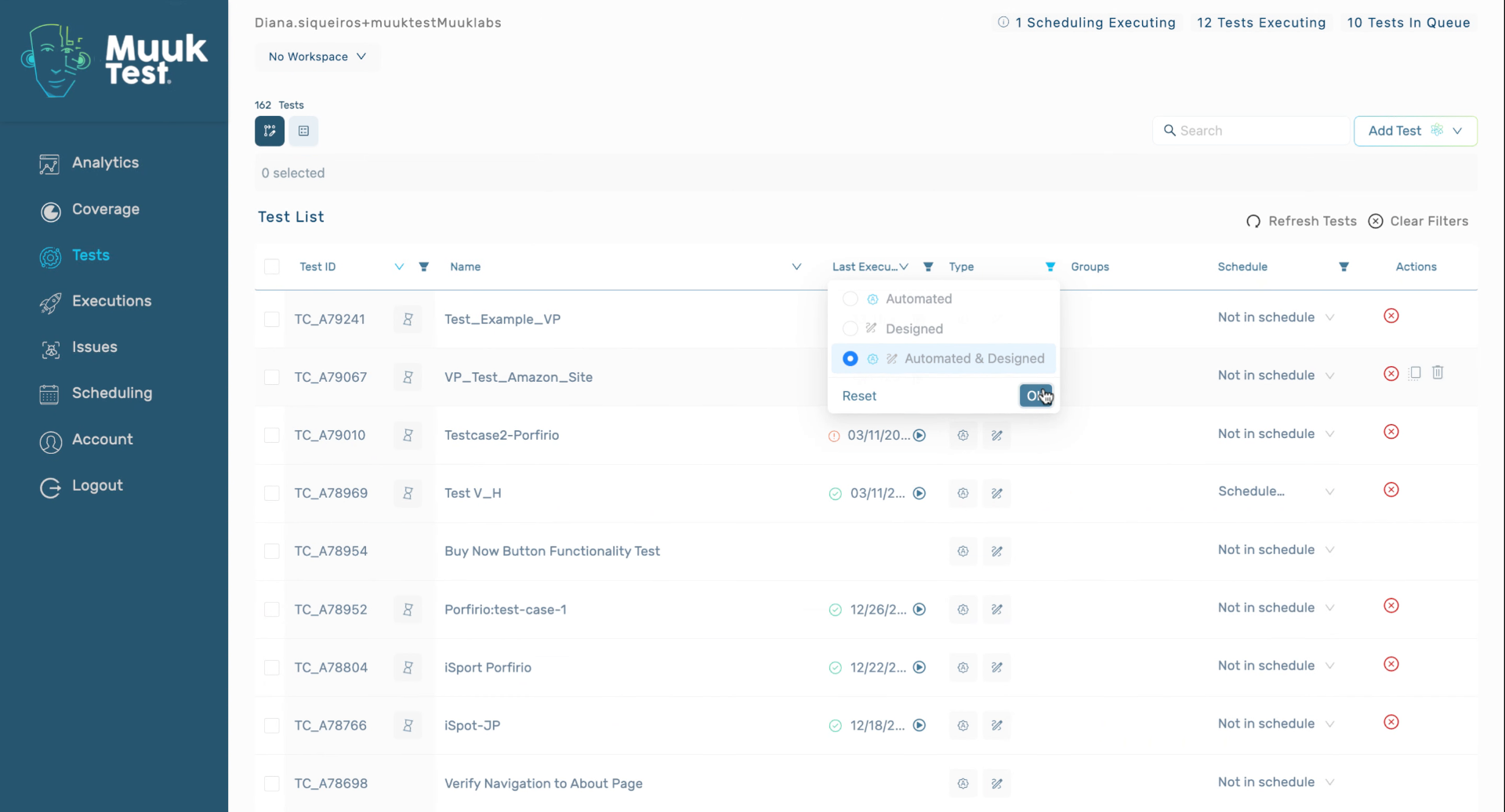
11. Filter Tests by Type
12. Confirm Filter Selection
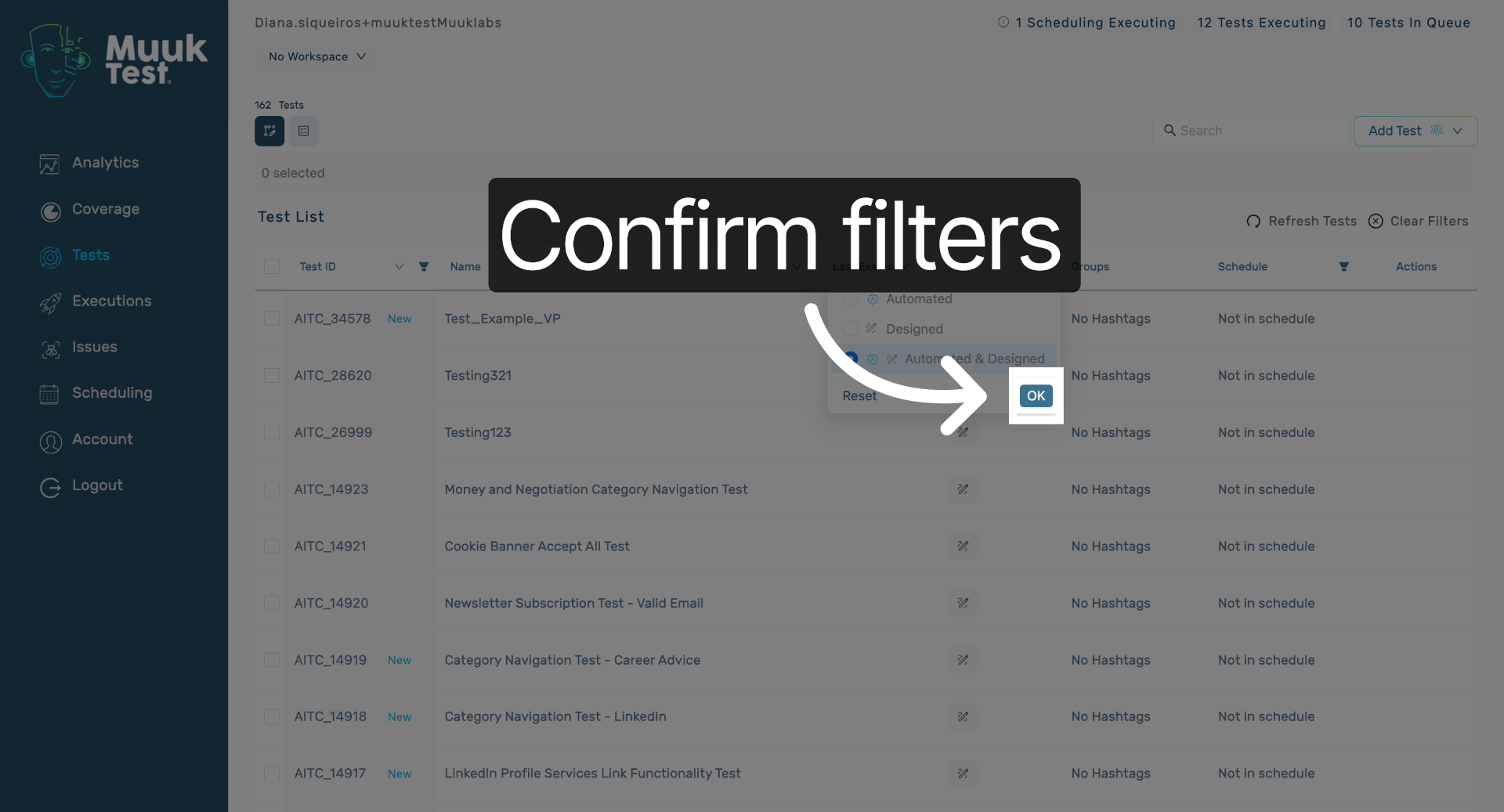
Click OK to confirm your filter choices and update the test list accordingly.
13. Access Additional Filter Options
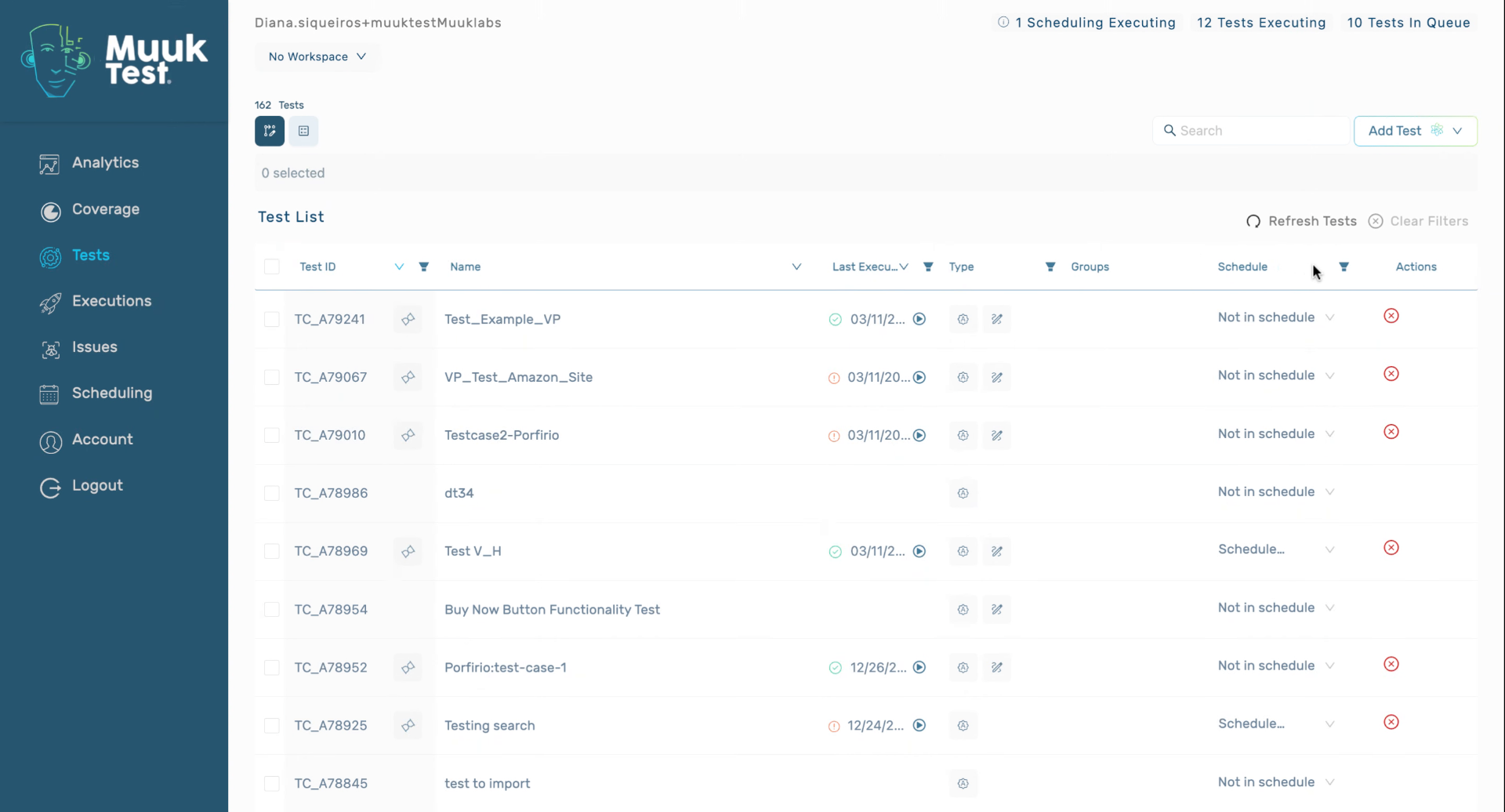
14. Filter Tests by Schedule
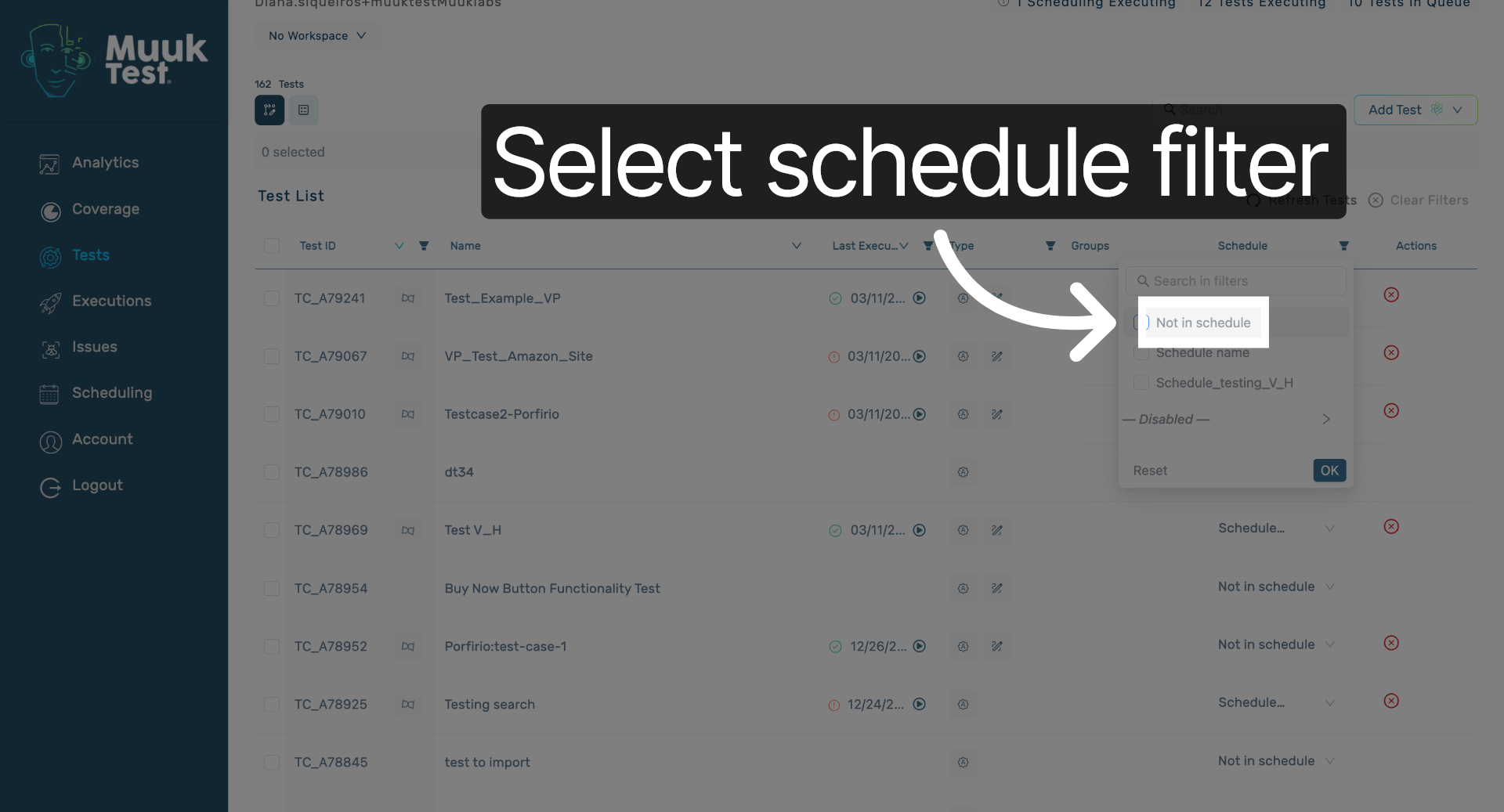
15. Select Not in Schedule Filter
Select the option to filter tests that are not assigned to any schedule.
16. Review Filters and Sorters Summary
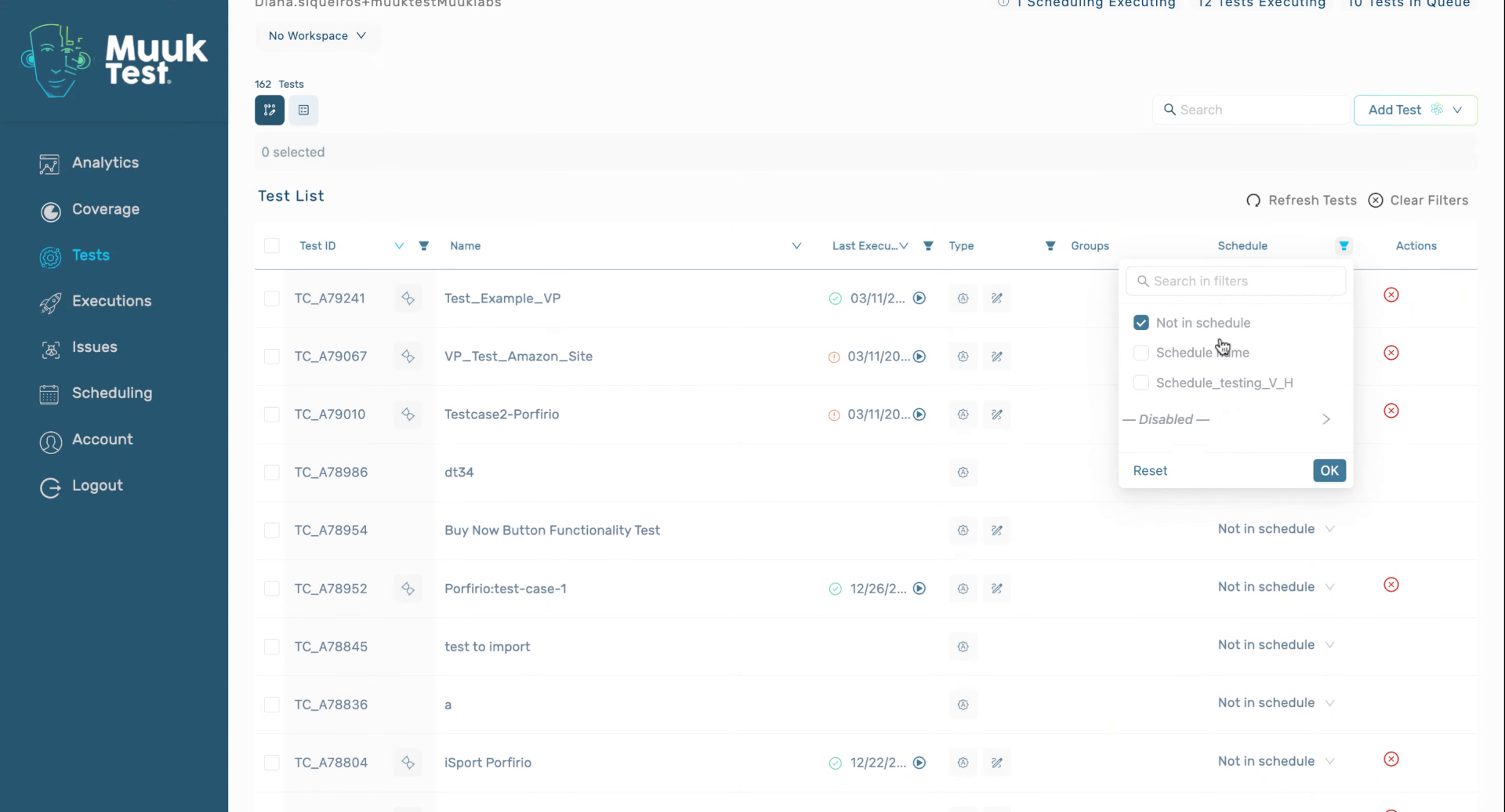
You have successfully learned how to filter and sort tests in the MuukTest table by various criteria such as status, type, and schedule. Use these filters to efficiently manage and view your test executions.
Comments
0 comments
Please sign in to leave a comment.