

This tutorial guides you through enable and disable steps within the Tests in MuukTest application.
Go to portal.muuktest.com:5000
1. Introduction
You will learn how to enable and disable steps in bulk, toggle the enable steps, and effectively save your changes.
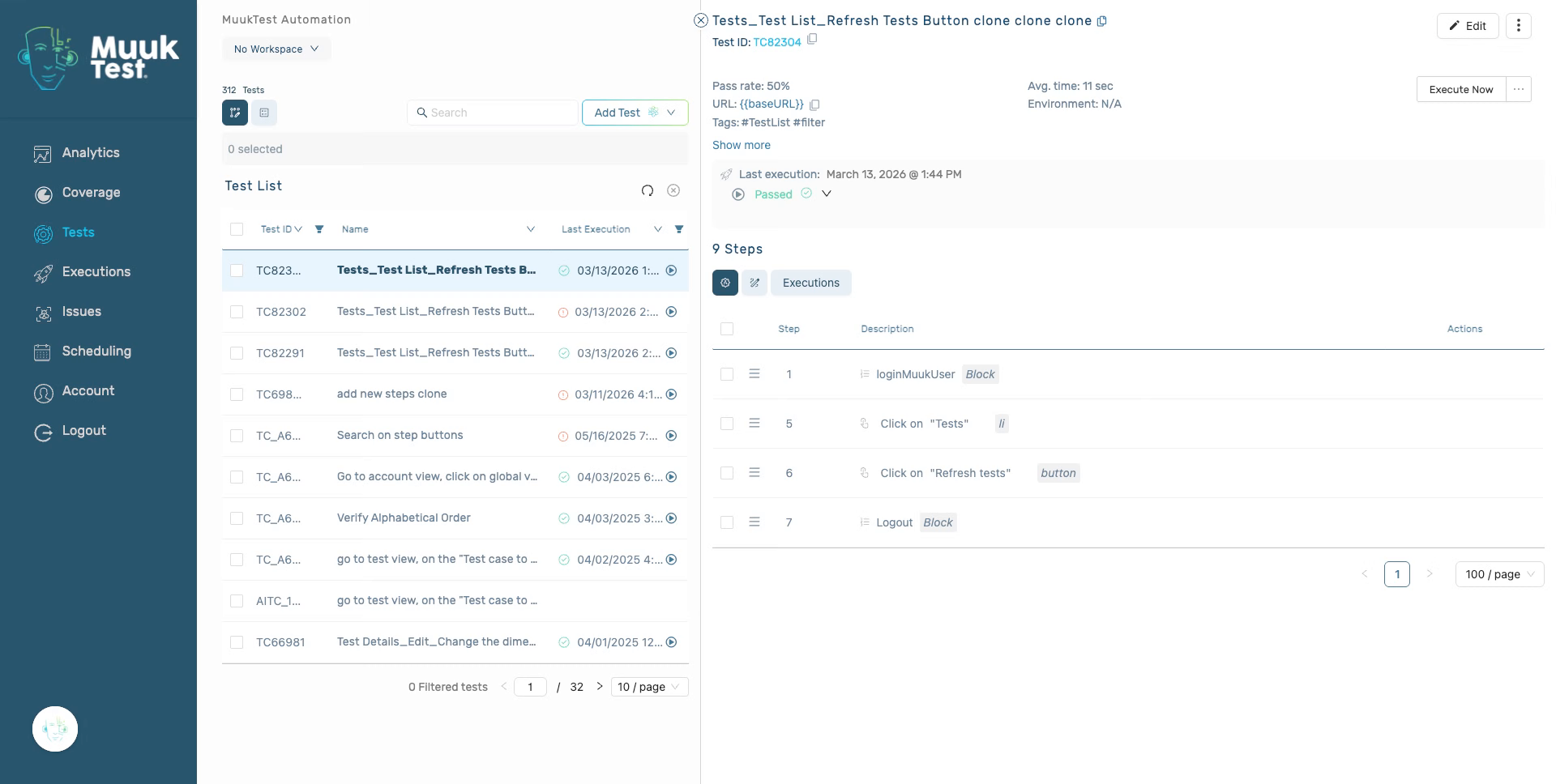
2. Select All Items
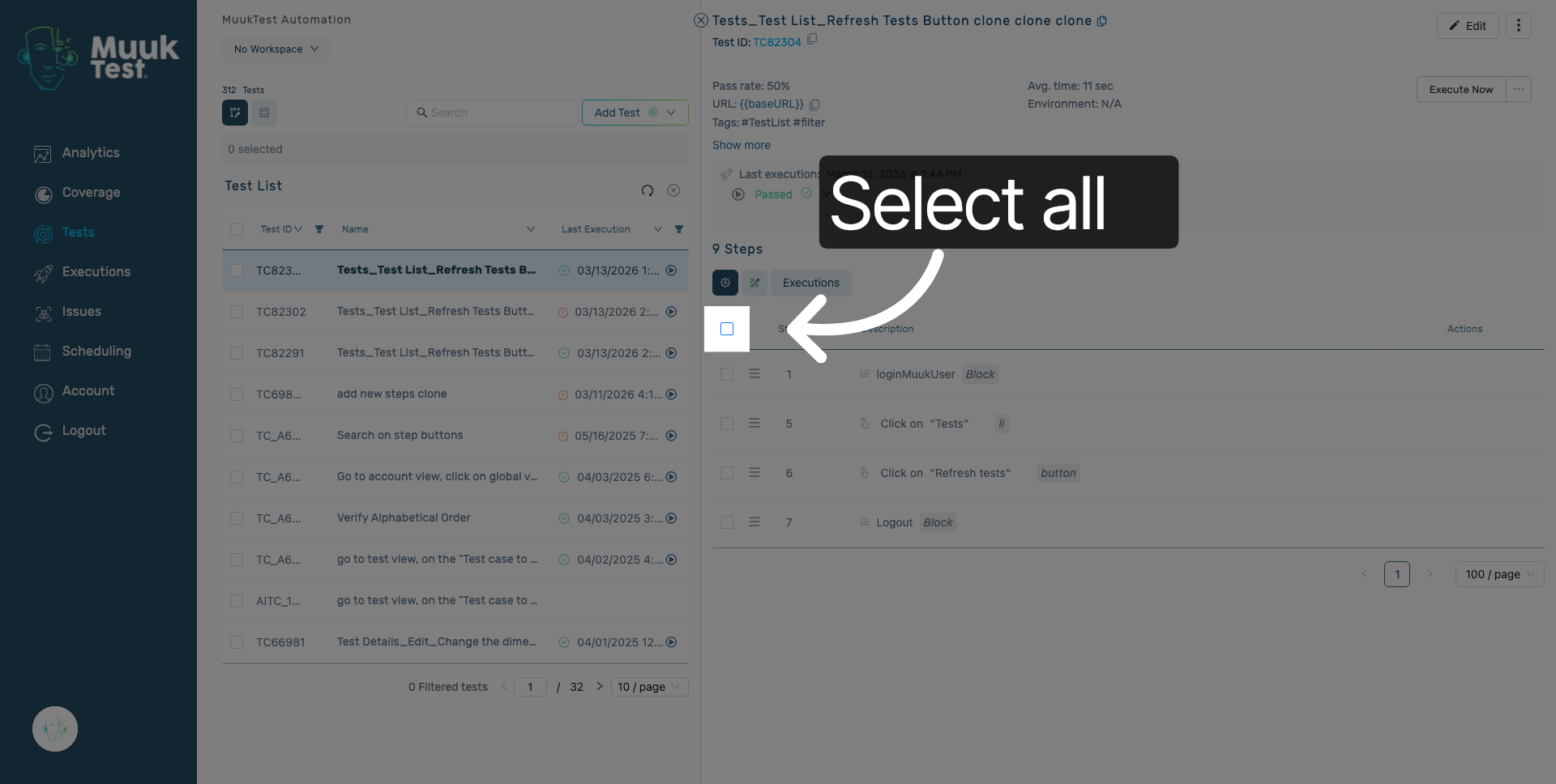
Click the Select all option to select every item in the current view for bulk actions.
3. Enable Feature Setting
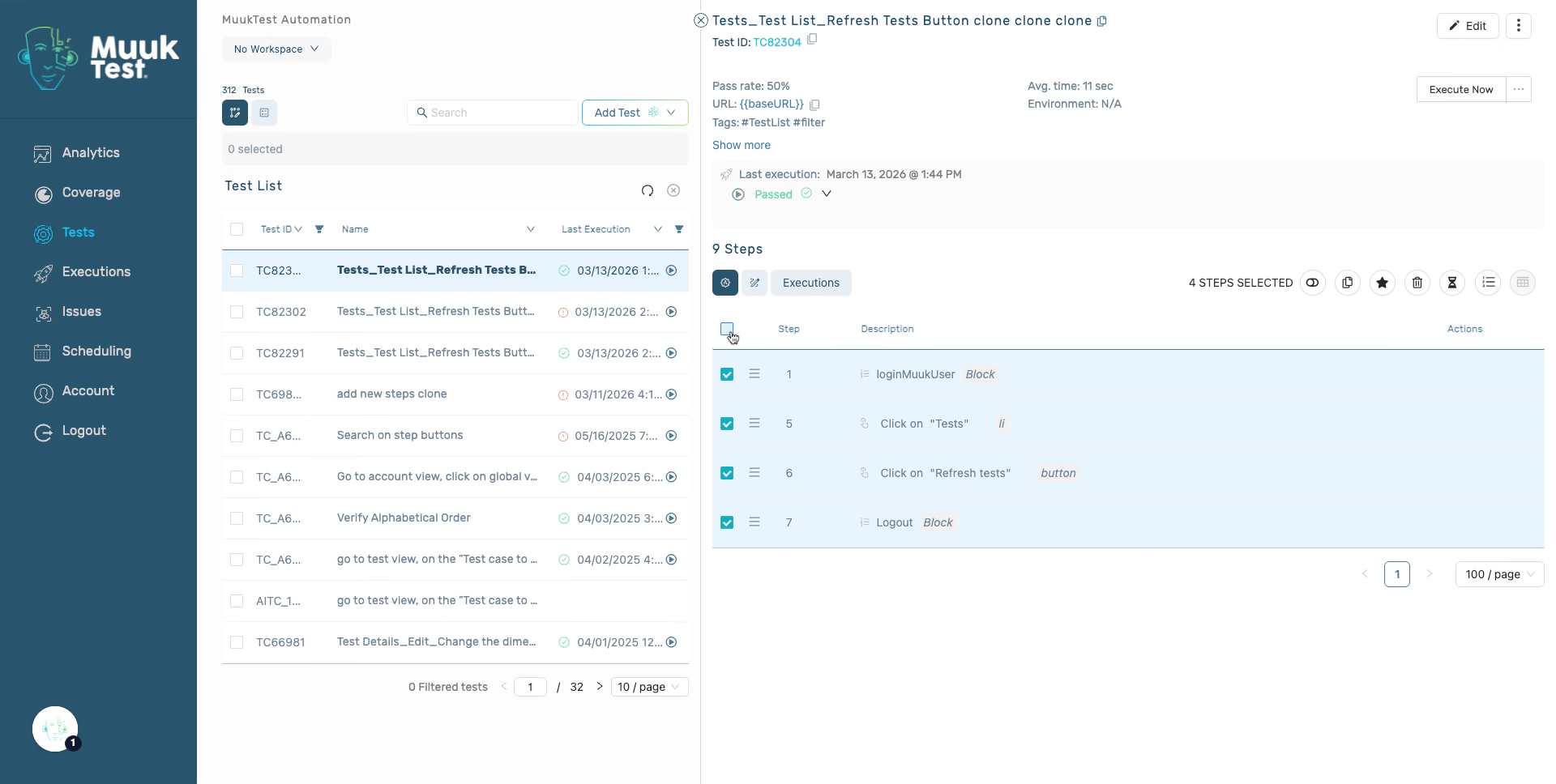
You will find a bulk actions bar located at the top of the steps table.
4. Disable option
The first option is "Disable steps." When you click on it, it will toggle the step from enabled to disabled or vice versa.
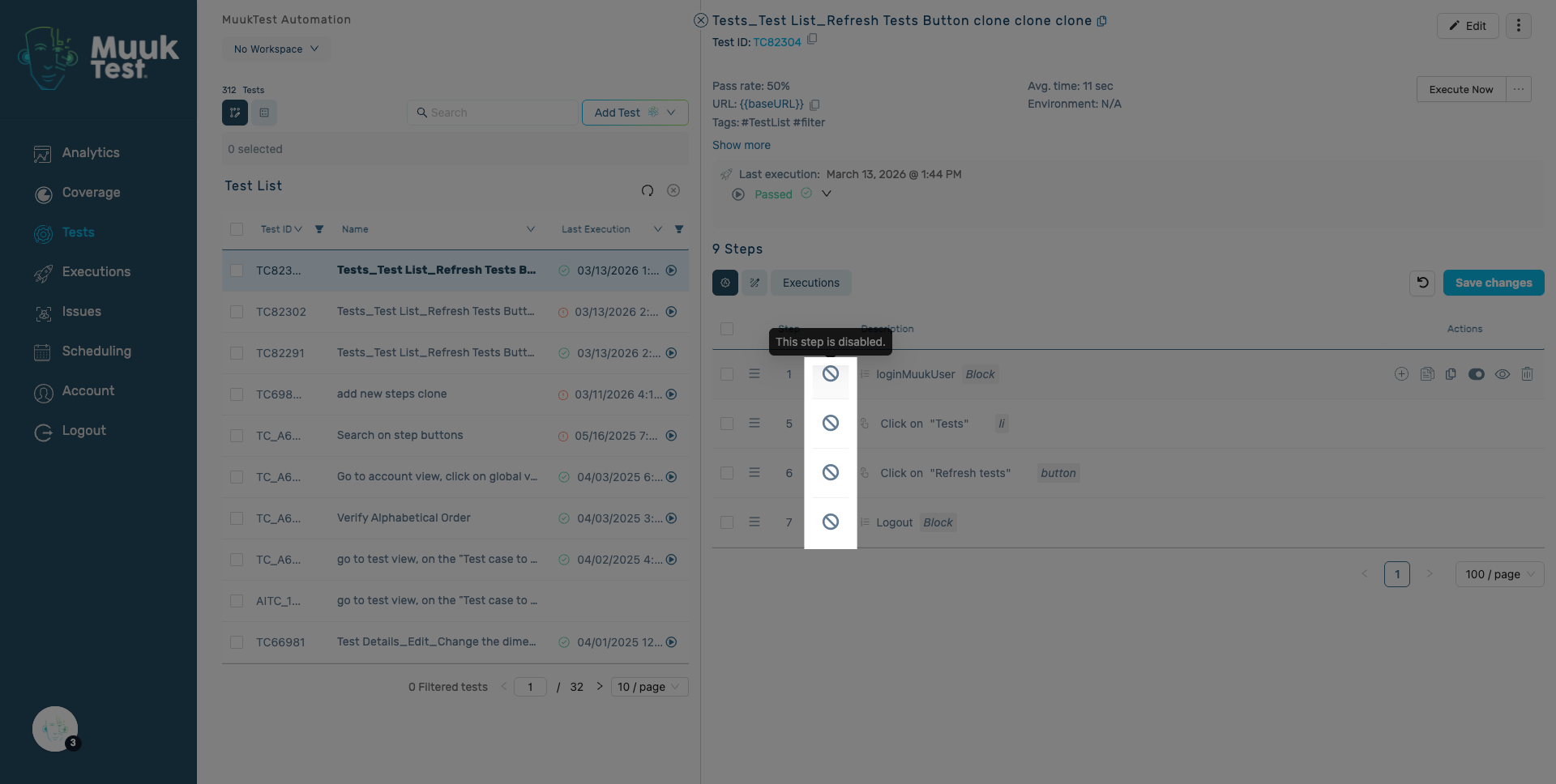
5. "This step is disabled" icon
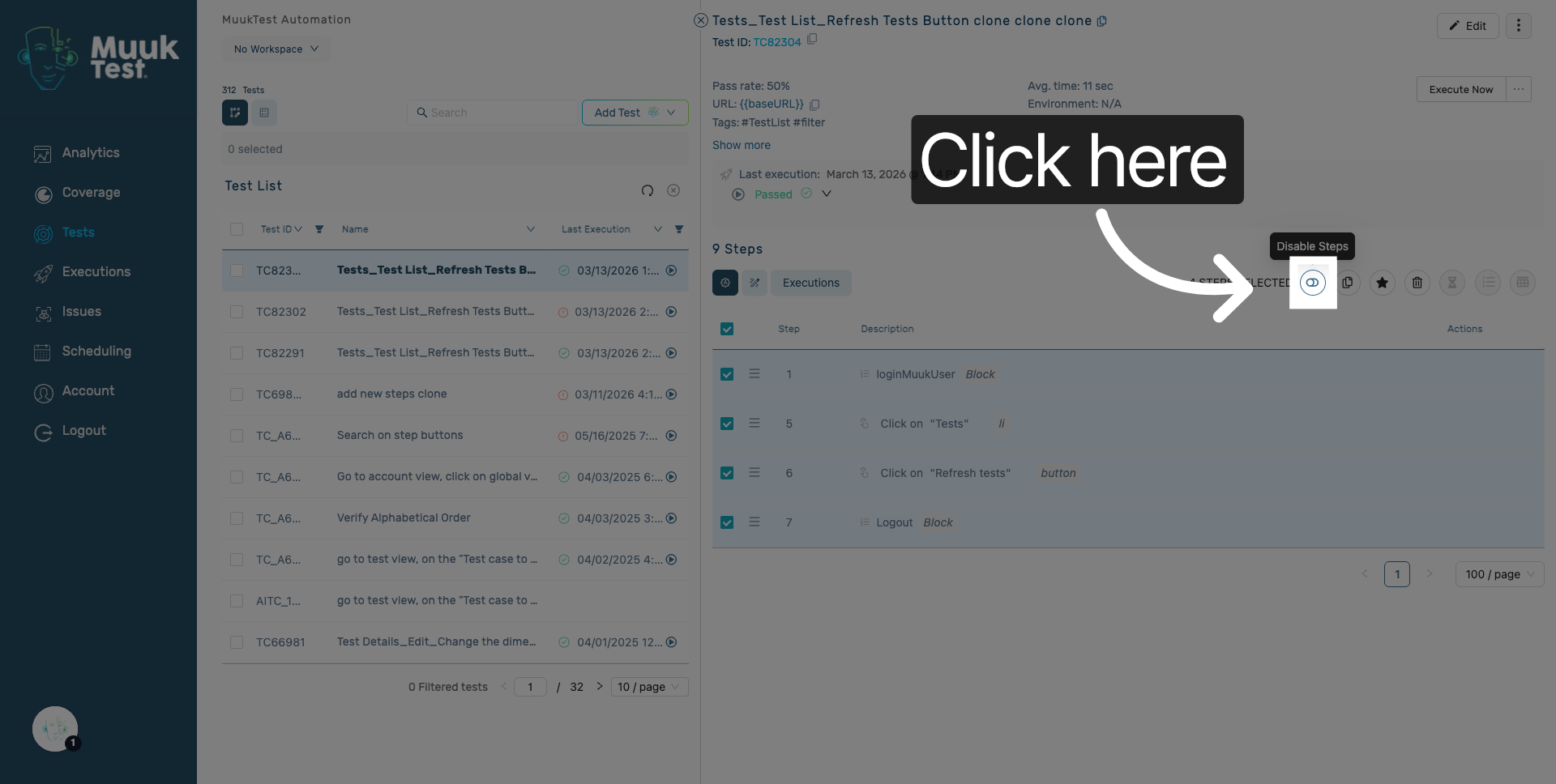
When a step is disabled, the disabled icon will be displayed in the row.
6. Select in bulk
You can also choose to apply the change to only specific steps.
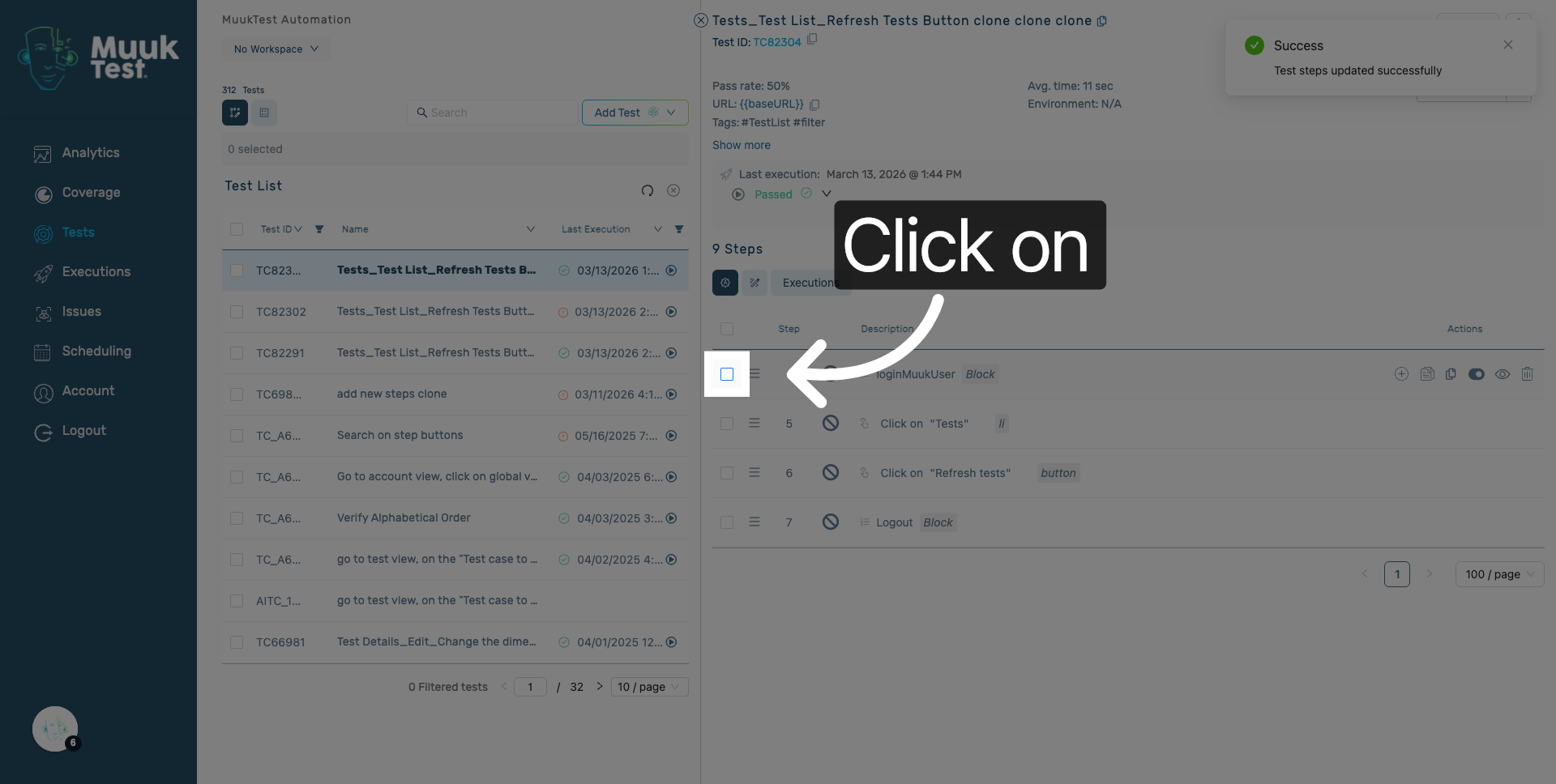
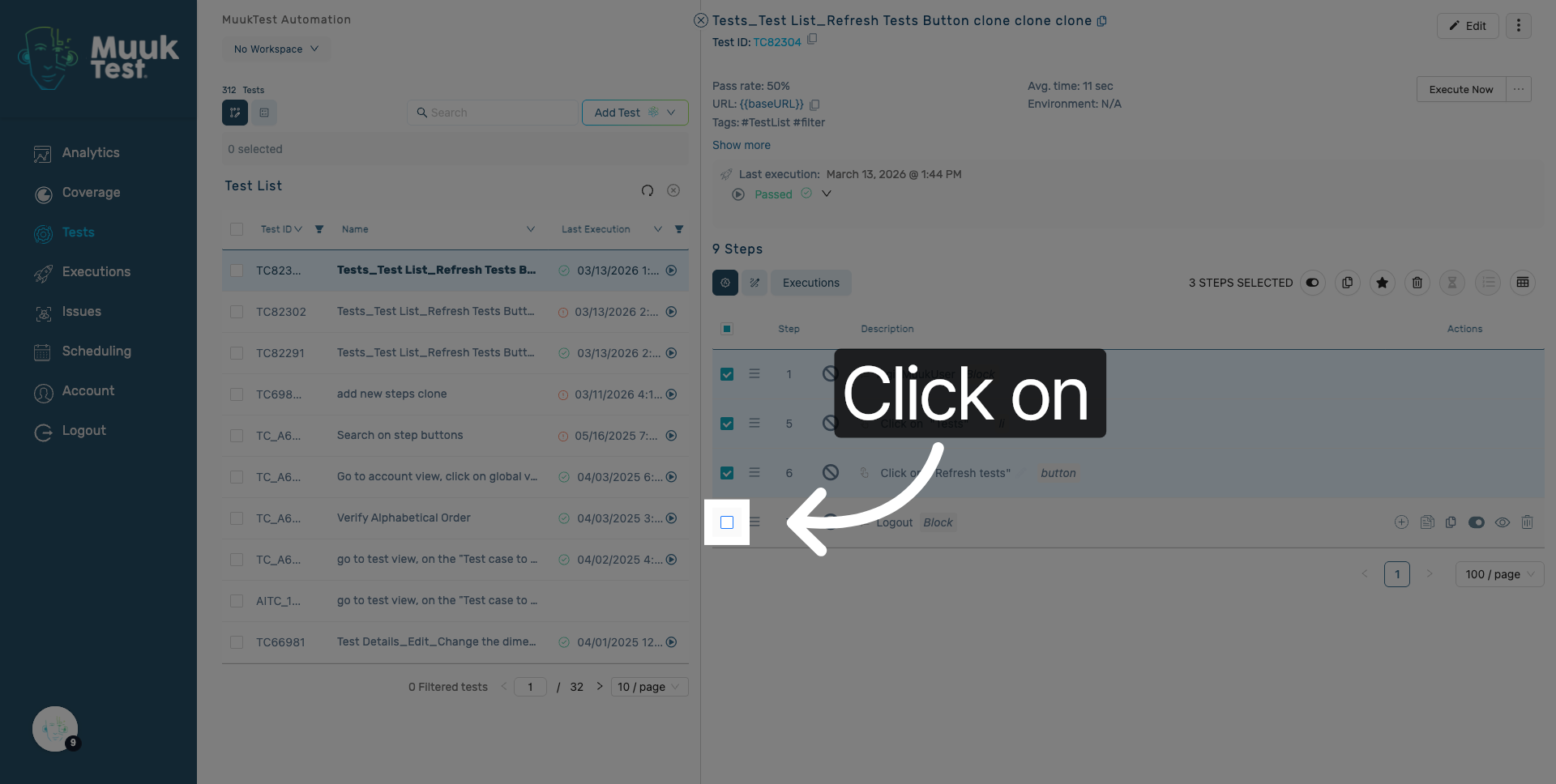
7. Select in bulk
Select all necessary steps.
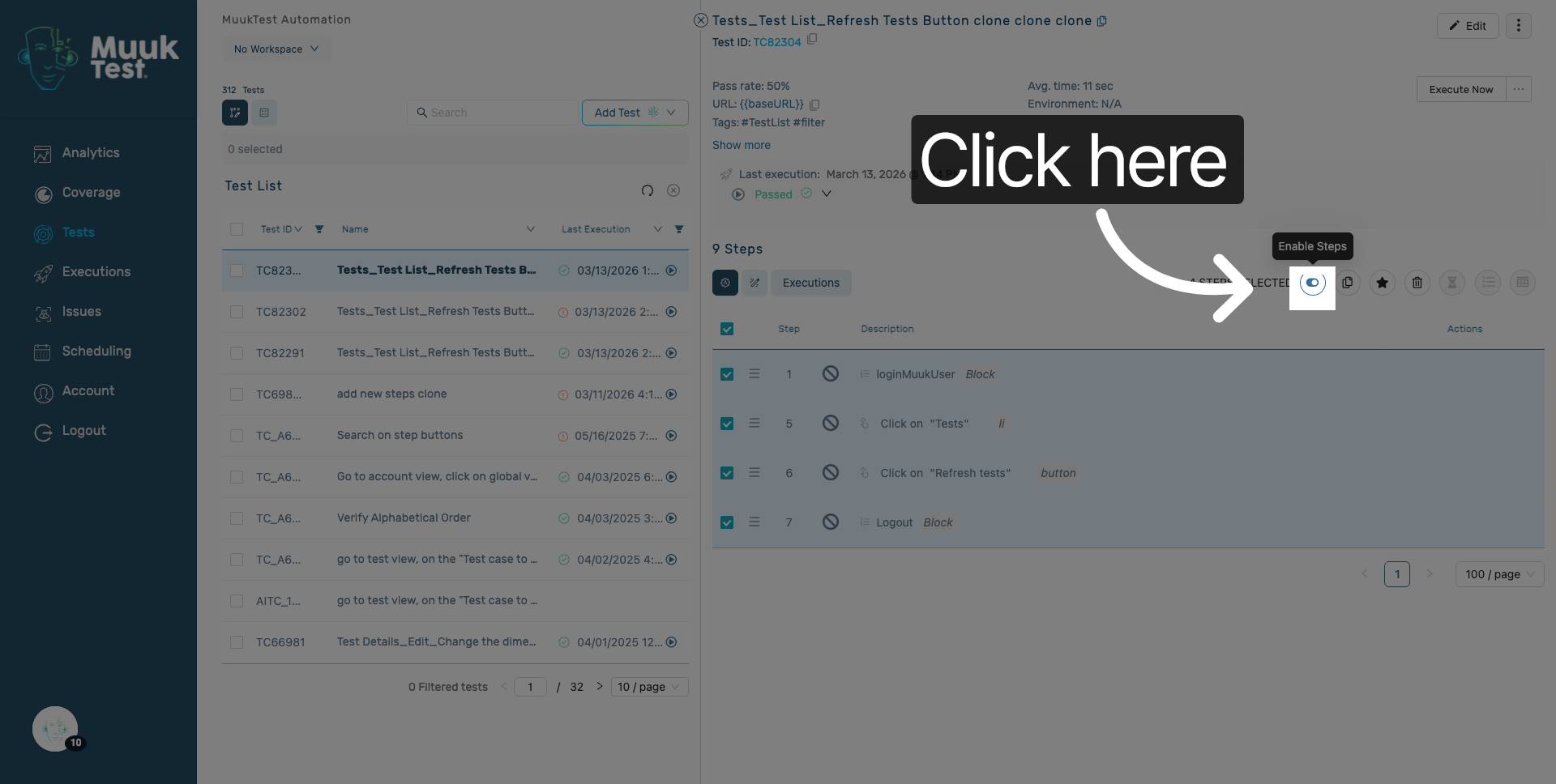
8. Enable option
You can apply again the action.
9. Disable single step
Hover over the actions column of the step you wish to toggle the disable attribute for, and locate the "Disable step" action.
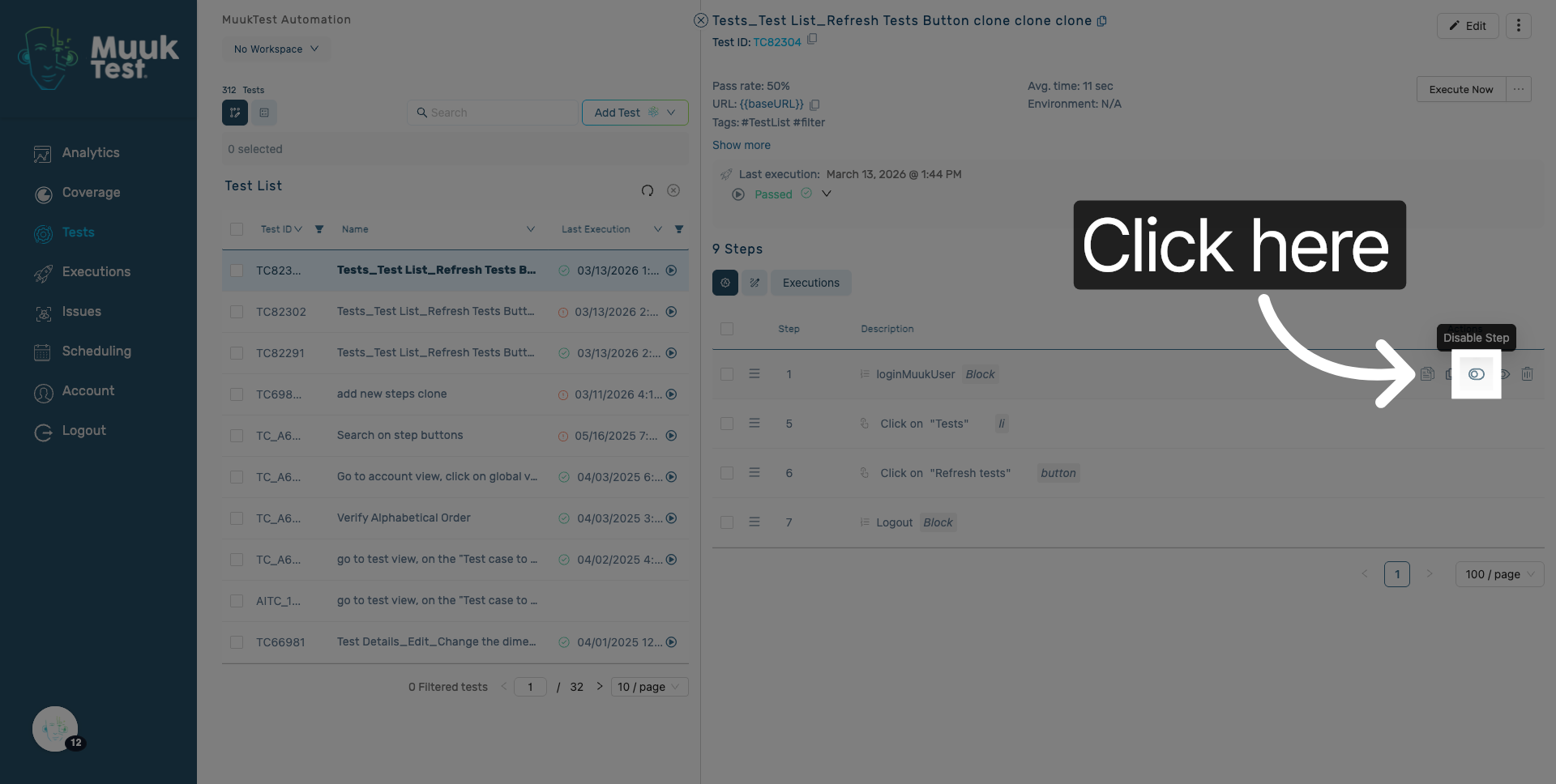
10. Click Disable icon
Click here to apply the disable action.
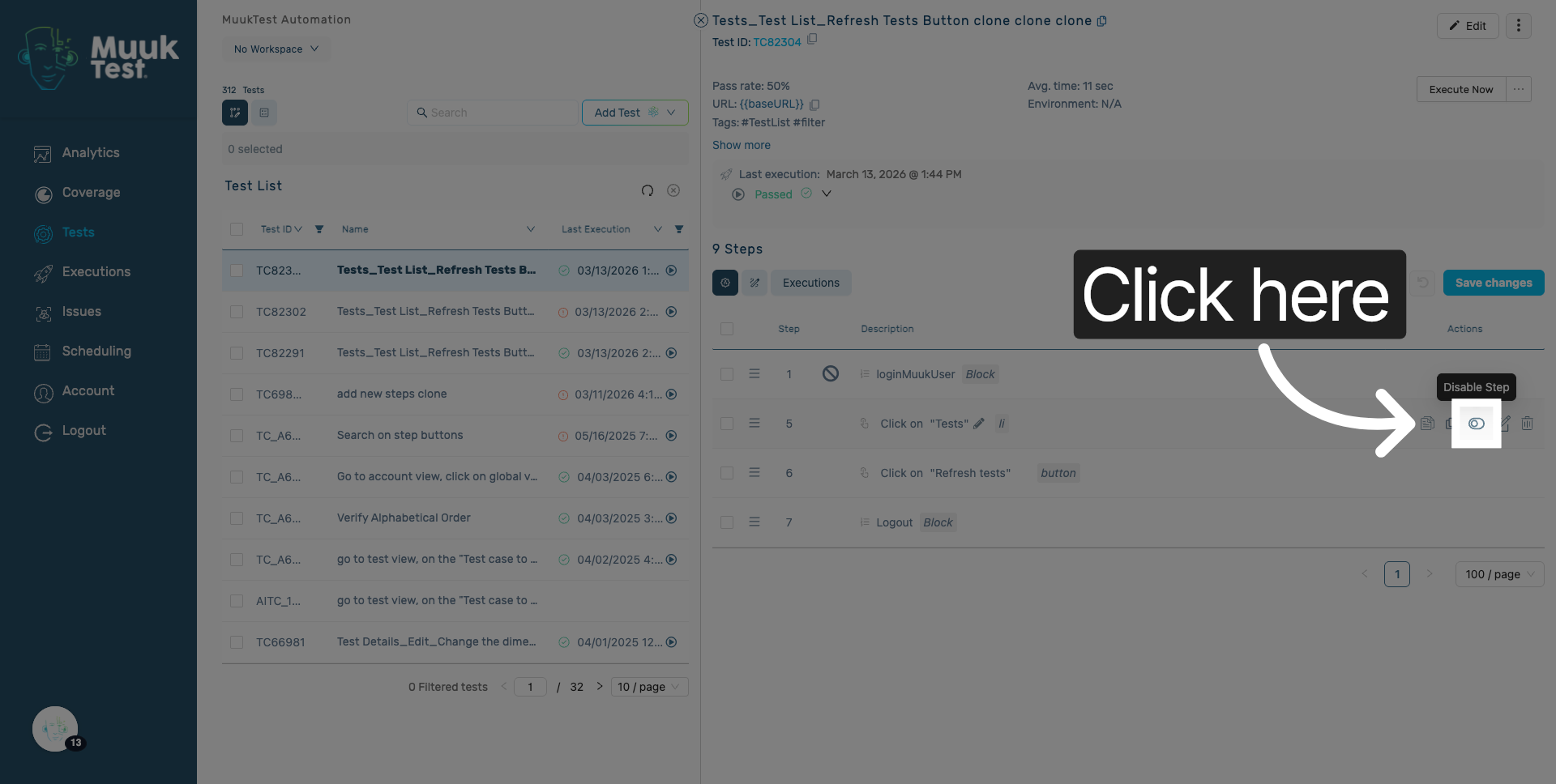
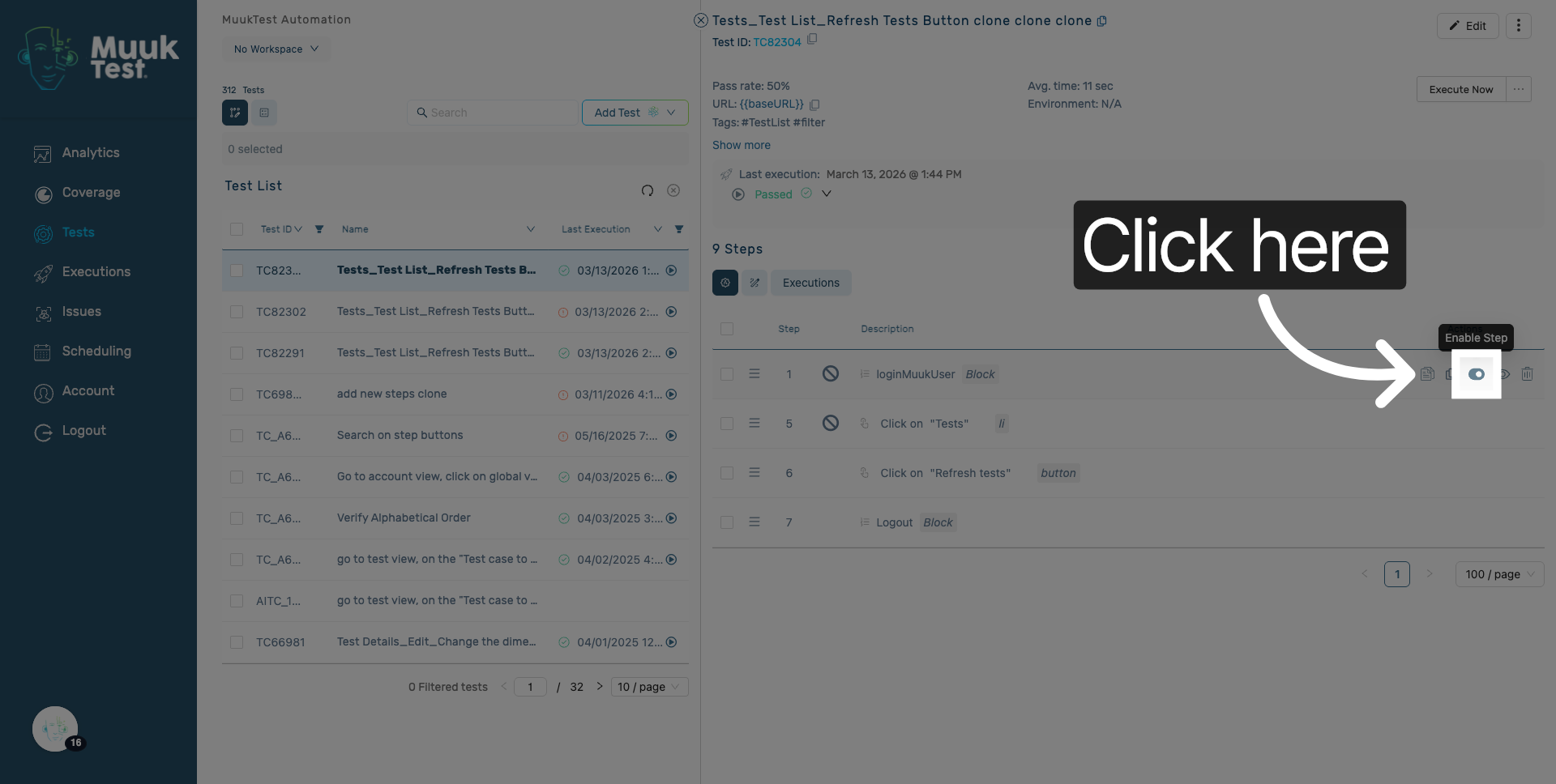
11. Enable single step
Click here to apply the enable action.
12. Save Final Changes
Click the Save changes button to apply and save all final modifications made.
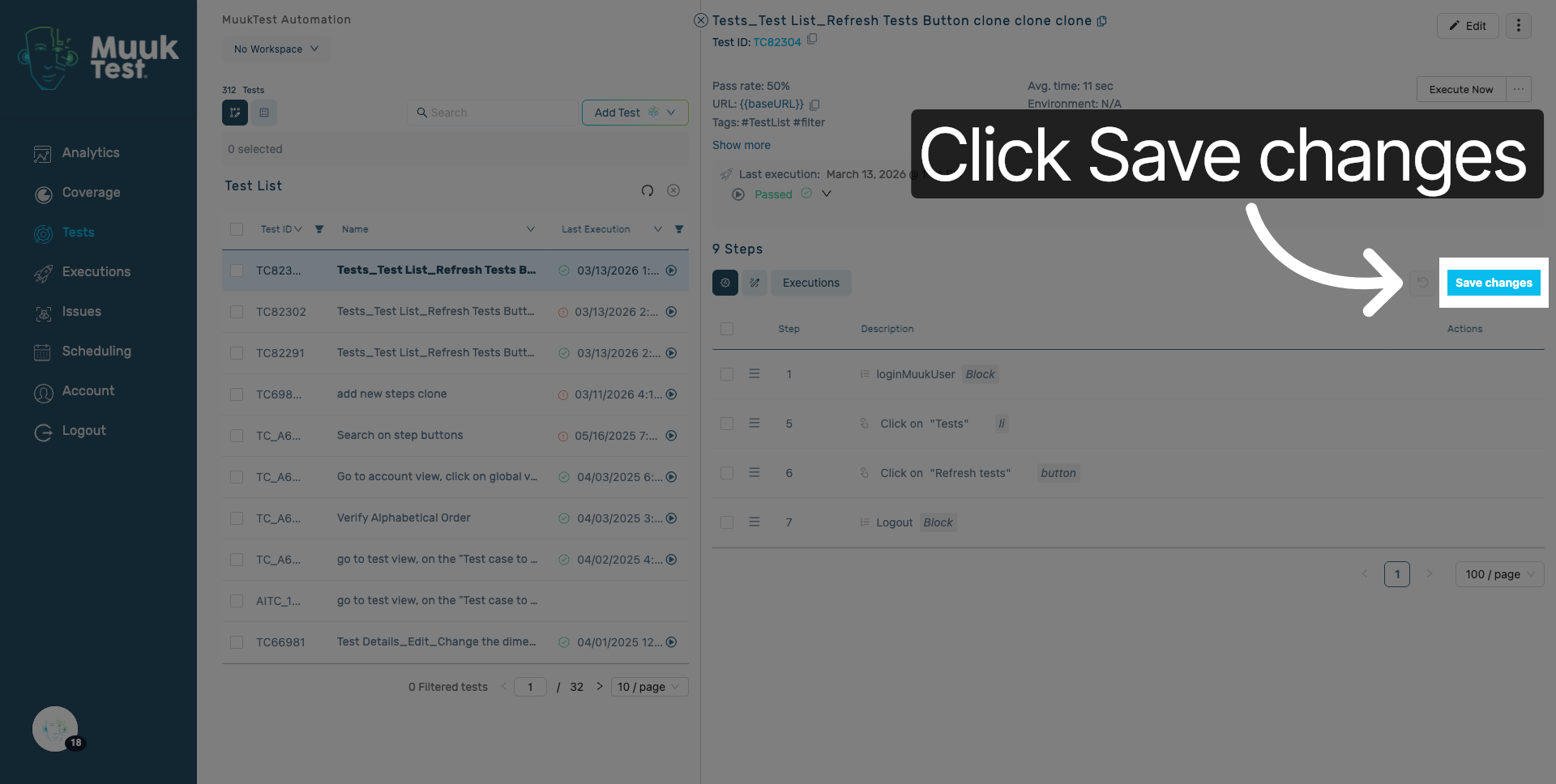
You have successfully enable and disable steps within the MuukTest application by selecting steps, disabling, enabling, and saving your changes. This ensures your workflow is customized and ready for efficient execution.
Comments
0 comments
Please sign in to leave a comment.