
This tutorial guides you through configuring timeout settings in MuukTest.
Go to portal.muuktest.com:5000
1. Introduction
You will learn how to adjust timeout durations and save your changes effectively.
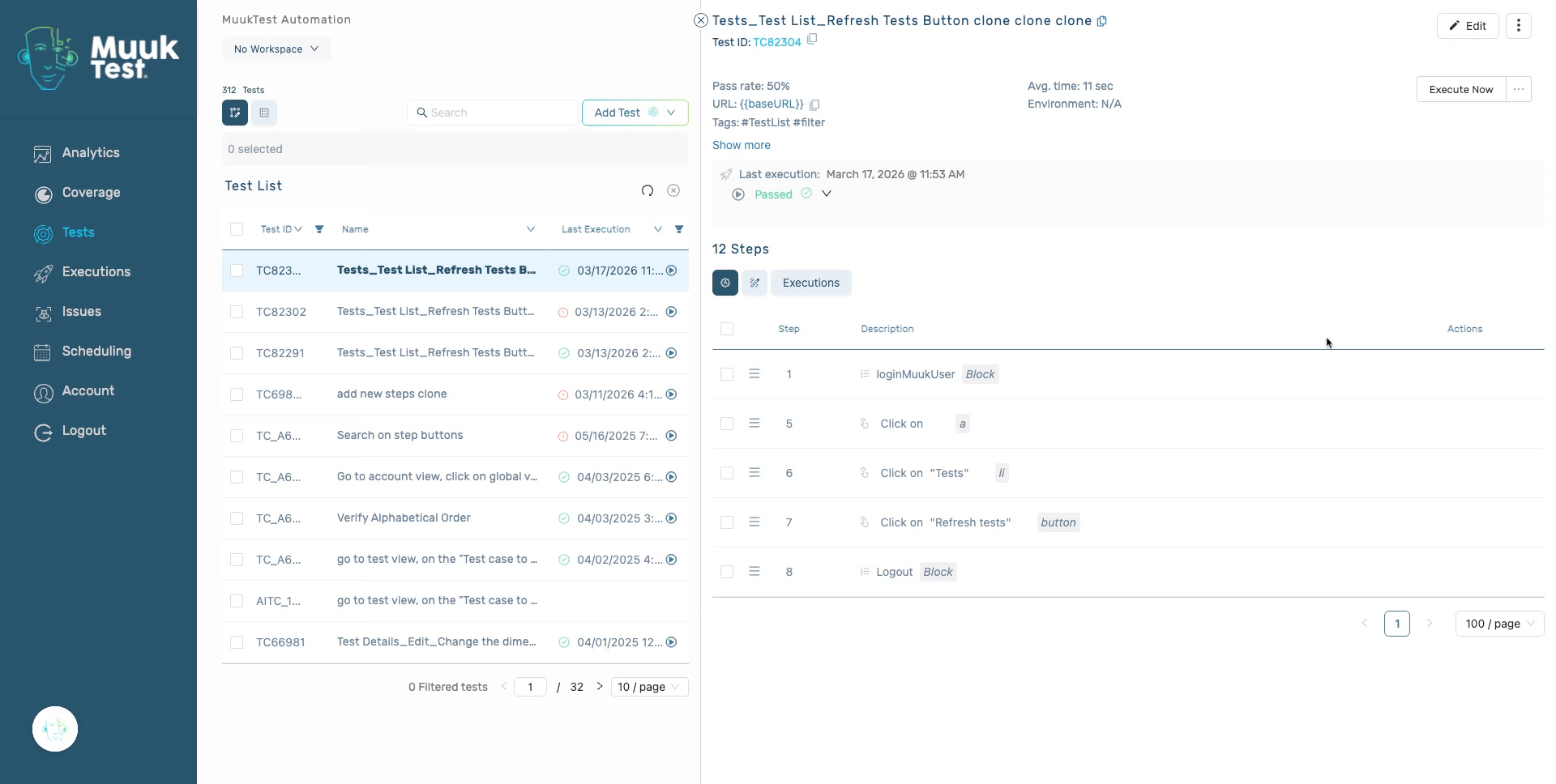
2. Select steps
Select all necessary steps.
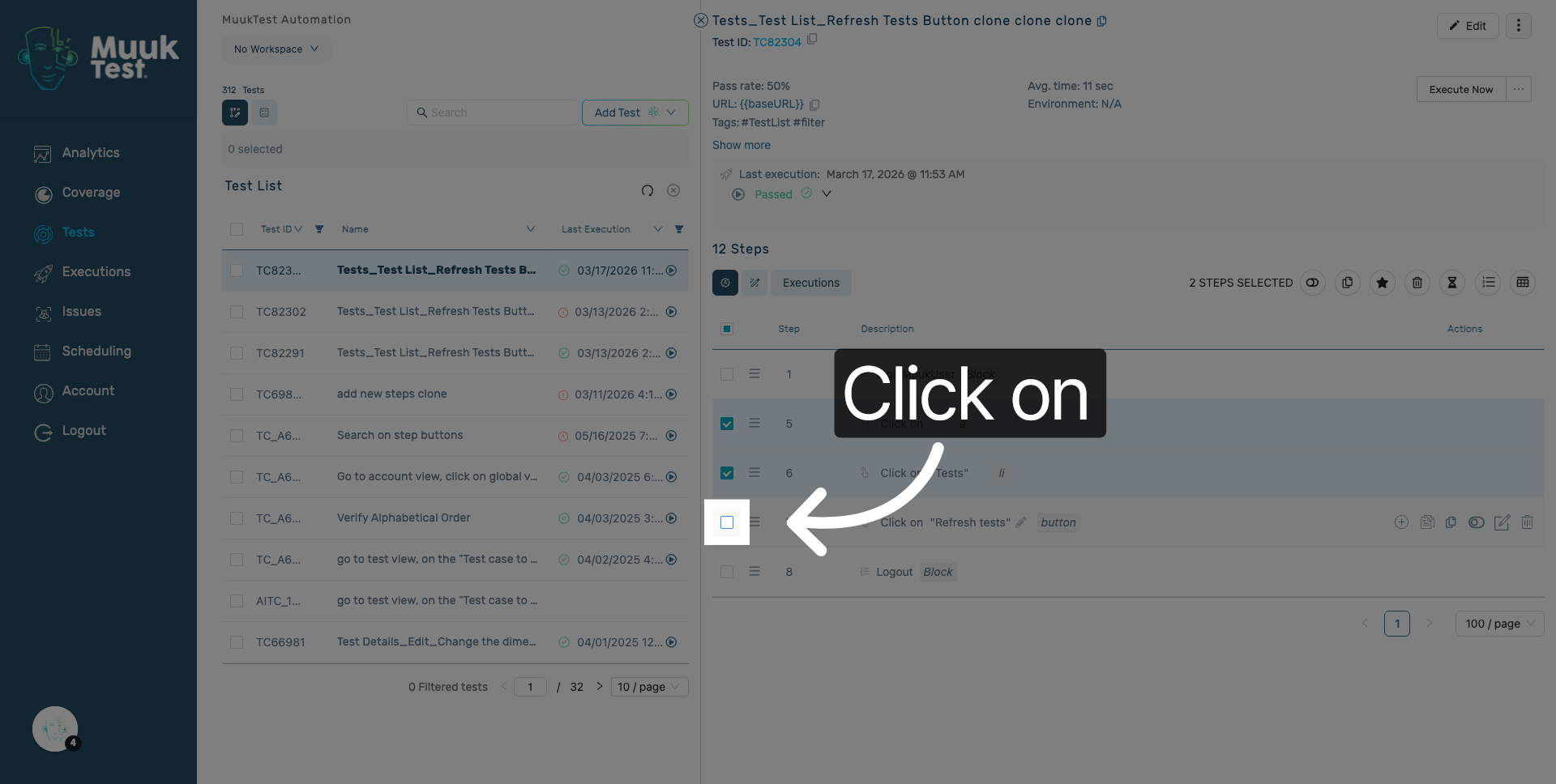
3. Access Timeout Settings
Click here to adjust the timeout for the selected steps.
4. Edit Timeout Value
Click the Timeout in seconds field to modify the timeout duration.
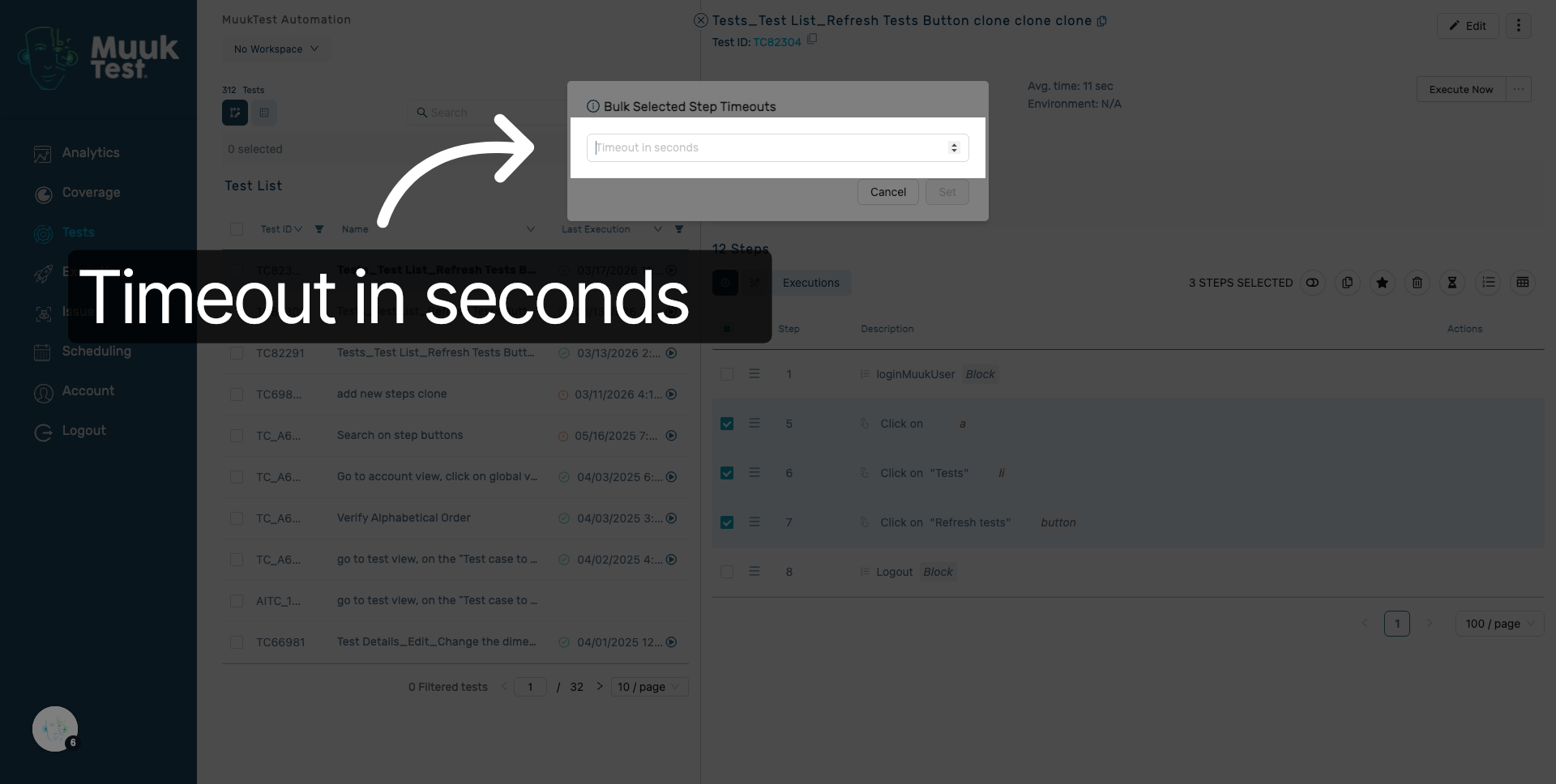
5. Set Timeout Duration
Enter a value between 1 and 60 to set the timeout duration i seconds.
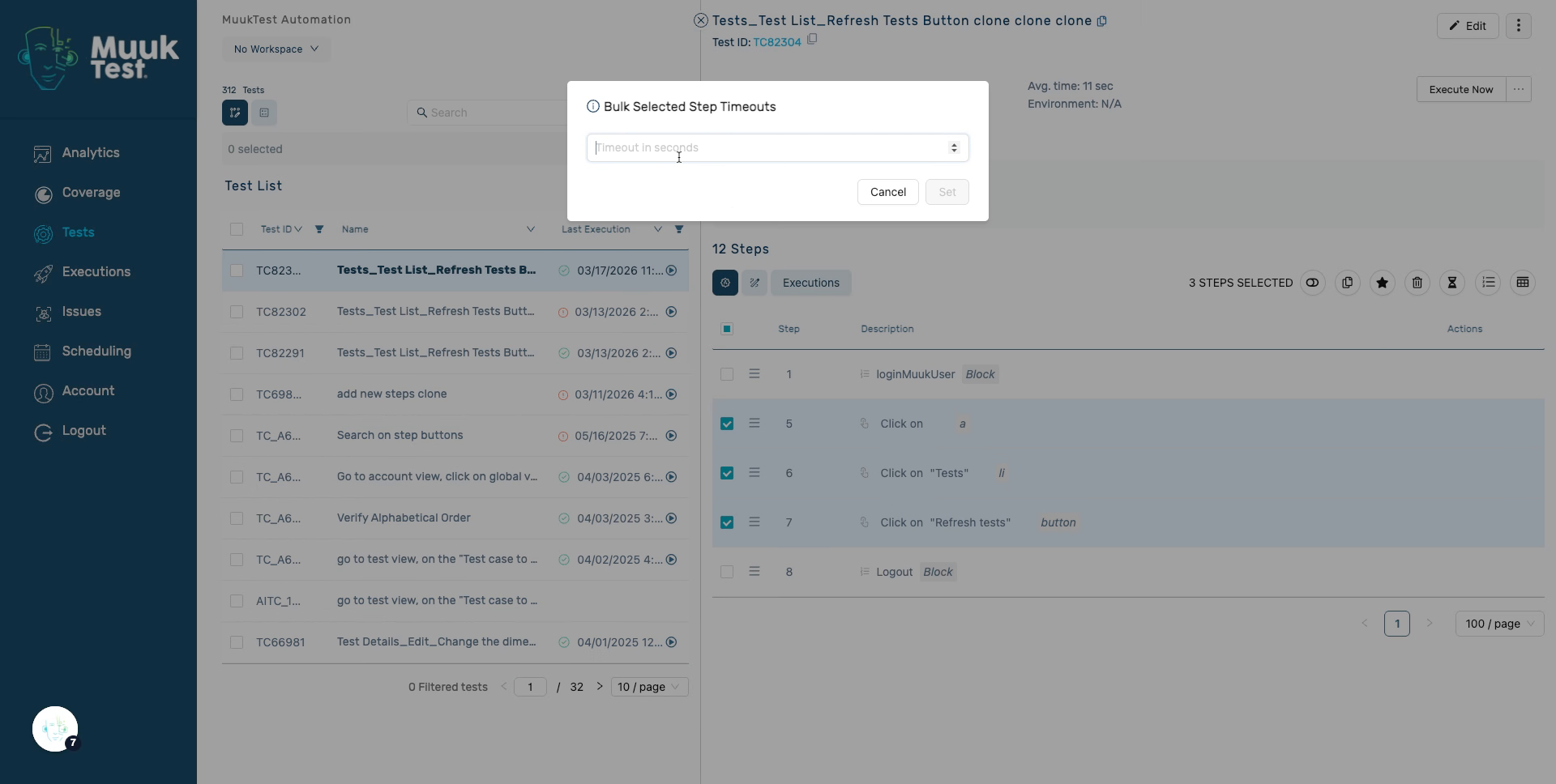
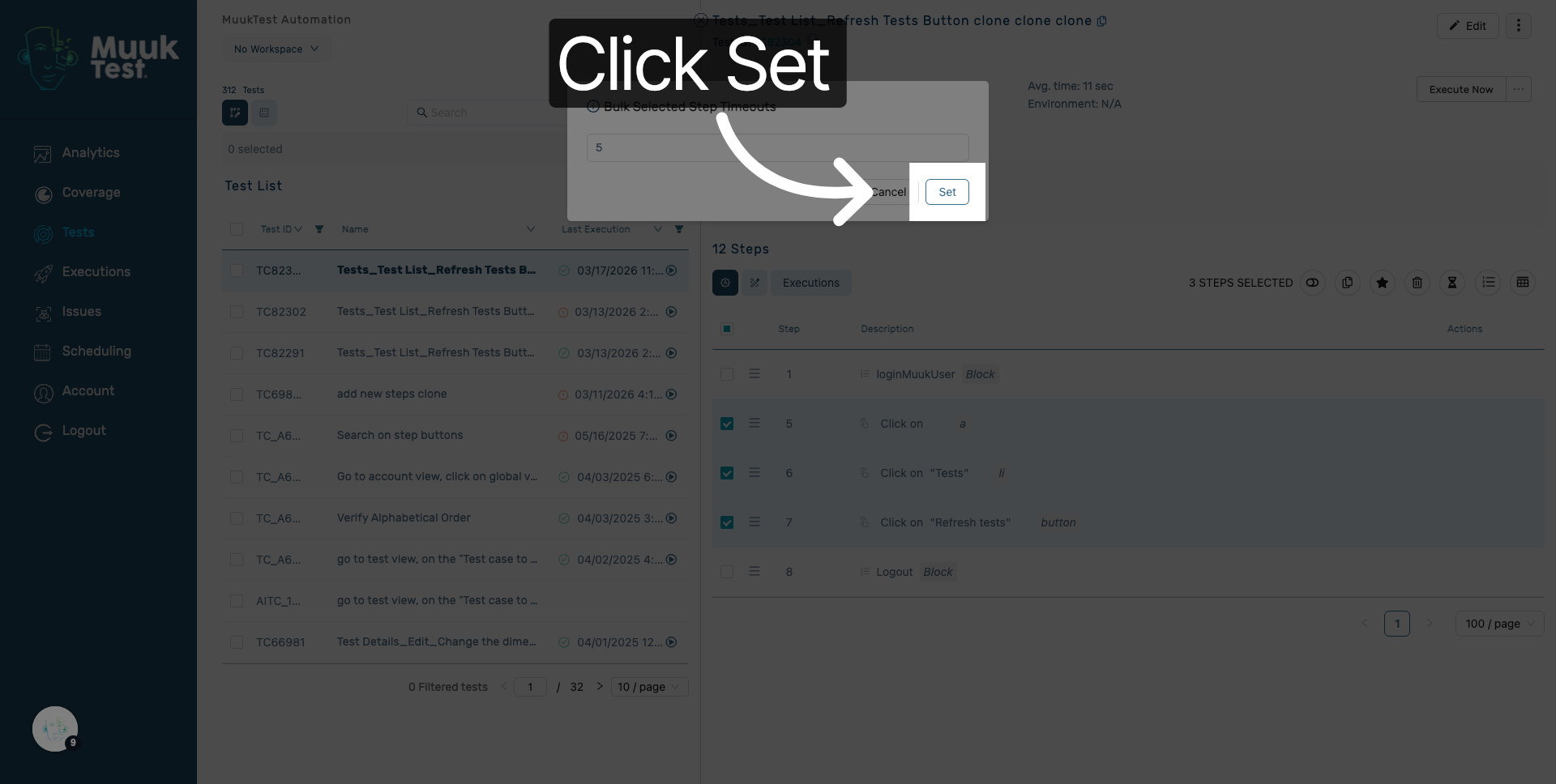
6. Confirm Timeout Setting
Click the Set button to confirm and apply the timeout duration.
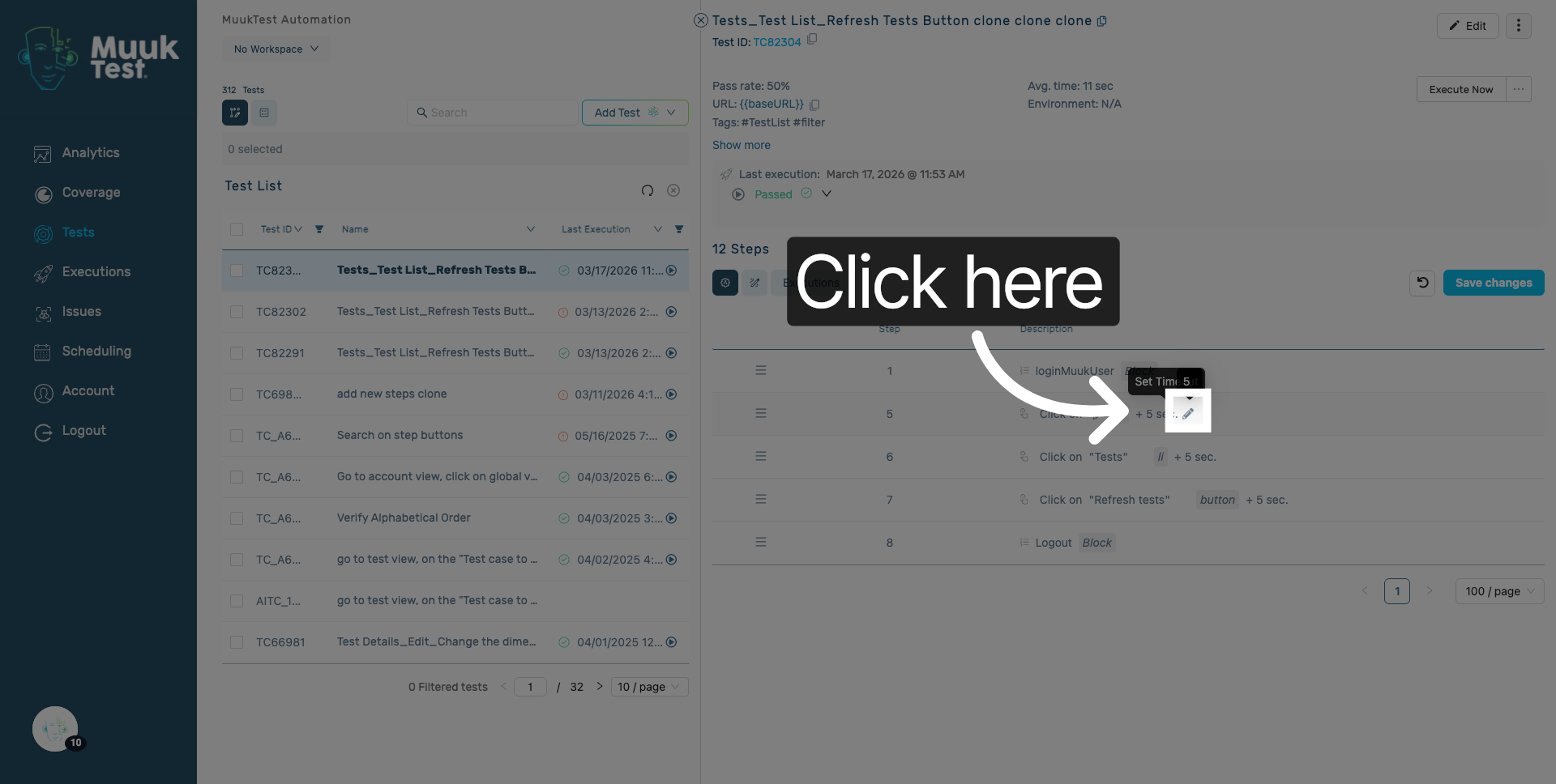
7. Single timeout Step
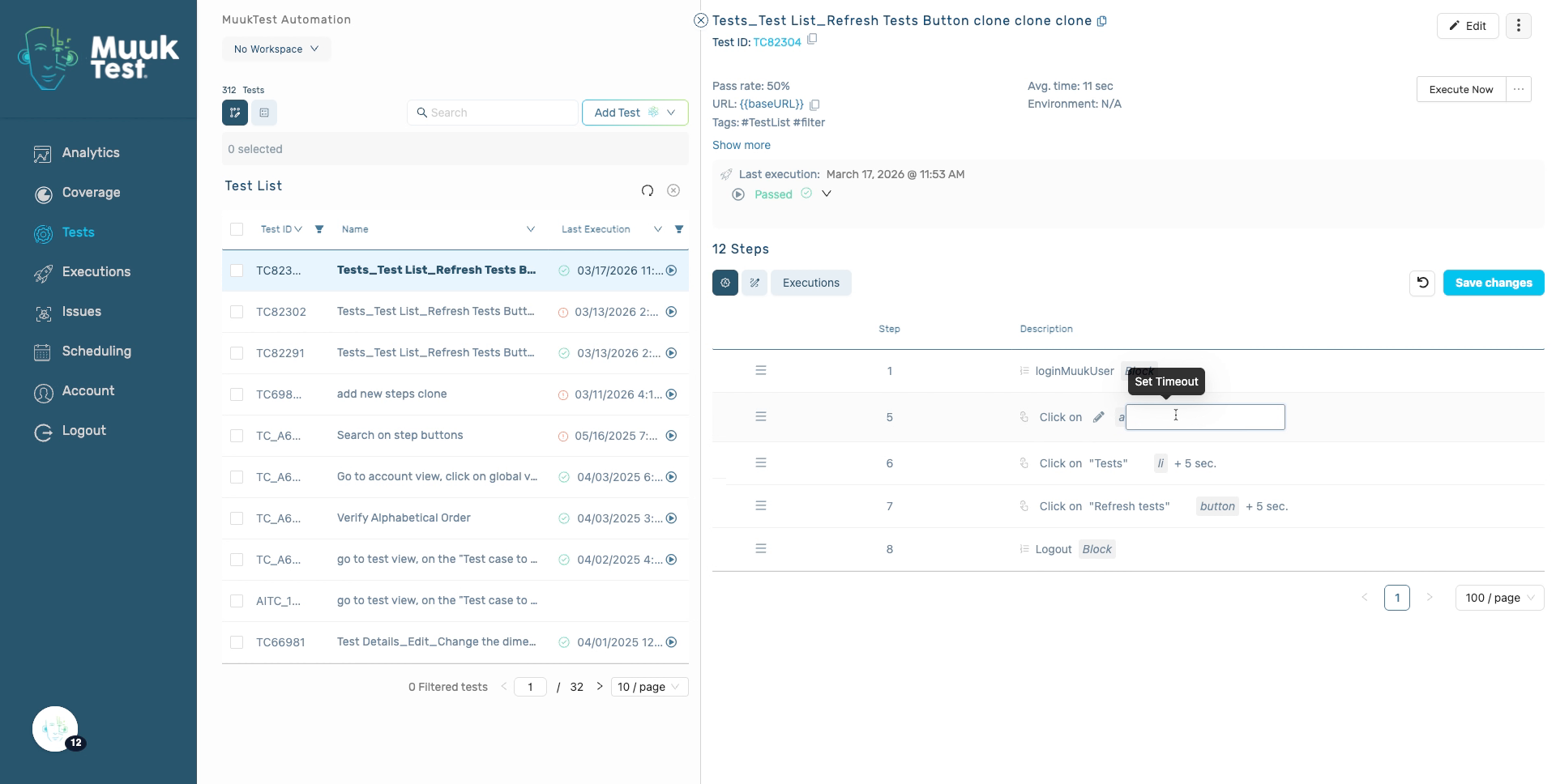
You can also modify a single step timeout by clicking the edit icon.
8. Enter Value Timeout
Please enter a new value to set the timeout duration.
9. Define Failure Timeout per step
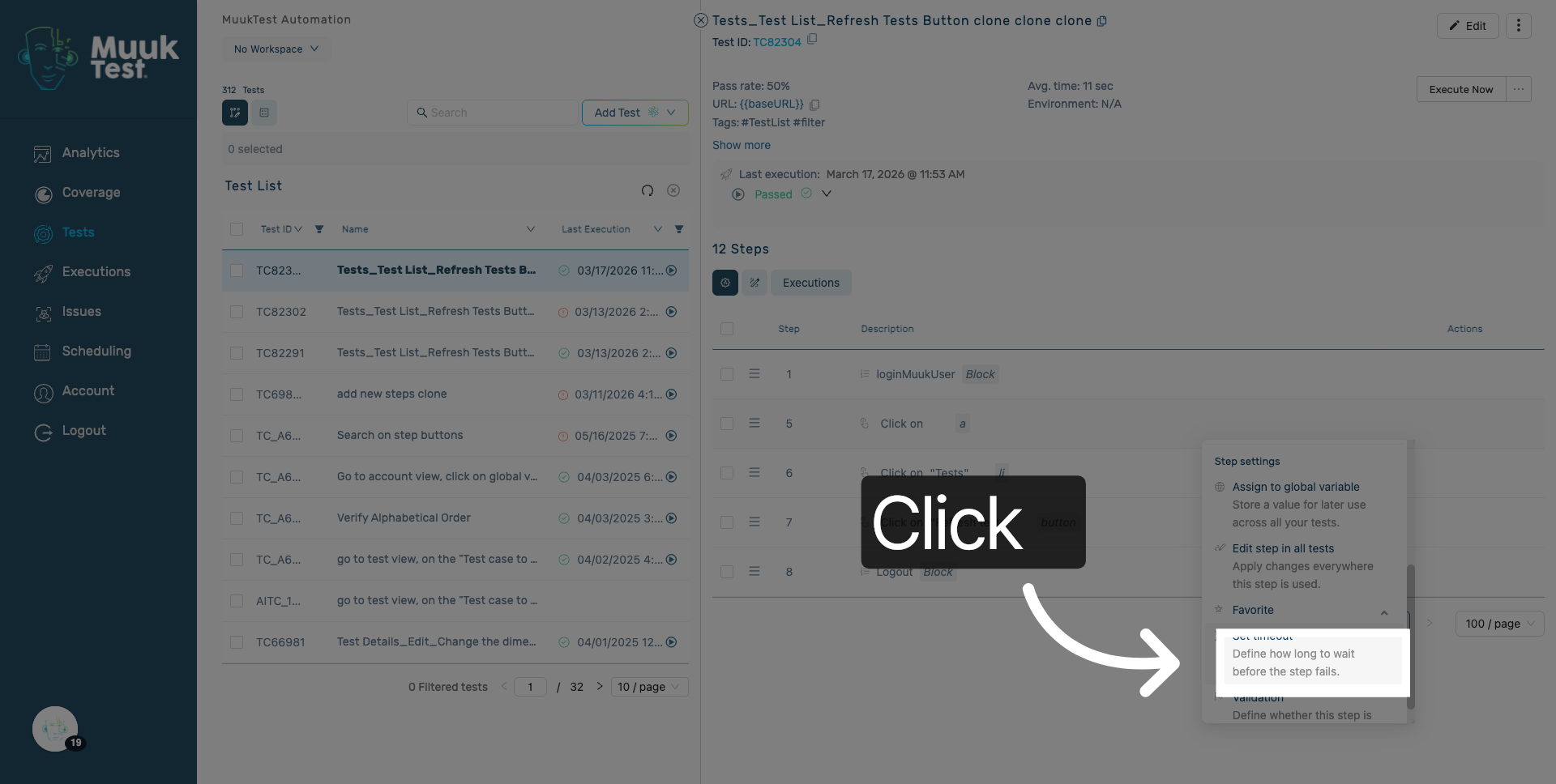
To modify the timeout for each step, hover over the actions column of the step and locate "Set Timeout". Click on "Define how long to wait before the step fails" to adjust the failure timeout.
10. Enter Failure Timeout
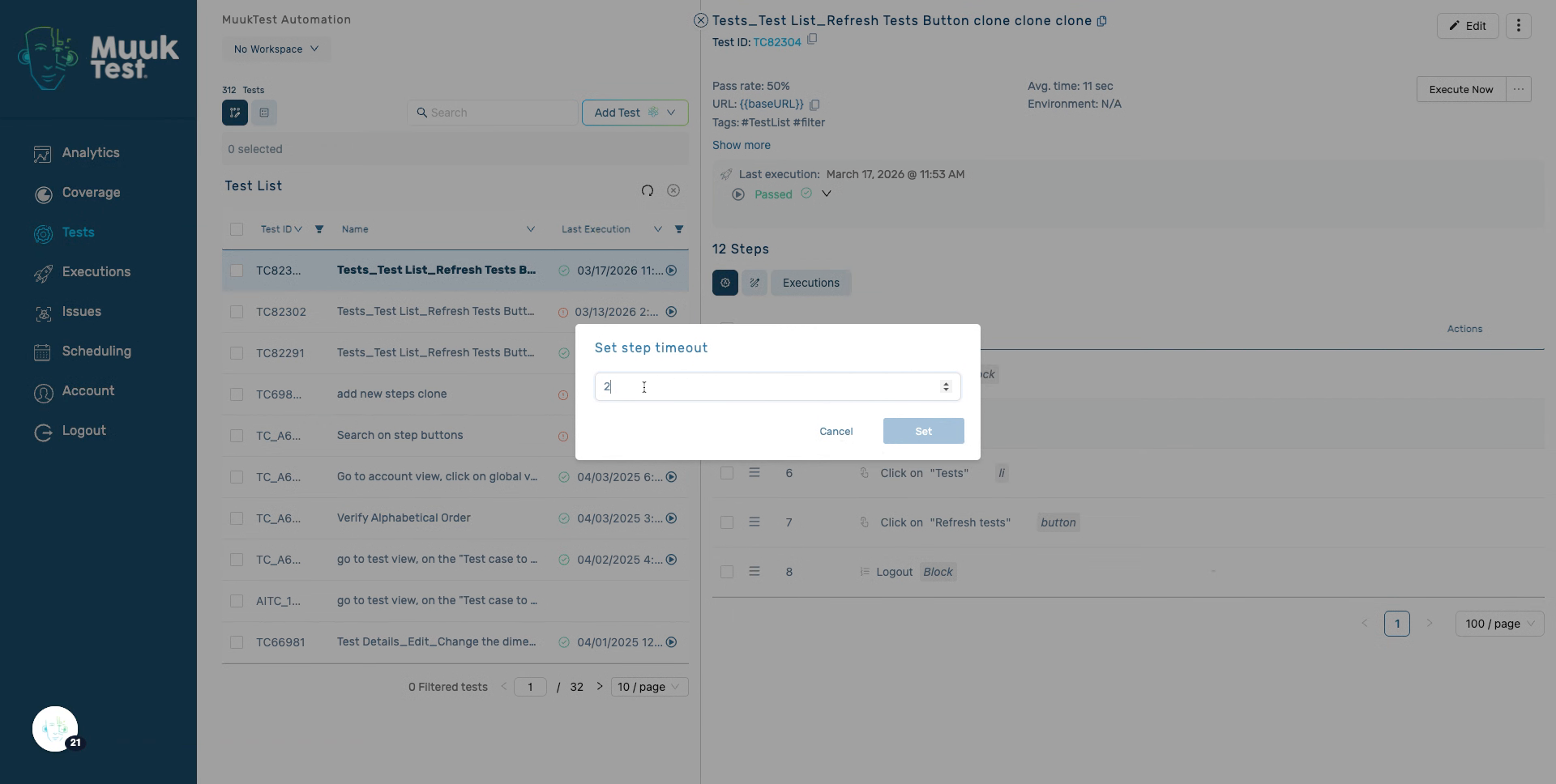
Enter new value to specify the failure timeout in seconds.
11. Apply Failure Timeout
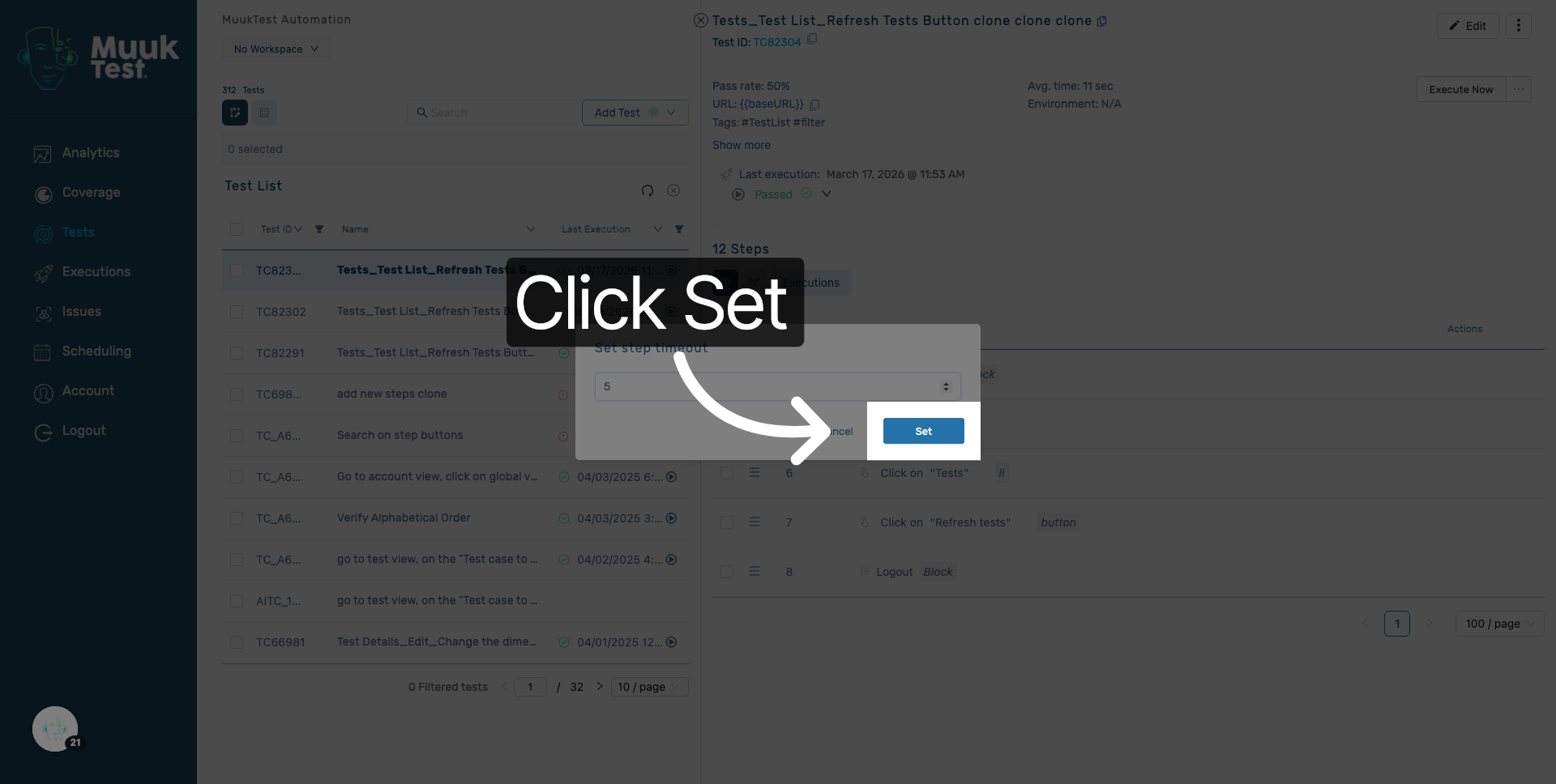
Click the Set button to apply the failure timeout setting.
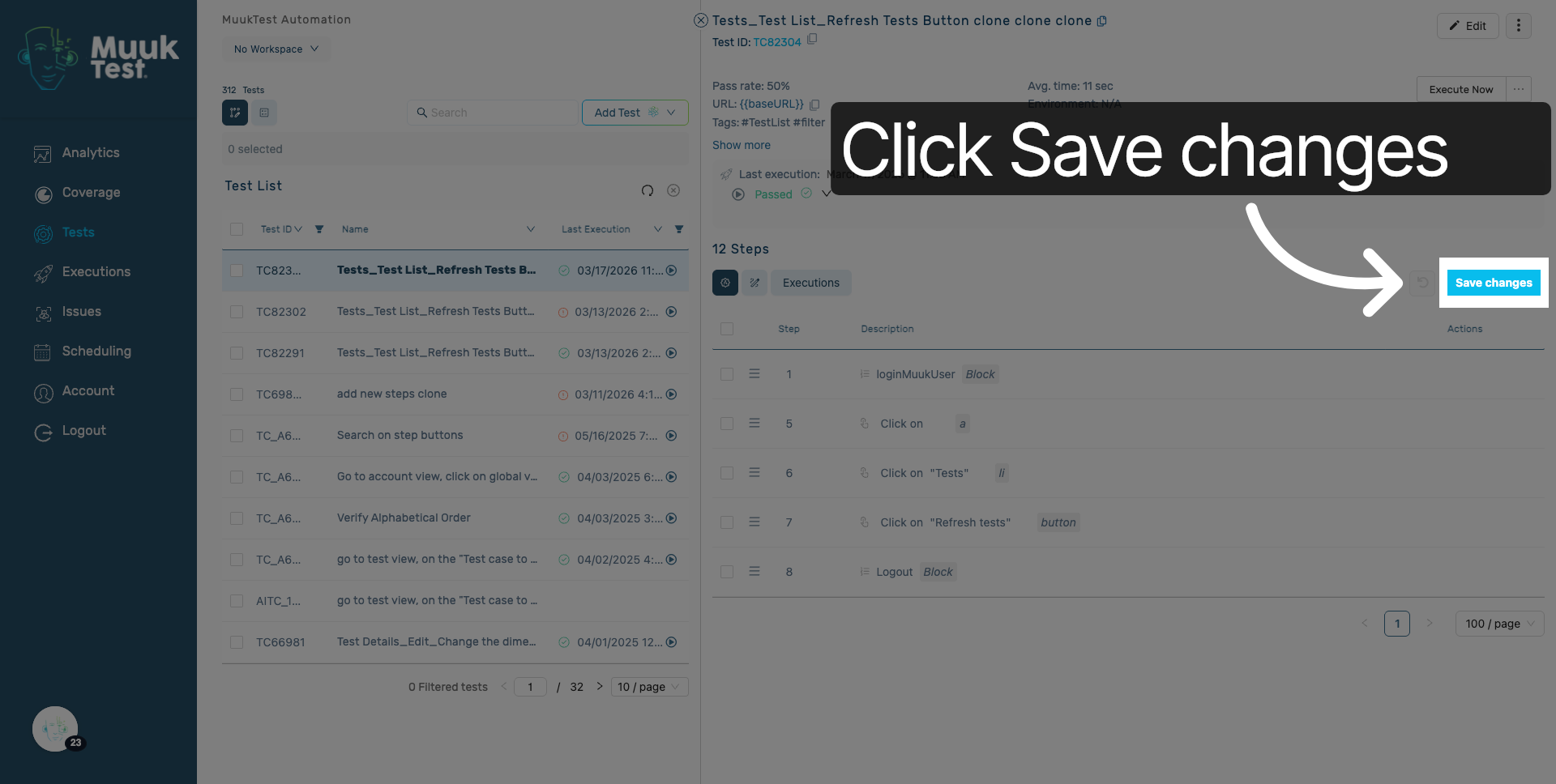
12. Save All Changes
Click the Save changes button to save all your timeout configurations.
You have successfully configured timeout durations in MuukTest. Your settings are now saved and ready for use to ensure optimal application performance.
Comments
0 comments
Please sign in to leave a comment.