
This tutorial explains the different types of actions you can use to create test steps in MuukTest. It provides an overview of key features and how they help you build effective automated tests.
Go to portal.muuktest.com:5000
1. Introduce Action Types
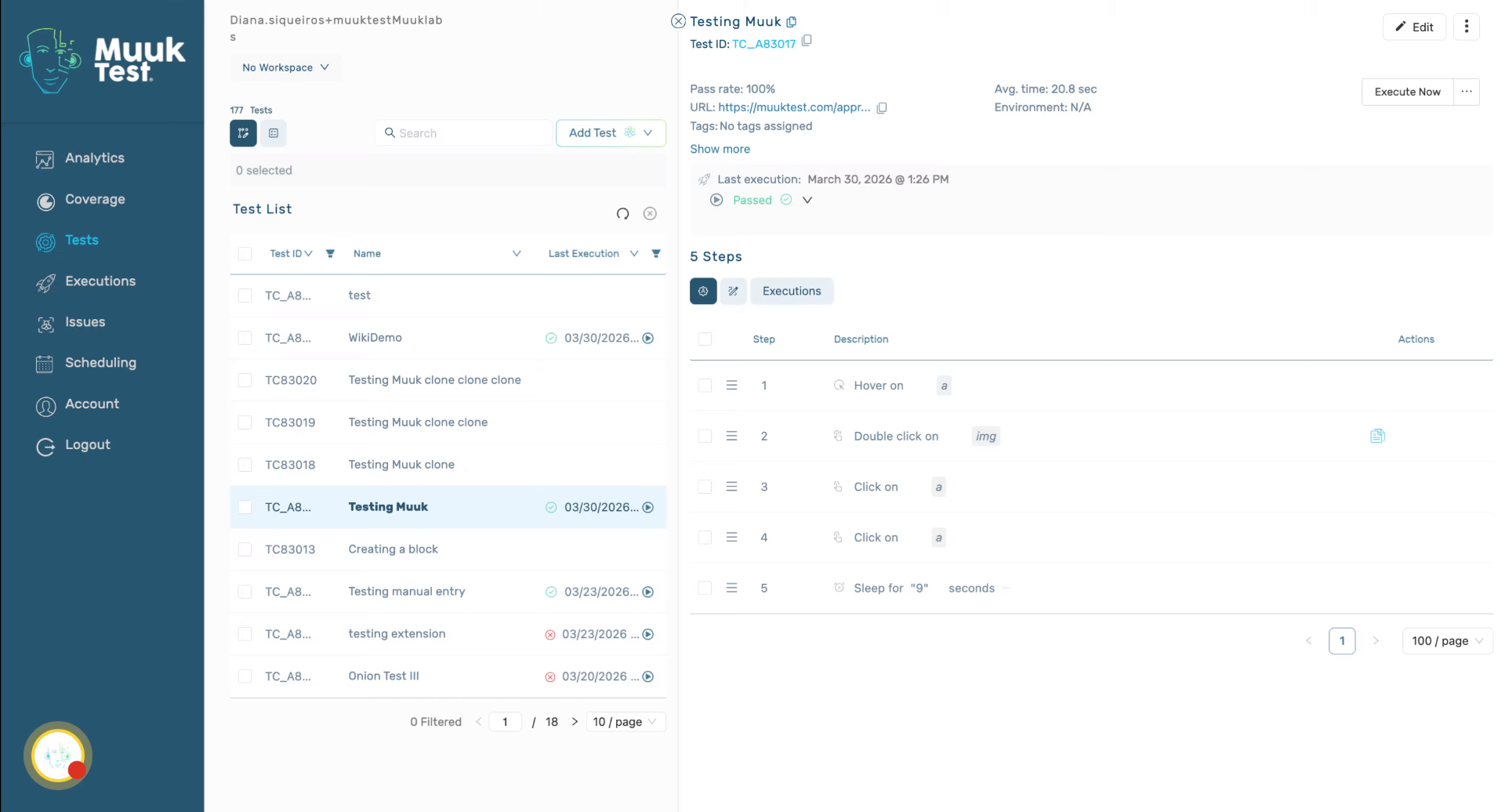
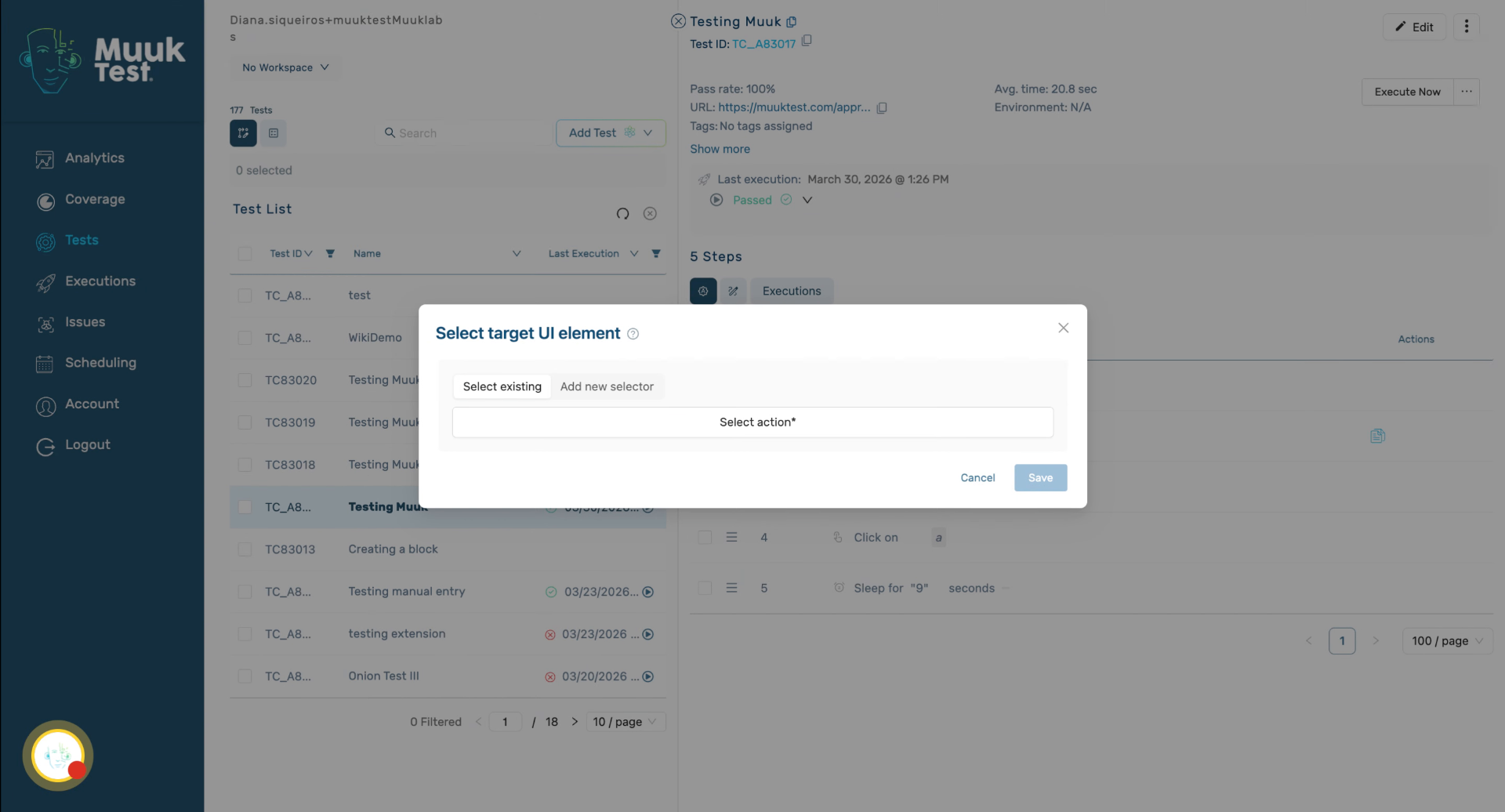
Hello, today we're going to learn about the different types of actions we can use in our steps. We need to go to test view to our test details. We're going to click on add new action.
2. Select Step Action
Click the Step option to begin adding a new action in the MuukTest application. This initiates the process of defining your test steps.
3. Review Action Categories
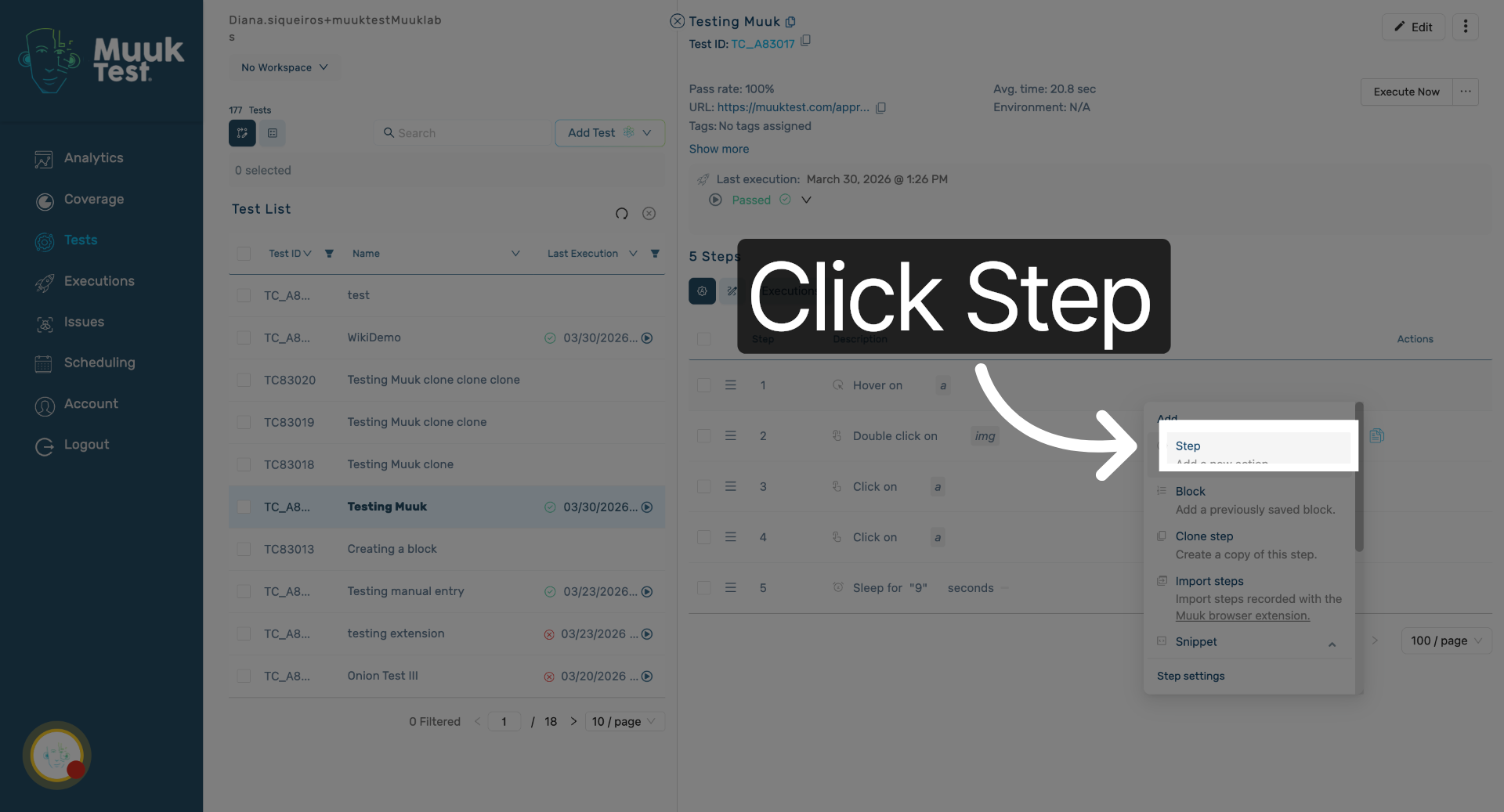
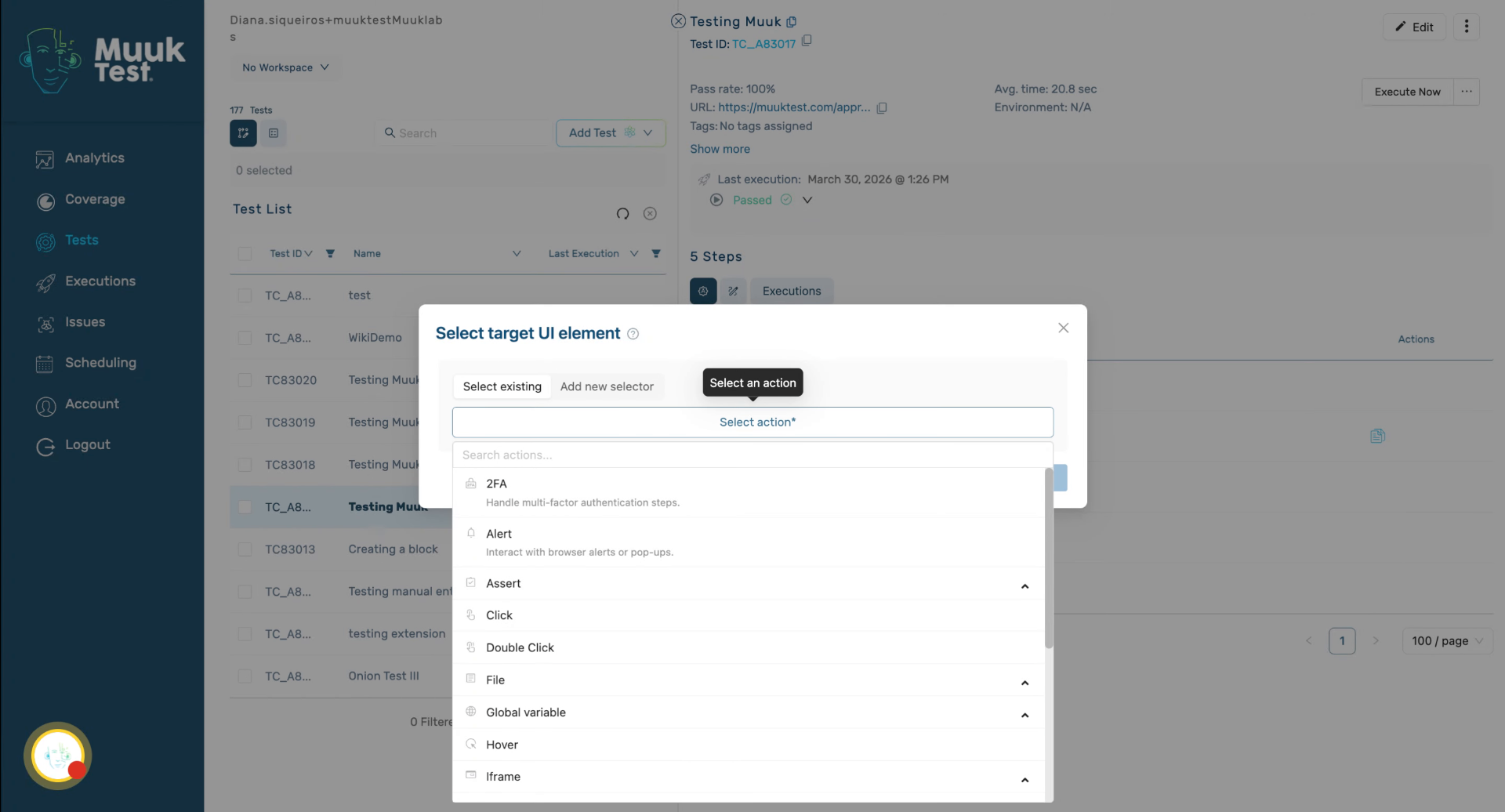
From there we can see all the different types of actions that we can perform. We have validations, authentications, keyword actions, utilities,
4. 2FA
For example, we have two factor authentication, it generates a one-time code for a site's 2FA setup — use when the test flow requires authenticating through a two-factor prompt.
5. Set Up Alerts
You can set your message for the alert.
6. Introduce Validation Asserts
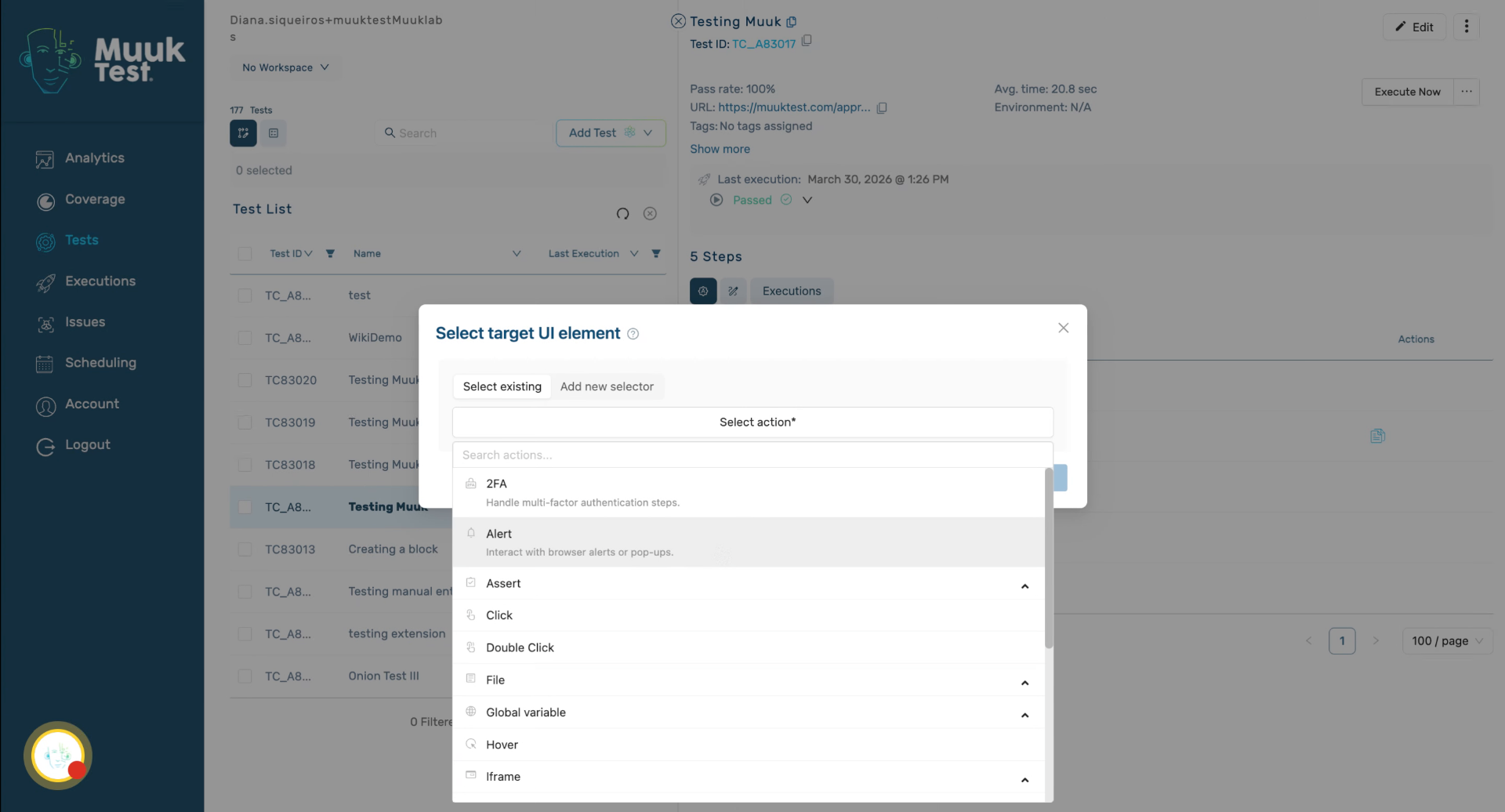
We have asserts for validation.
7. Describe Assert Class Functionality
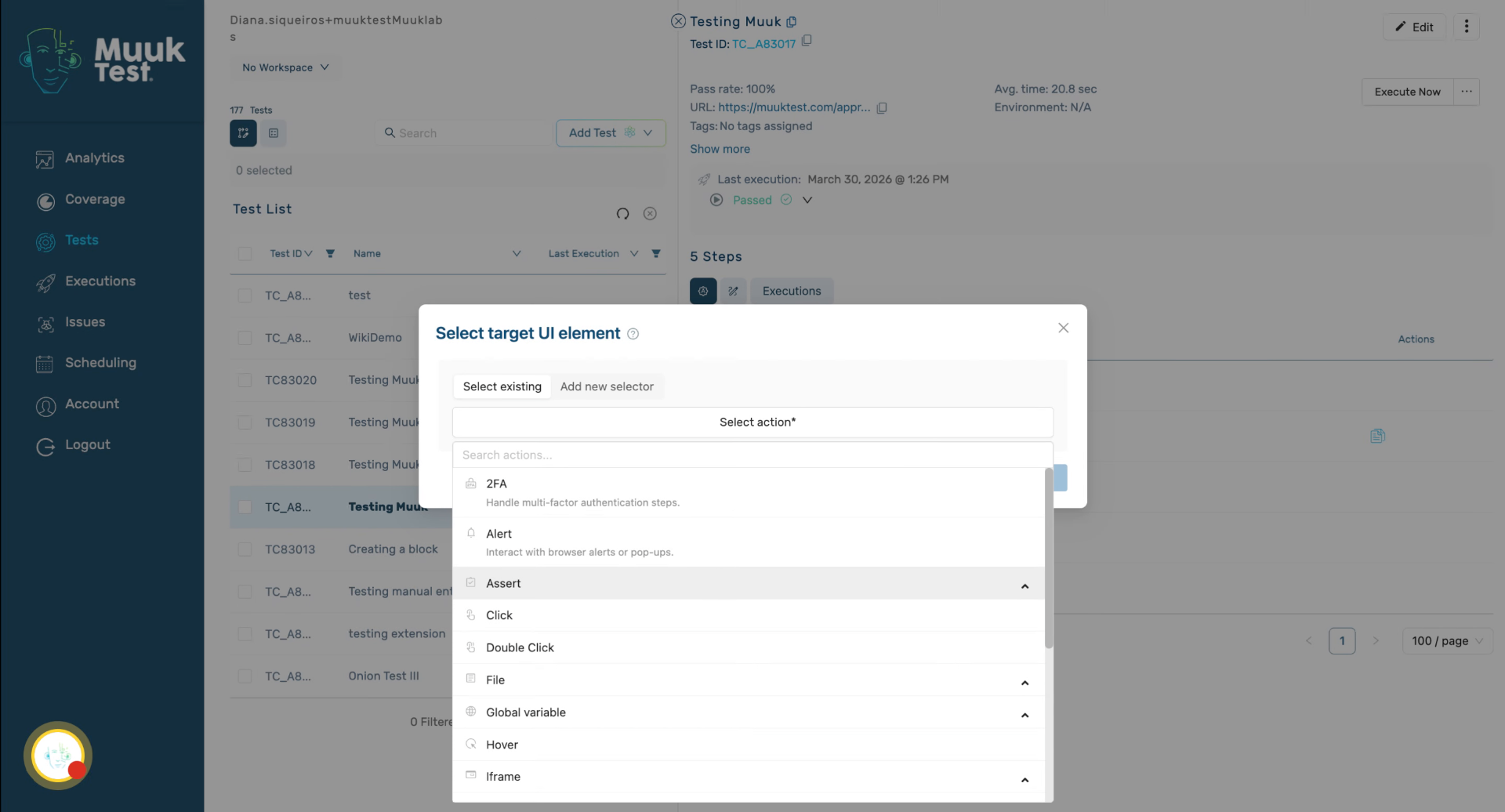
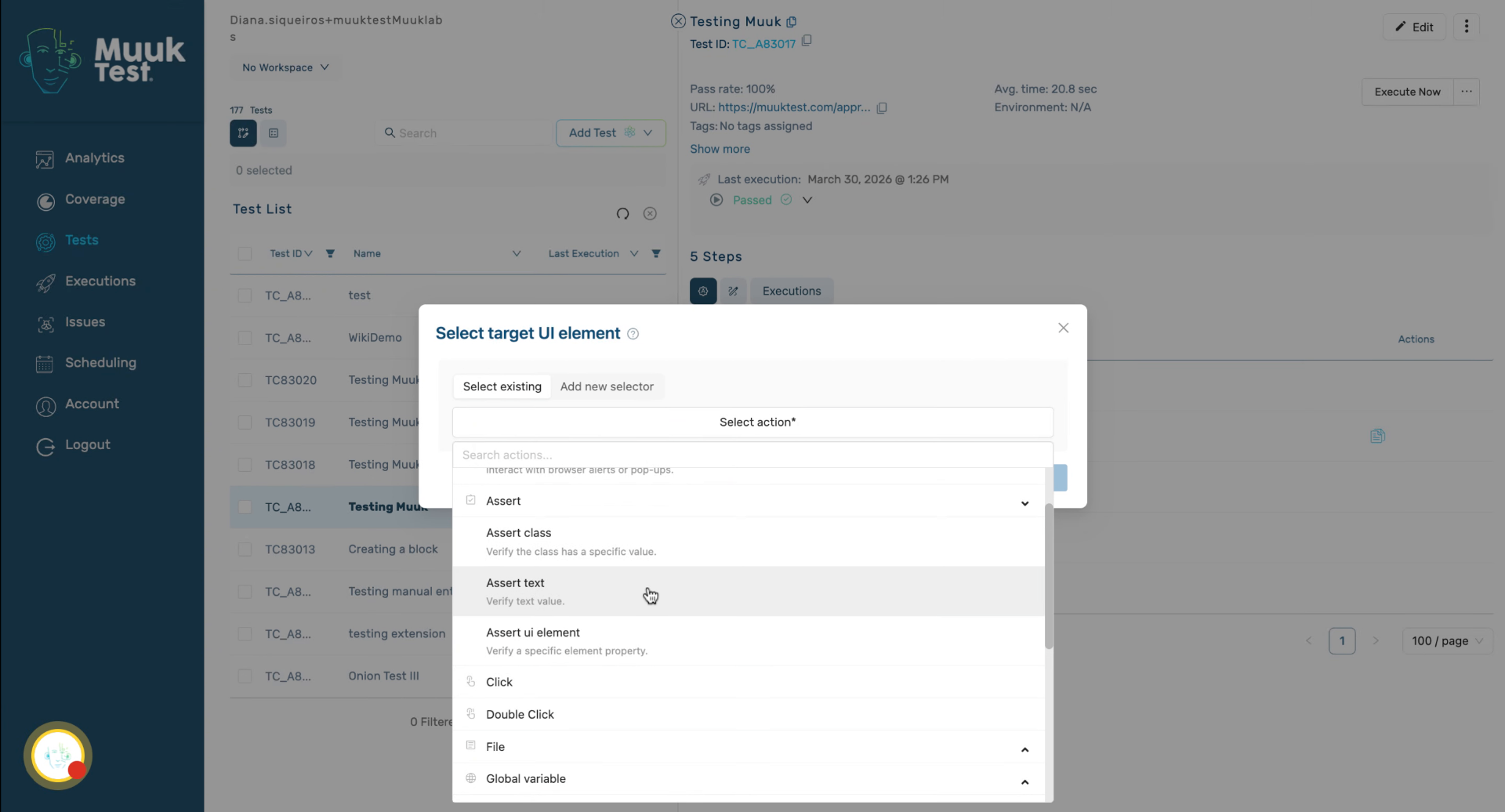
We have three types of asserts: assert class, text, and UI element. Assert class checks that an element has a specific CSS class applied to it.
8. Explain Assert Text Validation
Assert text validates the text value and assert UI element hecks if an element is visible, not visible, enabled, or disabled.
9. Use Click and Double Click Actions
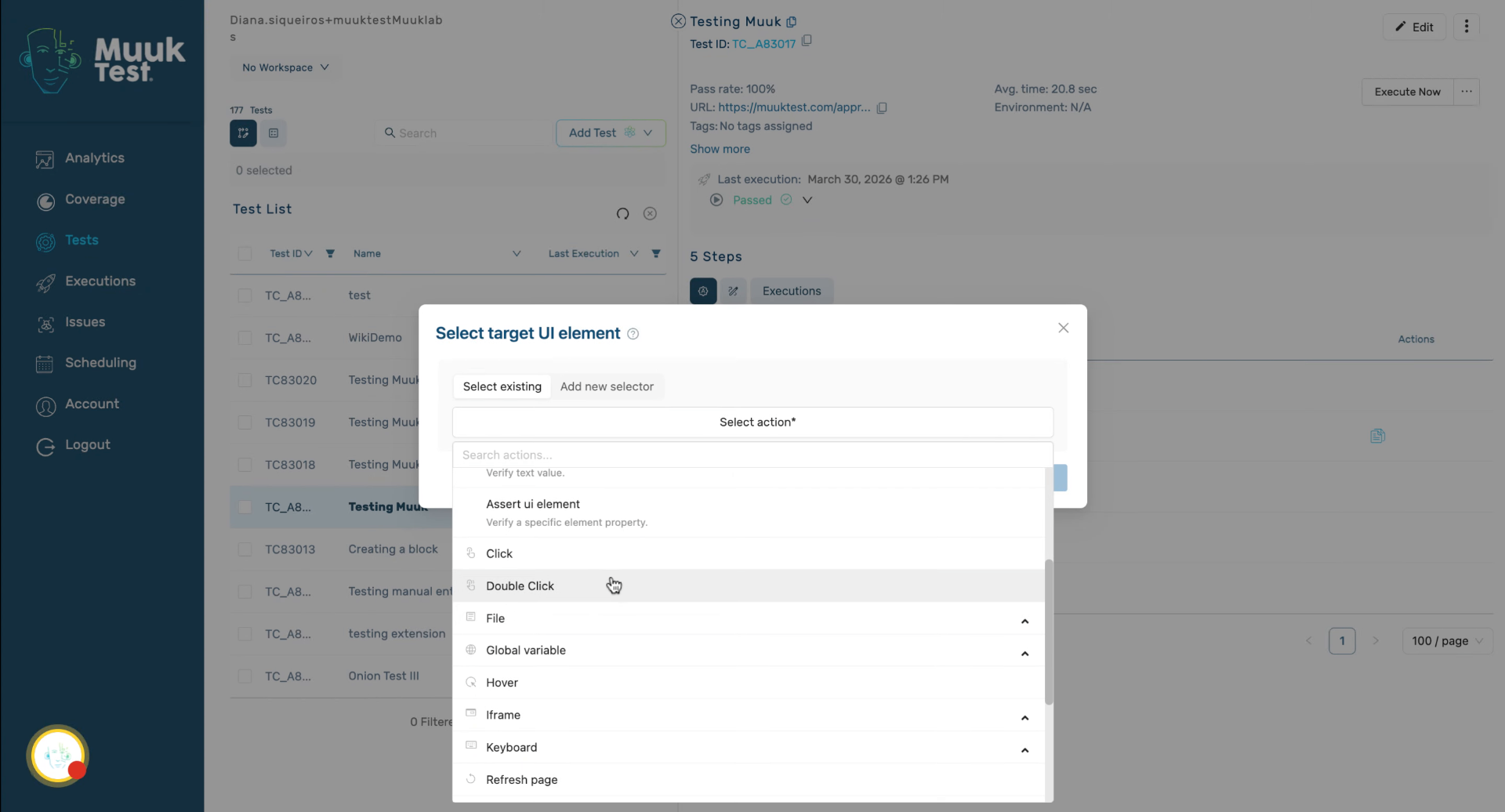
We have click, double click.
10. Manage File Upload and Download
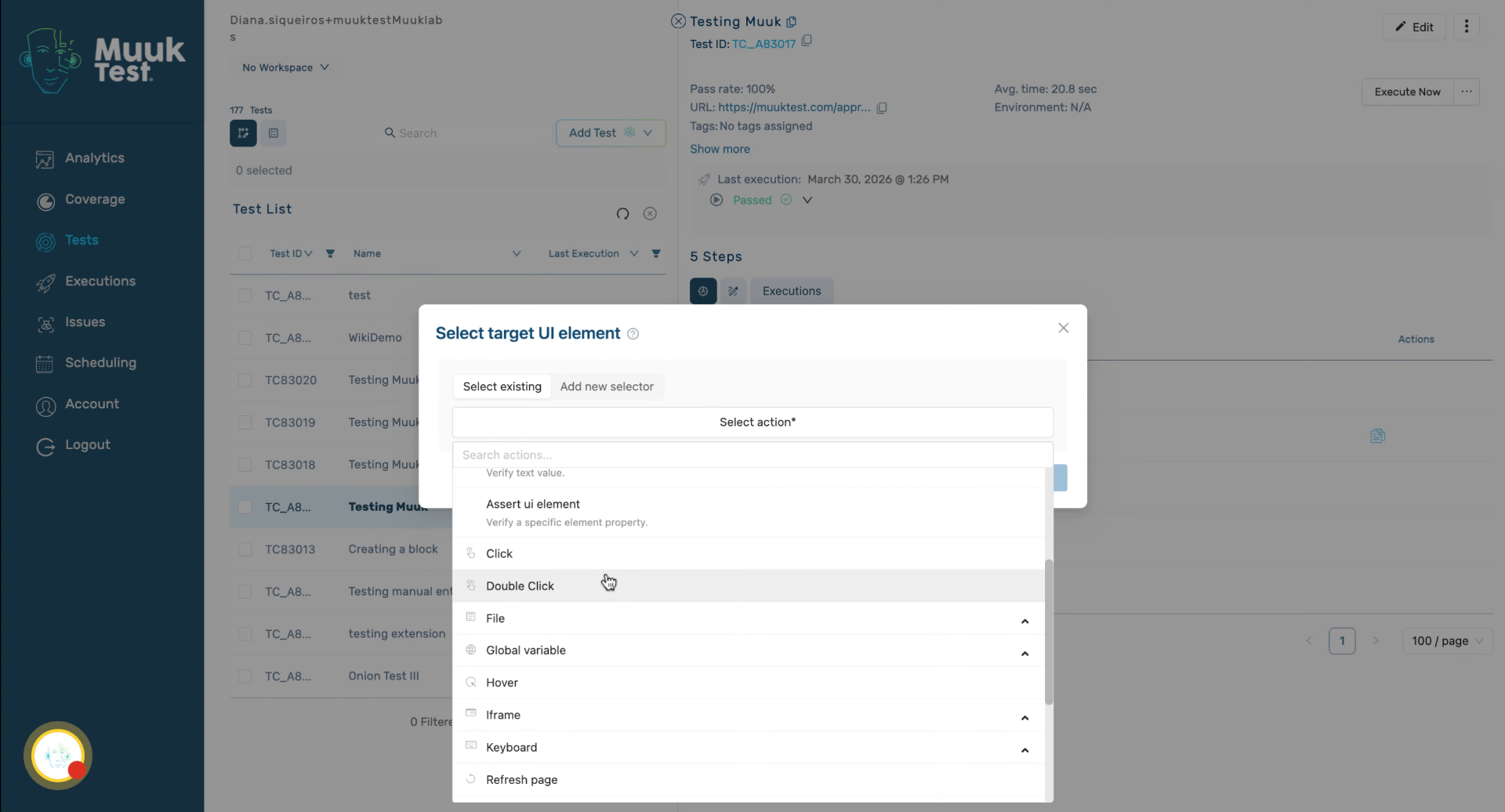
We have file upload and download.
11. Overview of Global Variables
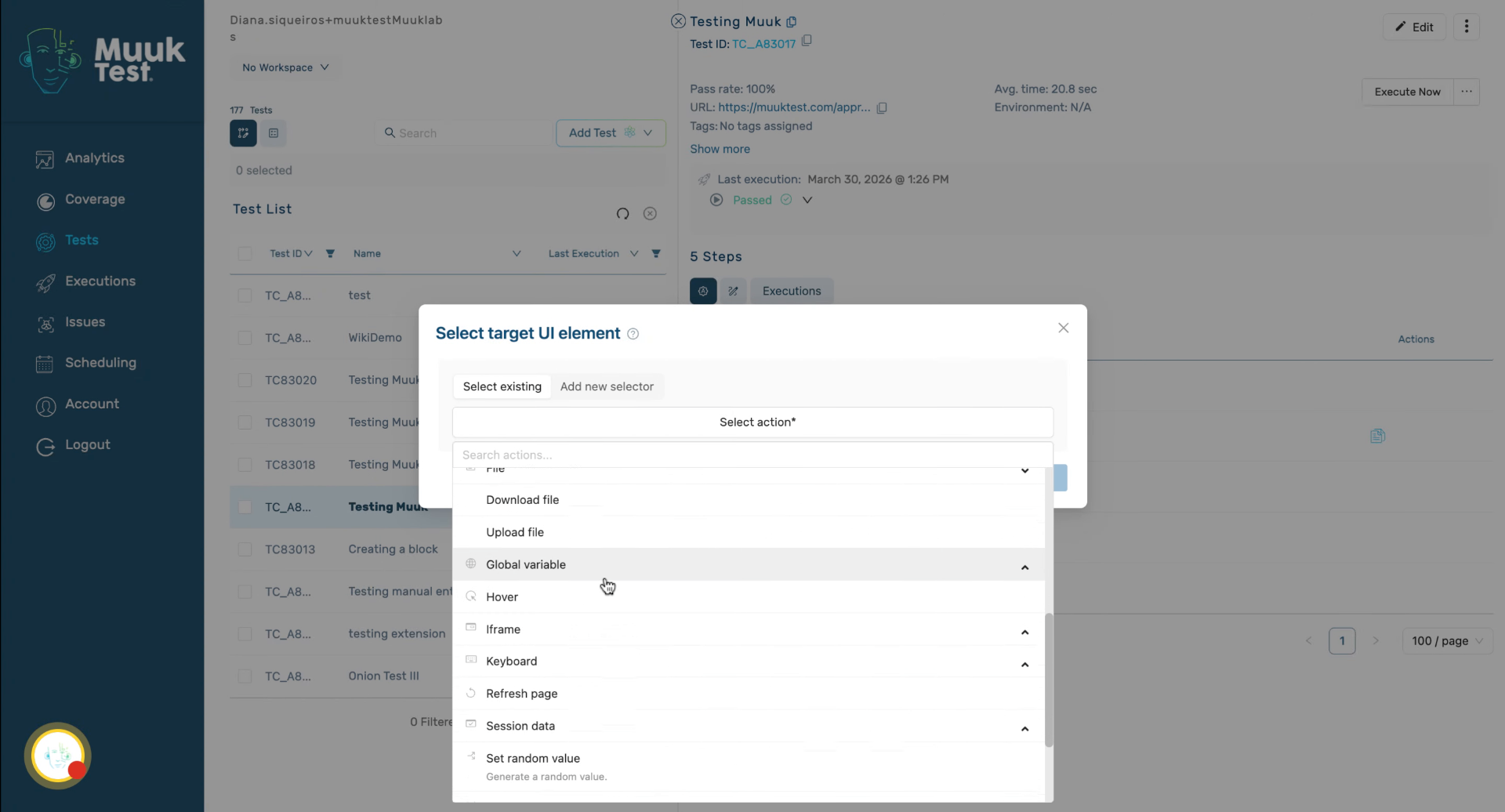
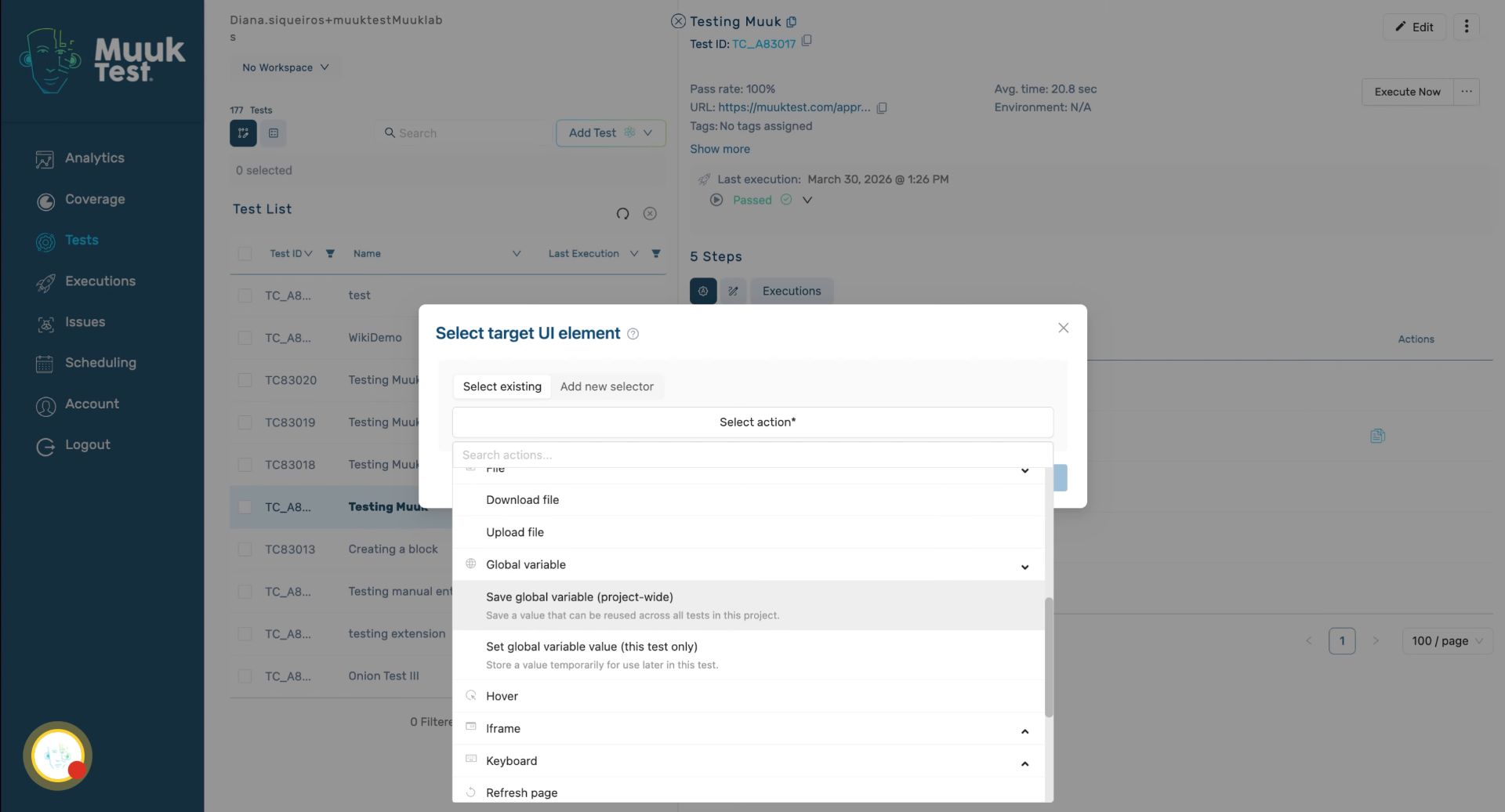
We have global variables. We have two different types of action for global variables.
12. Save Global Variable Usage
Save global variable stores the value that can be reused across all tests in the project. Set global variable saves the value temporarily, only available within the current test.
13. Explain Hover Action
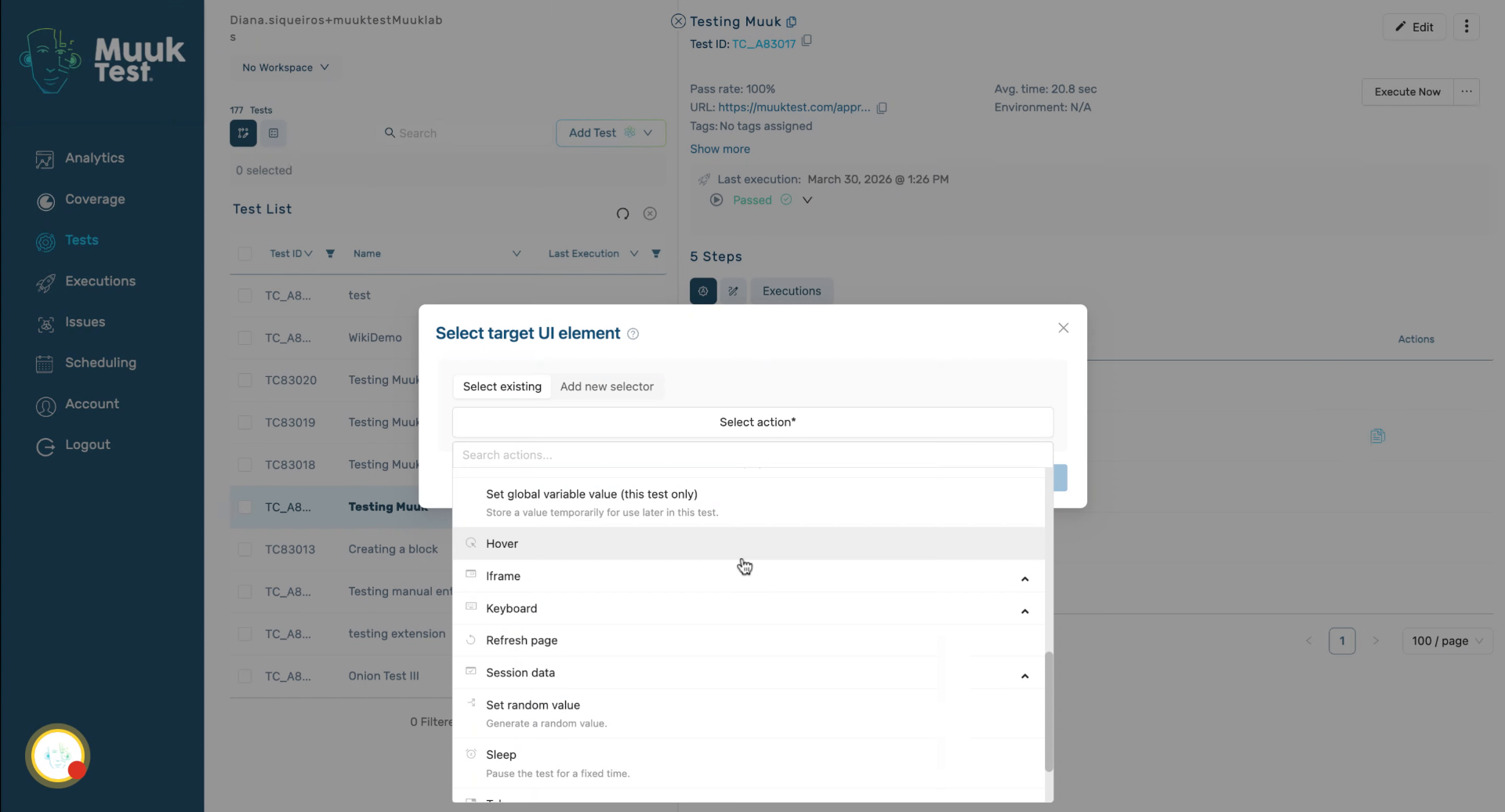
We have hover.
14. Switch Iframe Context
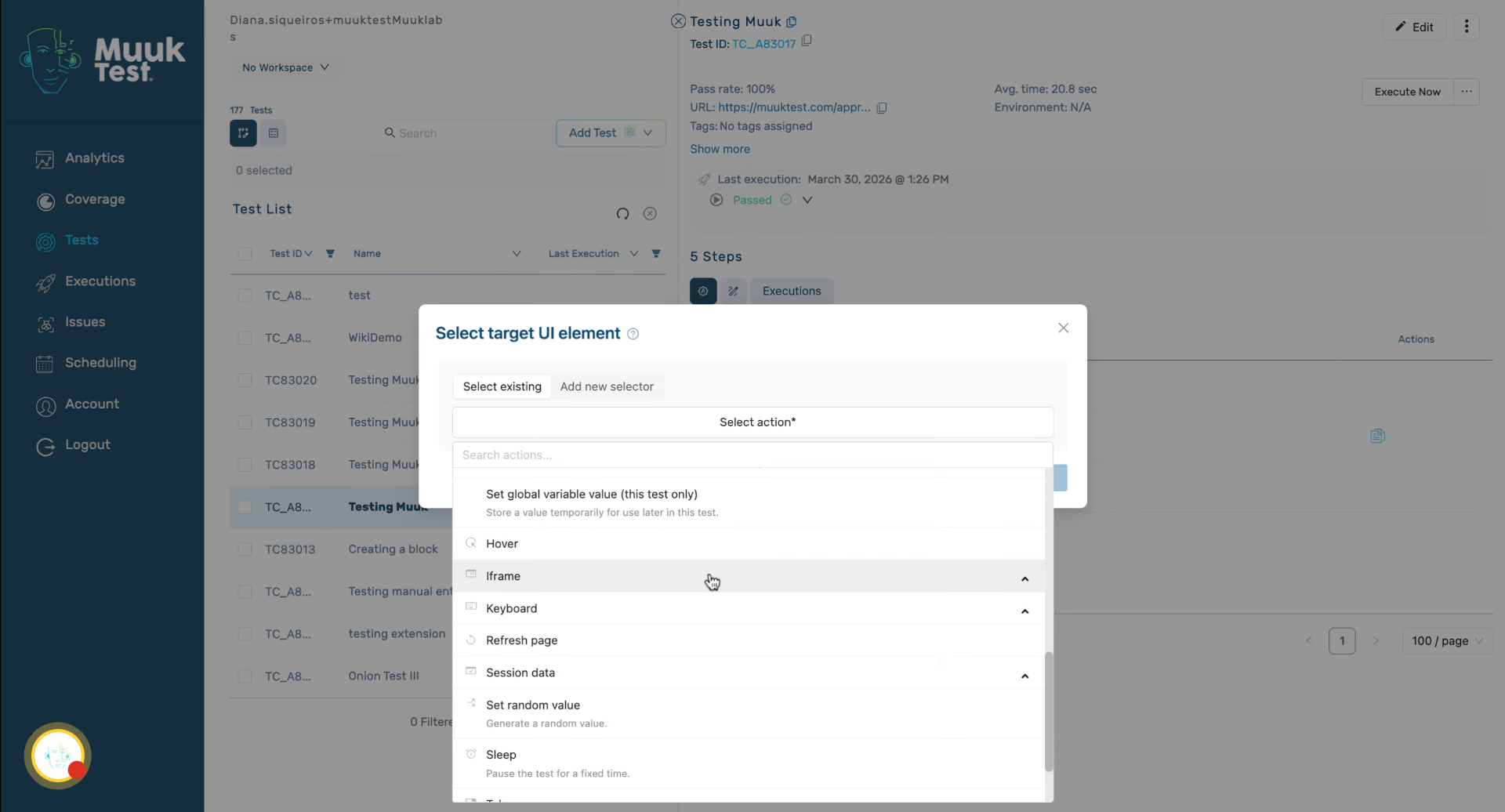
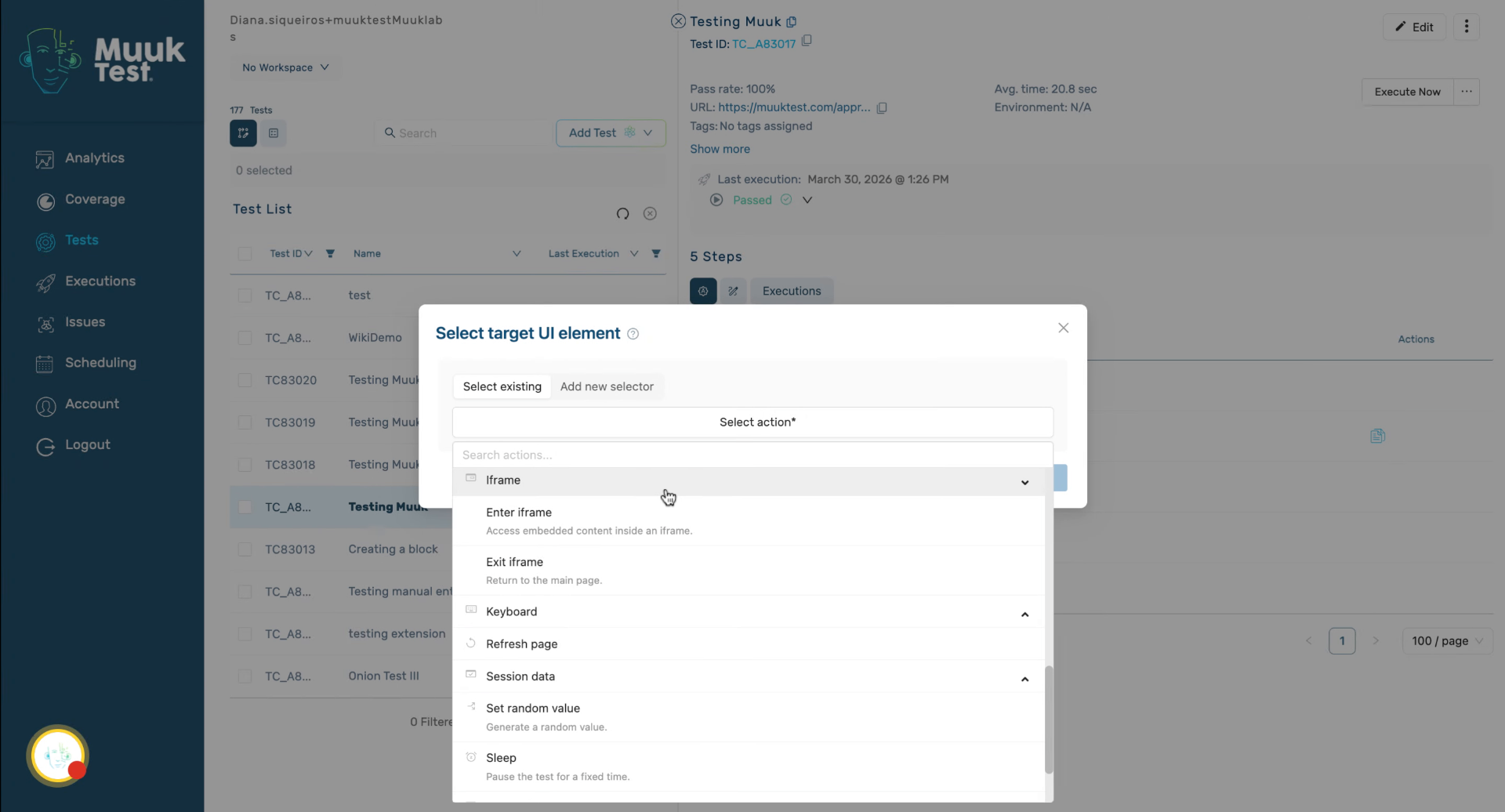
We have the use of iframes, which switches the context into an embedded iframe or back out to interact with the content inside the iframe.
15. Use Keyboard Element Actions
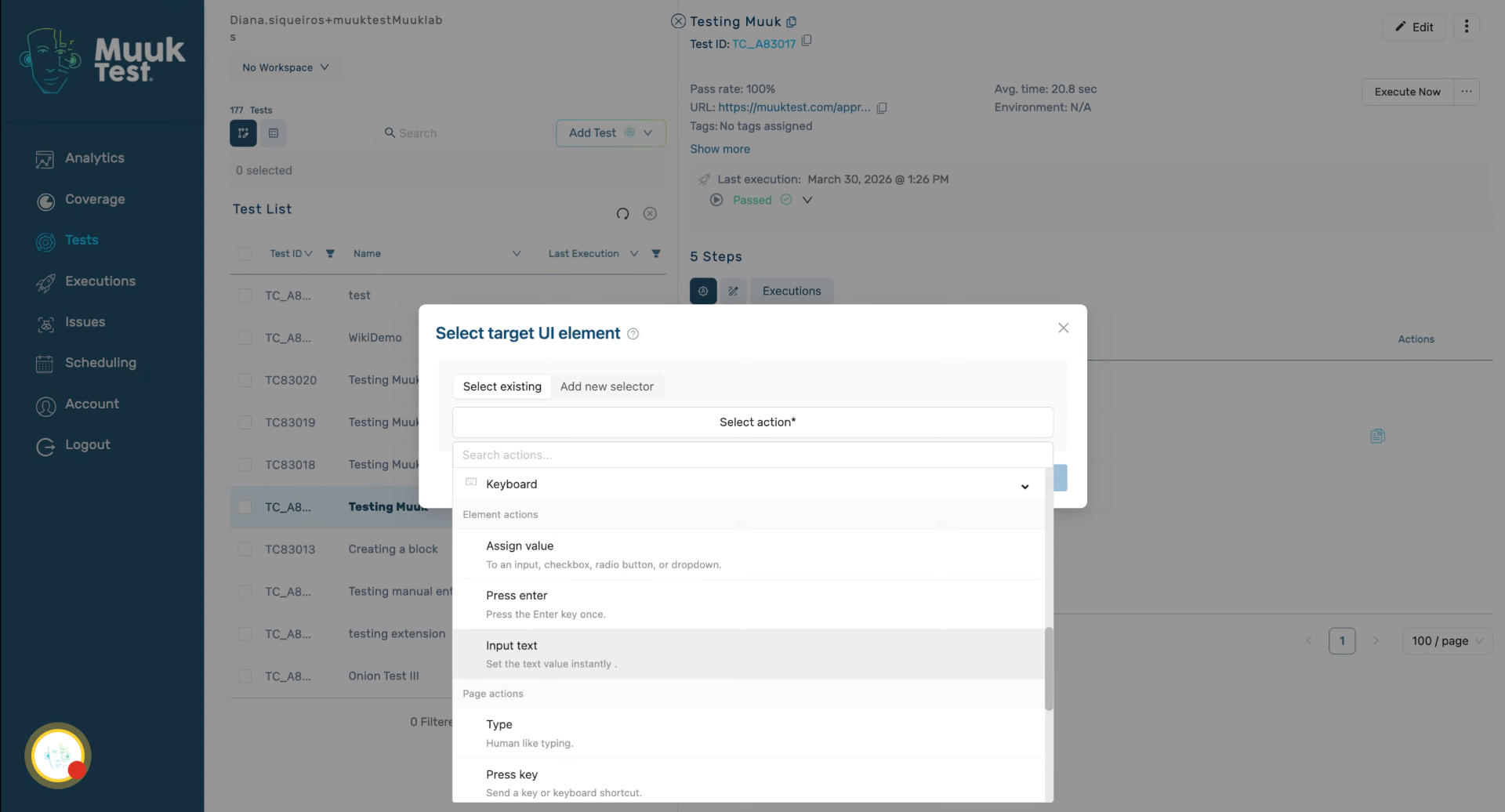
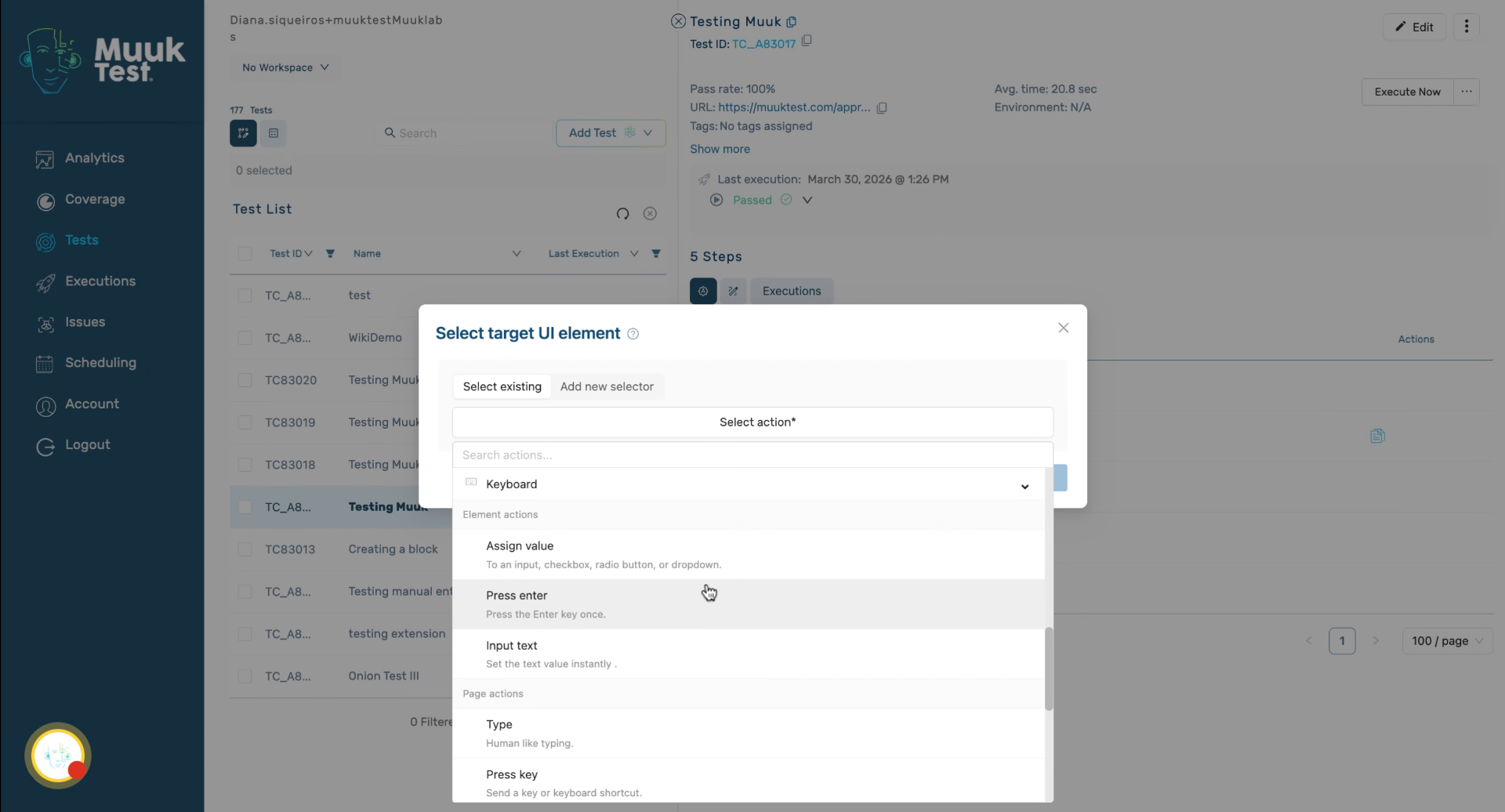
We have a keyboard with many different actions. We have element actions and page actions. For elements, we have assign value, press enter, or input text.
16. Input Text and Press Enter
Input text sets a text value instantly under the input field. It requires a selector and is used when you populate a field directly. Press Enter just presses enter key.
17. Assign Values to Elements
Assign a value, assign it to a checkbox, radio button, and program.
18. Perform Keyboard Page Actions
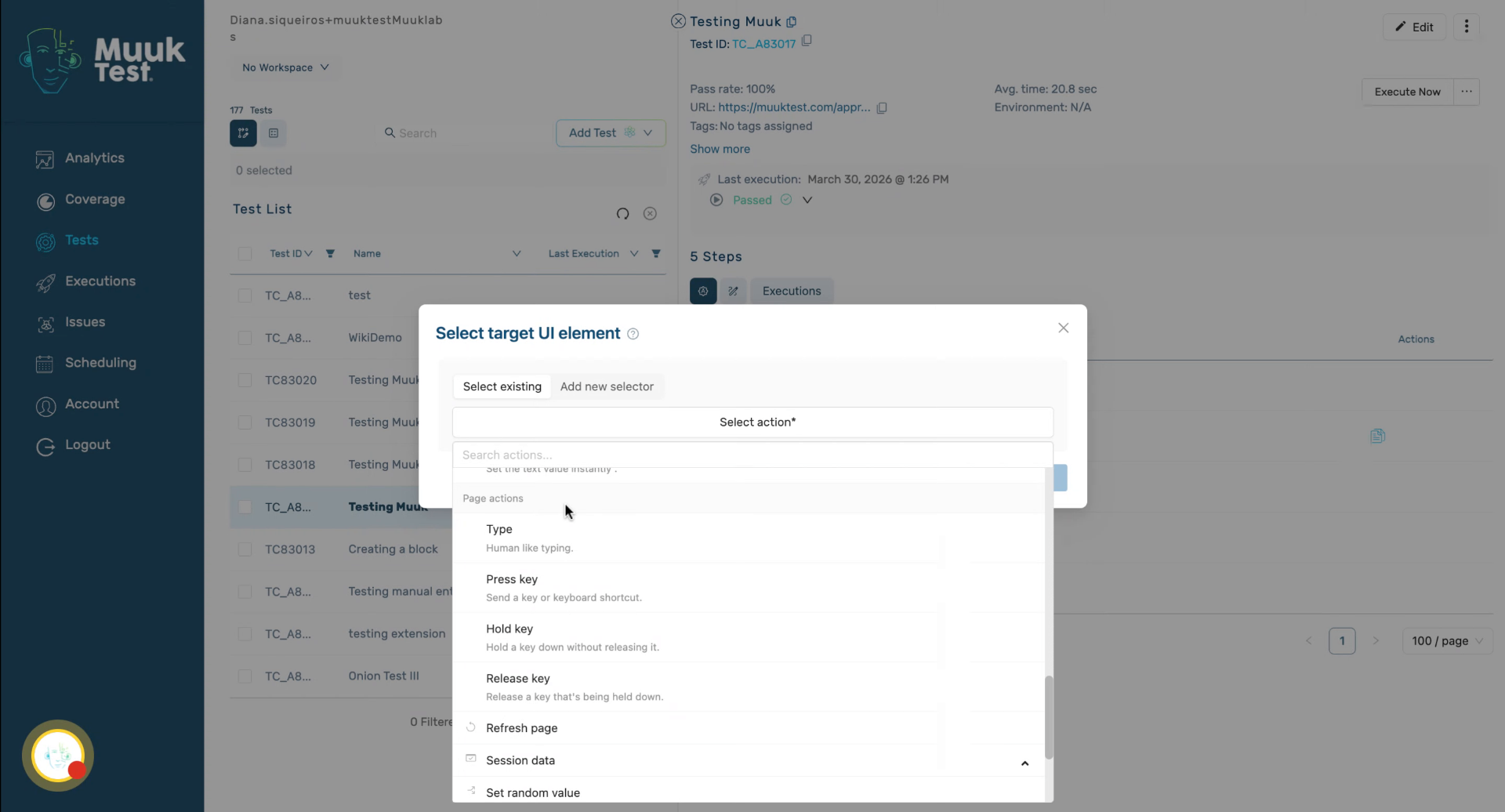
We have type, press key, hold key, and release key.
19. Refresh Page and Manage Session Data
We then have refresh page.
20. Explain Session Data and Browser State
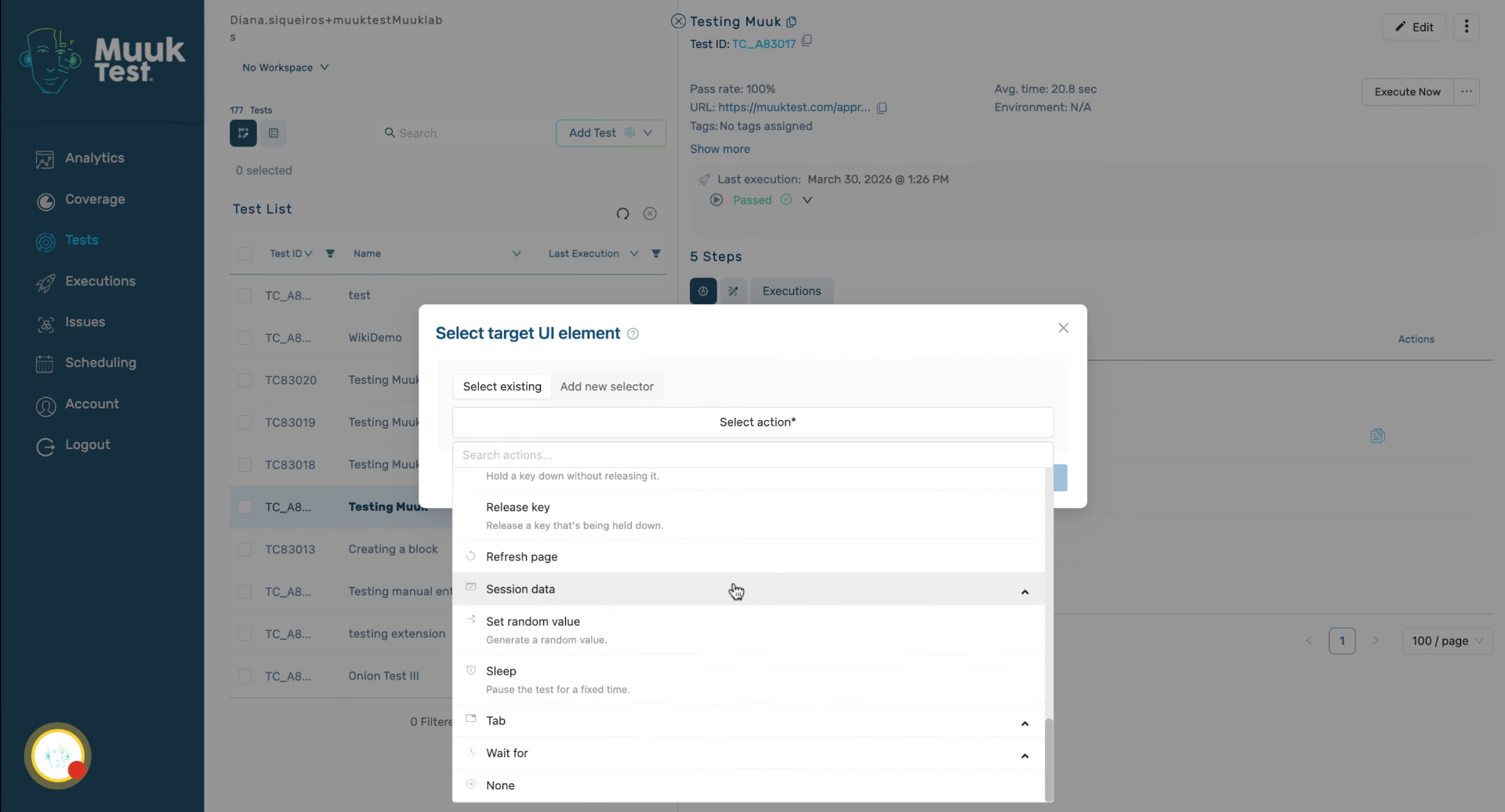
Session data allows us to clear or save cookies and storage in session for a browser state.
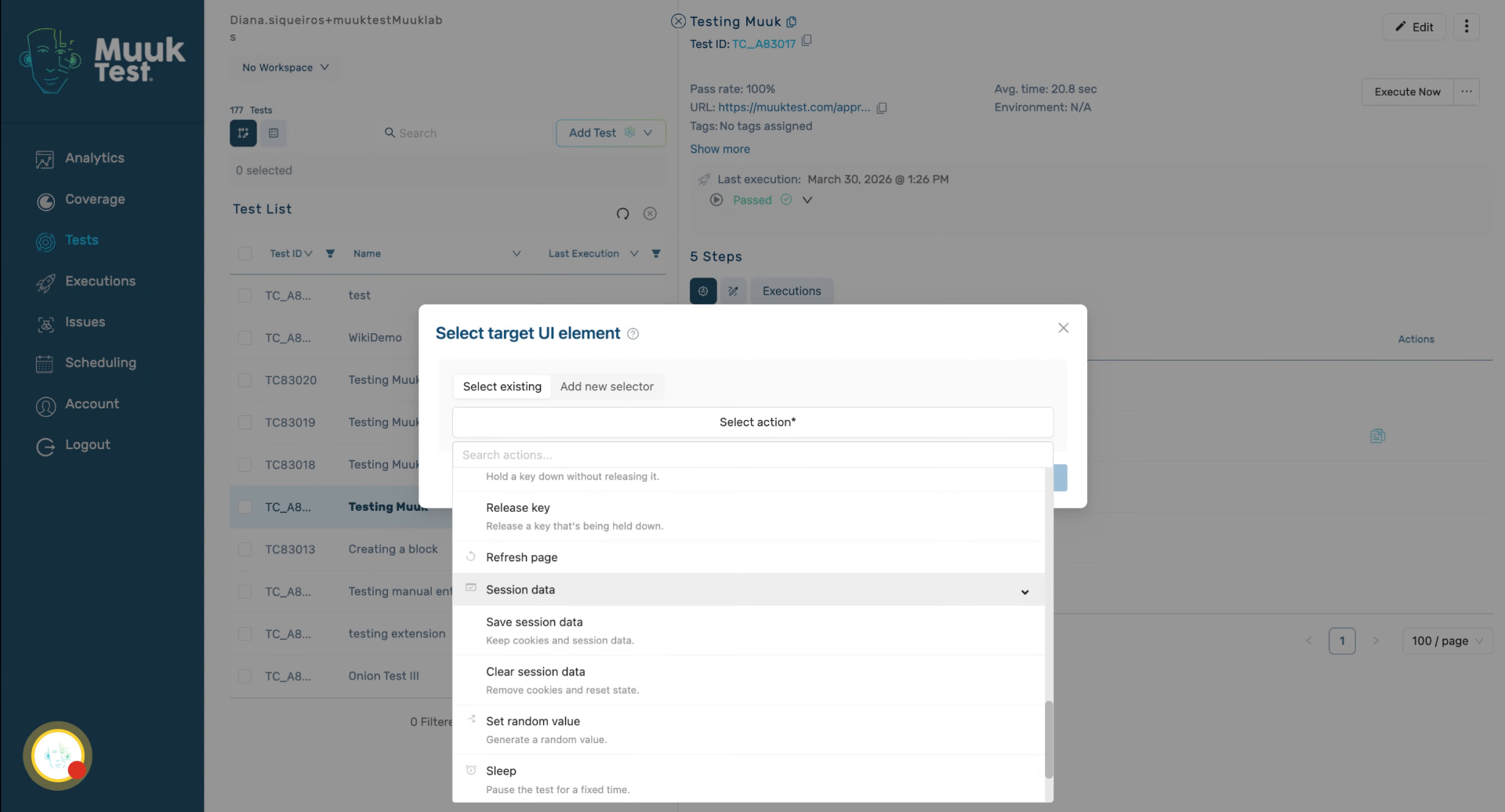
21. Generate Random Values
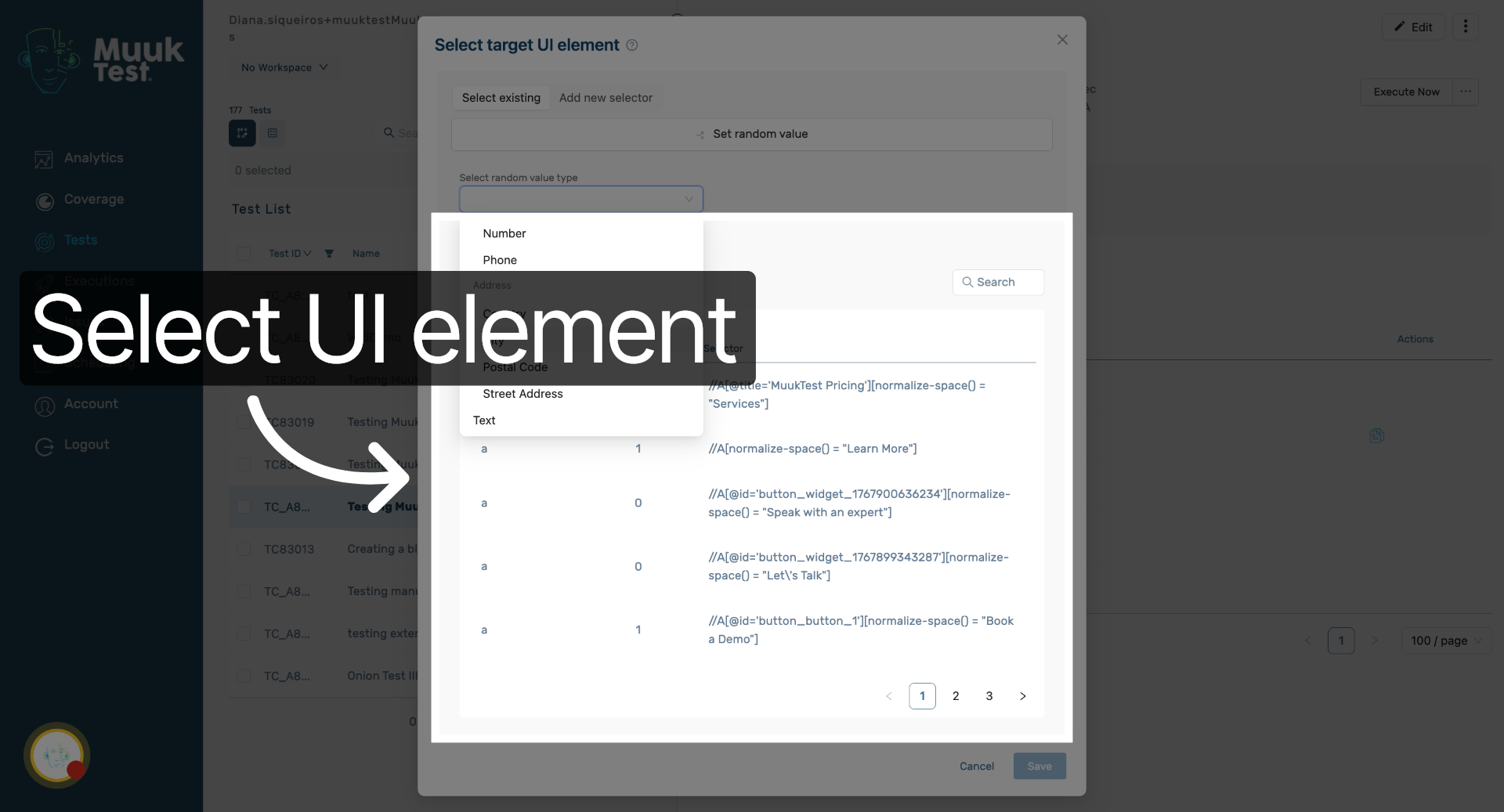
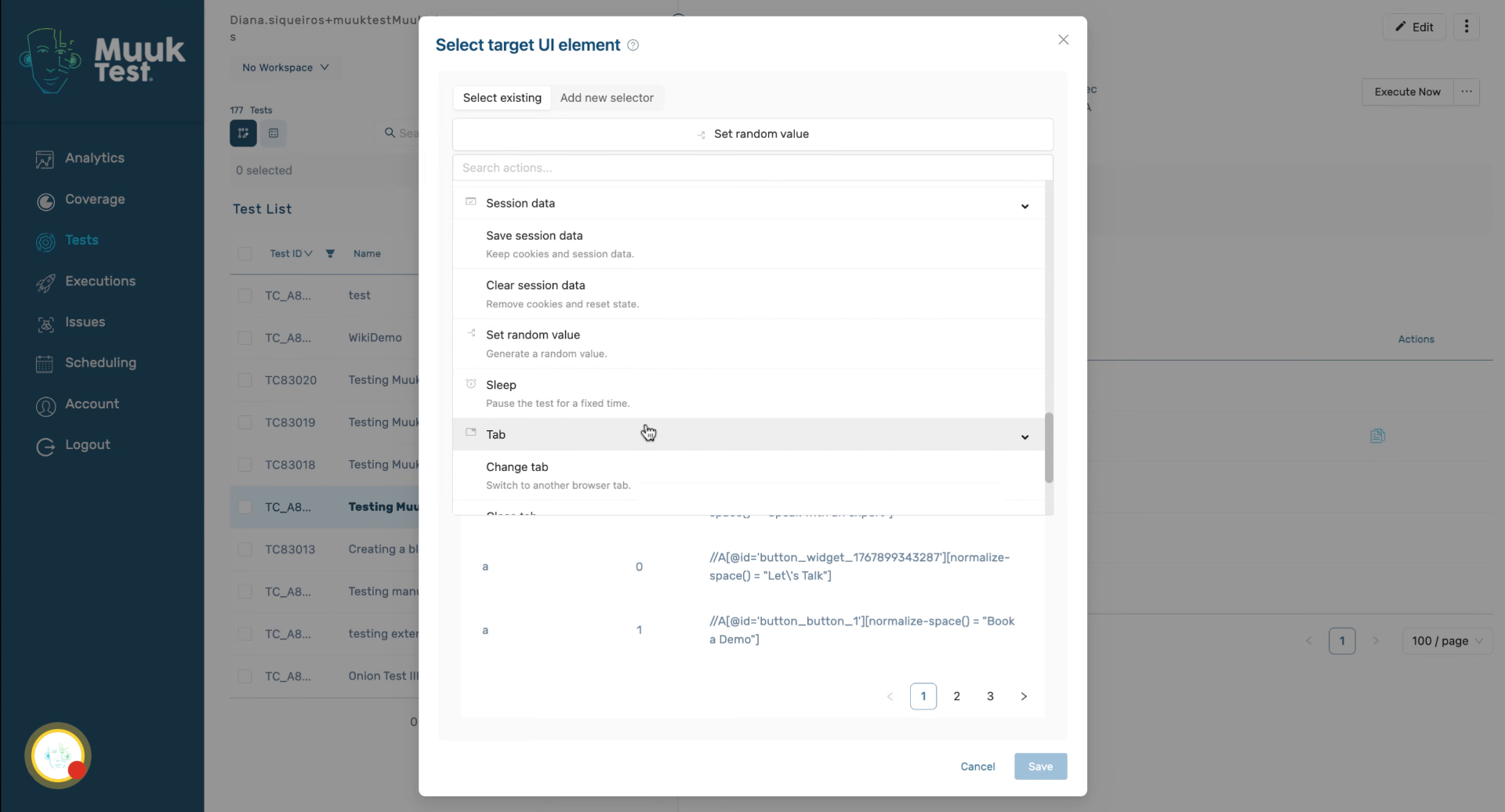
We can also set random values for different types of fields like email, first name, last name, number, phone, country, city, postal code, street address, and text.
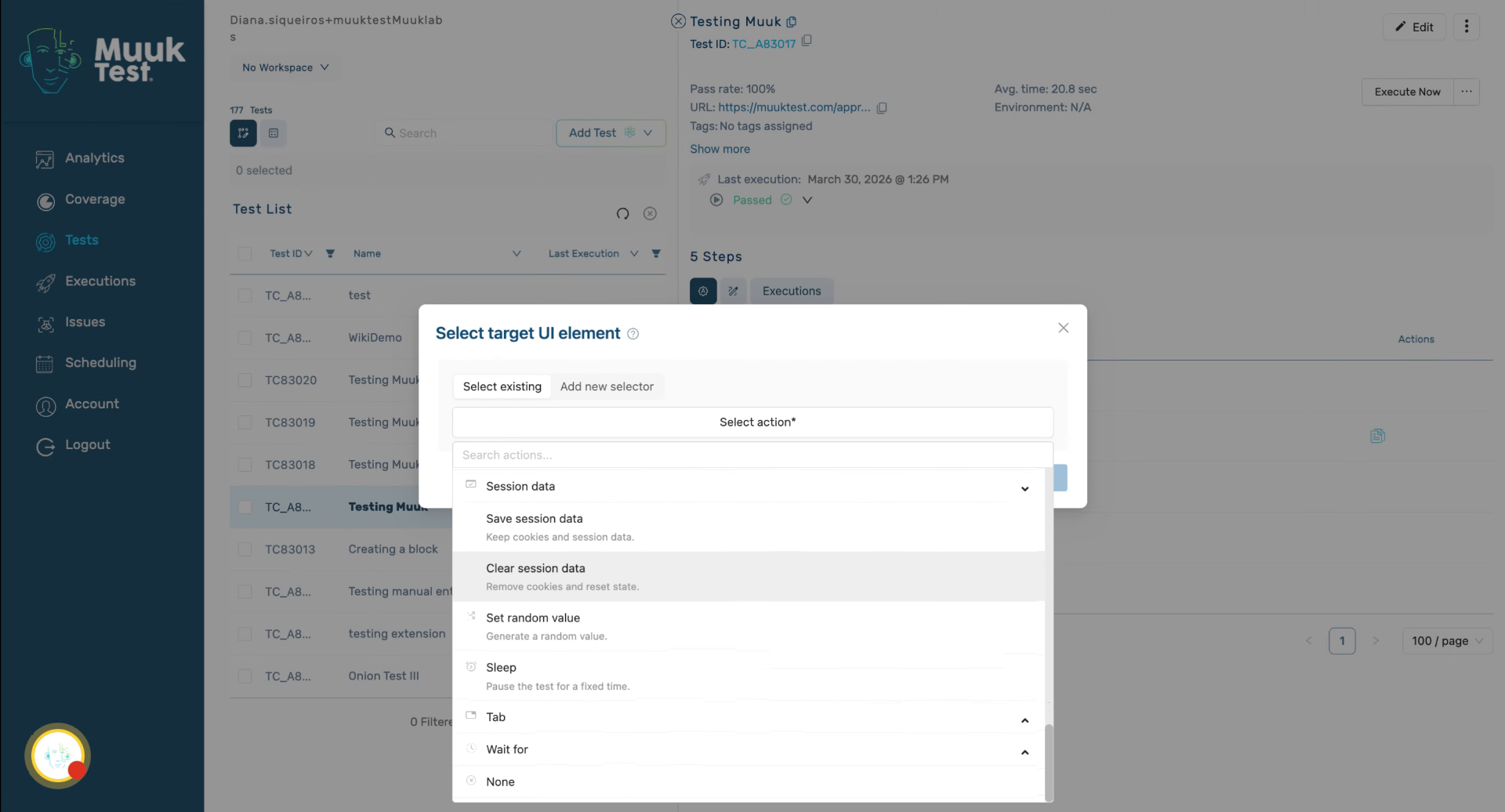
22. Select UI Element for Action
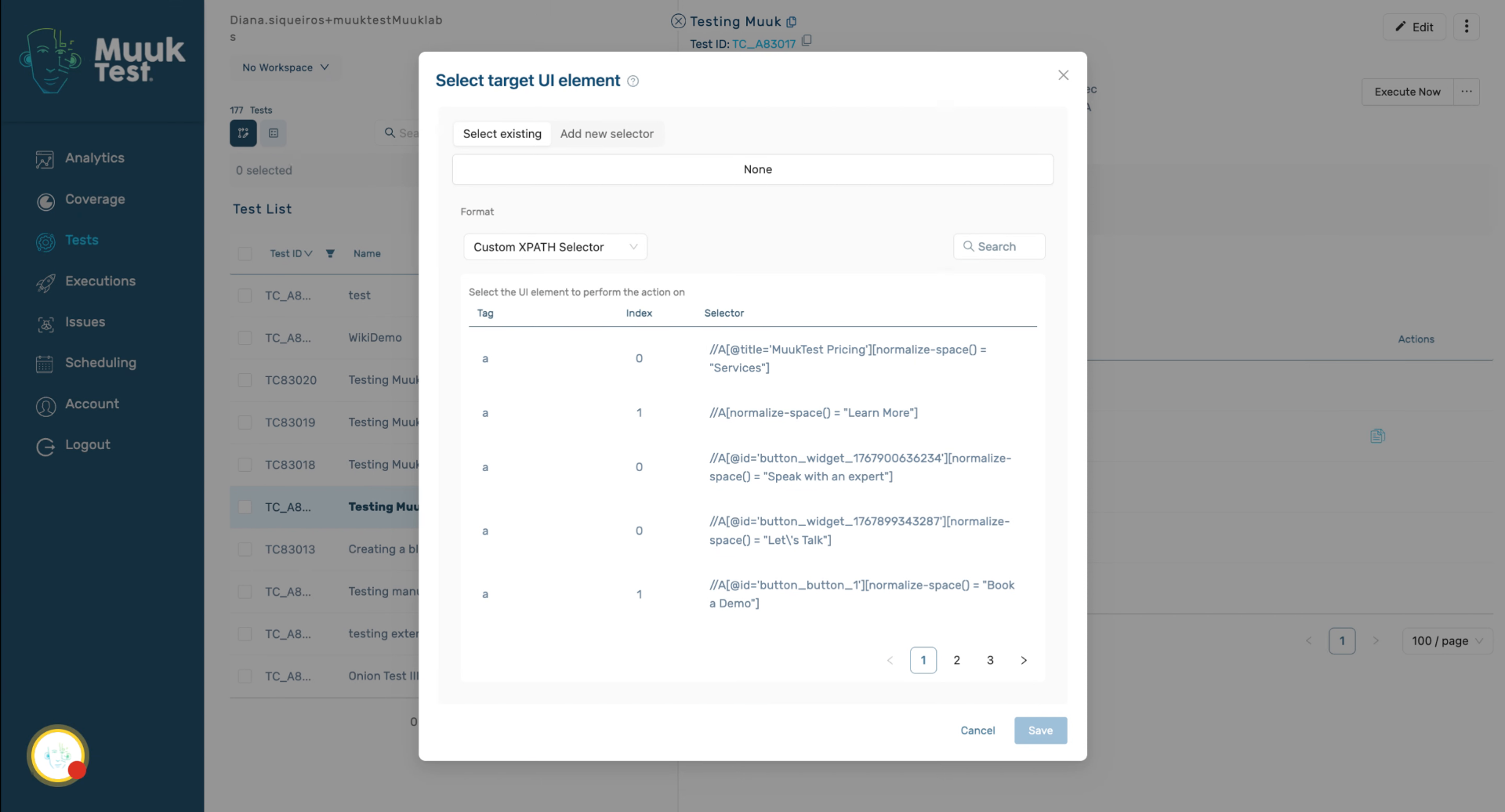
Select the UI element to perform the action on within the MuukTest application.
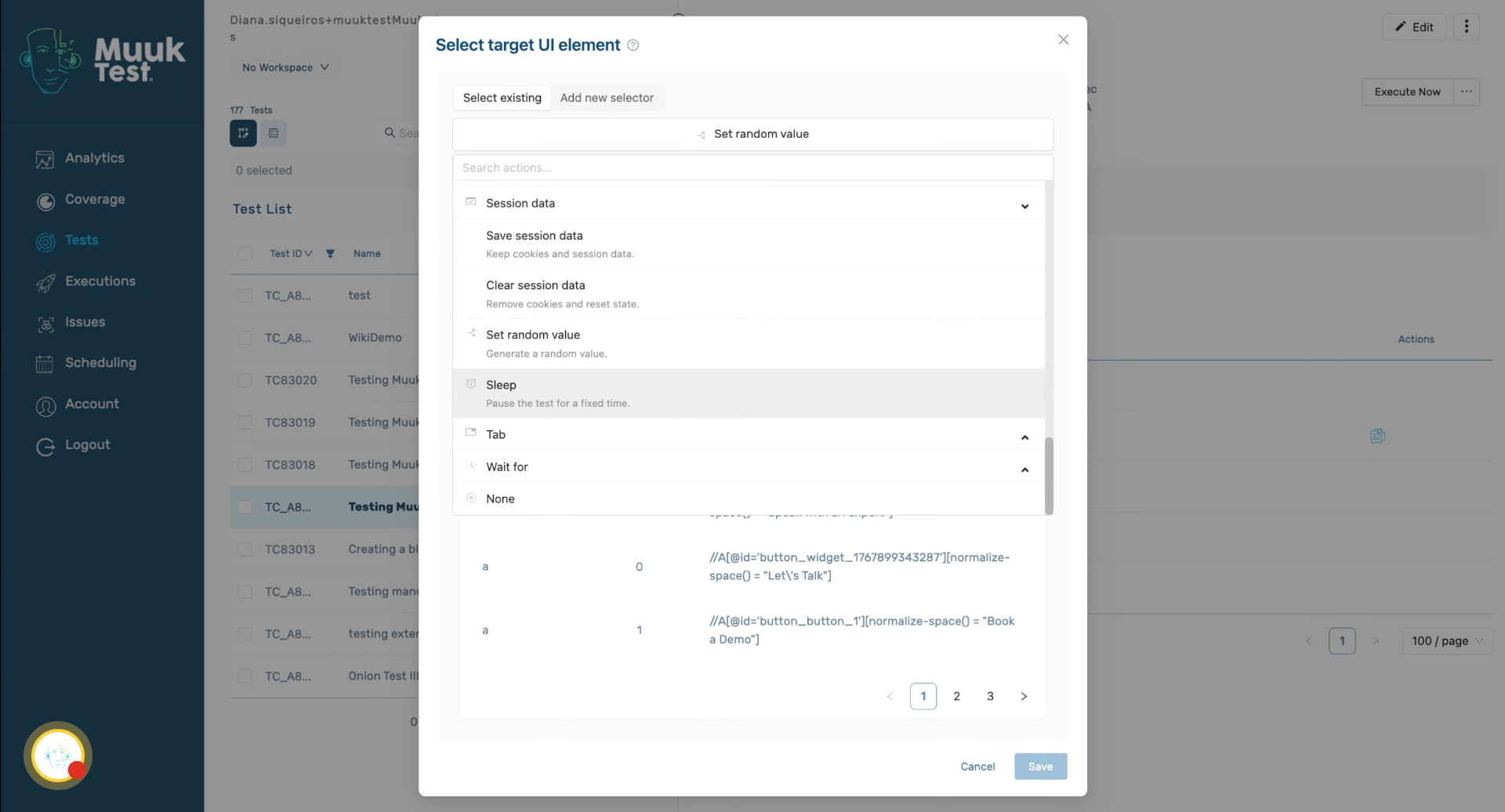
23. Set Sleep Duration
We can do it for a fixed amount of time, which is between 1 and 20 seconds.
24. Manage Browser Tabs
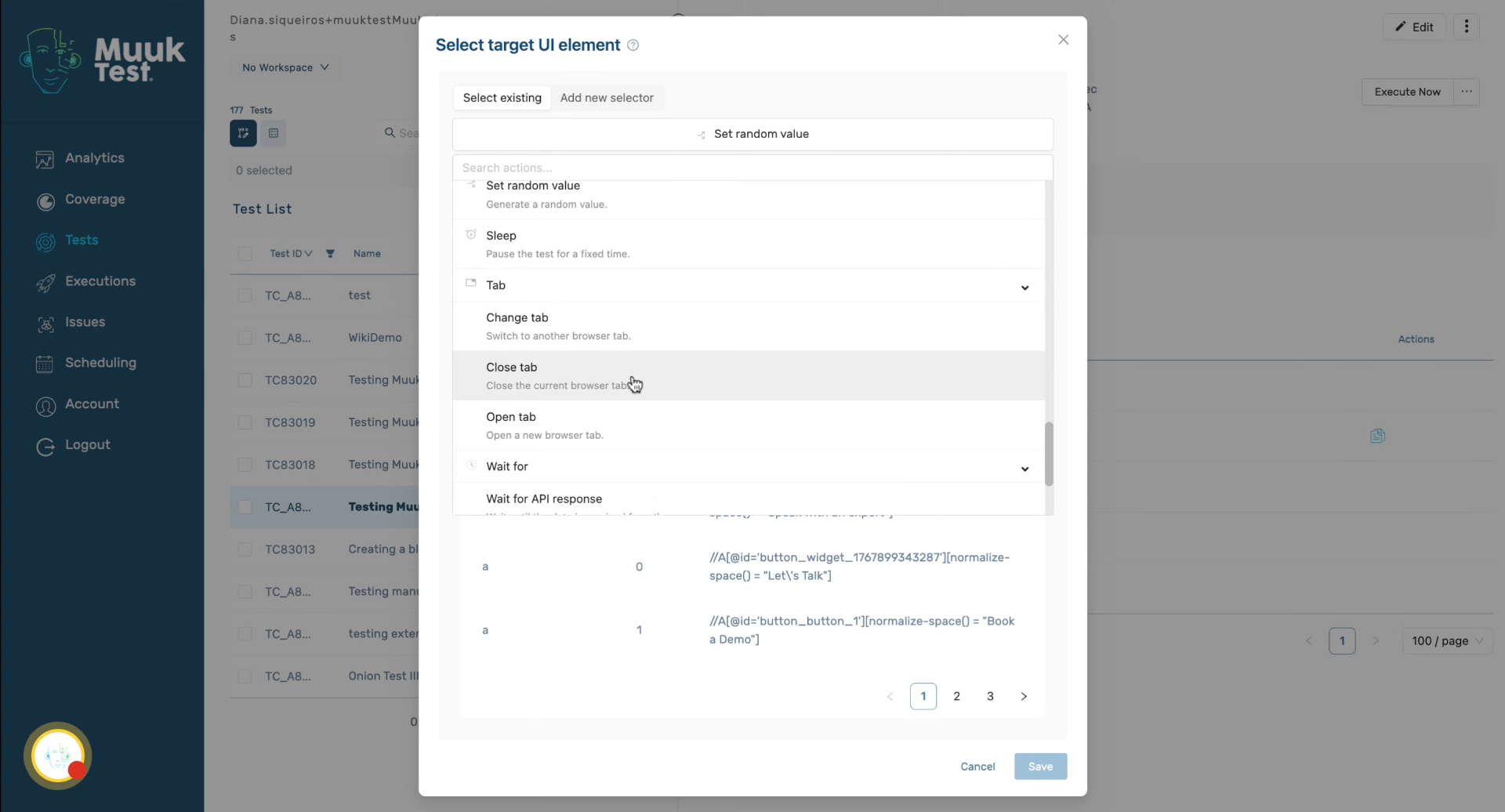
Then we have tab. We can change tab, open tab, and close tab.
25. Wait for Options
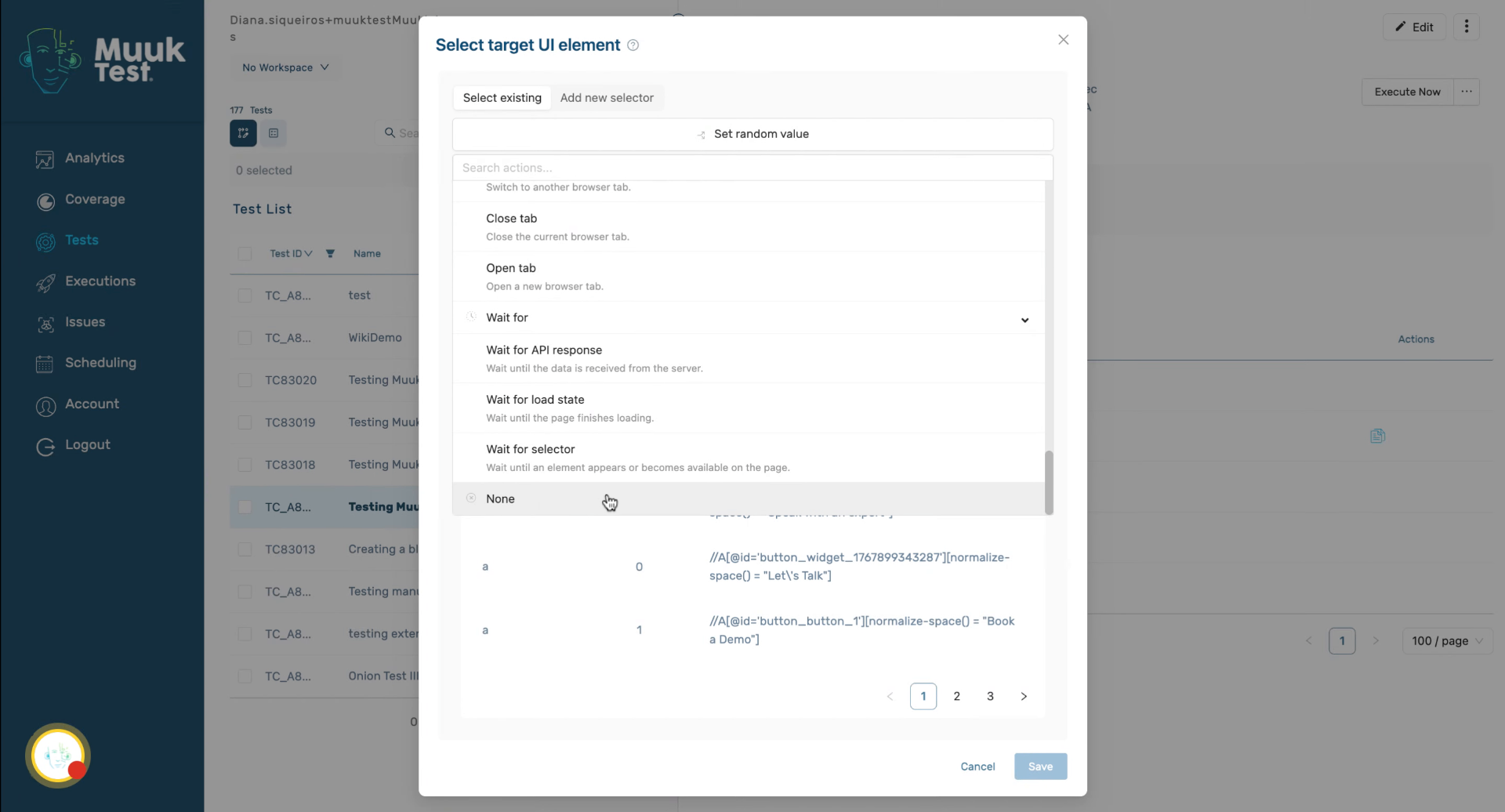
We have to wait for, which has three options. We wait for the API response, the load state, or the selector.
26. Overview of Non-Step Actions
Then we have our non-step. Those are all the types of steps that we have available for testing.
27. Use Code Snippets
Remember, if there's a step that you can't find and you need to do an action, you can always use code snippets and JavaScript snippets.
This tutorial covered the various action types available in MuukTest, including validations, keyboard actions, session management, and more. You can now confidently create and manage test steps using these actions. For further learning, explore advanced scripting and integration options.
Comments
0 comments
Please sign in to leave a comment.