

This tutorial guides you through copying and pasting test steps within the MuukTest application.
Go to portal.muuktest.com:5000
1. Introduction
You will learn how to effectively copy and paste steps within the same test or across different tests, ensuring your work is saved efficiently.
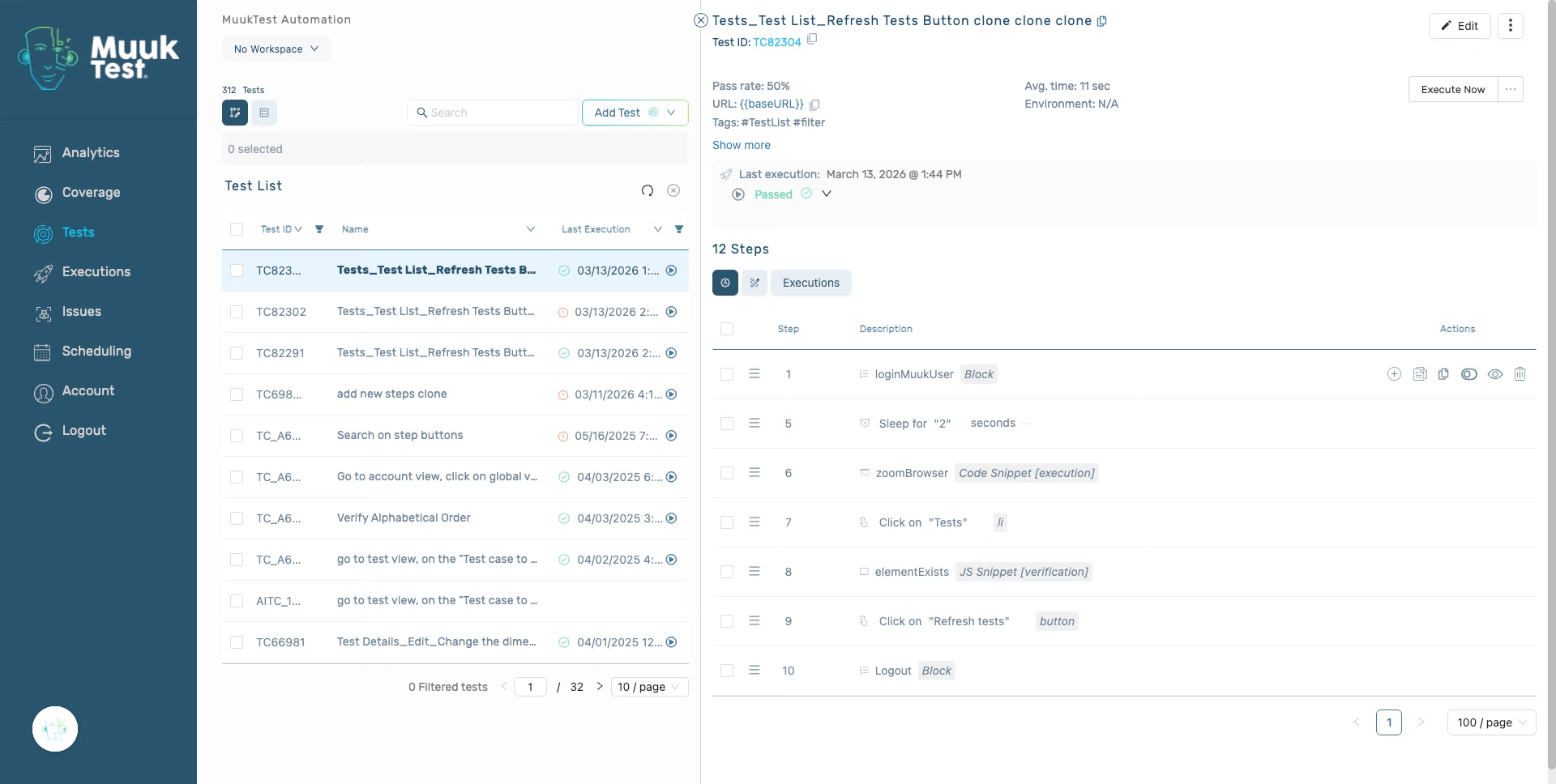
2. Select steps
Select the steps you want to copy.
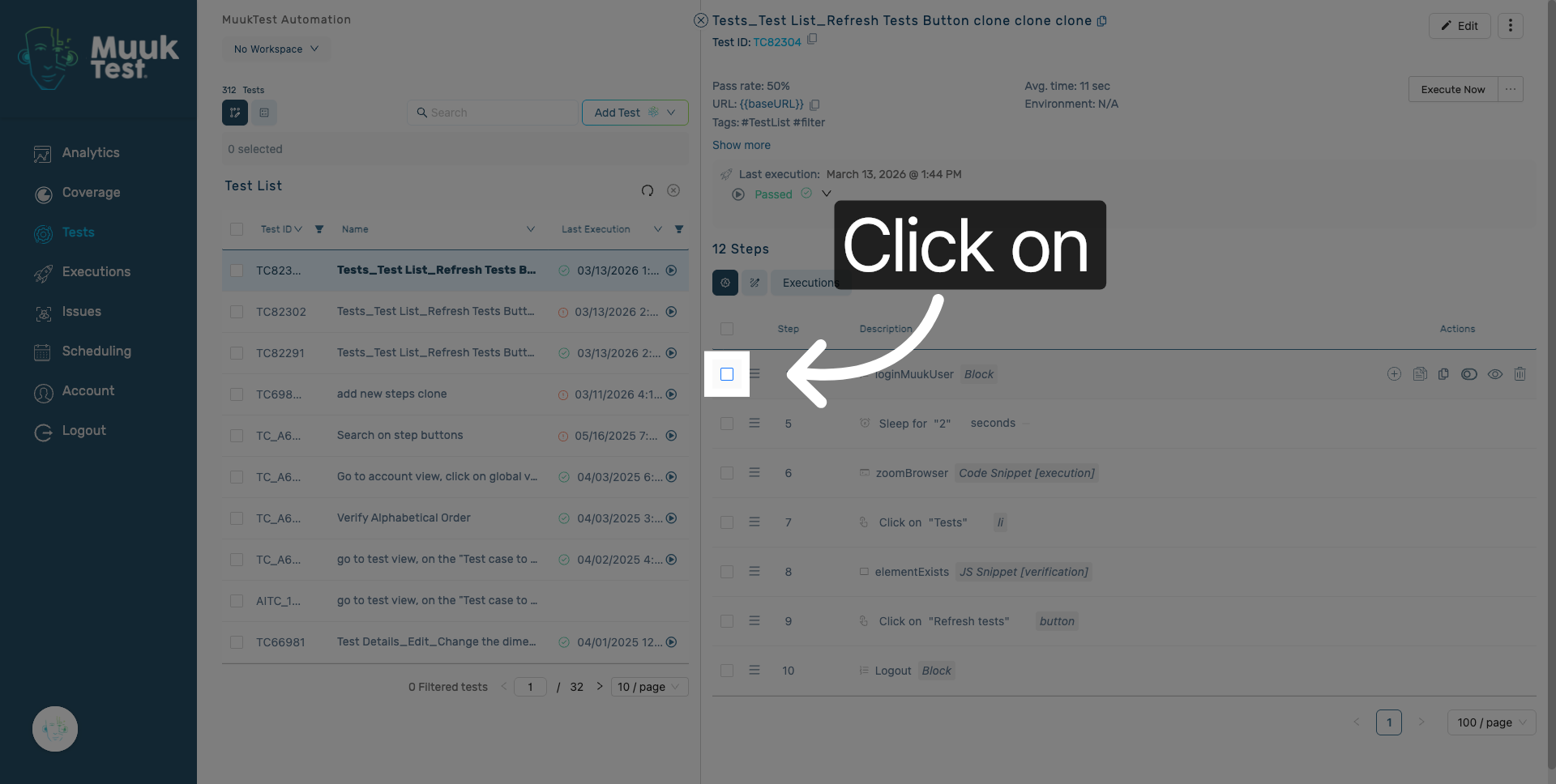
3. Select steps
Select all necessary steps.
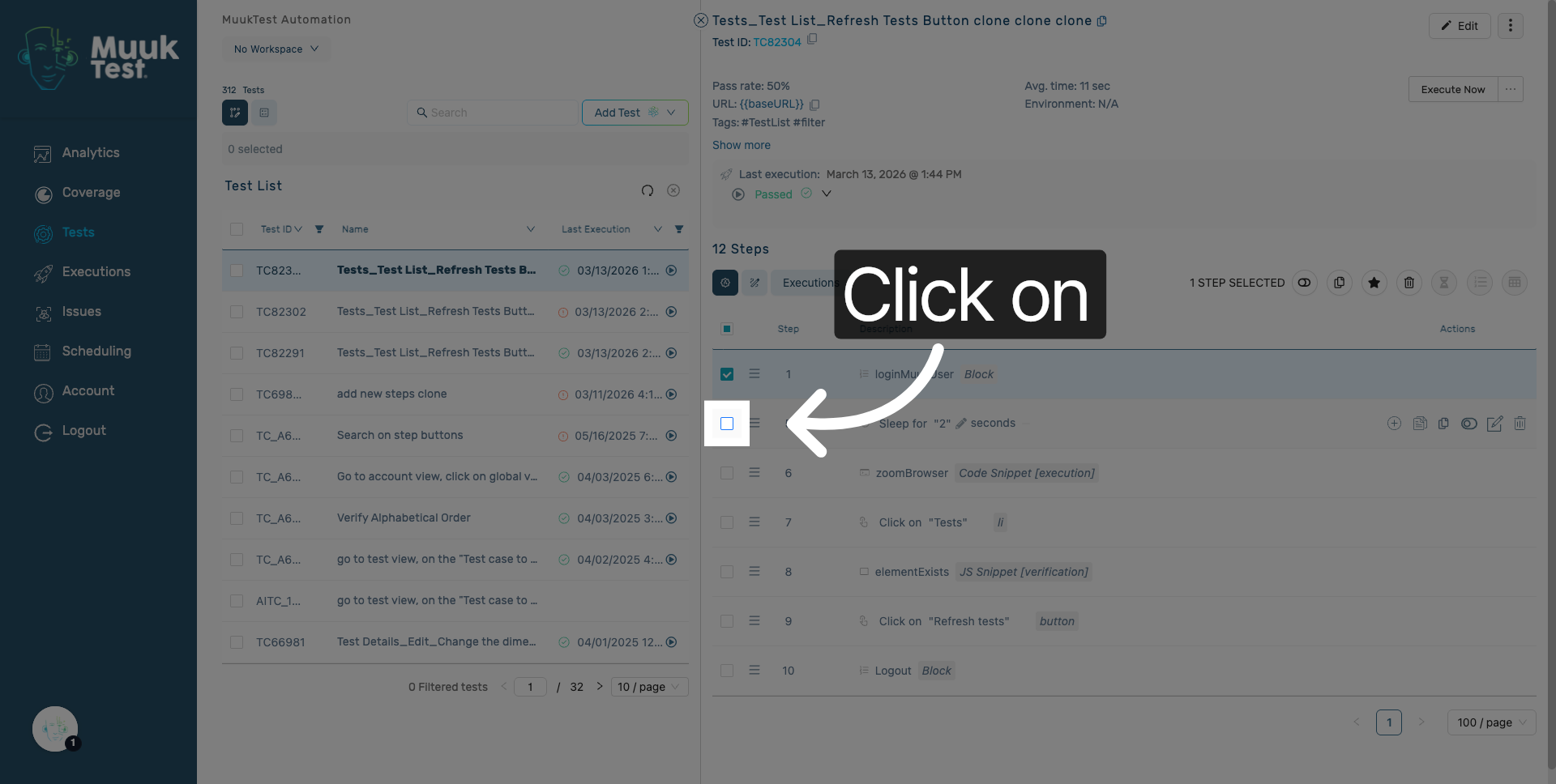
4. Access Paste Step Option
Click here to copy the selected steps.
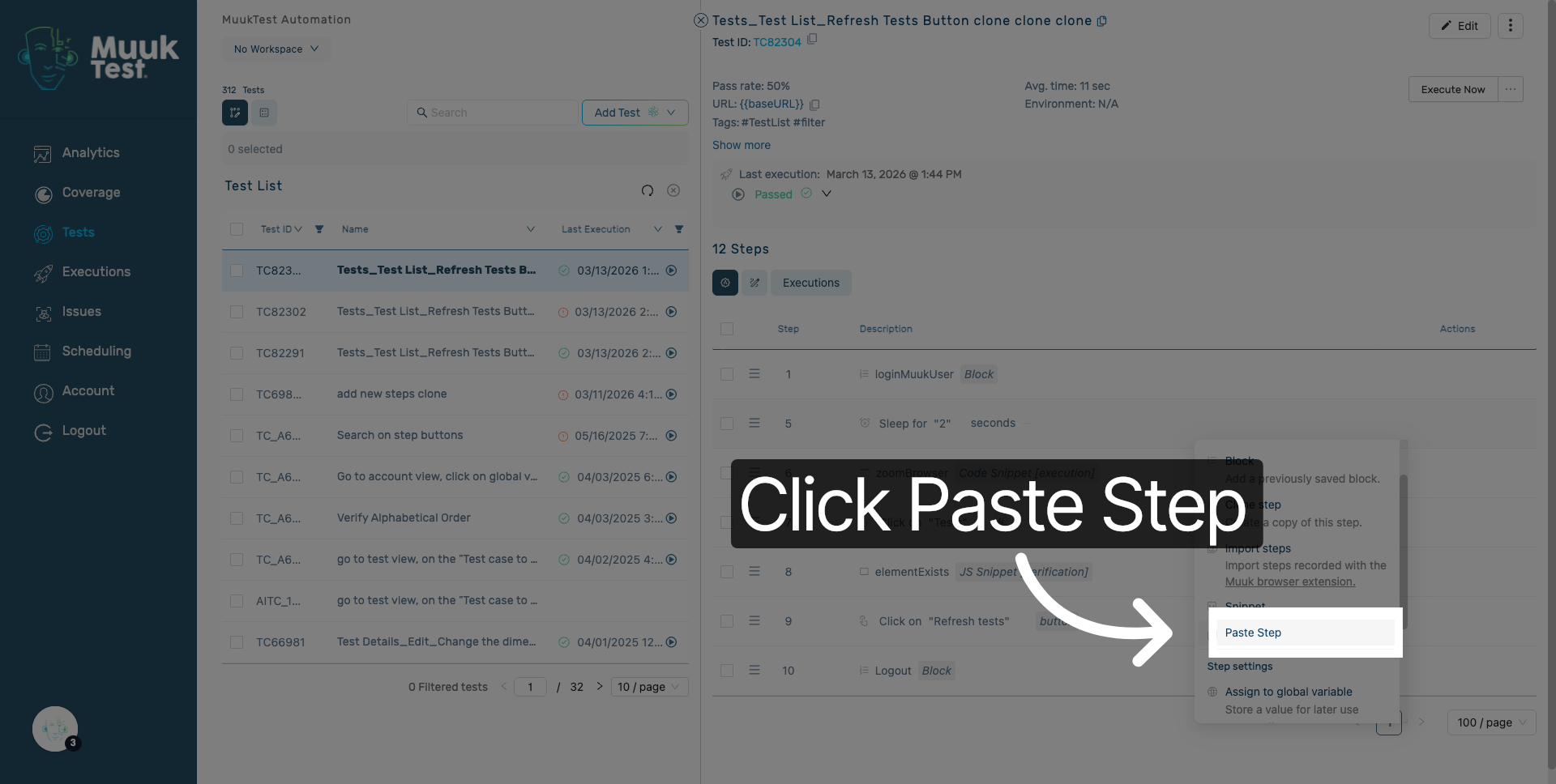
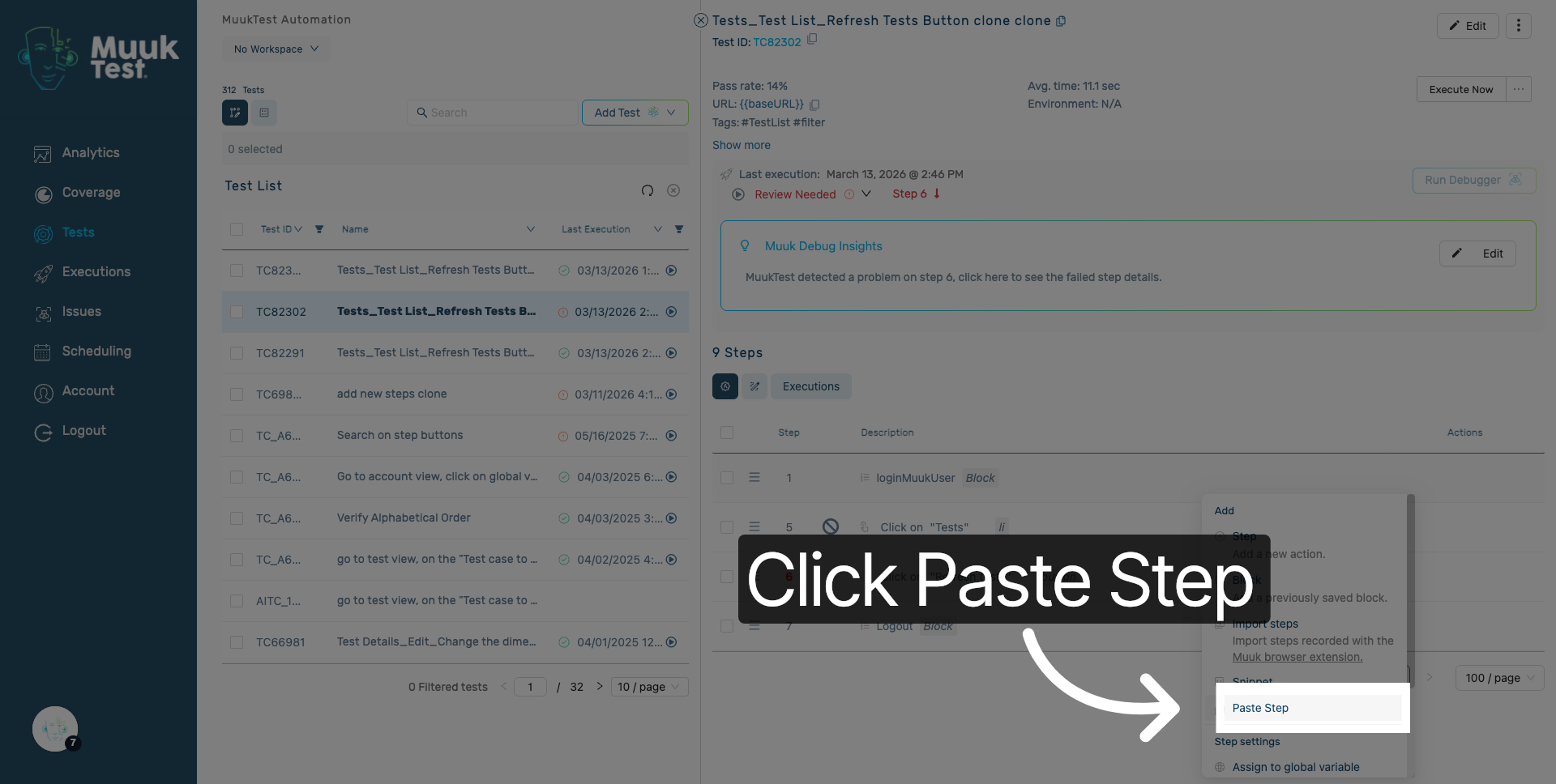
5. Paste Test Steps
Hover over the actions column of the step from which you want to add the copied steps, and find the first icon action. Click on "Paste Step" to insert the copied test steps into your test sequence.
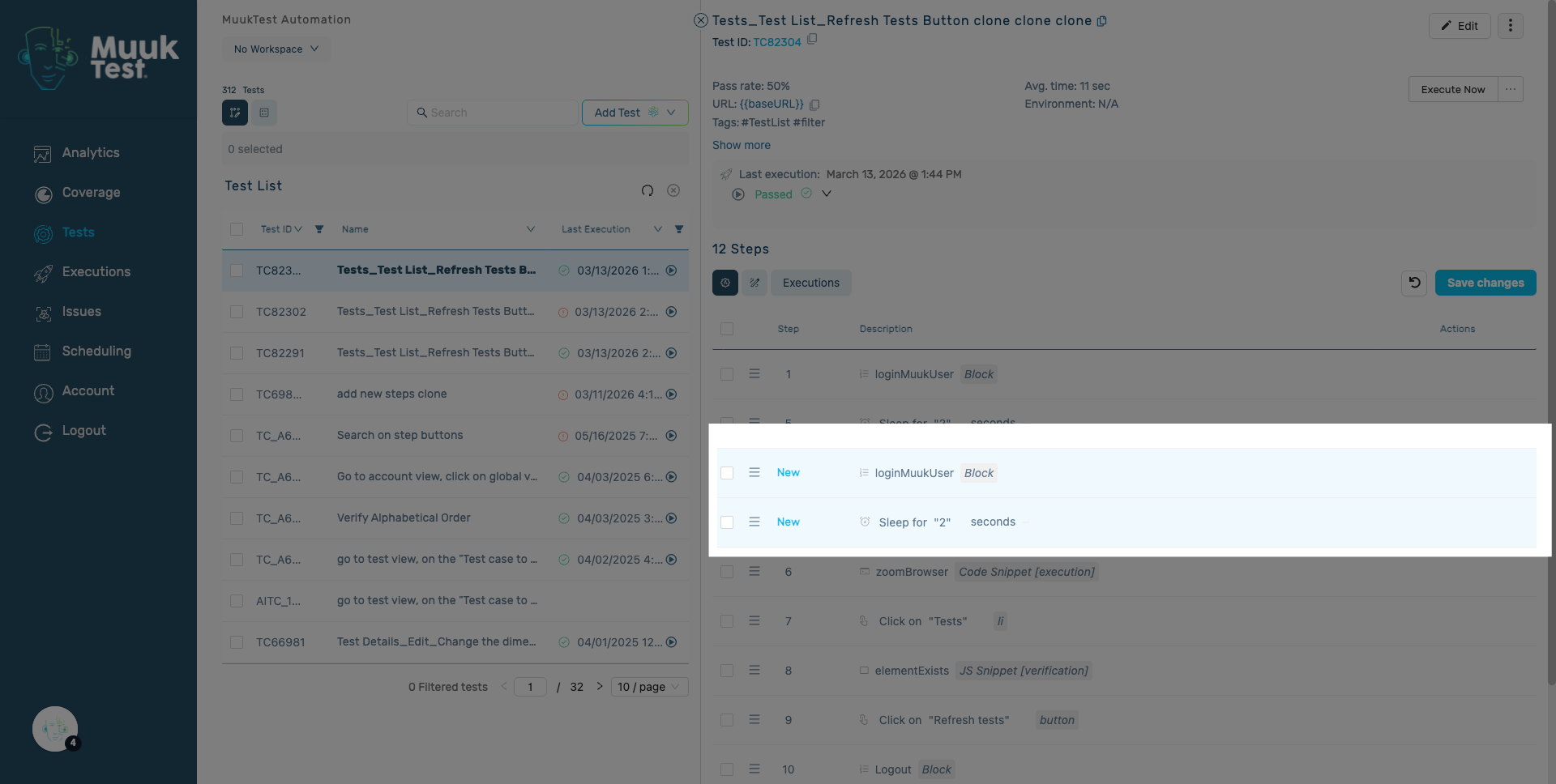
6. Pasted steps
You will find the pasted steps in the steps list of your current test.
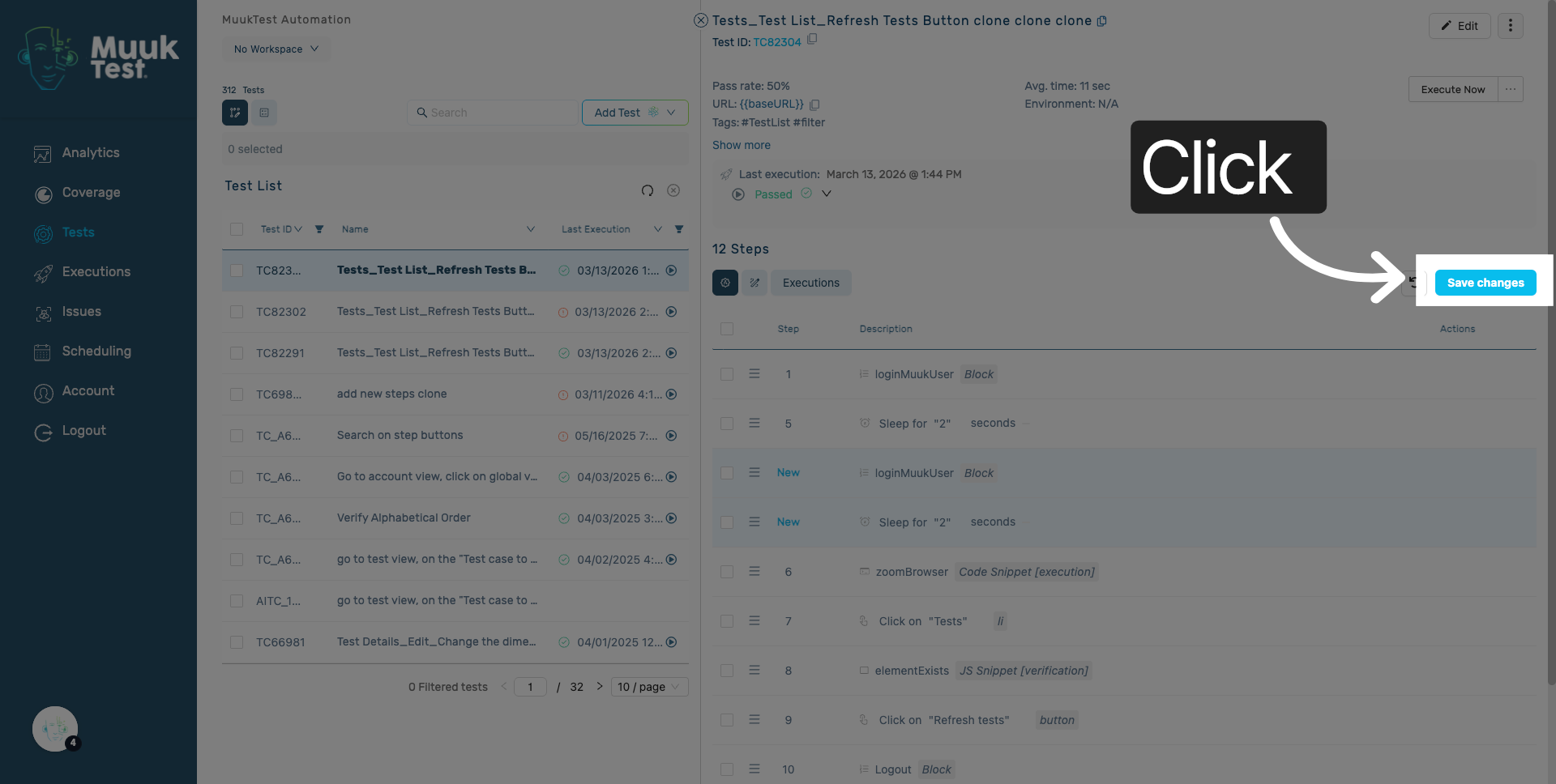
7. Save changes
Click "Save changes" to store your modifications.
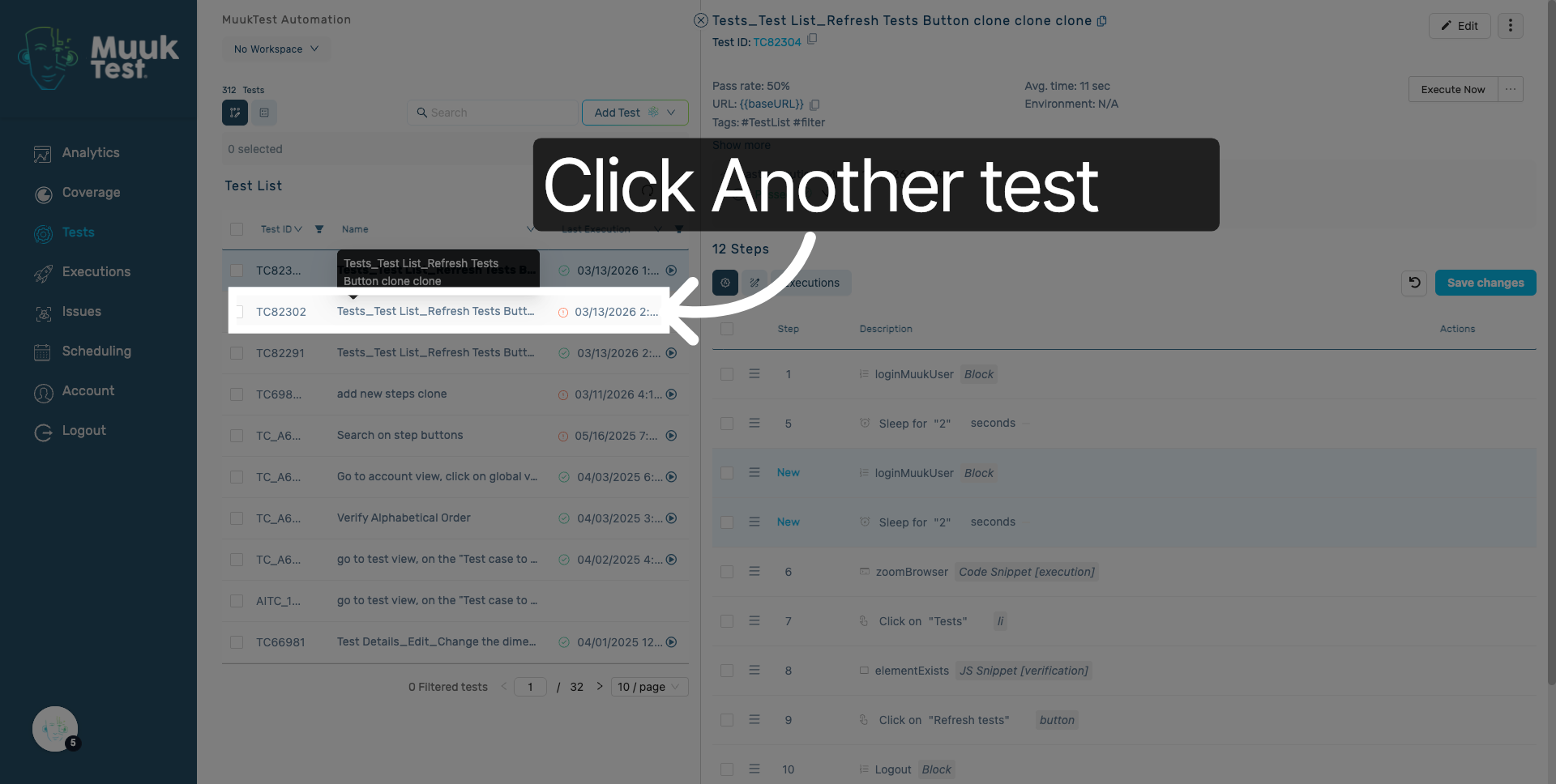
8. Paste steps in another test
Click to select a different test to paste the same steps into another test.
9. Paste Additional Steps
Click "Paste Step" again to add the test steps to your sequence; this time, it is another test.
10. Save Configuration Changes
Click "Save changes" to apply and save all modifications made to your test steps.

You have successfully copied and pasted test steps in the MuukTest application and saved your changes. This ensures that your test sequences are up to date and ready for execution.
Comments
0 comments
Please sign in to leave a comment.