

This tutorial guides you through managing favorites within the MuukTest application.
Go to portal.muuktest.com:5000
1. Introduction
You will learn how to create, modify, and delete favorites to streamline your workflow.
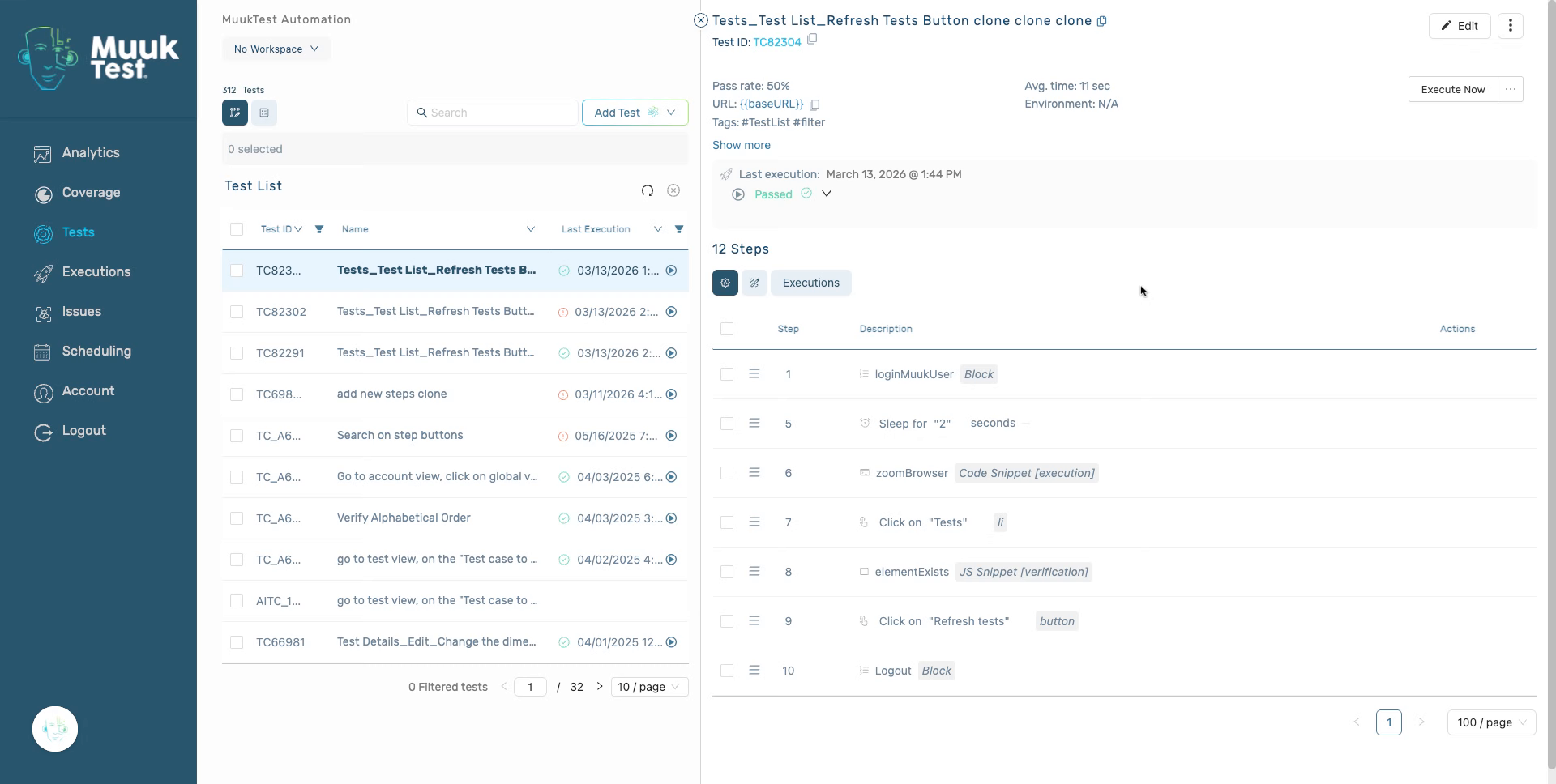
2. Select steps
Select all necessary steps.
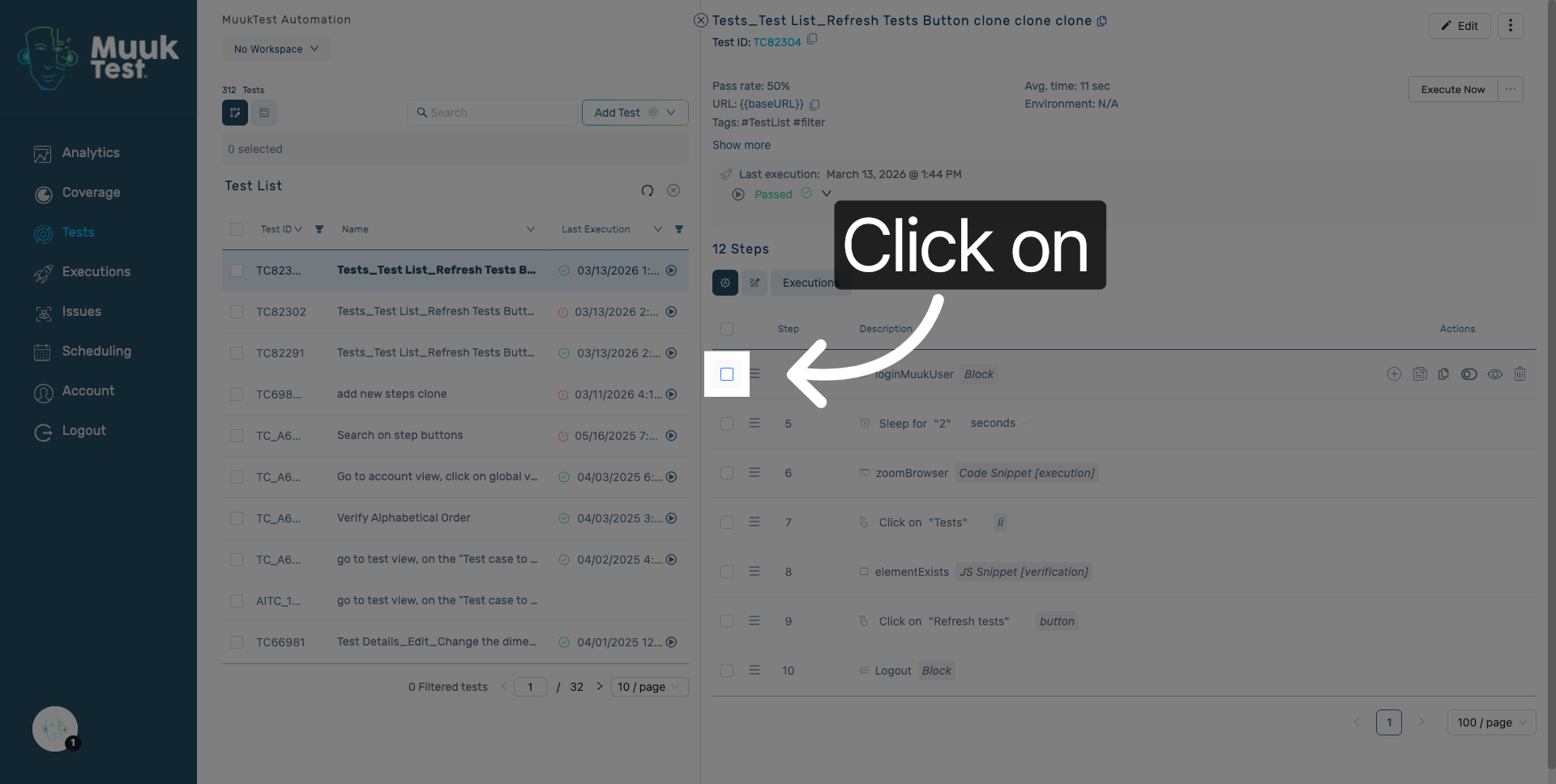
3. Access favorites
Click here to access the favorites form available in the interface.
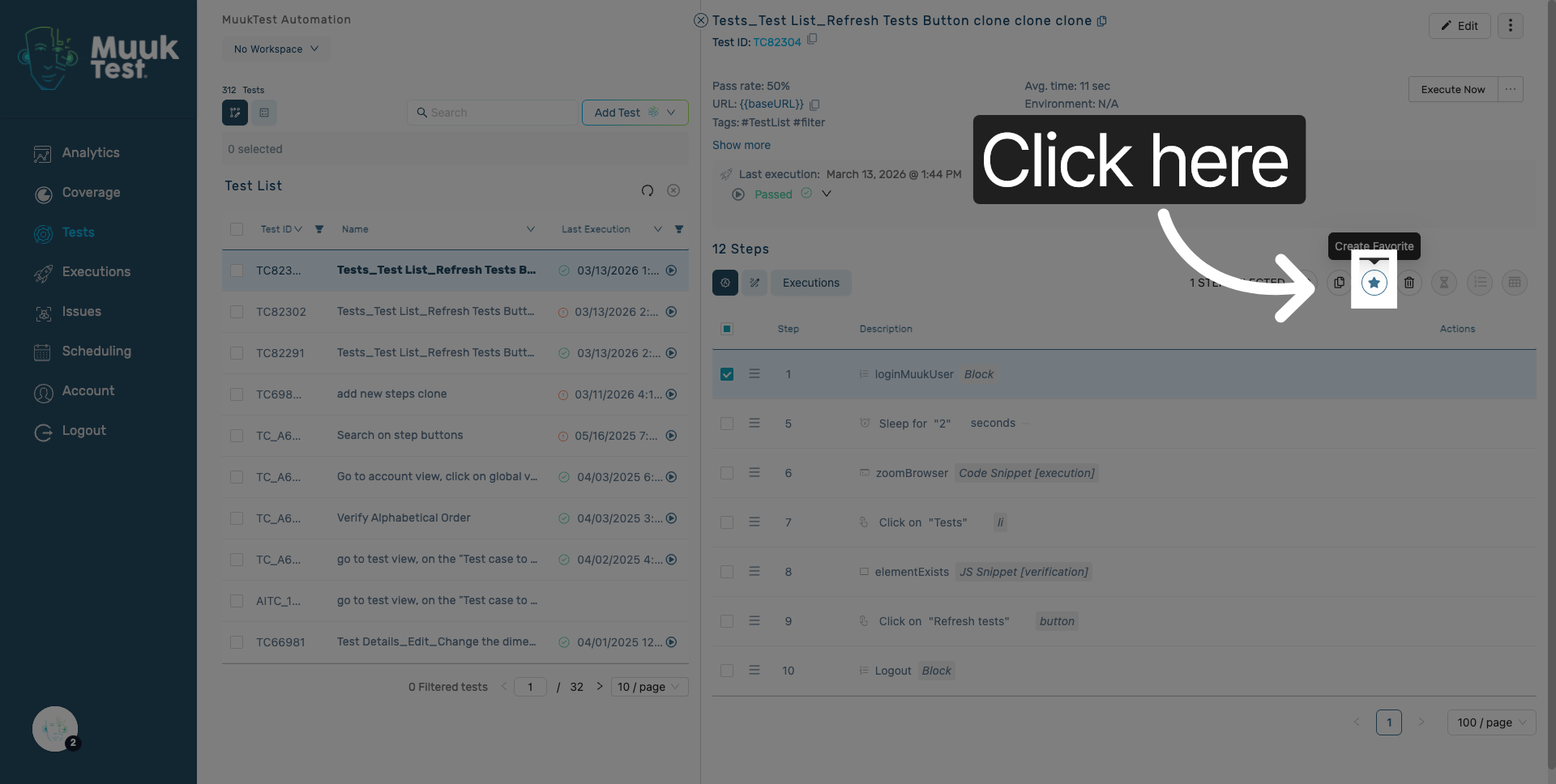
4. Select Favorite Name Field
Enter the Favorite Name field to specify or modify the identifier of your favorite. It must be unique among your stored favorites.
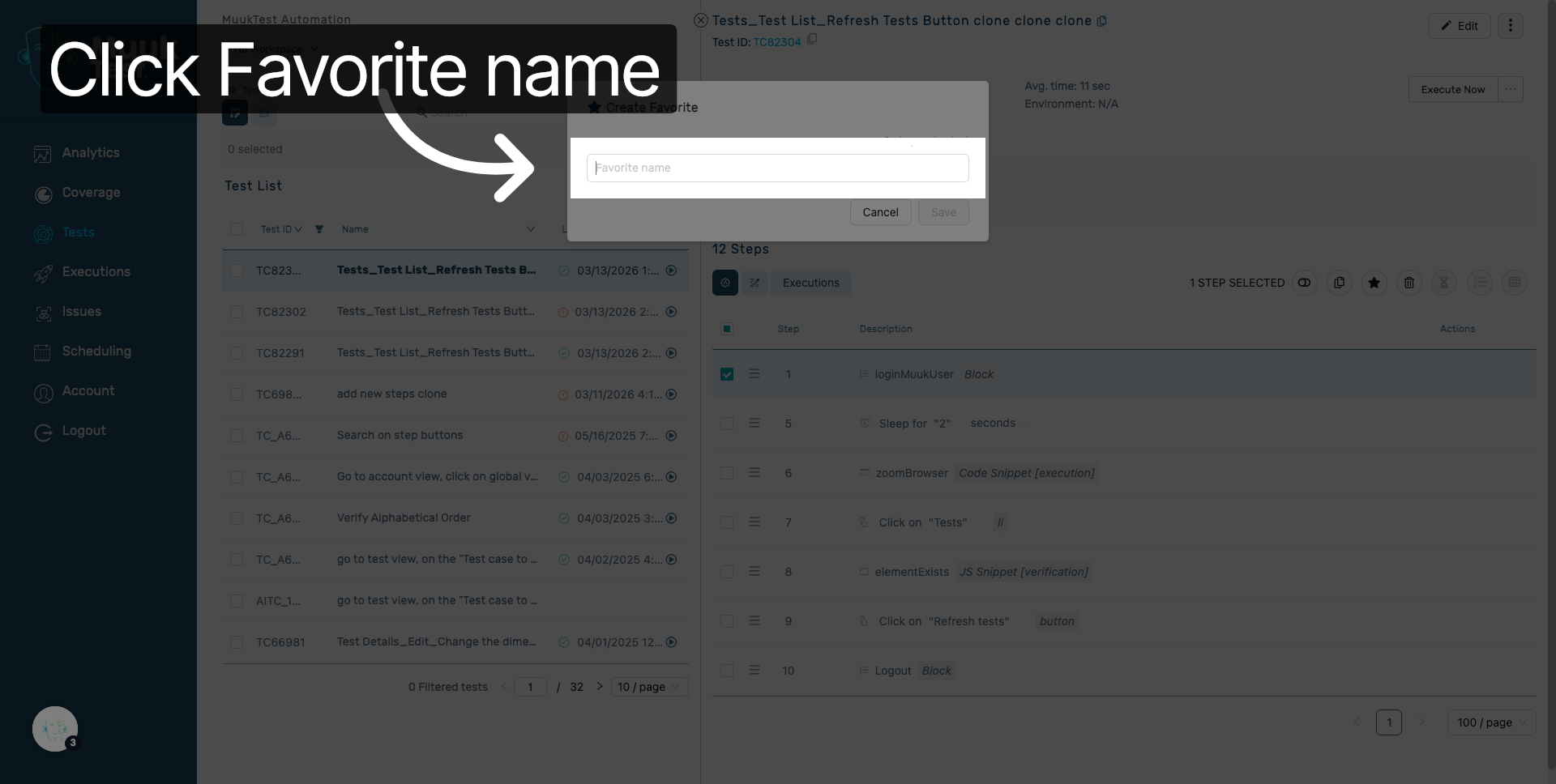
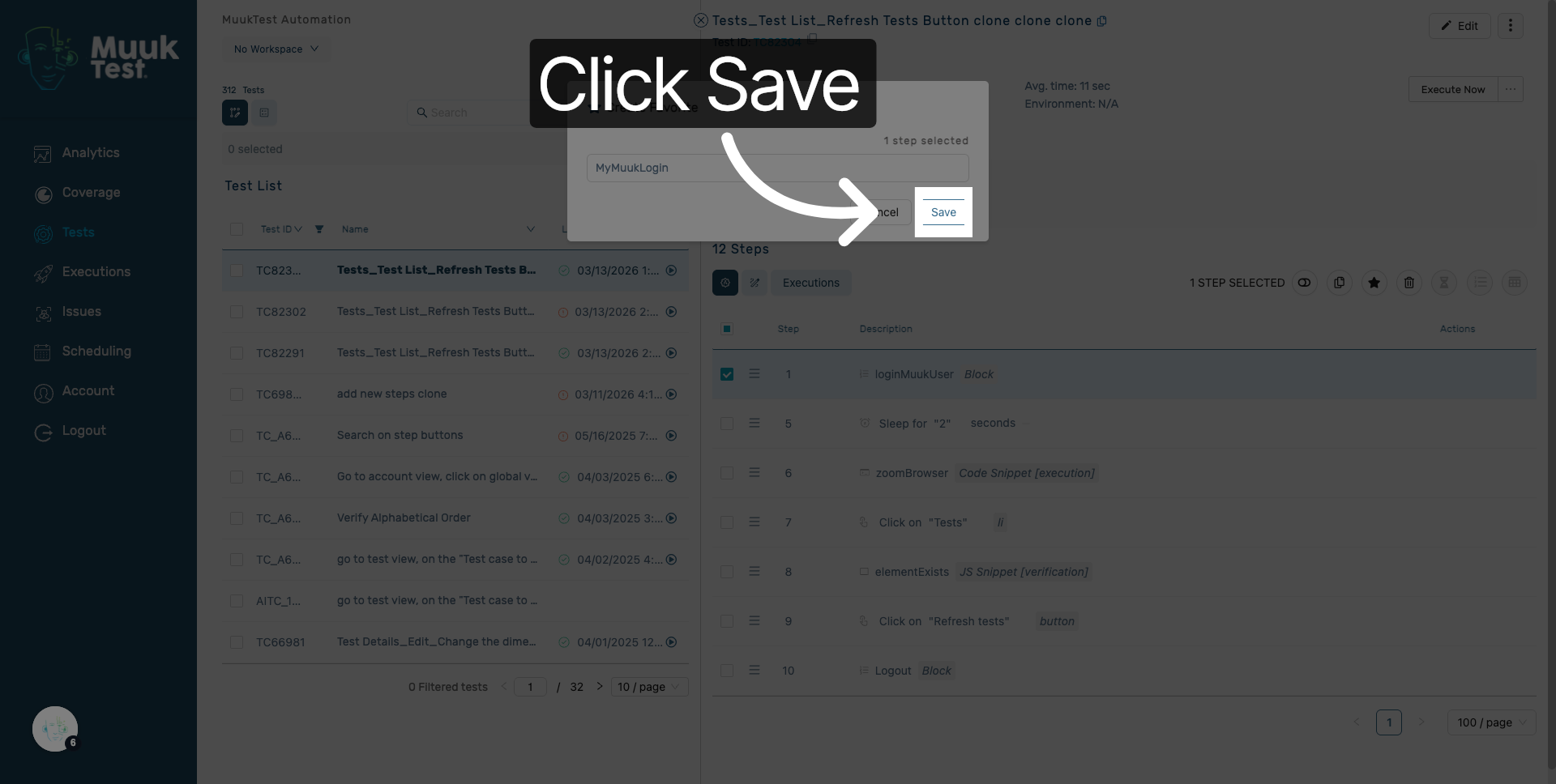
5. Save New Favorite
Click Save to store the newly created favorite in the system.
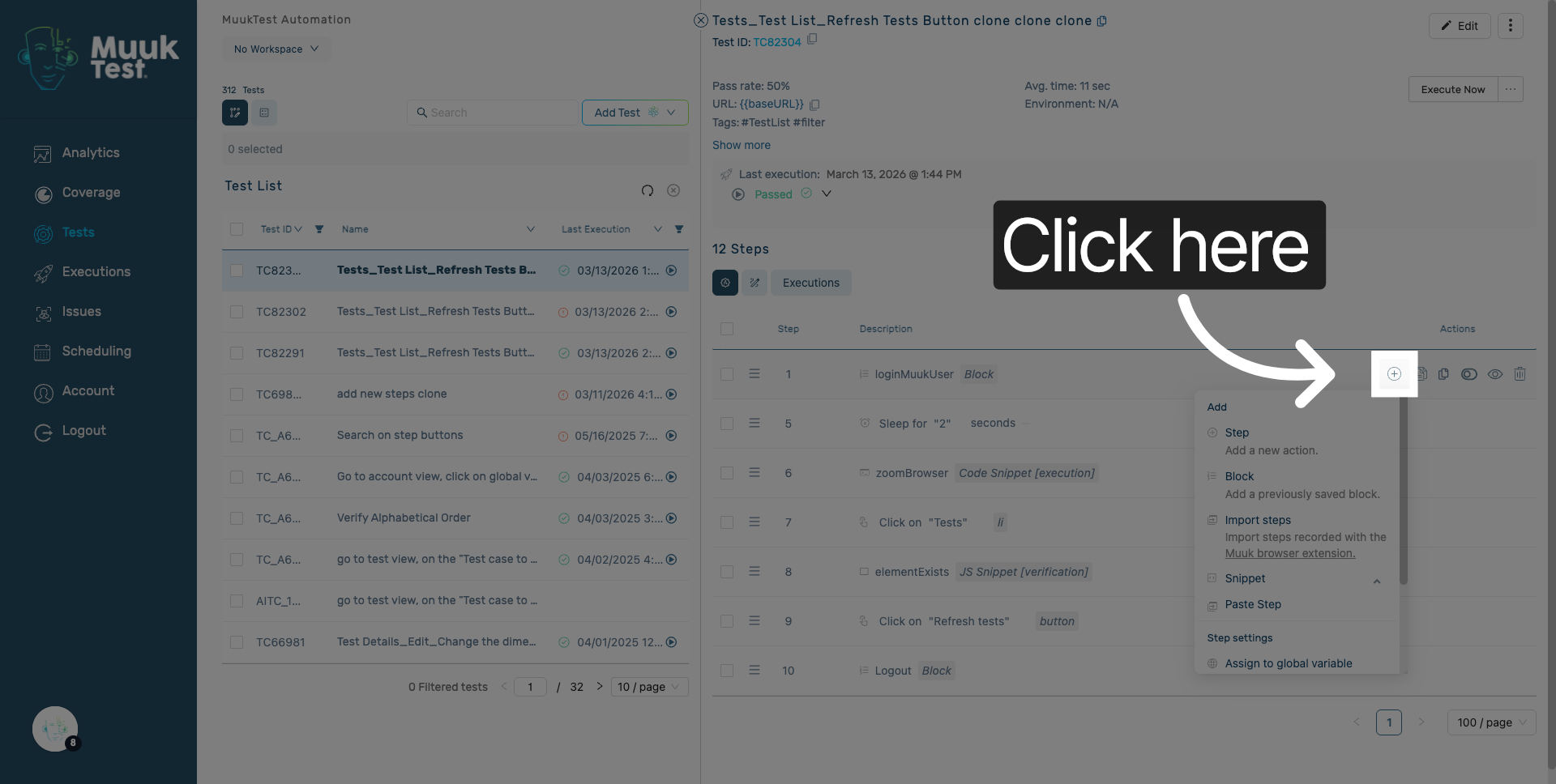
6. Access Favorites Options
Click here to access favorites options related to the steps.
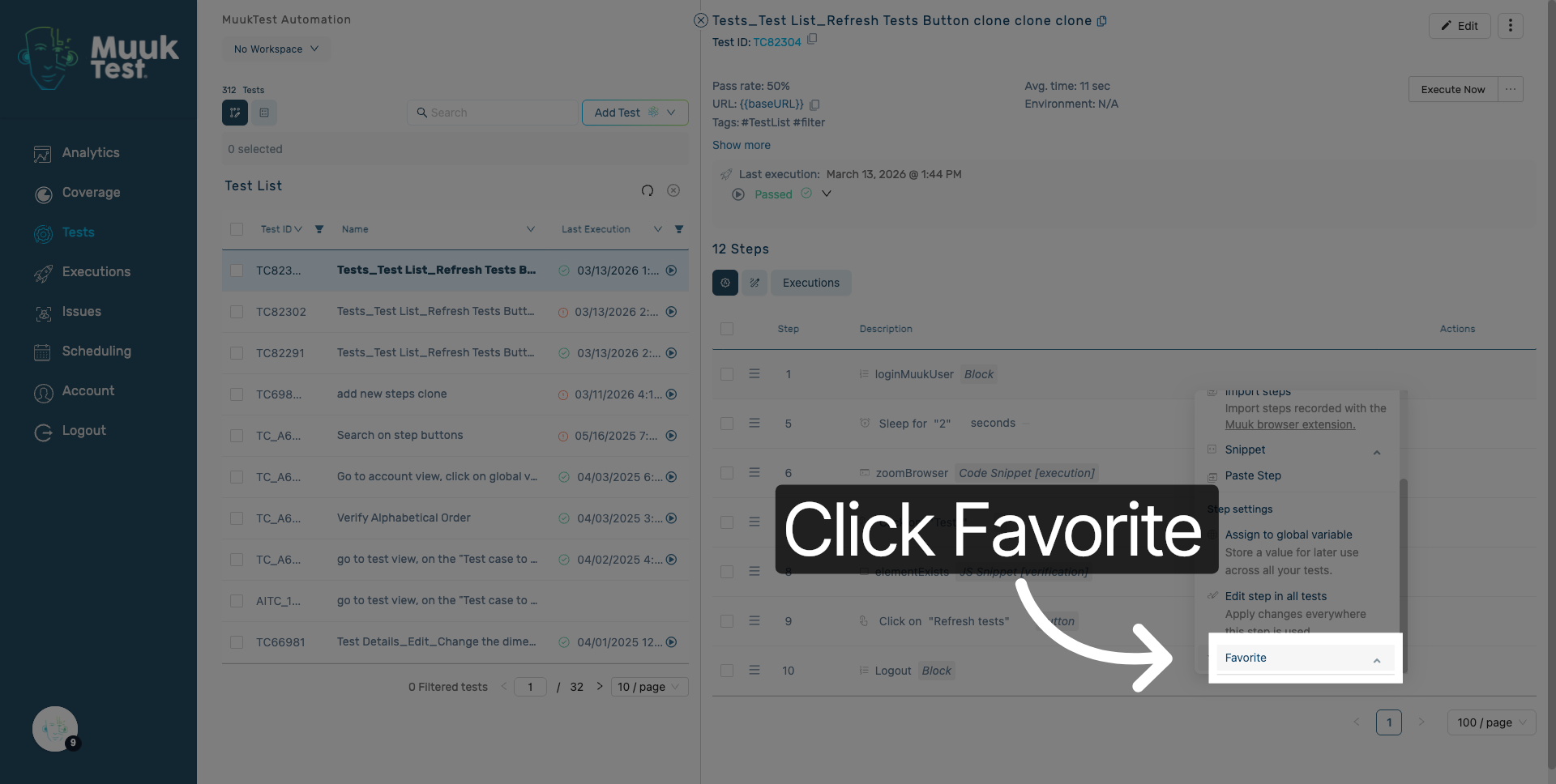
7. Open Favorite Menu
Click the Favorite menu to manage your saved favorites.
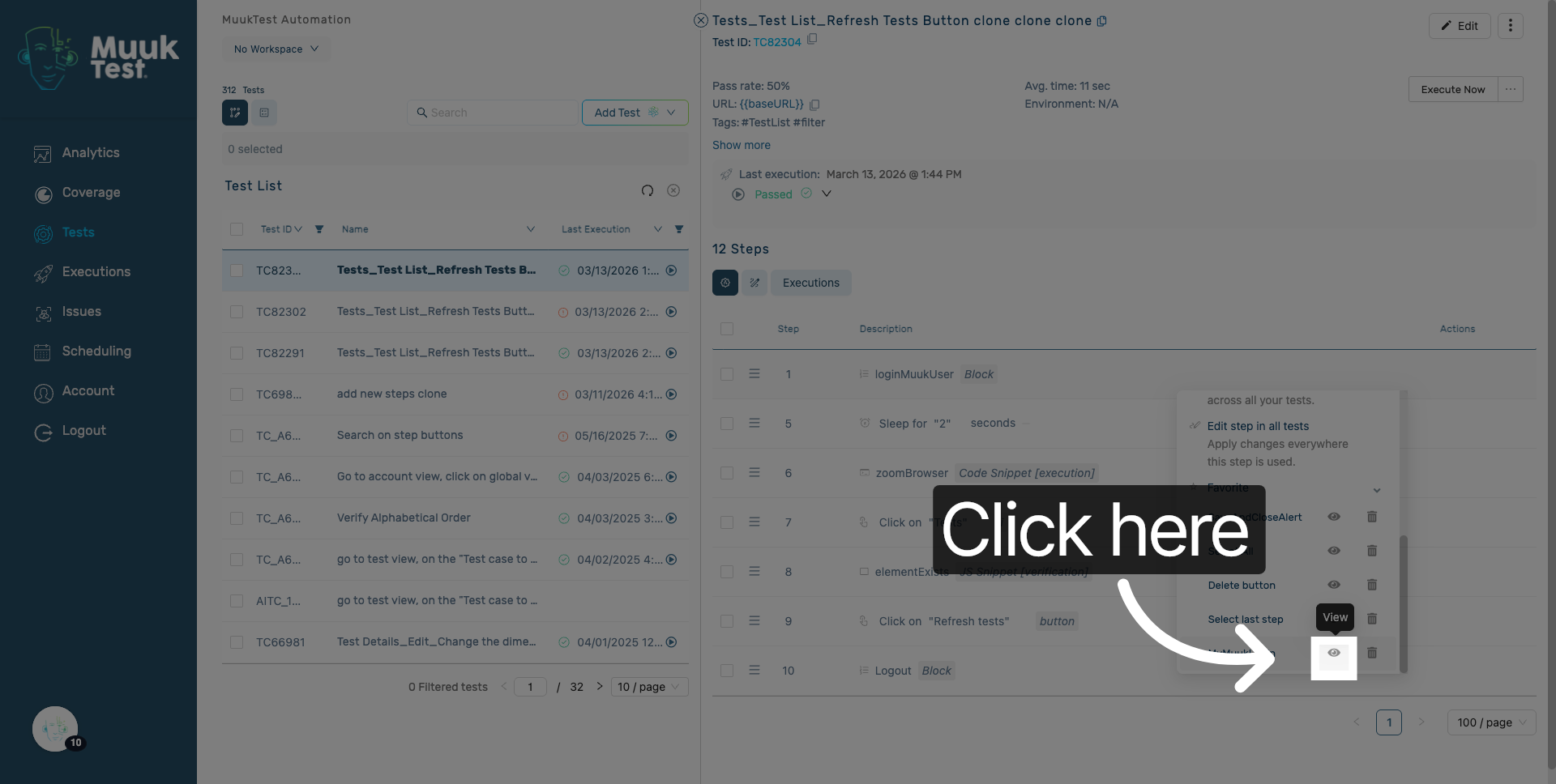
8. Open Favorite
Click here to view the steps saved in the selected favorite.
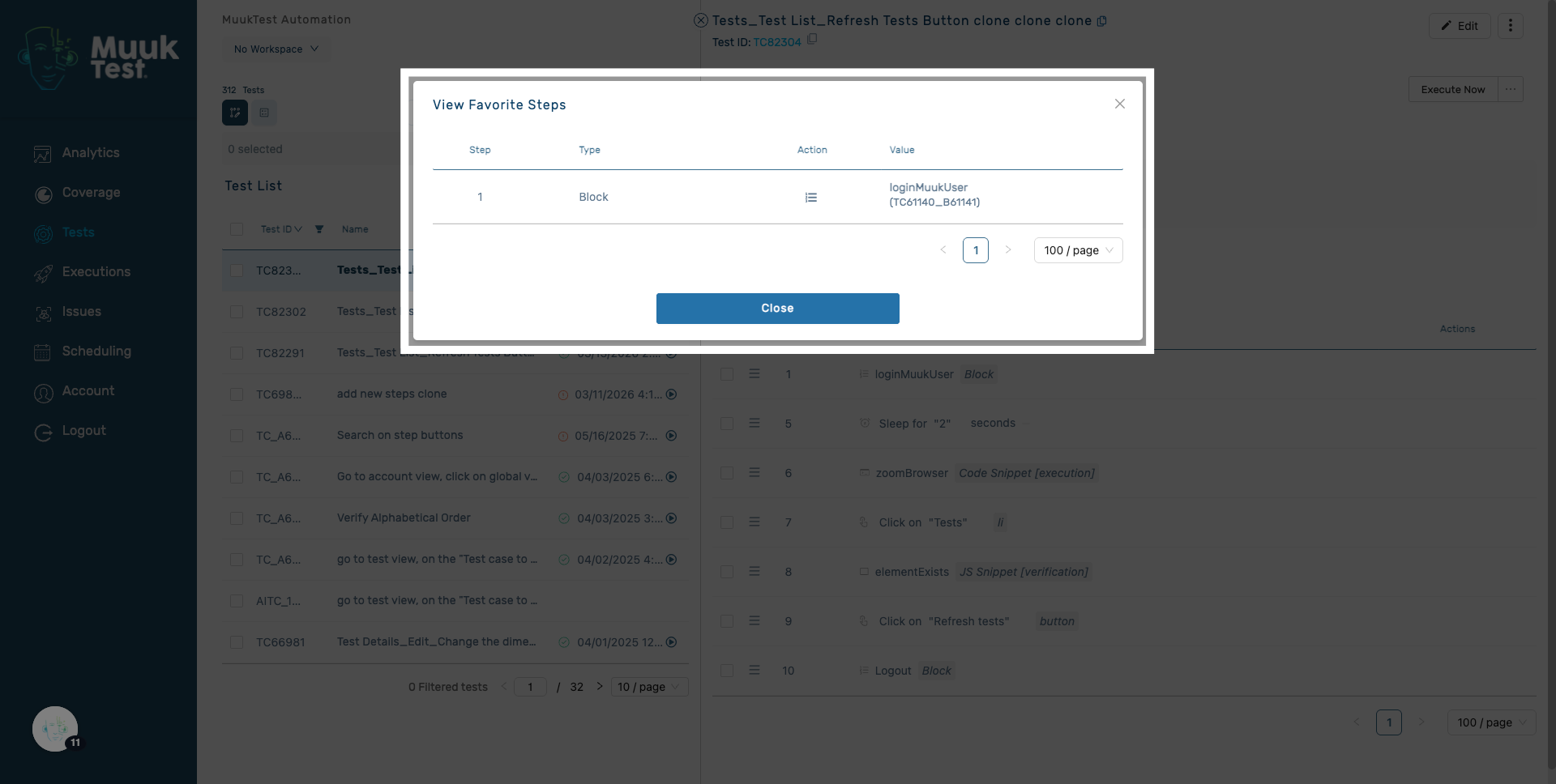
9. Favorite steps
You can view the current steps for your favorite feature.
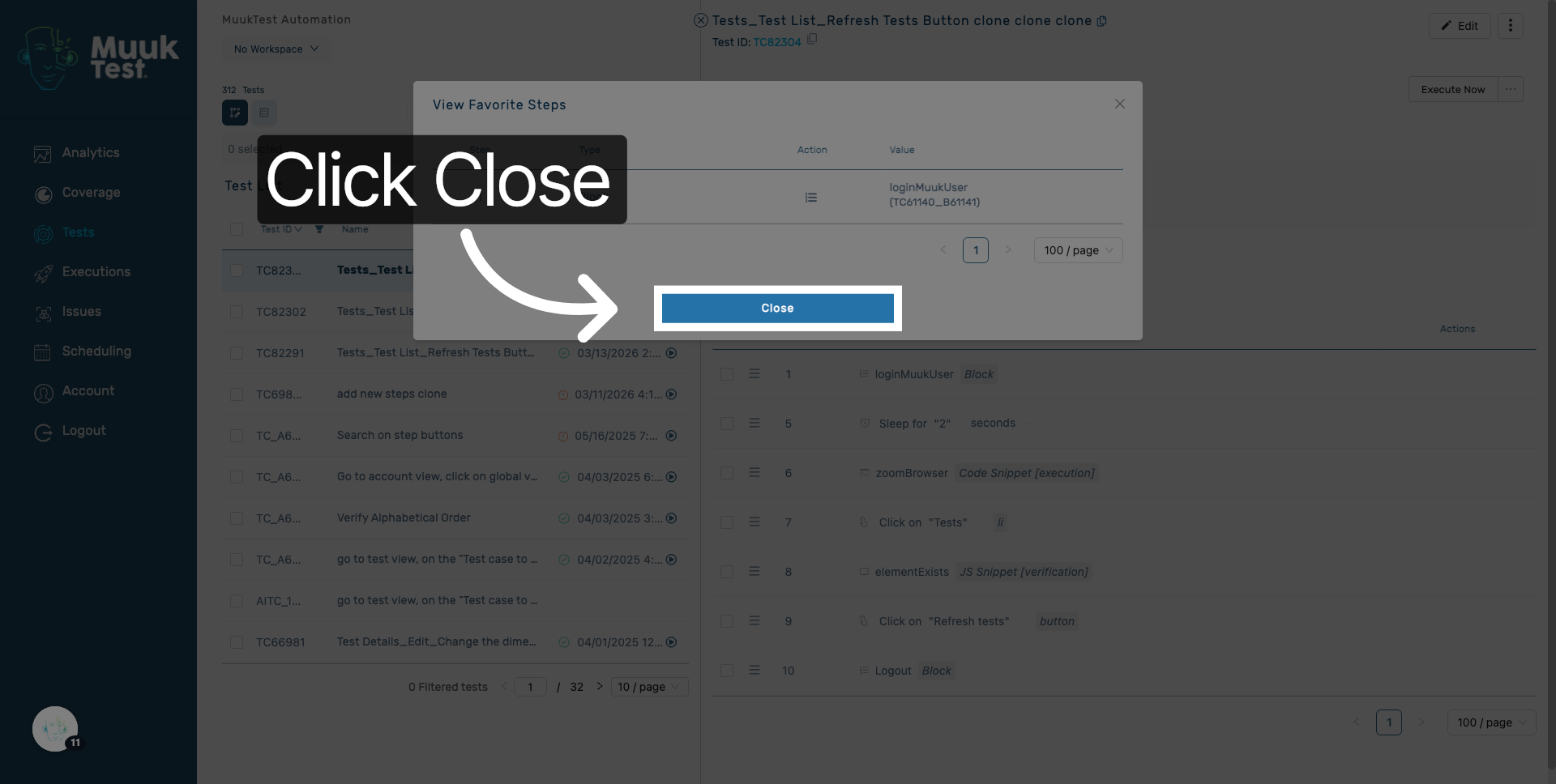
10. Close Current Window
Click Close to exit the current dialog or window.
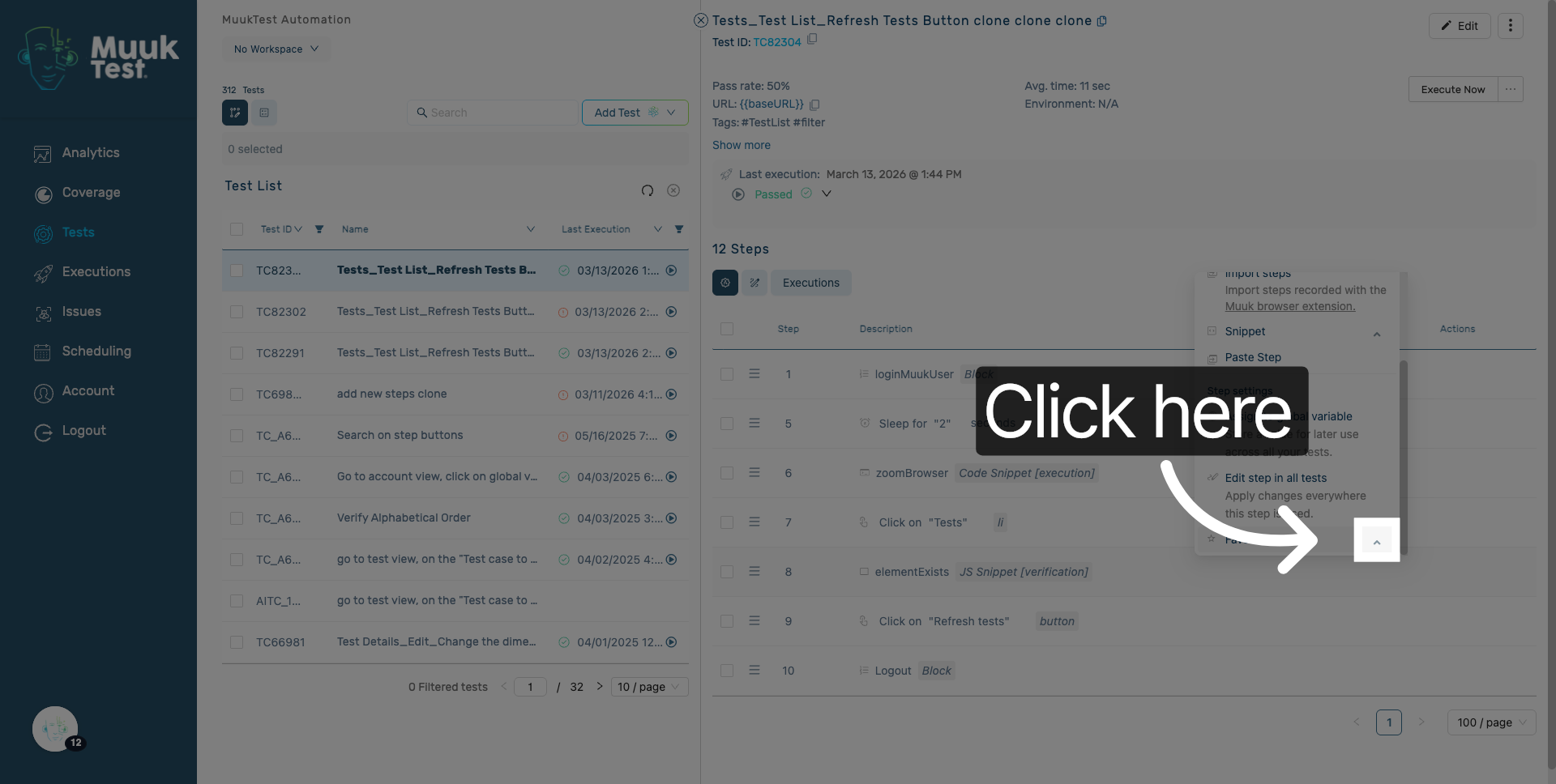
11. Use the favorite
Open the favorites menu.
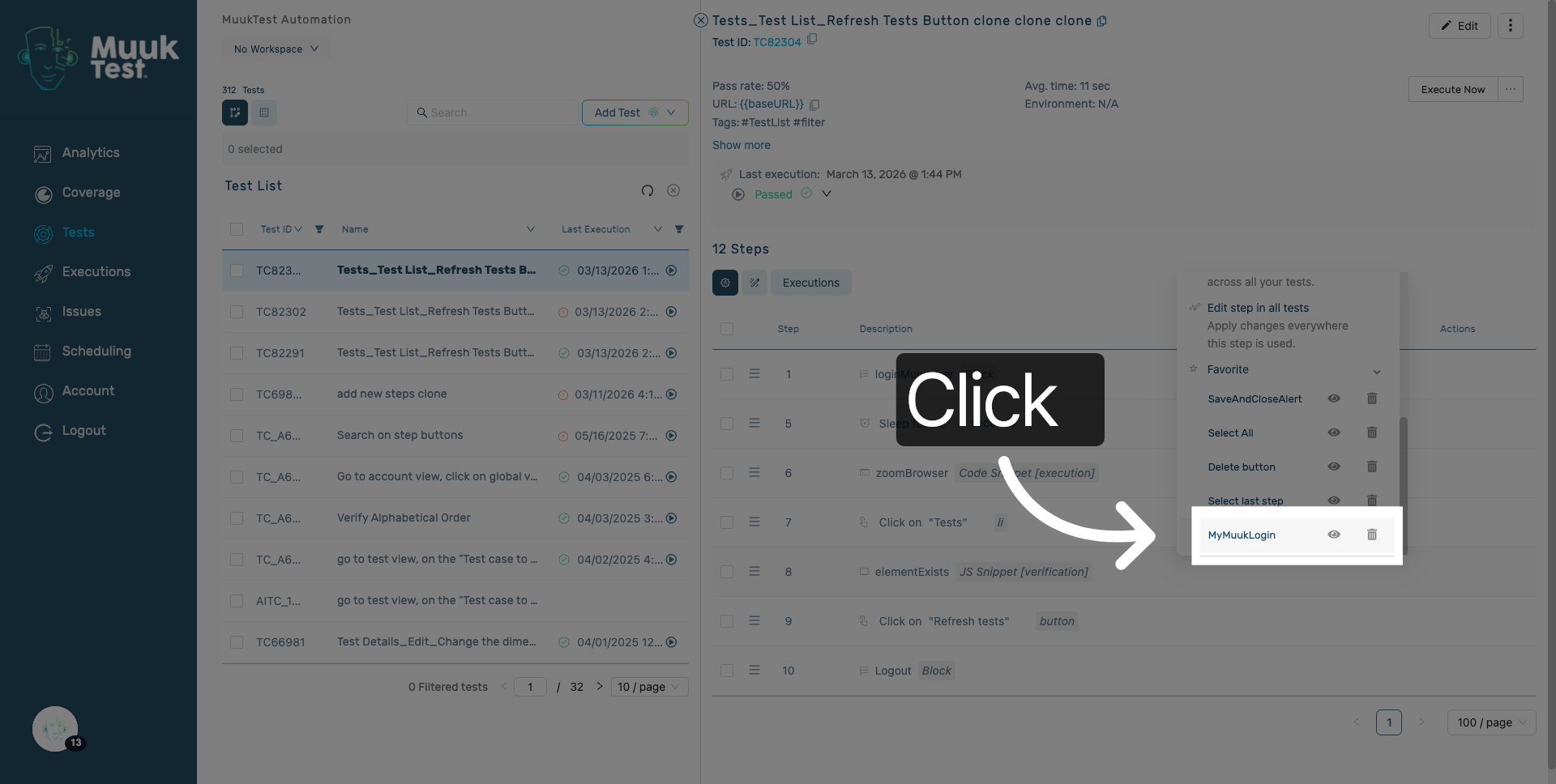
12. Select Existing Favorite
Click "Favorite name" to select the existing favorite and paste its steps into the current sequence.
13. Favorite steps added
You will see your favorite steps integrated into the current steps sequence.
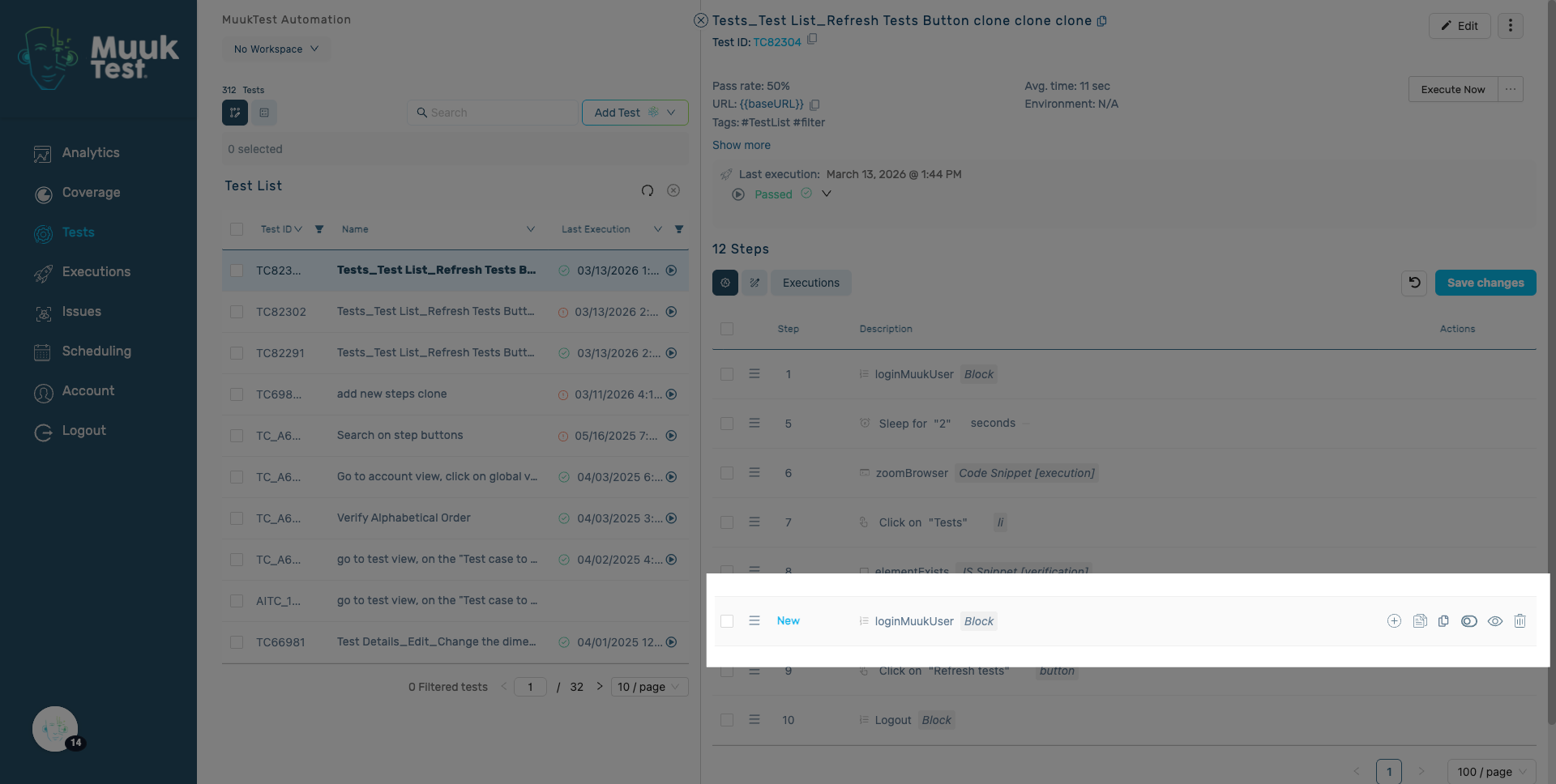
14. Edit Favorite
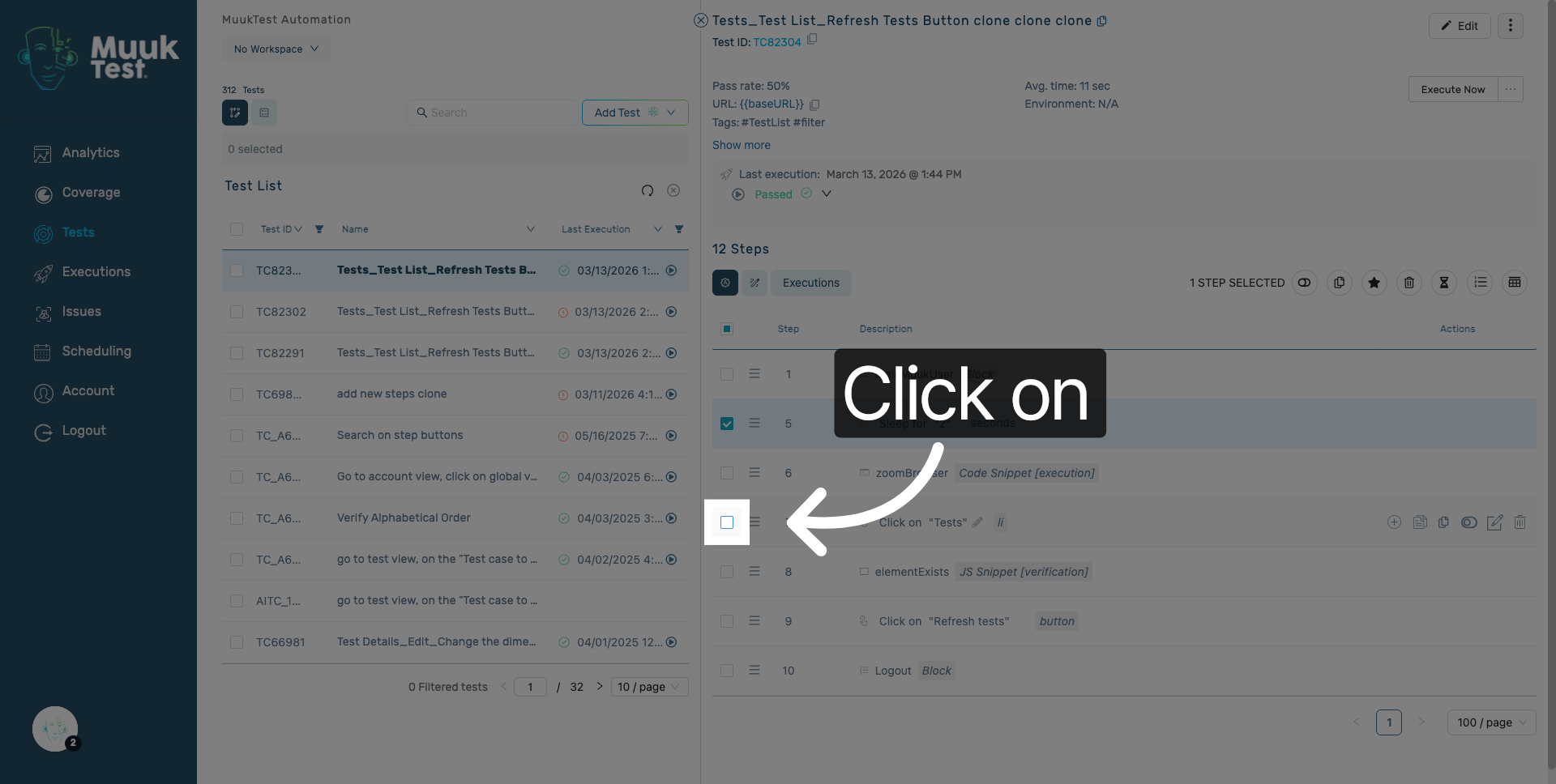
Select the steps you want to add to the favorite.
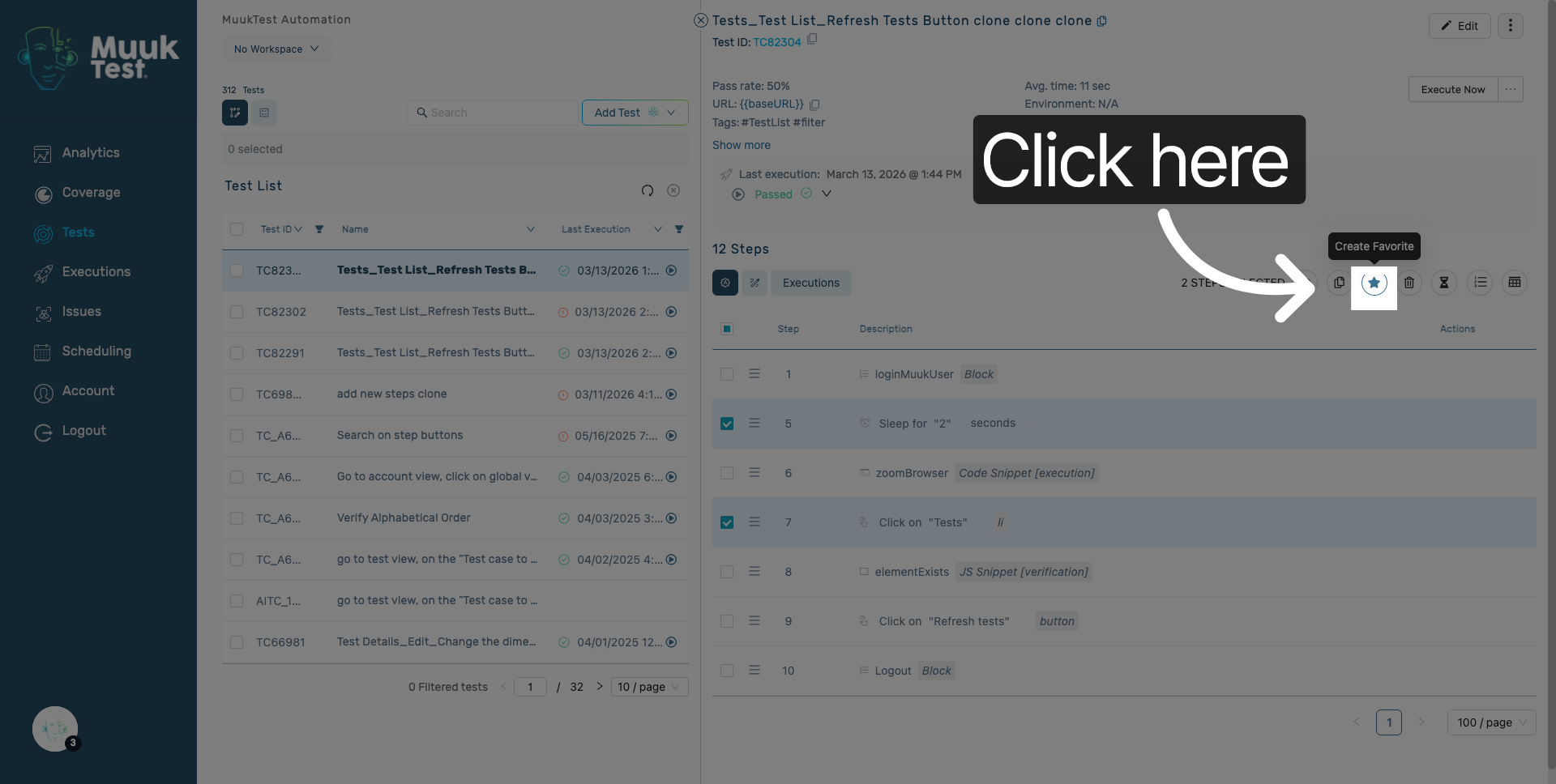
15. Open Favorites Options
Click here to open the favorites form.
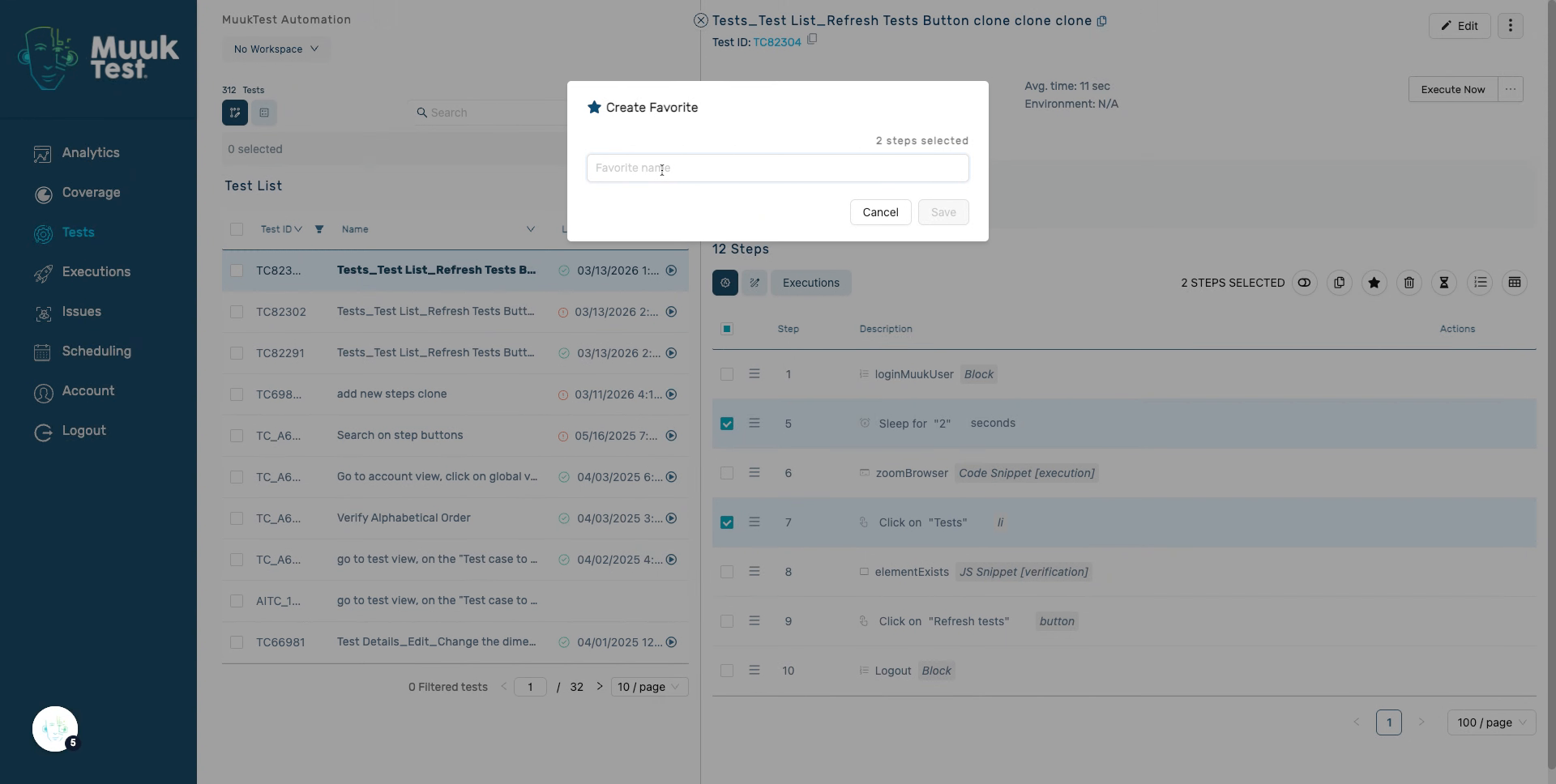
16. Enter Favorite Name
Enter your favorite name in the "Favorite name" field to edit it.
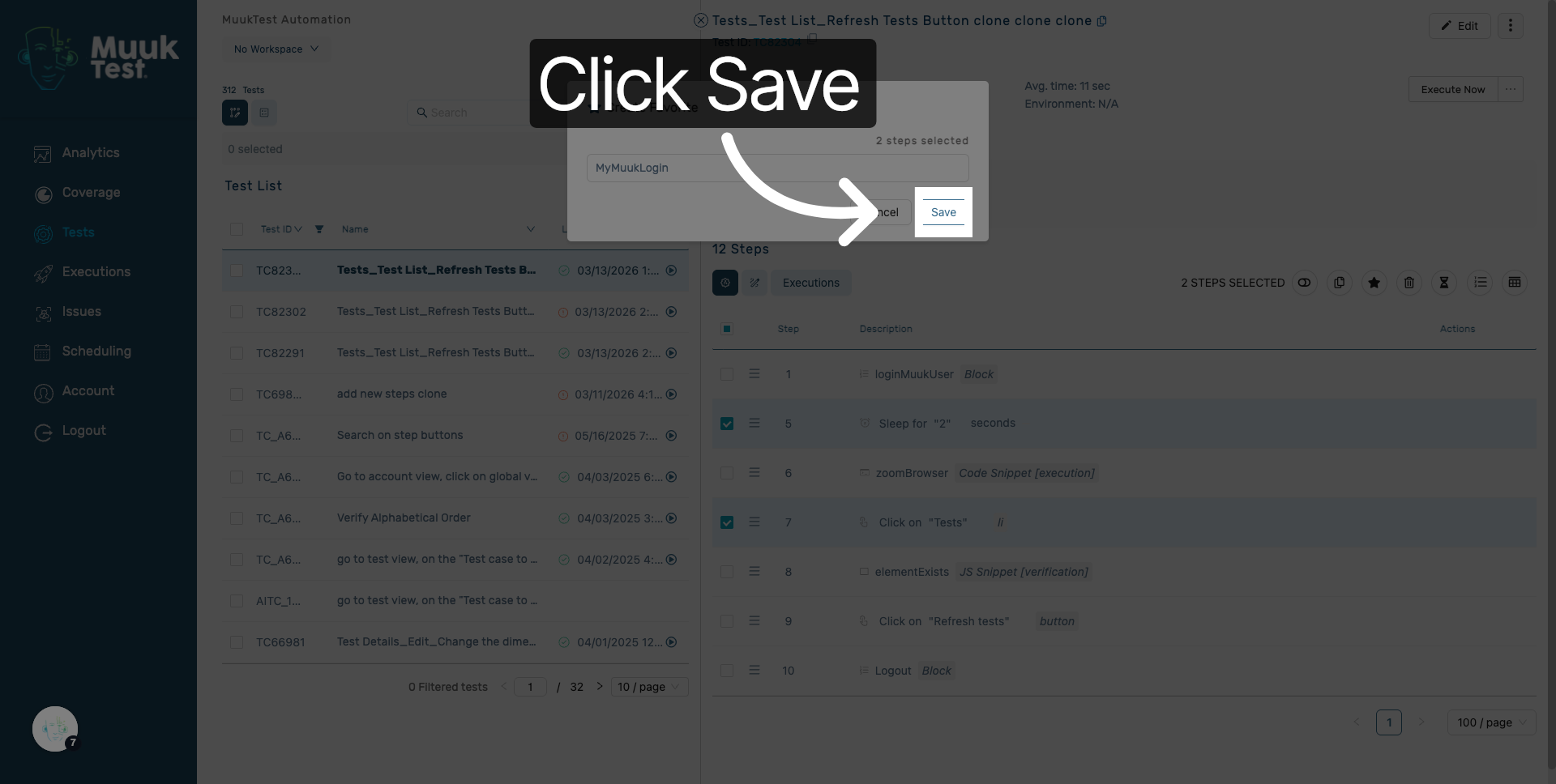
17. Save Favorite Configuration
Click "Save" to store your favorite steps configuration.
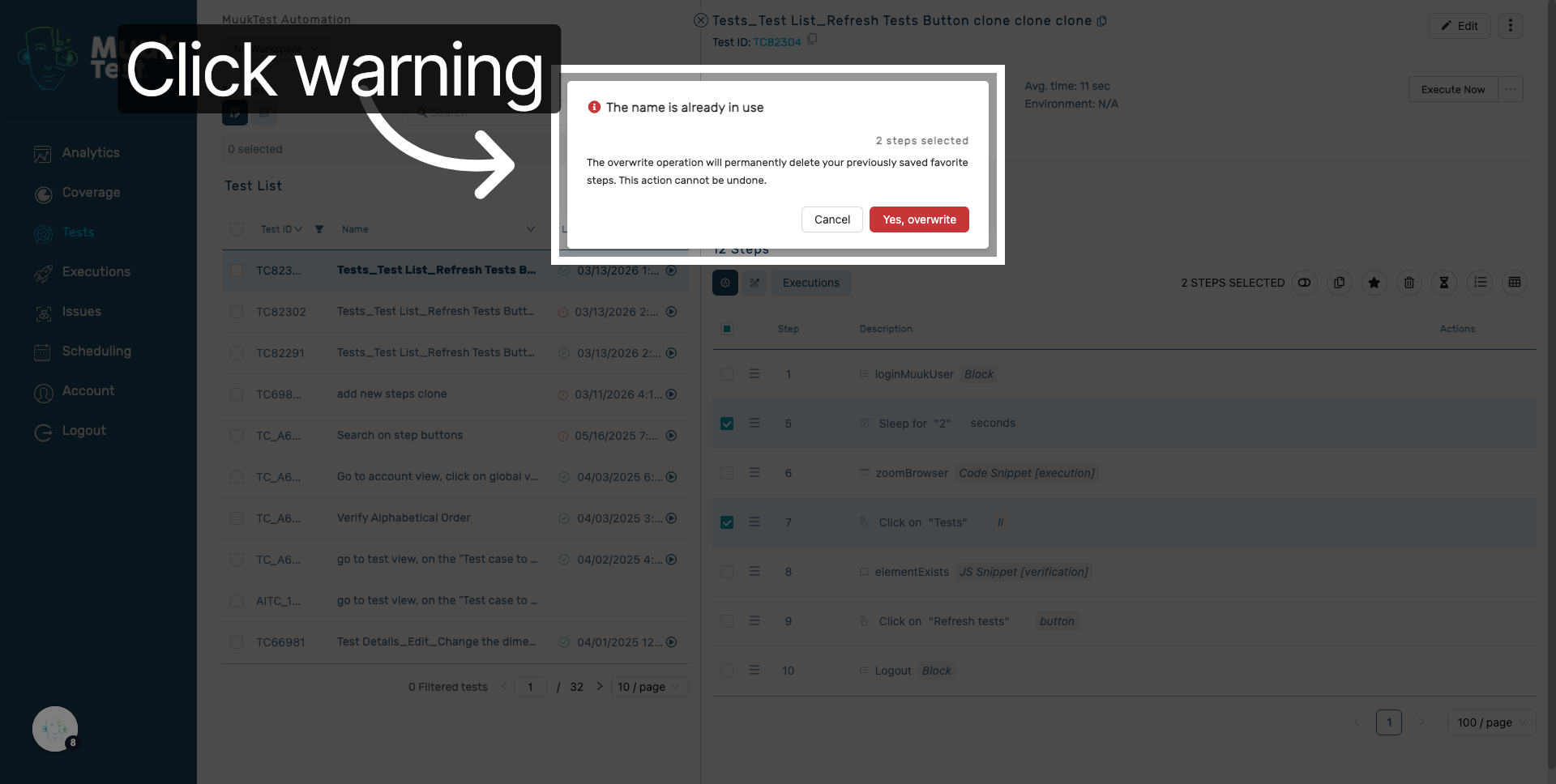
18. Overwrite favorite
A warning will appear: "The name is already in use." The overwrite operation will permanently delete your previously saved favorite steps. This action cannot be undone.
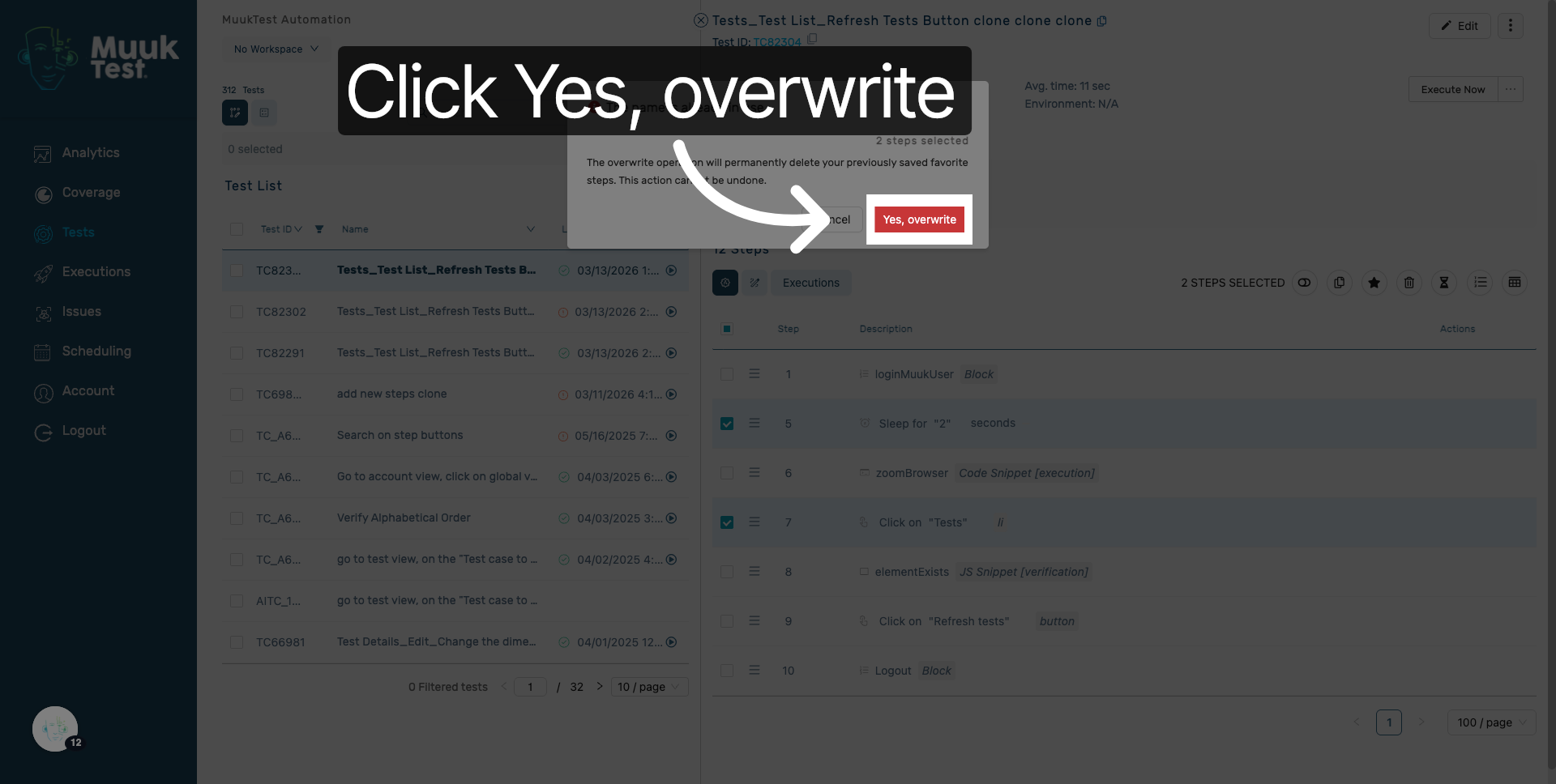
19. Confirm Overwrite Action
Click "Yes, overwrite" to permanently overwrite the existing favorite steps.
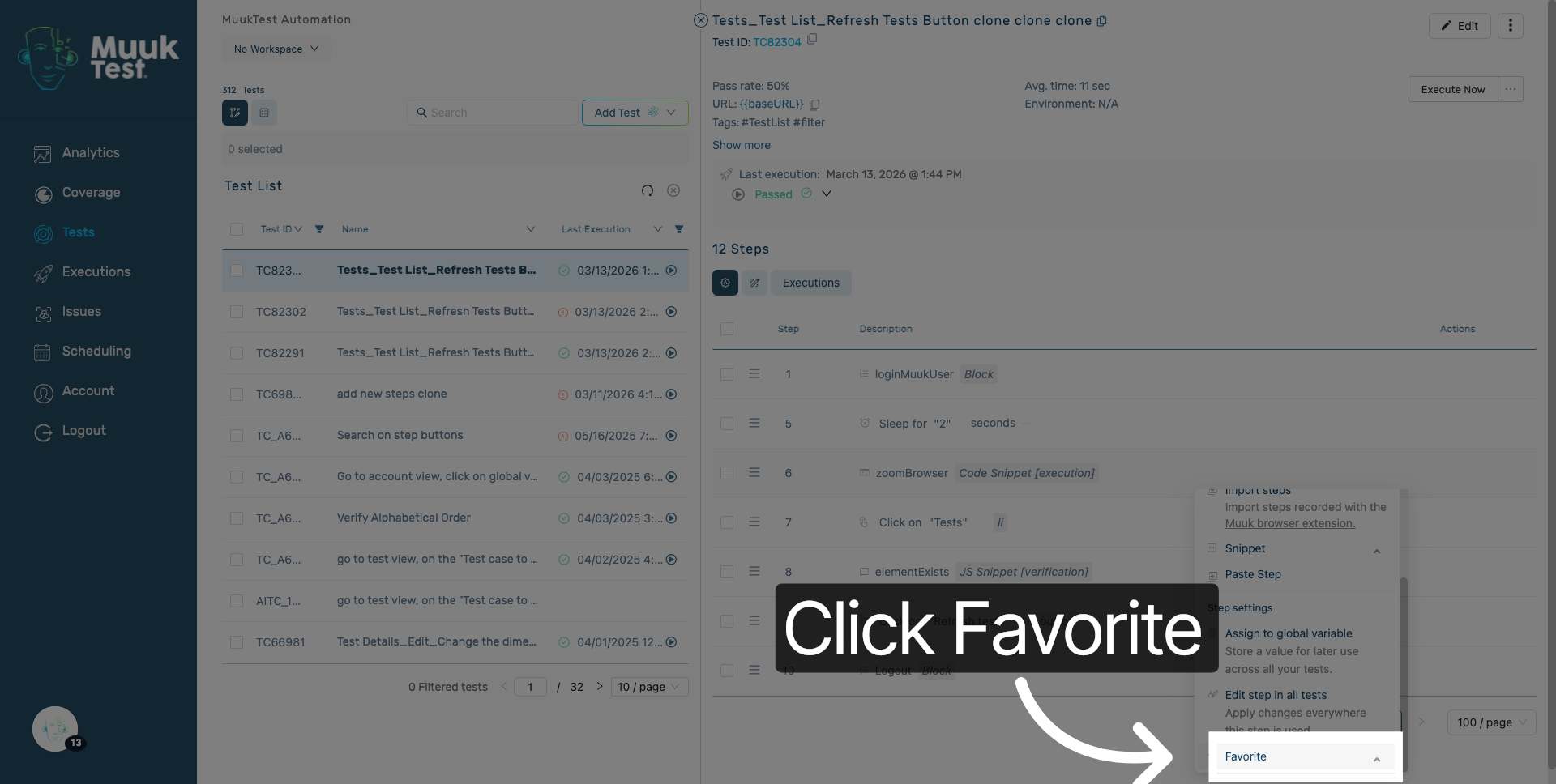
20. Reopen Favorites Menu
Click "Favorite" to reopen the favorites menu after saving your changes.
21. Open favorite
Click here to view the favorite steps again.
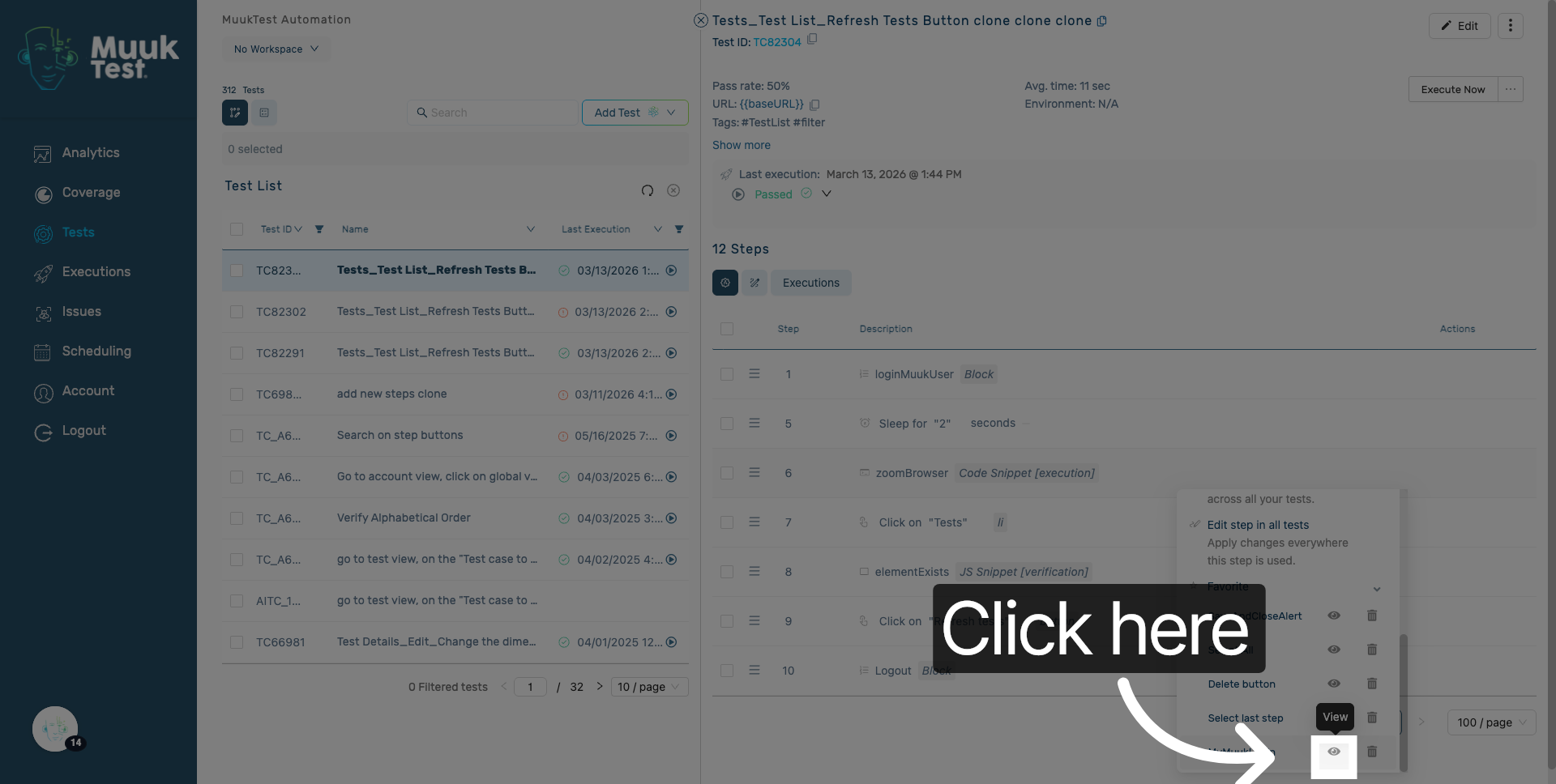
22. Favorite steps
You will see the updated favorite steps.
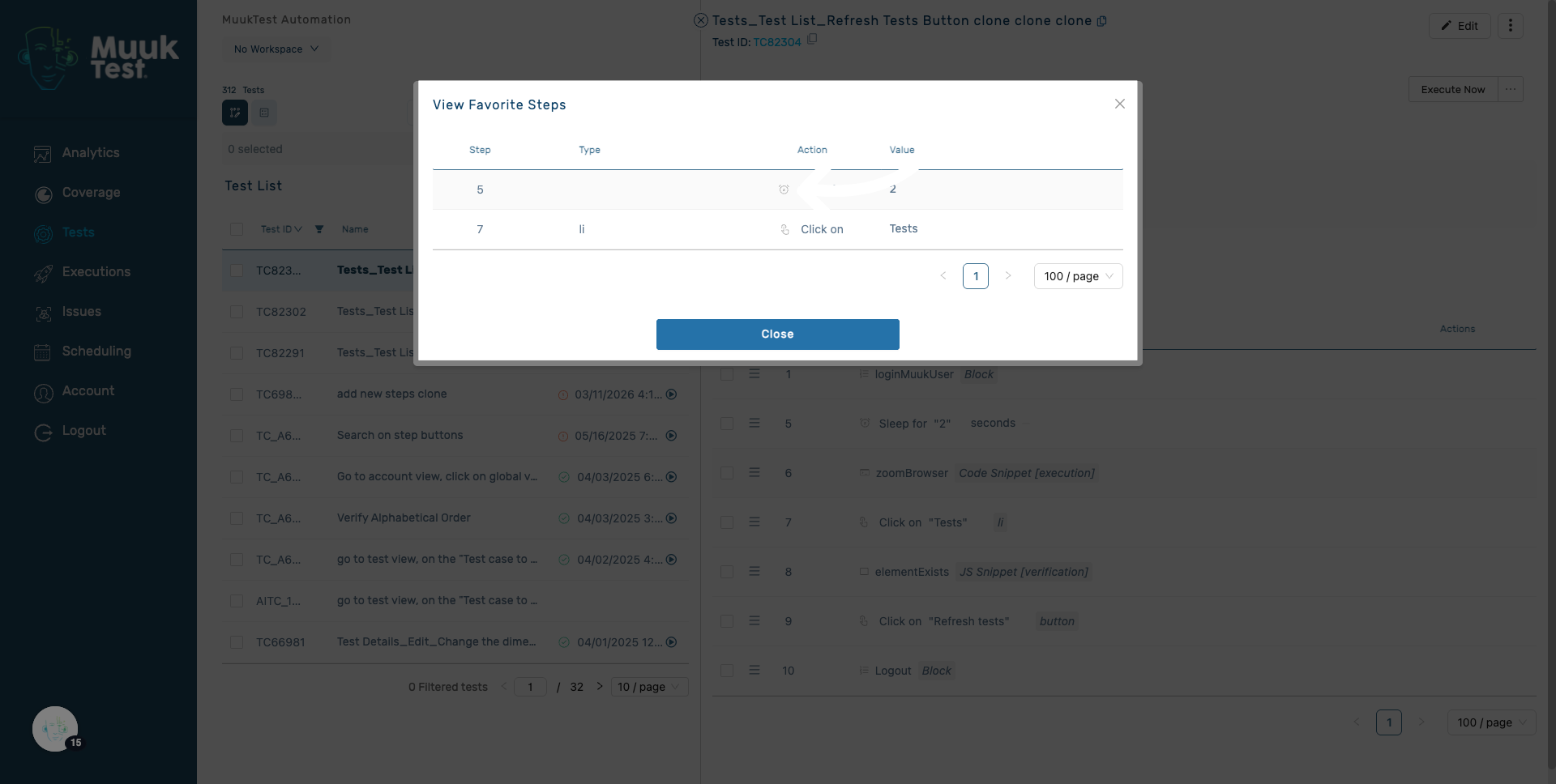
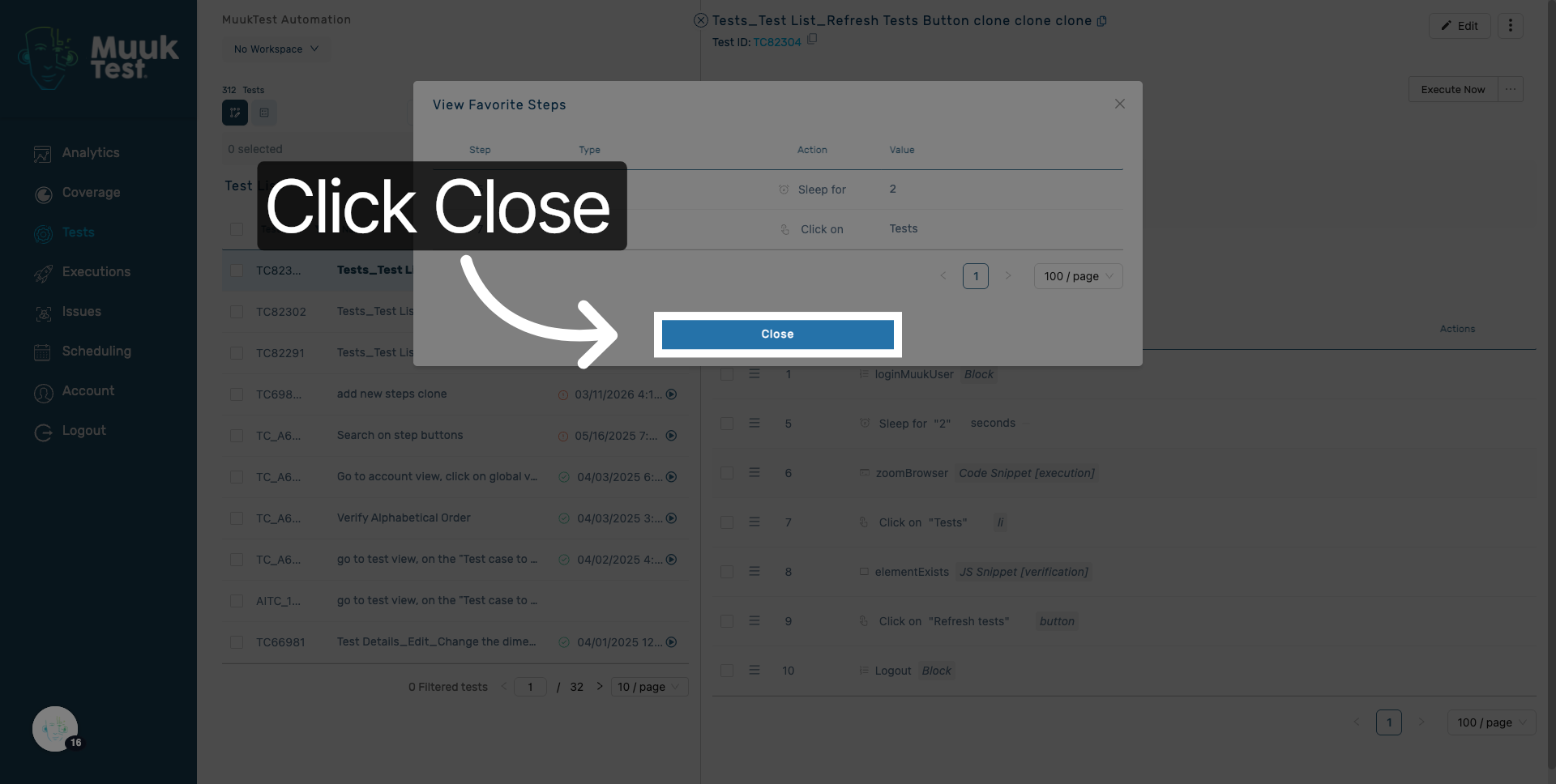
23. Close Favorites Menu
Click "Close" to exit the favorites menu.
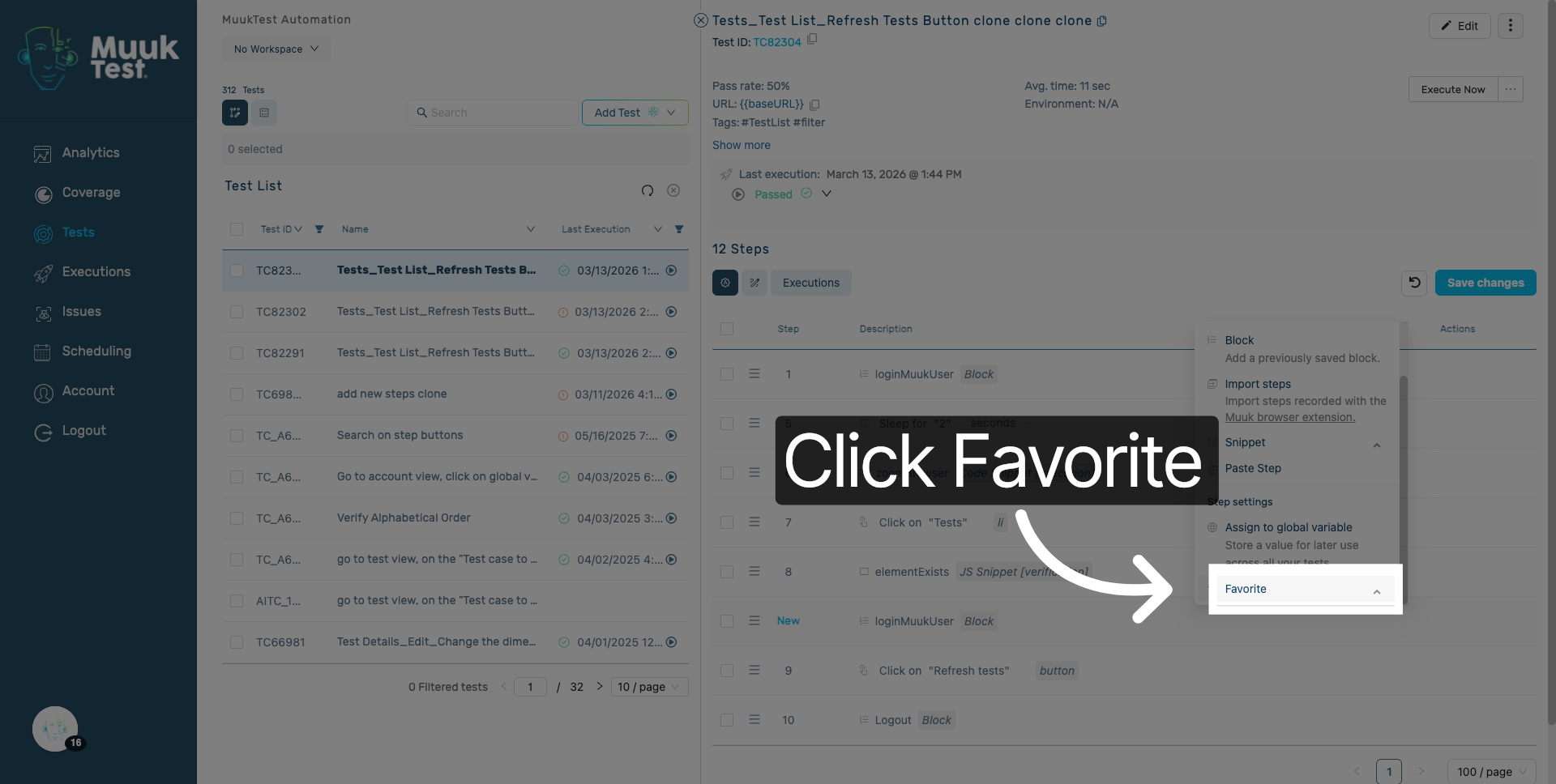
24. Open Favorite Menu Again
Click Favorite to manage or modify your saved favorites.
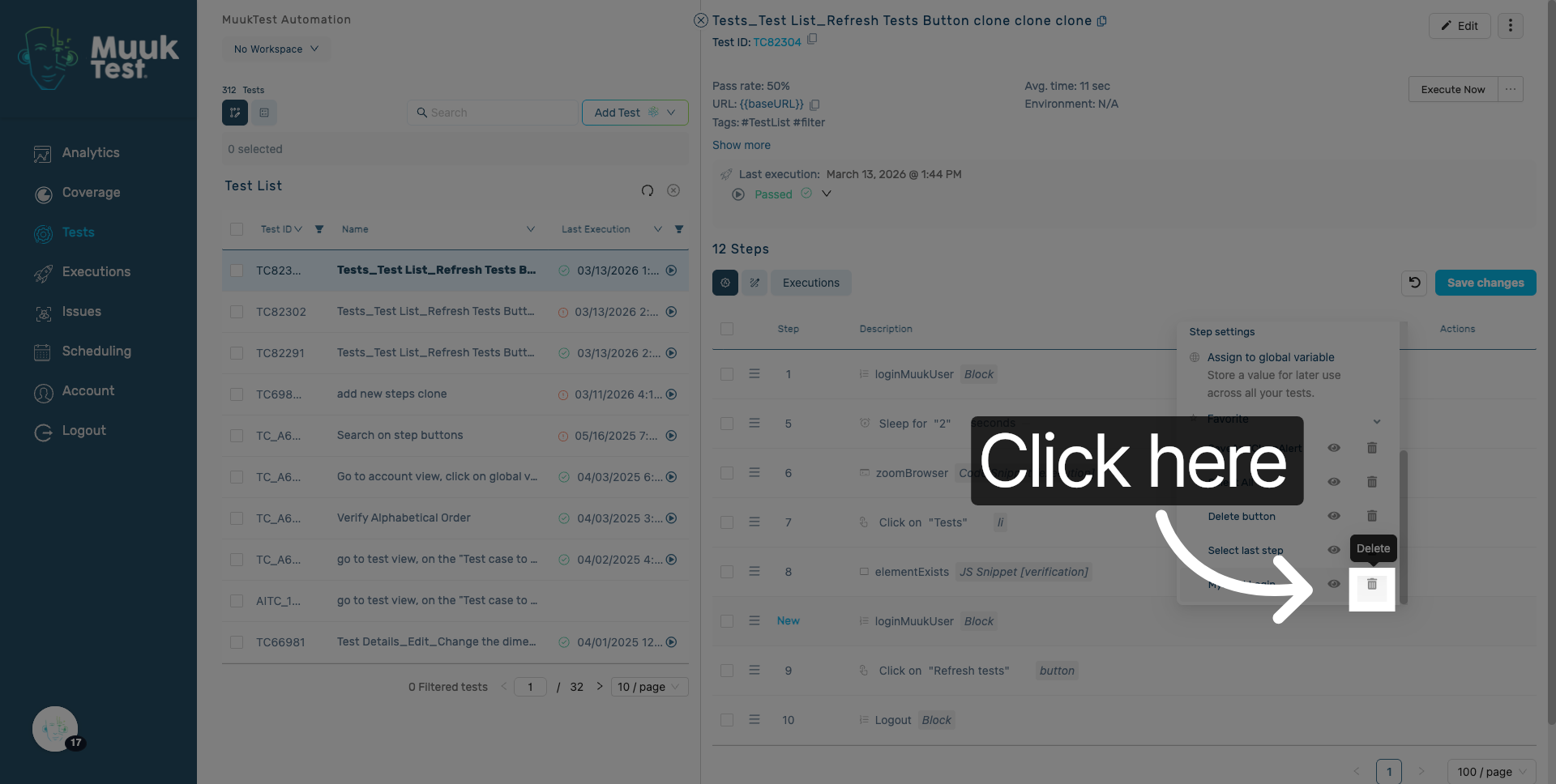
25. Delete favorite
Click here to delete the favorite.
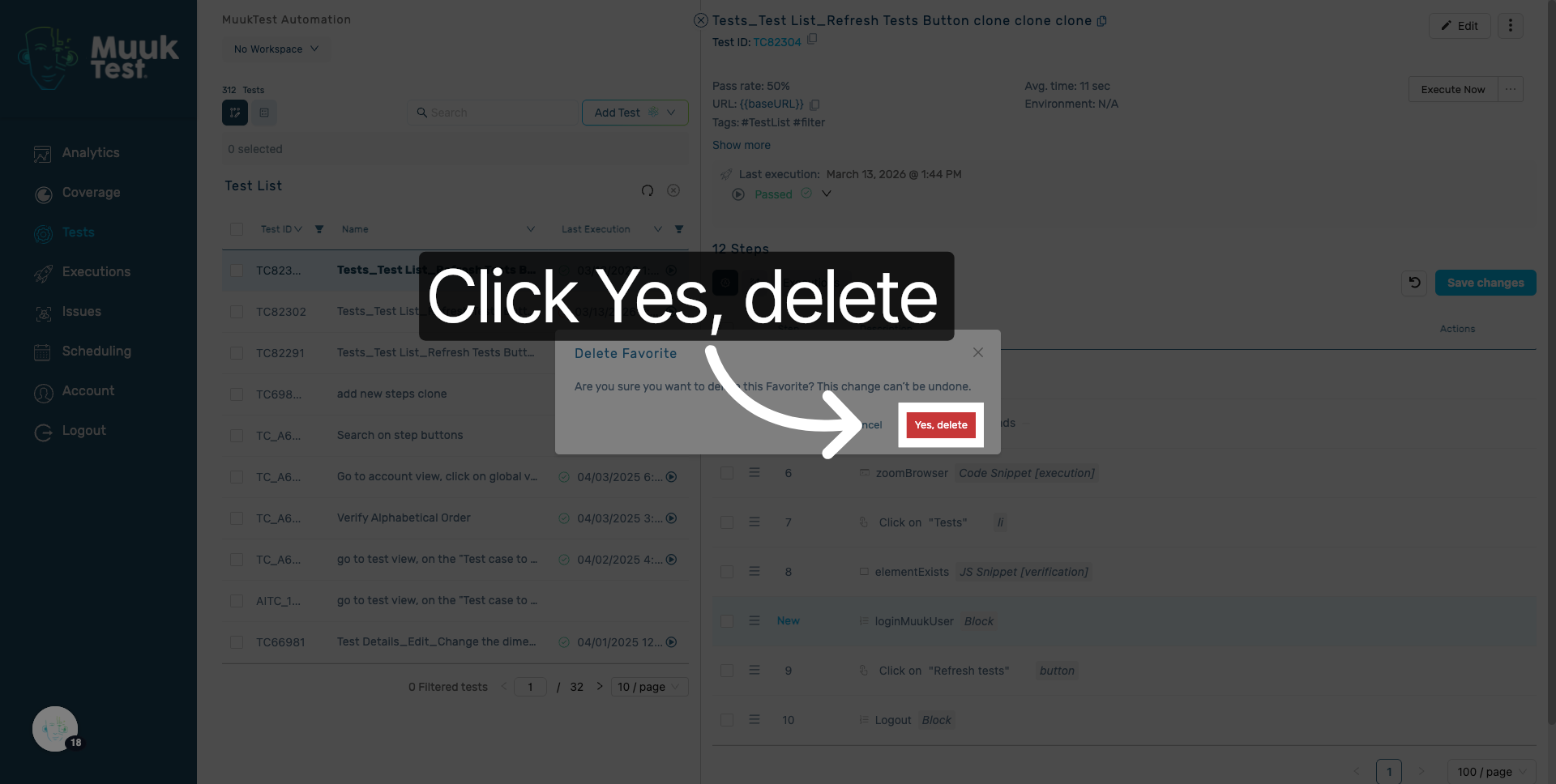
26. Confirm Favorite Deletion
Click Yes, delete to confirm and remove the selected favorite.
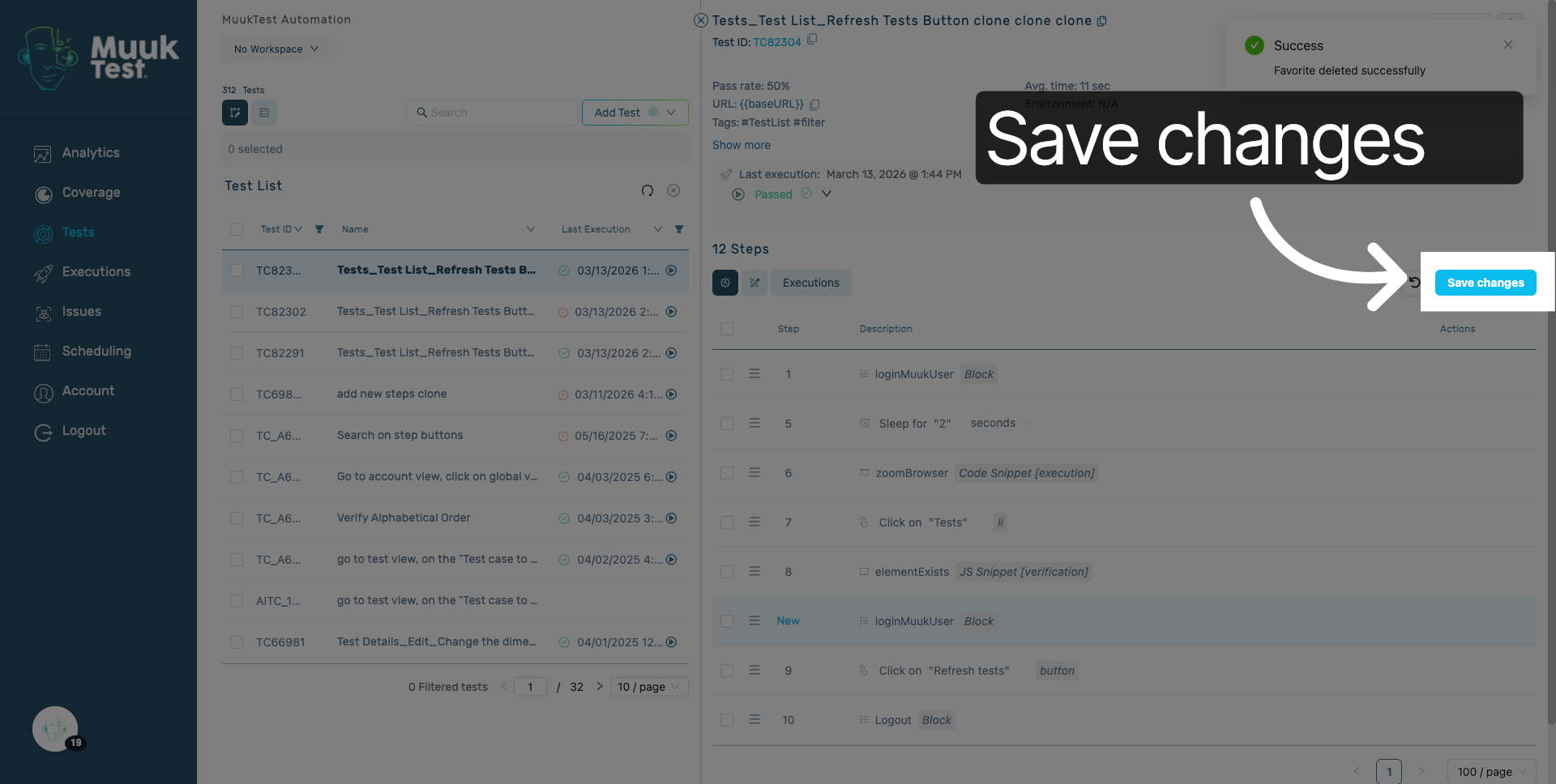
27. Save Changes
Click Save changes to finalize and store all modifications made.
You have successfully managed favorites in MuukTest by creating, editing, and deleting favorites. Continue exploring MuukTest to optimize your workflow and manage additional settings.
Comments
0 comments
Please sign in to leave a comment.