

This tutorial provides guidance on modifying test steps and saving those changes within the MuukTest application.
Go to portal.muuktest.com:5000
1. Introduction
You will learn how to save actions to customize your workflow effectively.
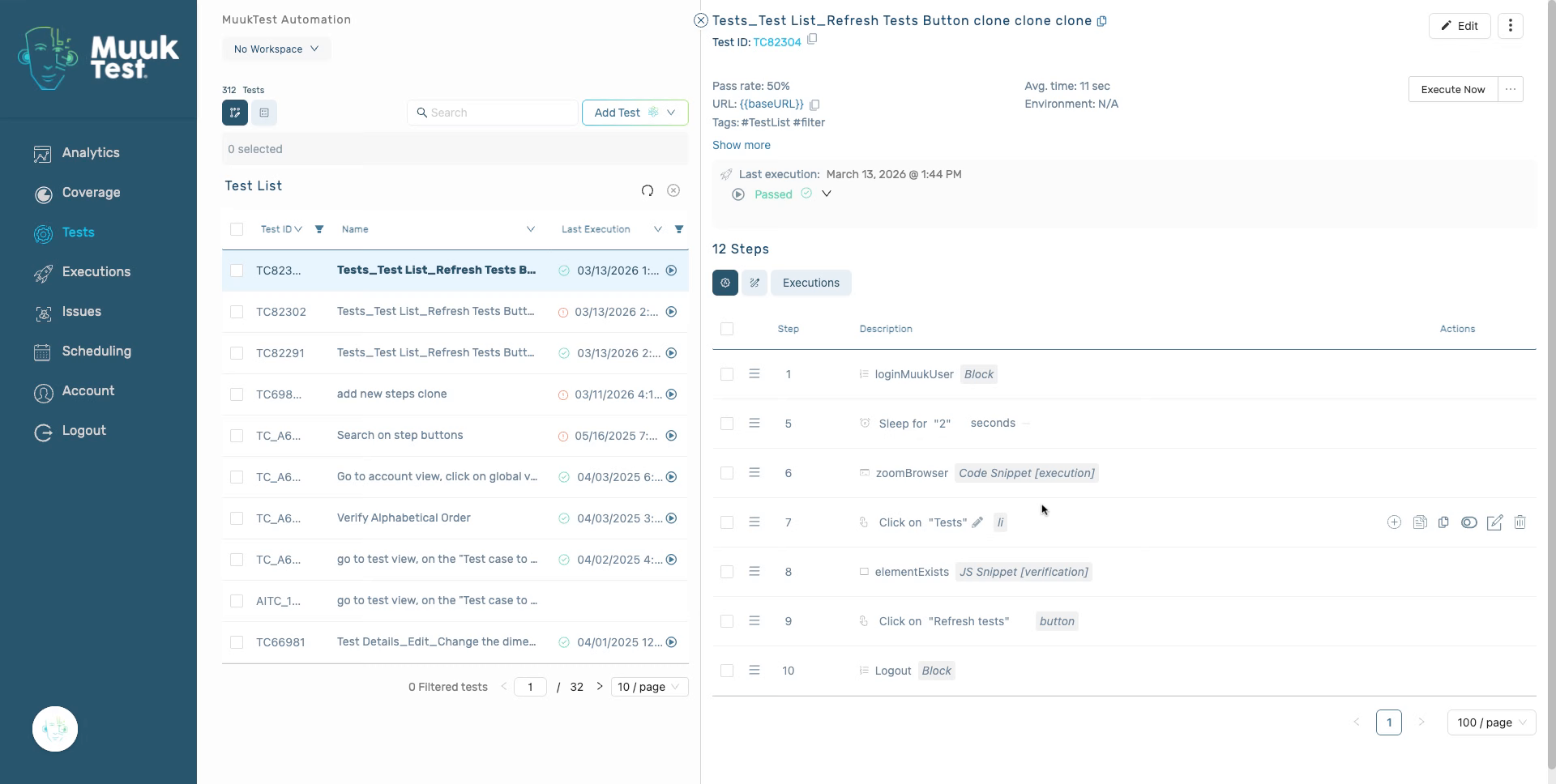
2. Make your changes
Any modification you make to steps (adding, editing, deleting, reordering) is not permanent until you click “Save changes.”
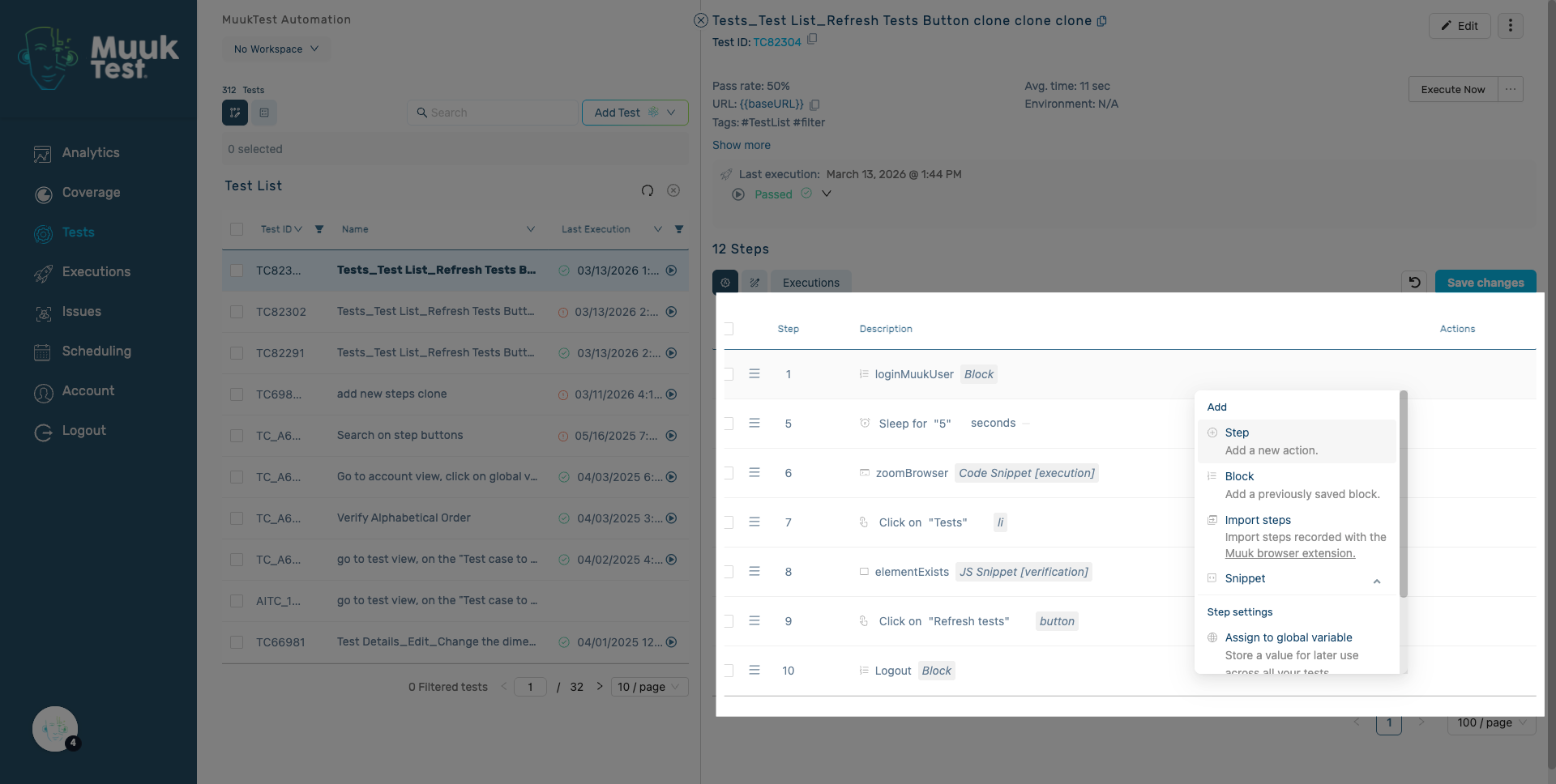
3. Edit step
Editing a step (for example, changing "Click on 'Tests'" to something else).
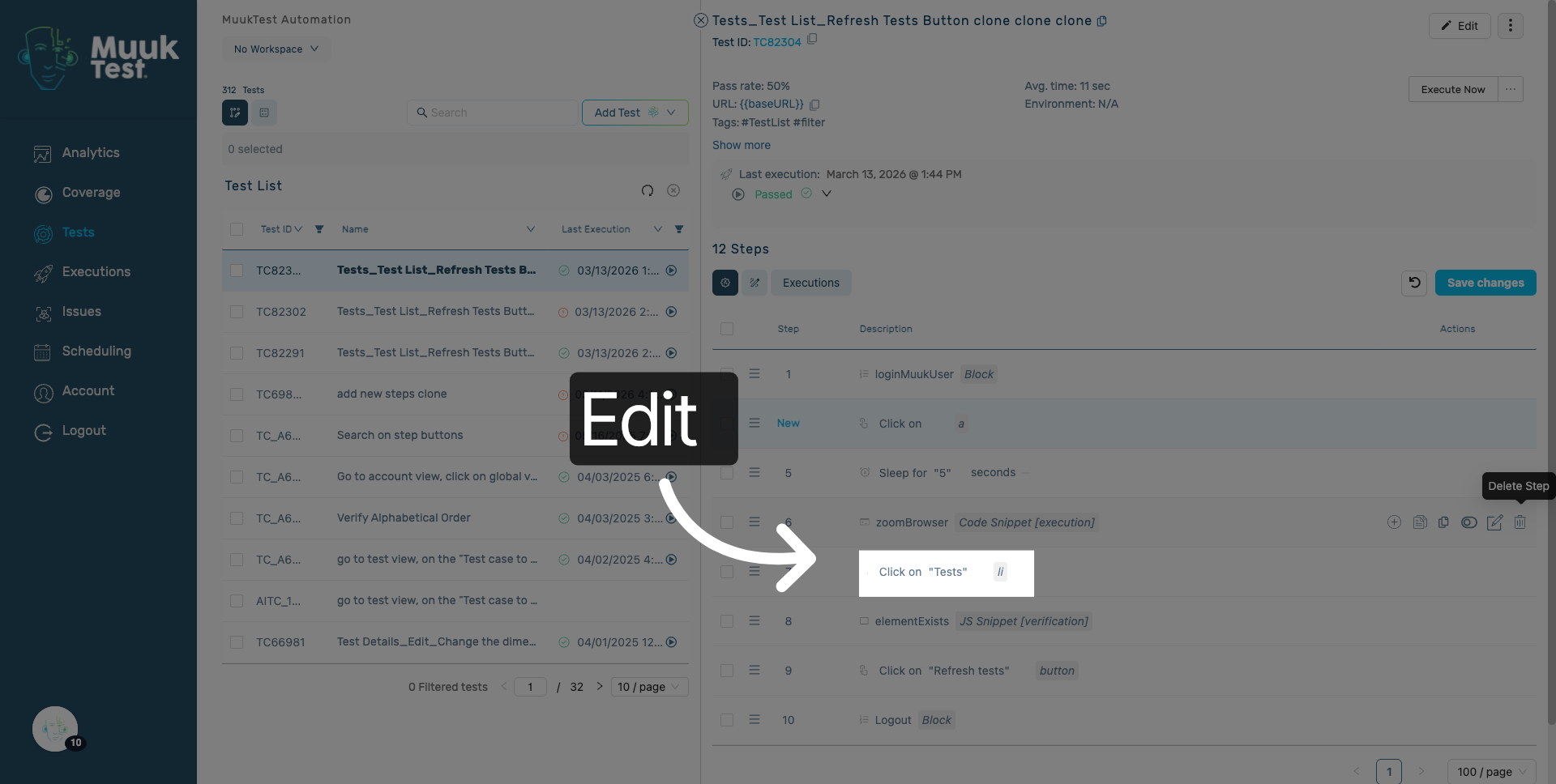
4. Add step
Adding a new step.
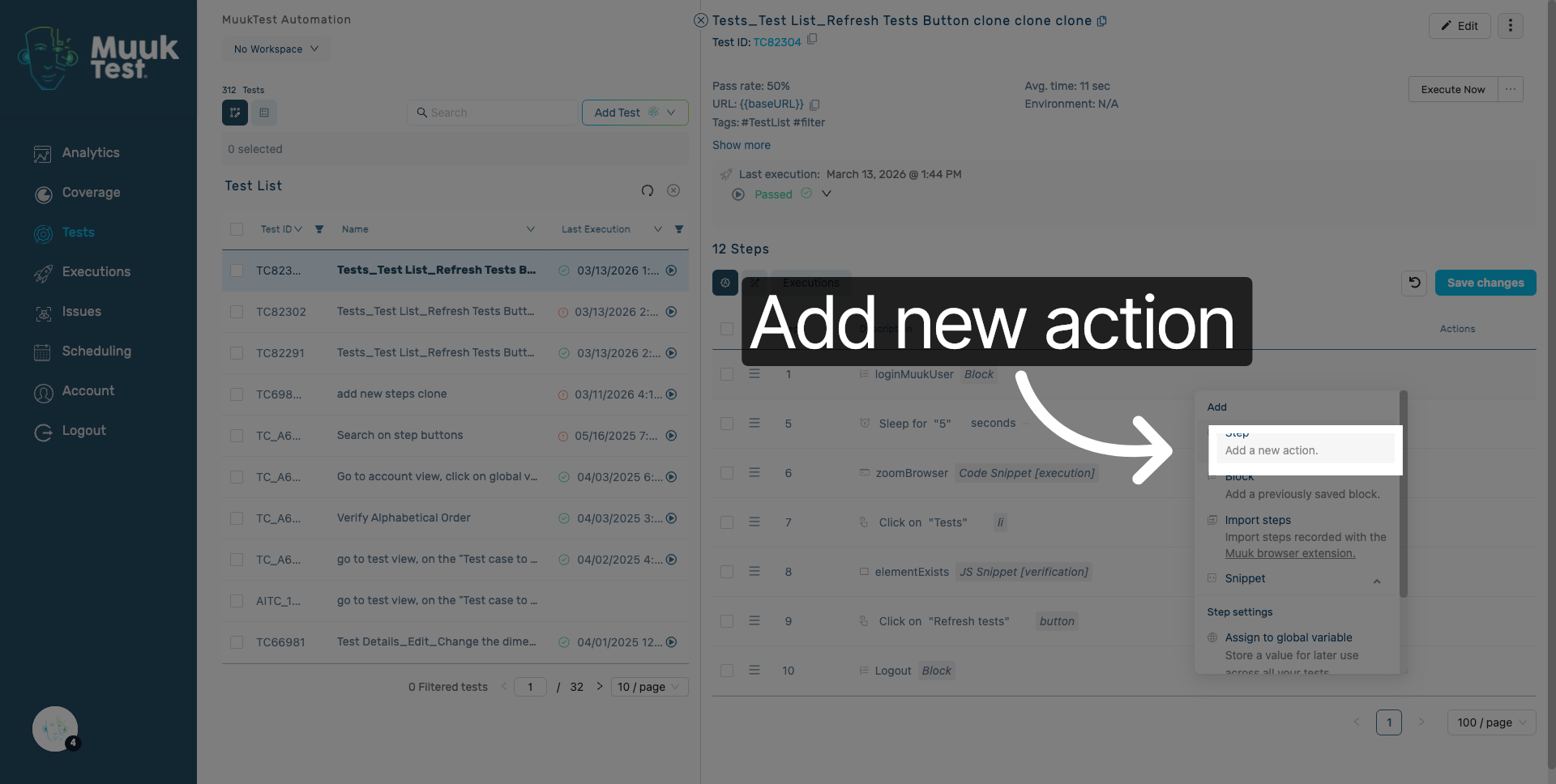
5. Reordering steps
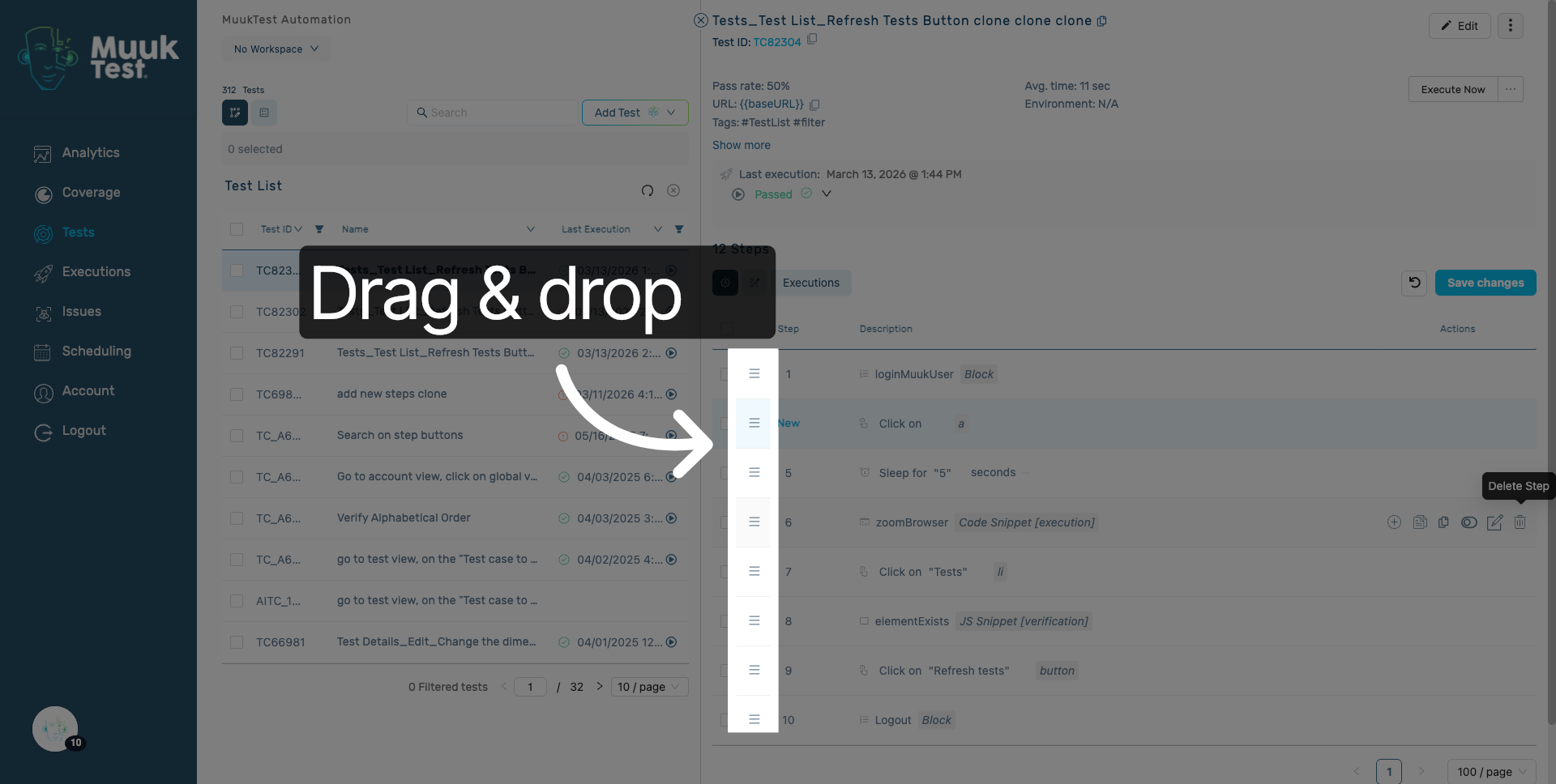
Reordering steps (dragging them).
6. Deleting a step
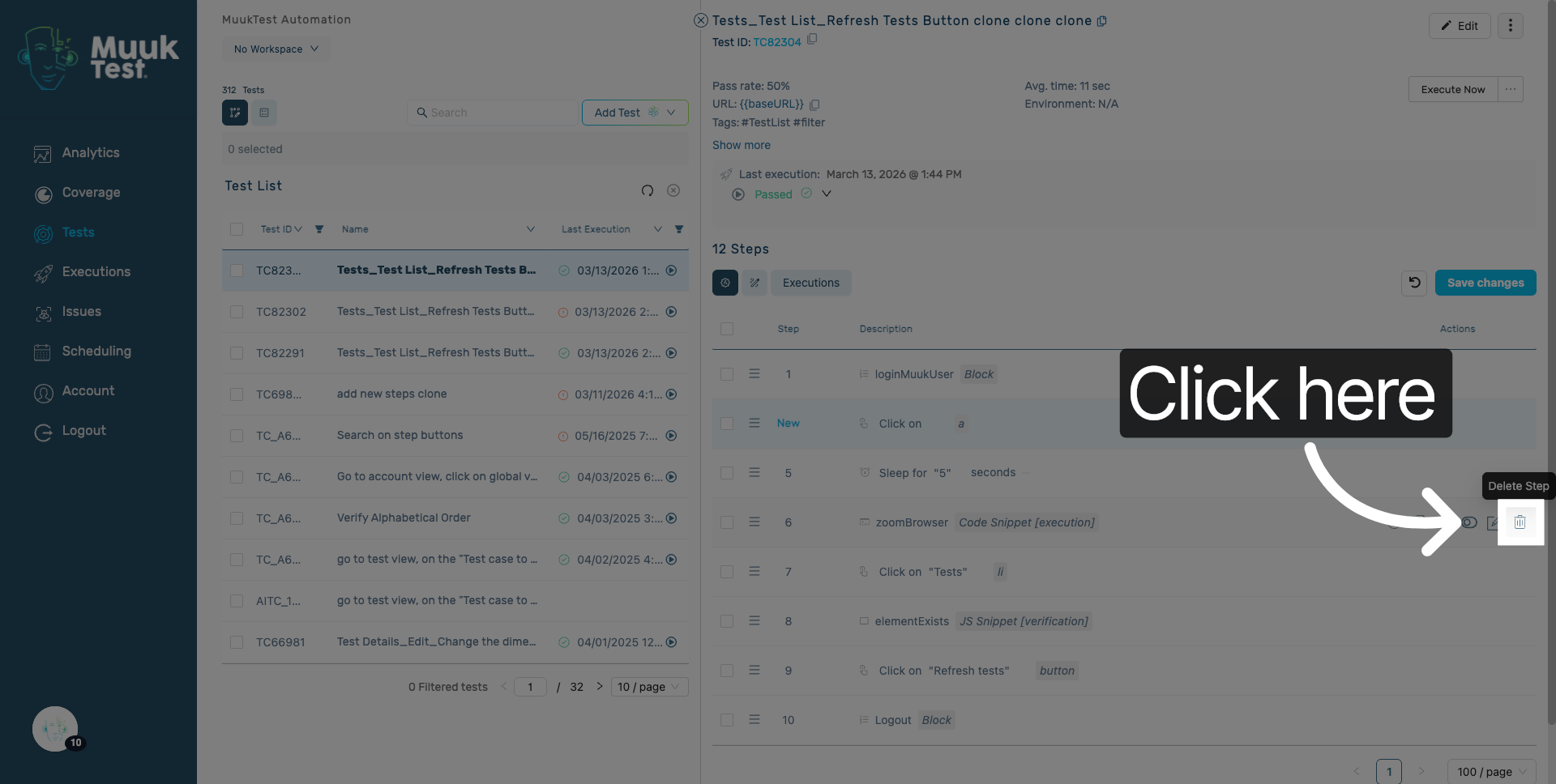
Deleting a step.
7. Save All Changes
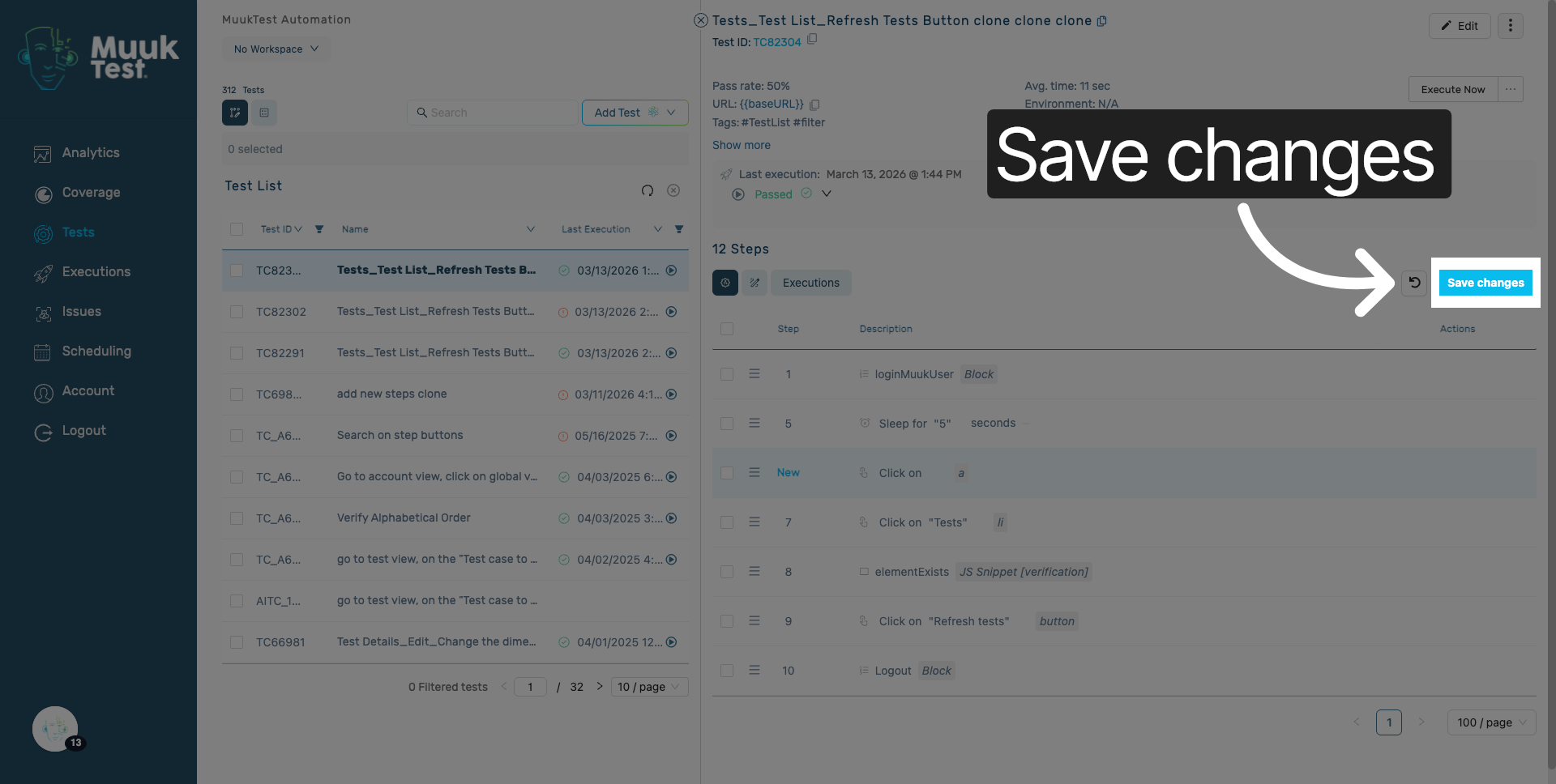
Click "Save changes" to apply and save all modifications made.
You have successfully saved actions within the MuukTest application by adding, selecting, and saving your desired settings. This process enables you to customize your workflow efficiently and prepare for further automation tasks.
Comments
0 comments
Please sign in to leave a comment.